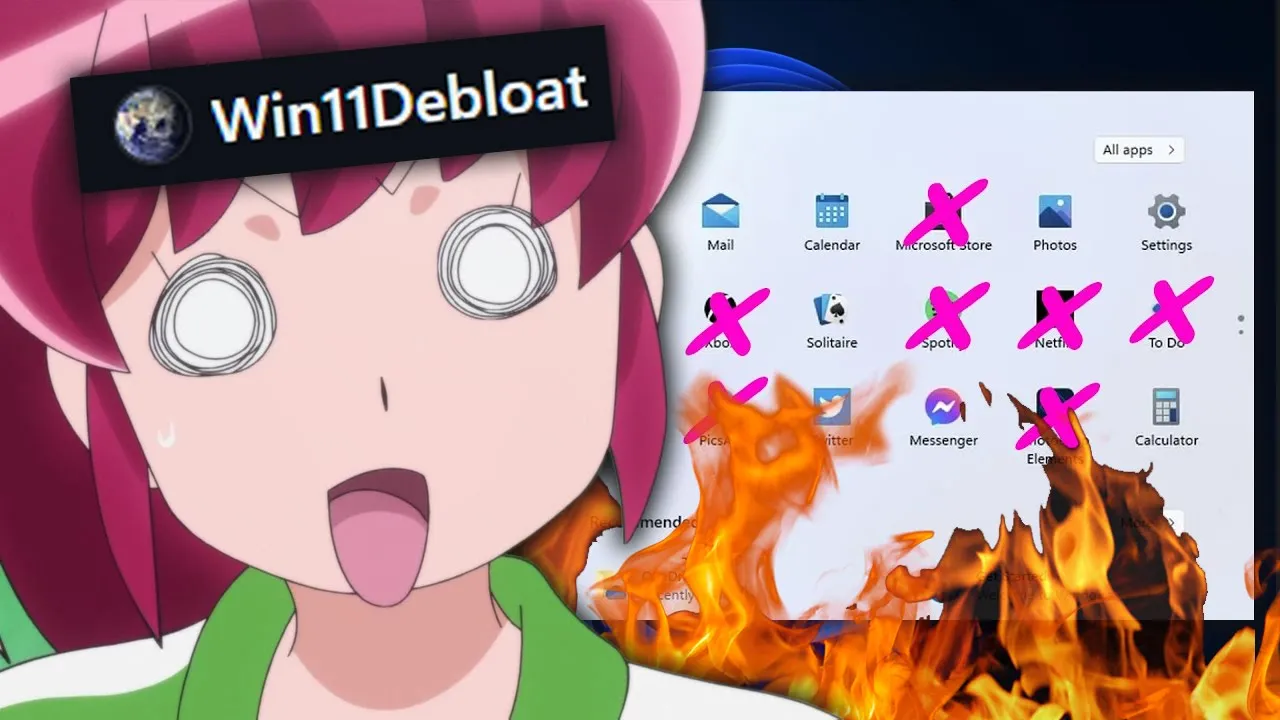
If you're still stuck running Windows 10 or 11, maybe you need it for gaming for certain apps, or because you just haven't made the full jump to Linux yet, you already know how bloated, invasive, and downright annoying it can be. Microsoft packs it with all sorts of features you never asked for, buries the settings you actually care about, and slips in tracking systems that run constantly in the background. It's not just clutter.
It's wasted space, wasted RAM, wasted bandwidth, and wasted patience. But here's the thing. You can strip all of that garbage out without having to reinstall Windows or nuke your drive.
The weapon of choice, a tool called Win 11 DBLO. It's an open- source collection of PowerShell scripts that does what Microsoft doesn't want you to do. Rip out their bakedin apps, kill their tracking systems, and turn your system from an adfilled billboard into something that actually feels like your computer again.
This thing goes after the bloat that Windows doesn't let you uninstall through normal menus, especially if you're outside of the EU where you don't even have the option. We're talking about Microsoft Edge, their default browser that keeps trying to force itself back into your life even when you set something else. The pre-installed Microsoft Office trial that you can't use without a license, but still sits there space.
Mail and Calendar, OneNote, Xbox Services, Microsoft Store, even random background apps that you didn't install and will never touch. gone. It also tackles Windows telemetry, which is just Microsoft's fancy way of saying, "We're sending constant reports about your system back to us, whether you like it or not.
" It disables Bing integration in search, removes the leftover guts of Cortana, kills Windows Copilot, shuts down targeted ads, turns off the tips and suggestions pop-ups that act like you don't know how to use your own PC, and disables app launch tracking. You can even restore the old Windows 10 right-click menu, depending on your build, and unpin all the garbage from your start menu in one go. Now, some people go hardcore and build a fully custom debloated Windows ISO, so they install a clean, slim down version from scratch.
That's cool, but it's a lot of work and you're reinstalling your whole OS. Win 11D bloat works right on your current installation without data loss, and you can be done in under an hour. That said, you still have to be smart.
Back up your important files and make a system restore point before you start. If something breaks or you go too aggressive, you want to way back. And always, always get the tool from the official source.
Don't just copy and paste random PowerShell commands you find on Reddit or a forum post. That's how you turn removing bloatware into bricking your machine. Once you've got the official package, you just extract it, run.
bat as administrator, and you're in. You can go with the default settings, which already do a pretty solid job, or switch into custom mode. Custom mode lets you pick exactly which apps you want to remove.
Filter the list to only show stuff that's actually installed and choose from extra privacy tweaks. The nice thing is it's not all or nothing. You can keep anything you actually use.
Edge is one of the few apps it can't always completely kill. Microsoft has buried it so deep into Windows that some of its bones stay behind, but it still guts most of it, so it stops hogging resources and popping up uninvited. Once it runs, you instantly free up disk space, reduce background noise, and speed up your machine without having to touch a fresh install.
Here's the catch, though. Even after you debloat Windows, it's still Windows. After a major update, Microsoft has this annoying habit of quietly flipping some tracking features back on, reenabling scheduled tasks, or reinstalling certain background services.
It's like you clean the kitchen and the landlord comes in at night to dump trash back on the counter. That's why you can't just run win 11D blow once and call it done. You need to lock it down so those changes stick.
And that's where something I've never shared publicly comes in. My privacy hardening toolkit. This isn't just another run this script and hope it works kind of thing.
It's a full set of PowerShell scripts and configs I personally use to keep Windows locked down even after updates try to undo it. I'm talking about the exact firewall rules, registry tweaks, and service configurations I've built over years of hardening my own systems and client machines. It's like taking Wind 11 DBloat and giving it body armor.
It makes your system lean, clean, and way harder for Windows or anyone else to spy on. And yes, I keep it inside Cyberflow's Academy along with all the other tools I actually use day-to-day, plus the courses that go beyond just how to run a script. We teach you the technical skills, sure, but also how to monetize those skills in cyber security.
So, you're not just a tech wizard, you're a tech wizard who gets paid. If you stuck around this long, that tells me you care about your privacy and your system performance. So, if you want the privacy hardening toolkit, you can grab it now inside Cyberflow's Academy with the code cyber50 for 50% off.
But whether you join or not, do yourself a favor. Stop letting your OS treat you like the product. Deblo it, lock it down, and make Windows fear you.




![✅[ATUALIZADO] COMO LIBERAR ESPAÇO NO PC SEM NENHUM PROGRAMA EM 5 MINUTOS](https://i.ytimg.com/vi/6Nt_0jrXgRA/mqdefault.jpg)


![Como RECUPERAR A SENHA do Windows 11/10 SEM PROGRAMAS [Guia Super Fácil]](https://i.ytimg.com/vi/QEtOkX7gEFc/mqdefault.jpg)