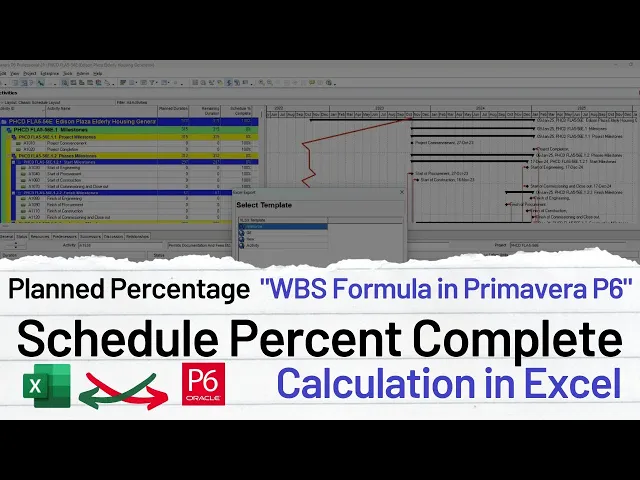
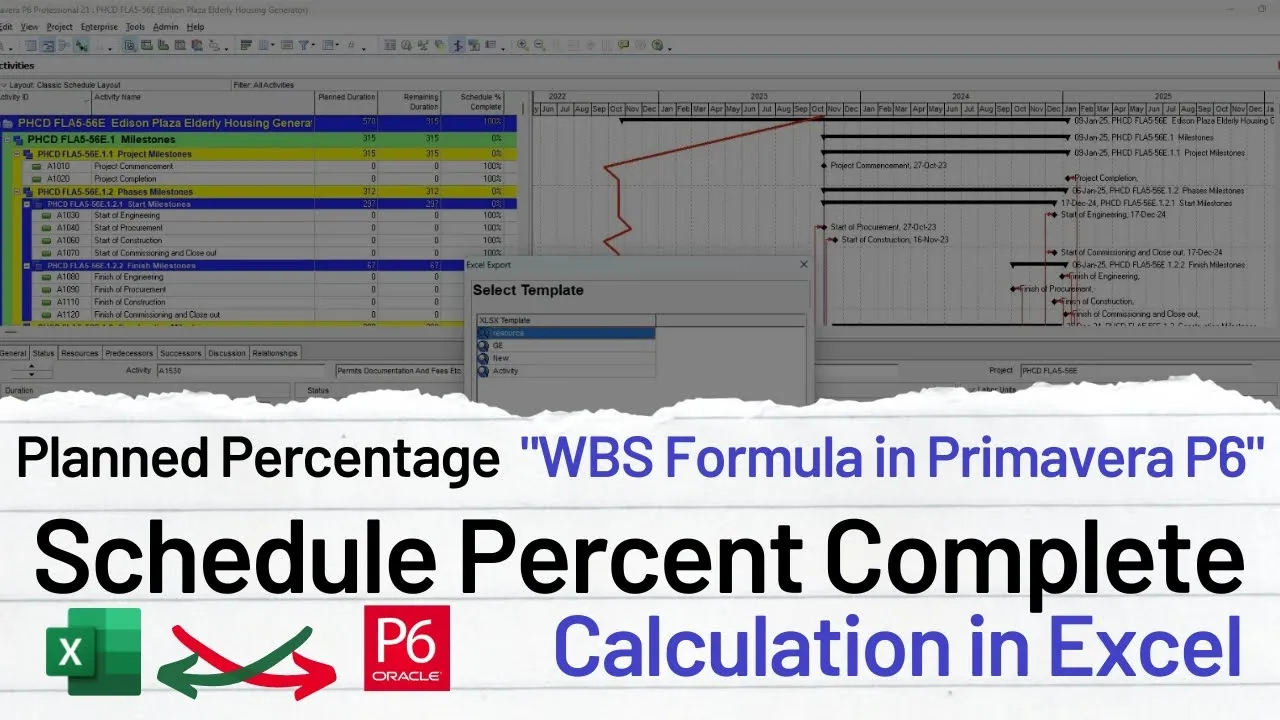
welcome viewers to soft Demi project control and Engineering software Academy today I am going to discuss with you about scheduled person complete in Primavera P6 and in general in planning field how it's calculated and how can we calculate it manually in our Excel sheet so what is the theory behind that one and what the formula we required to calculate in Excel can we calculate or can we use that one in manually in a our monitoring reports or not so here we go P6 you can see here schedule percent complete column basically it's also used as a planned person complete you can see in SQL there are planned percent so that plant percent is based on a schedule percent complete so here I have created a about file which you can see here I have explained here schedule percent complete so whenever we have created a Baseline so in Baseline if our current schedule is this one and this is our Baseline so the duration till data date this is till data date duration data date so a the duration pass from the start to till now and the total duration so we can see the formula here as a a divided by B A is a duration started from to the data date data date is the date where we run our schedule for example our start of the project is we can say in October 30 and now today is the 8th of November 2022 so the duration between that one is a and if our project is 365 days so we can see and we can say that one it will be divided by 365 so it will be scheduled person complete so basically schedule schedule percent complete is based on duration you can draw also a curve on it this one B is the total duration d d is a data date and minus b l start BL start is your Baseline start because our overall schedule percent complete is based on so uh our Baseline started so we will not consider our current schedule uh dates so we will divide it by BL finish minus BL start so you can also see this formula but this formula cannot be compatible if you have a calendar having five days duration because in your Baseline duration the duration will be less shown because uh due to calendar it will not show exact calendar if you use this this one schedule percent complete it will be wrong because your calendar is not seven days okay do not use this formula what is the WBS schedule percent complete issue so whenever you haven't assigned any resources or any cost to your schedule percent complete you will not get your schedule percentage complete at WBS level because at WBS level schedule percent complete is calculated on land value divided by budget at completion because at at the level of WBS it's calculated on base of this Theory so here I have just created a formula in this formula the cell will be empty uh and if there is a value greater than 0 so it will be up to maximum hundred percent we will apply we can apply this one formula data added minus date and bl start minus this one and bl finish minus BL star so this formula can be compatible for at that stage so we need to calculate for example this schedules uh different dates uh schedule percent complete we can just control a control C and we can go here in our Excel sheet and we can just create our schedule percent complete easily from here and here I have just dragged here we will delete the start and finish date column from here we don't need that one also do not need a total float do not need calendar estimate weights do not needed also schedule labor hours not needed schedule percent complete needed but I will add here uh additional column for that one okay so remaining duration do not needed for land duration you can write or not right it's your choice so schedule person complete we can create here a formula in the top I will empty two or three rows so in one row I will just create and write here data date data date and here we will write that a data rate is our date when we run the schedule we will color this one as any color which we need to say that it's compatible so our Baseline project start is 27 March 2022 so that I did if we write here 27 3 20 22 so this is our data date and the Baseline date here we will calculate schedule percent complete and percent complete and schedule percent also or you can write here planned per person okay plant person you can also write here these both are the same terms we use in planning here we go here we will apply a filter here so filter is very easy while you are just going for that one so we will first of all filter all the blanks in the start because the start is the basic one and now we go in the word file we will copy this formula we have just already created and here we will paste this formula and first of all I will remove this formula restriction e in the data date the data date is D D2 and we will just press this one D2 and we will assign dollar so this column is fixed so Dollar in front of D and up to D also at a BL start BL start this one BL start column and this one is E4 E4 and the next one is uh data date data date we will apply same formula as a dollar D dollar and two the next one as we will apply the formula as uh E4 then the next one we will apply in the finish one as a F4 F4 we will apply here F4 the next one the last one formula we will apply here E4 so here the four will have been completed we will press is equal to then press this one you will see here 0 we will convert that column into percent and two values minimum so here is 0 and we will just drag down into the bottom can you see this one also we can see here 0. 00 here the value now we will change here the date to next month when we press 27 for 2022 you can see the value have been changed in here can you see here 11. 36 so all the values you can see here the change like that one if you go for the next month for fifth month you will see here 22.
36 the same as it is below all the new value will be go for 100 which schedule person complete should be like that one so this is the feeling like one no coloring no nothing here there is no WBS shown so here data date is like this one how can you just use that one so I have another tool that is a schedule analyzer we can use that tool that is very easy tool here we will go here schedule analyzer we'll go here scale analyzer we will open schedule analyzer here we will clear and now here we will load our schedule load our schedule from desktop this is the schedule the same we have in our Primavera P6 xgr file can be exported here or can be used in this tool and then here we will add a Gantt chart in select columns we will only press only tasks here and we will select uh also we can just move and we can also also add here Gantt chart also select the column we need to start and finish and activity IDs and Float we do not need float we do not need any percentages we do not need labor and non-labor here you can see we do not need cost also and now we will view when we will view you can see here again chart will be created without any uh the value we have just specified while we're selecting for the Gantt chart options here we go this 11. 72 second taken so here you can see the Gantt chart have been created start and finish value have been only shown and we will add here a new column add here a new column and go here and press this one schedule and or planned you can write any name here and you can write any name here schedule our plant schedule percent complete here you can write here data date and here you can put the date here you can see here schedule person complete we can calculate here by using the same formula I will copy the formula from here and paste the formula and formula only formula and when we see here the formula there is some issues with formula at the f at the F we will change from the D to e here for the D to E and then for the start date there is new value for the start date start date is D5 finish date is E5 okay the same D5 and E5 so here we go can you see this one D5 and E5 foreign this one to three here you can see there is some issue with formula and now now the issue left in the column can you see this one you can arrange that one to center now apply it to whole formula copy this one and go for the bottom here you will go to the bottom and we will paste the formula here can you see here there is some doing error do not worry about that one division errors you can filter from here by using this filter option and you can just filter for that one maybe some domain errors because while you're applying this formula you need to know about the start date there may be some start date issues in the milestones while you're doing that one so I will check cross check the formula if there is not issue with formula and then then we will see here because you know 27 and uh the same having the same start date and finish date in the Milestone there will be issue with a formula this one error always come so here you can see all the values have been just uh you can see here 27 to 3 the same deals the same date if you have a same date then there will be divine error because there is one day one day left so if you have like this 127 and there is a there should be 28 if I change it to uh you know you can see here the dates okay it's a seven o'clock till I can change that one to five pm [Music] you can see here when I have changed at 1 to 5 PM that one the value have been changed now the same I will copy and paste here you can see here this value error have been resolved because the you have work started in the morning and in evening the work have been finished can you see this value also considered this one small small changes can see hundred percent hundred percent so this small small errors you can remove uh by using this technique also uh here you can see commencement because there is no date for the punishment I will remove this one and now you can also remove the blanks from here and you can see here which value is now started the which work have been started in this tenure also you can add here weekly start and weekly finish this value is working you don't need any uh you don't need any budgeted values you know don't need any cost you can apply this formula to see your schedule person complete at any stage also if you change here for example if I change the value for example I change uh up to fourth month you can see here 11. 3 23.