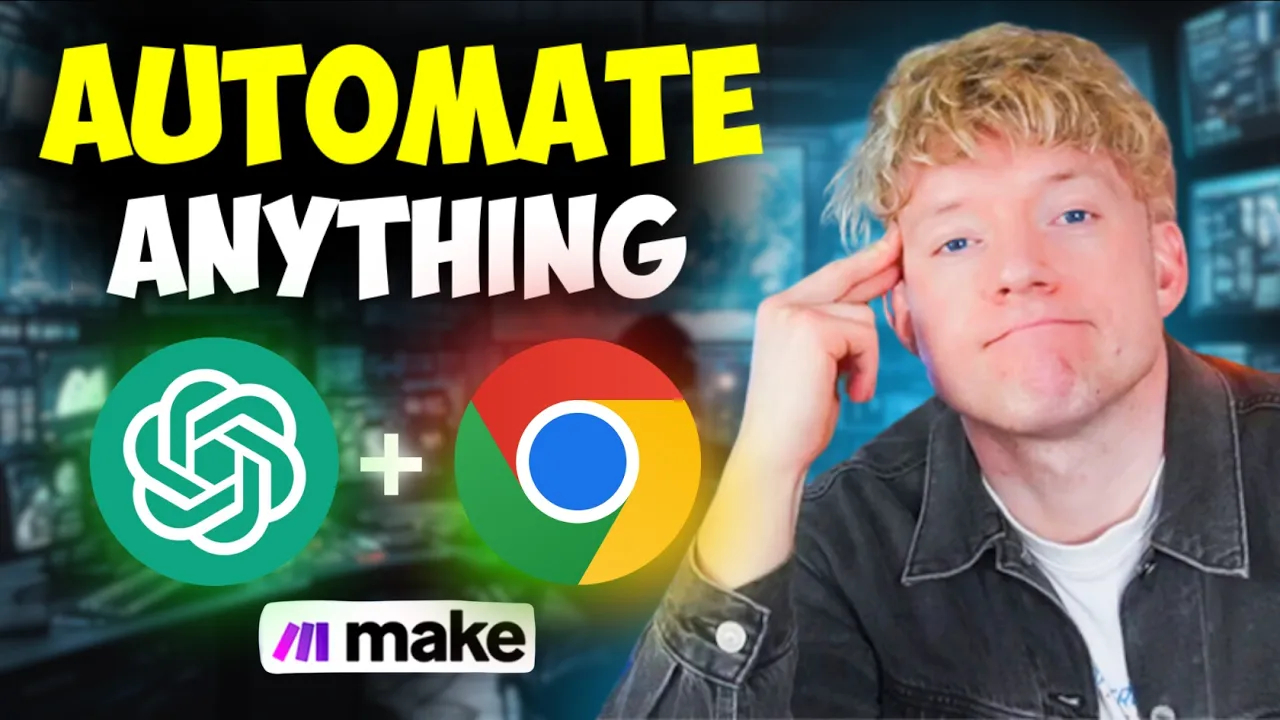
you can build an AI powerc extension in literally minutes without any coding whatsoever for instance I built this one in less than an hour that all you ever have to do if you get any YouTube video is you come down you hit the summarize button confetti drops and we'll get a full overview of what this video is about so we don't even have to listen to it right there you see this video delves into MrBeast hiring blah blah blah and gives you full breakdown with Emojis and snaps that you can just grab now this was just one idea that I thought of but you can literally use Guys these AI powered um Chrome extensions to do anything that you want to and I'm going to show exactly how you build that step by step in this video I'm Jack and my YouTube channel I'm my school Community we're about three things we are about the latest AI we're about incredible automations but most importantly guys what about the stuff that actually works so you haven't already grab that coffee and let's dive straight in okay so starting with what is a chome extension chome extension as you might have guessed is using Chrome in some of the browsers you click on the dots in the top right you're going to come down look at exensions and just click on manage extensions now previously we thought this was difficult to get actually super straightforward we're going to use clae or chat GPT to create the code for us and then all we're going to do essentially is to upload it to crown save it and then enable it and then essentially whatever use case you want whether you want to summarize videos you want to use AI to create tweets from videos or whatever you want it will do that for you automatically on autopilot in the background and we're going to connect this to meg. com via web hooks which which is a really straightforward easy thing to do and the fact that we can get any data from your browsing experience into make is literally insane because once we get it in make guys we can do anything we want we can access the Rams we can use AI to you know basically present any information in live time for us on the Chrome extension so what's really really cool about this as well guys is that you can do literally anything with Chrome extension so you could replace all the words on a page you could get things facts checked by using perplexity millions of different things now to get this s running you only need three things one is you want account at make. com you can get up to 1,000 executions free I'll put link down below so you can jump in and get started it's modulate really easy to use and it's how we're able to do this incredible stuff the second thing that you need is access to chat gbt or at platform.
open. com and essentially that enables you to use chat gbt via an API really straightforward I'll put the link down below so you can use that and SEL Json file upload it and then have the whole thing populate will be available Down Below in the school community so you can use this one yourself and start summarizing videos and get all the blueprints for the stuff that is and is not on the channel awesome so how do we get started then so we're going to run through this step by step so the first thing we really want to do when building this is to head of IT chat GPT like so and essentially we're going to give it a prompt looks like this it's going to say hey I would like you to develop a Chrome extension that does the following okay and essentially what we say is at number one we say hey it will have a button on YouTube that says summarize number two when this button is clicked you must send the transcript to this web hook now what do we do guys well we basically need to get the web hook in make so we come back over to make we click on this and we just type in web hook like so and type on custom web hook like so and then we'll give us a new one and we'll call this one let's call this one YouTube summarize call this one Build Together shall we ability and what emergy should we use yes use for diamonds for Value following off one of my clients said to me Jack i' love a button that could just summarize YouTube video and I'm like I know just a thing for that and now here I am sharing the wonderful Brilliance of this cool little Chown extension online so look now we've got this cool thing here which is like the URL so all you do is copy the address of clipboard and then you can see it's going to try to determine the data structure so we'll come back to that in a second don't worry it's actually quite straightforward but there we go awesome now what else do we want this to do we want we want a text box to be coded on the page so that when the um web hug responds with a summary it will appear on the page for us number four is going to be add a waiting Emoji whilst the operation is running and I should probably give it a little bit of context actually first so I just say context uh we are creating a Chrome extension that will summarize any video the specifics okay and then finally guys what we can also do and I always recommend when you're using AI to build apps or web apps is to give it screenshots of what's cool so you see here for example what I'm going to do literally here is I'm going to screenshot this video summary come down now guys you can improve the CSS you could have the summarized button anywh you want to you could have it to cover the whole video you could do anything it's literally just saying Hey I want this I want that so we click on options click on clipboard and then we'll come back over now to this and just say here is an exam here is a functional version just copy this and then guys what we're going to say is paste all of the code in full thank you and then we hit that magical button also known as enter now what will happen here is we need to create a desktop folder on the homepage so on on our sort of like our desktop and essentially we're going to create a couple of different files and then we're just going to save the text in these files like Json and different things like that and then we upload all of that together into Chrome and that's probably about the most complicated it gets so asking for codes say hey please create the code for the extension and now chb will'll do this wonderful magic in the background and create all the code for it's done that cool so basically these are the five things that we're going to need uh to crect this thing six things in fact so look what do we do we go to the homepage finder we go desktop now check this out okay the first thing we do is click on right left click on new folder and we're going to give this one an name let's call this one YouTube summarizer okay so YouTube summarizer and of course we'll leave emoji up because we'll keep this one quite plain then we click into it okay and essentially all these files we create are going to pop in there so for example the one that you saw me use is just this stuff now it looks complicated guys it's actually really really straightforward so what do we do if you're on Mac this is the application I recommend you using is called text edit you can find it in your applications but look if I click on text edit I click on open you'll see now I have this is an example of what I made earlier in content JavaScript so we're going to get rid of that I'm going to create a brand new text edit so to do that we come down to new document on the right hand side likeo and you'll see this and then what do we do guys so we start off then with manifest manifest. json we copy the code we come over we paste the code and crucially guys come over to format like so text make plain text and then what you're going to do is click on file going to click on Save and we're going to call this guy uh let me just double check while we're calling this manifest.
json so come down here save manifest do Json and we're going to save that on desktop for the moment and then click save like so and C on use Json yes I should also gu if you're on window I just wanted to check this one for you notepad is a really good alternative you can't build this in word because it needs to be kind of like plain text so if you've got Windows use notepad or something similar and if Mike I'd use text edit but there's other tools but I just think they're easy and simple to get started with so we've done manifest. json and now we need to do is background. js so we copy this code we do the same thing text edit come down to new document we paste the code we come to format make plain text bring this over here and we'll call this background.
js it's really important that you get the name right because they are referential okay background. js again save it to the desktop click save beautiful that's that one down and then we've got here content. js you might have guessed it we copy the code we come down and click on new document paste it format make plain text file save as content.
js like so beautiful that's three down just a couple more to go now then we've got popup HTML which is quite decent again text edit come down new documents paste that in there once again view is going to be M plain Tex and we'll go this one popup HTML cool sweet and it's funny actually cuz you kind of think this is a lot more complicated than it is until you know how then you realize actually it's really really really straightforward um popup do JavaScript right click on this new document okay again pop this one in bring this one over here format make plain text and then let's save this guy here let's pop up the Javas strict and I say easy I mean obviously like if you're doing this you're not normal I mean not normal in a great sense in the sense that you are like the 1% of the 1% because barely anybody knows how to do this um so this is pretty much Cutting Edge because essentially what enables you to do is stuff that and it's just stuff that you previously couldn't do unless you really know how to code but we can just use AI for that now which is just phenomenal so again view come to format make plain text always click on the make plain text thing and then we just get we basically save it as the thing that's there so styles. CSS and it's got to be to the letter the same thing remember make sure that you do that yes use. CSS save to homepage beautiful excellent and then now we need to create an icon uh which is going to be basically visually what we call it so we head over to canva for that now this doesn't really matter guys I mean like let's just say for example I want to use this or let's just use something I don't know let's just use the crown and just bring this guy up here like so beautiful I should make it like orange something me recognizable okay beautiful come here and let's go good for big beautiful multicolored yeah that's cool it' be it'd be easy to recognize right click on download like so make it as small as humanly possible and then download which is cool excellent I'm going to call this one icon.
PNG and so then guys your desktop should look something like this so now what we do is we copy these guys like so and we're going to pull them into YouTube summarizer and that's it now the next thing we do guys is we're going come over to CR what I'm going to need to do actually is turn mine off so I've turned mine off I've done that because we can't couldn't oh my goodness we can't have two um Chrome extensions doing the same thing so what do we do all we do guys okay is you may not have a developer mode enabled if you do just come to the top right click on developer mode and you come down here and you're going to start put load unpacked and then come to your desktop and basically just click on YouTube summarizer and then click select and there we go fail to load extension could not load icon 16 pop PNG so what we do if we get any code like that just come back over now to chat GPT and give it the data I'm just showing you for the P of this one how you would troubleshoot anything so you get used to the process so this has happened because it's it wanted an icon 1648 128 so all we're going to do is just basically update the manifest. Json file one of the things that you'll find is that like when it so again right click on this and when it come down to open with and text edit is it like yeah like if if one says Zig and you dare to zag you're done you're basically done so you can see there icons it lists all there but it's not there so Boom come down simplify it awesome click file click save come off often times you probably referenced something that you shouldn't have done and that's why it's not working so we come back to Chrome we come back and then we click on load and packed one more time come to desktop and click on YouTube summarizer and load that in extension loaded and can you see it there look at this guys I can see that beautiful little blue button and I want to click on details I'm going to come down and then what we're going to do is just pin this to the toolbar so you can see we got the wire there popping up which is awesome and I'm pretty happy with that I'm going to come off this I'm going to go to YouTube I'm going to mute site just so we don't have to keep listening to the start of the video and then we basically refresh the page like so and let's see if it pops up so has it popped up no it hasn't so let's go to extensions and see what happens what is also really cool guys is you'll get like an error log when this sort of stuff happens so so it's perfectly normal if you don't see it the first time basically what we need to do is we come back over now to chat gb2 and we say hey the uh app is uploaded however I cannot see the app on the button on the page please fix this I'm just going to share with it the previous code that we had just so it knows exactly what it needs to do but essentially the way that it works is you'll say hey you'll try it it's not visible hey I'm not seeing it try this try this and you'll troubleshoot over two or three iterations and once that's done you'll get it working and visible so that will save just out respect for time a little bit of back and forth and then guys it start to produce the revised content of JavaScript for us so then we just again simply update this and you'll know from the last video guys essentially it's like this when you're building any AI web app or even Chrome extension now we go back and forth and you can kind of just amend it and get the CSS to a point where you're like I'd love it to do this I'd love it to do that but I think fundamentally what only really limited by our imagination when it comes to this I mean the reason I think this is so cool is because it adds a literal new dimension to how you use AI I don't have to open a new tab and post something into chat GPT I can use it on the tab that I'm actually using right now so it just makes the browsing experience so much cooler you don't like the word the it's gone it's out of here you don't like the word coffee we'll replace word coffee with anything you want it's literally that awesome now sometimes you'll get this prompt about contining generating because the code is a little bit long long ER which is fine so just be aware of that so we come to the top we copy the code we go to our finder we go to YouTube summarizer again we open content. js sometimes it'll do that so you have to come right click and let's just bring this guy over here we're going to right click open with text edit awesome okay control all and then paste and then come up the top then file then save now also here's the other really cool thing you can do right guys check this up now all you need to do is instead of deleting and uploading again you can just hit this basically this button here which will then just bring everything back up to look I click on that incredible now I come back over to this video and we refresh it and if it done its job properly we should see this let's just refresh the page oh my goodness guys does that look familiar to you it should do I think that's really cool that we've got that there how epic is that cool so what do we do now basically now we know that we've got the summarize we need to make sure that it's pulling the transcript effect effectively so let's get over now to make uh and find out what's going on so this is our initial one okay now it's waiting for the data so let's come back over let's hit this button we've got the confetti that came down I love confetti by the way I don't know if you notice this I'm a confetti guy man I love the confetti so confet is done the question will be oh my gosh guys look at this video summary has been accepted I love how it's like I gave it that I give you that photo and it's like it completely gets what it needs to look like and dude can you see by the way it's got this like animation here how it's moving like left to right like how sick is that like that is so so sick that's like the coolest thing ever it does not take many animations to get Jack Roberts pumped so I come back over now look let's see if it's G it hasn't actually pulled that through yet which is a little bit strange one so what we then need to do is make sure we copy dress the clipboard we come back over there to chat gbt and we're going to say something like hey looks amazing however um however it is not pulling through it is not sending the information to the web hul it should expect a response back incredible so chat GD has finished so what do we do guys we're going to come up to the top of the code like so and we're going to copy it as always we're going to go back over now to find it going to Conta J yes right click open with text edit come over here get rid of it paste this in Click file click save and then we're back on Chrome we just hit refresh again which is awesome come back over and let's refresh the page and see if it's appeared and almost by Magic guys we see the summarized button has appeared once again so look what do we do let's just make sure that in our chat GPT module that this is loading it is so if we go back over now and I click on summarize excellent so uh let's see error sending transcript unexpected token a accepted is not valid Json check console for details but has this picked it up it has so let's just run this again one more time so what's happened to this web Hook is it said look look we've got a code here that says when you hit summarize it's taking a transcript and we're sending it to make.