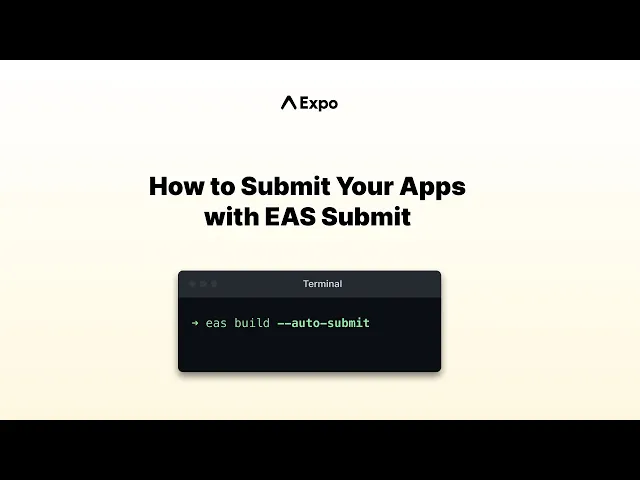
hi my name is Keith I'm a developer success engineer with Expo I have an app that's on the App Store and play store it's live already and it's working great with the as build but I really want it to automatically submit to the App Stores when my build's done fortunately there's a way to do that it's a EAS submit so uh join me as we set that up for my app let's work on submitting my app to the Google Play store so you can go to docs. expo. dev and look for EAS submit and you'll see there's instructions here for the App Store and Play Store we're going to go to the Play Store here and there's a few prerequisites some of them I've already done so a paid developer account is required by apps already in the store so I have the developer account we need to create this Google service account I have not done that yet my app is of course I already have the Google Play console I also have already created a build that is going to be submitted so I have my completed Android play store build here so we're gonna head over to this creating a Google service account document right here so this could change this is of course entirely on the Google Play Store console side as of March 2023 this is how it goes and even though it could change a little bit there's a few steps involved and I thought it would be good to show someone walking through this because this is probably the most complex part of setting up Auto submission on Google Play okay we're in the Google Play console we're going to go down to setup and API access sometimes this will show like a little kind of starting screen just with a fancy design on it or icon and a button that says choose project to link for whatever reason mine's not showing that today but it's showing the very next screen after that which would let us either link an existing Google Cloud project or create a new one I'm going to go ahead and create a new one and hit save here Google Cloud project is now created and I will scroll down here to service accounts I need to create a new service account and this actually needs to be done on the Google Cloud platform so we're going to follow this link and then we're going to click create service account you can name this service account for your app or possibly for your Play Store account if you're going to be submitting multiple apps this can work for all the apps under your account if you want to add a description you could then you click the create and continue button now we need to select a role we want that to be service account user there's a lot of rules here so it can be a little difficult to find we want to look for service accounts and then service account user here we go then we can click done now we will make the key that will actually be used by EAS submit go to this little action button next to our service account and click manage keys then click add key and create new key we will choose Json and it's been saved to our computer be sure to keep this file in a safe place so we will need it again in a little while my downloads are safe enough now we need to head all the way back to the Play Store console and to the API access page to refresh these service accounts we should see our new service account and then click manage console permissions the defaults are usually fine here and then we can click invite user and then send invite and that we should be everything we need to do in the Play Store console for now so now we are ready to use es submit on the build that I already built do note that if this is the first time you're uploading your app to the Play Store you have to manually upload it you literally have to go into Play Store console create your app and then drag and drop the A B file and that actually creates the association between the app and the package name which is then used for future submissions so this is a limitation of the Google Play Store API but we've already done that one time so we're going to be able to submit an update with EAS submit so let's head over here to my project we'll run EAS submit Dash Android and this should walk us through any first time steps which will then set us up going forward to be able to use Auto submit let's select a build from EAS we'll use my latest build okay and now we're going to provide the path to the service account file I'm going to make this a very easy and rename it and drag it to my project for now and then delete it okay let's fix that terrible name here we'll just call it Play Store and then drag it over here I'm going to need to make sure I go delete it afterwards so if you're doing it the way I'm doing it be careful because I don't want to commit that but at least this makes this very easy and now it's submitting it has uploaded my key and taken my build ID and gone straight with it to submit to the Play Store and note by default it's going to send it to the internal track so so just like with iOS where submitting it is actually going to send it to test flight submitting with EAS submit is not going to send your app straight to production with the Play Store which is not something we usually want to do so it'll put it on the internal release track and then I can promote it to production so the first time I tried to submit my app I got an error but it was totally coincidental I had upgraded my app to the latest Expo SDK and that was the first time my app was targeting Android 13 and there was a new requirement in the Play Store that I actually had to go fill out a form to declare that it was not using the advertising API or advertising ID I should say so I literally had to go to this app content thing and just say no and now I'm going to submit again I will select my latest build one more time and it's going to go straight away into the submit because I've already uploaded my Play Store key so wait for the submit to be complete and there it is my submission is complete I can go to my Play Store console and I could take a look at it let's go into my app here and go to my releases and now I have a new release in internal testing that I could then promote to production so that's it for submitting to Android of course you know the one other thing I will add is the next time I build I can actually use Auto submit so I could run EAS build my profile in there production usually for my platform Android and then use Auto Dash submit and then it will start the EAS submit directly after my build is done assuming it's successful of course so I can complete all of that from one step let's work on setting up EAS submit to Auto submit new versions of my IOS app to the App Store so you can go to docs.
expo. dev and look for EAS submit there'll be directions for each platform I will go to submitting to the Apple App Store there's a few prerequisites here you'll need a paid developer account to submit your app so you can head over to developer. apple.
com to learn more about that if you need one you'll need the EES CLI installed and also before you do the submission itself for the first time you'll want to build your Standalone app for the store which I have done right here I have a new build a new app store build I'm at the council for my app project here and it's a standard project I built it with EAS build I'm going to run EAS submits Dash p iOS and so we're going to eventually get to the point where we allow it to Auto submit but the first submission needs to be done manually because EAS submit will do all the initial setup including creating the App Store connect API key in this first step here and then after that you'll be able to do auto submit which will submit your app to test flight right after your build is completed so let's run that if you had just recently built you already have your Apple ID defaulted in here and you'll probably be restoring a App Store connect session that already exists select my team so I'm going to select a build from Eis you actually don't need to build your app on EAS build in order to use EAS submit but I have my build on the EAS submit about es build so let's select that I built it just recently so we'll pick the most recent one so this is the key here this is the part that needs to be set up so you'll be able to do auto submit in the future so we're going to use and this is I think the easiest way is a new app store connect API key and it'll create it for us choose yes it's now creating the key and now it's going to submit my app so this is the long part here using you to wait a few minutes for the submission process to complete and then of course Apple does some processing at its end and you um eventually get an email actually from App Store connect that tells you that your app is ready for test flight so we'll be back in a while once that's done we're back and our submission has completed now you get this helpful message here it says your binary has been successfully uploaded to App Store connect it is now being processed by Apple you'll receive an email when processing finishes I checked my inbox I did receive the email usually takes about five to ten minutes which is correct it also even gives you a helpful link to take you directly to your build and test flight and it'll take you right here so you'll see I previously had 1. 01 up there I have version 1. 02 up there my bill is up there it's ready for me to add any new testers I already had one tester added so that build already went to them in test flight now that I've done the first submission I'm set up to do auto submit in the future so to do that I would do EAS build then choose my profile in this case will be my production profiles usually with the one I submit to actually make a production store build that'll eventually make it all the way live uh platform iOS and this would run your build just like normal but once your build is completed it would also automatically submit it it would do just what I did the first time manually with the EAS submit command so you can have a nice workflow here where you're running the one build command and data lays that building but it's also getting it right at the test flight so the very next step is wait for everything to be done and it shows up on your phone and test flight which is great and then from there you can do whatever you need to do in app store connect to release your app after you've tested it and there's also more things you can do with EAS submit you can find more in our docs especially about EAS metadata which allows you to attach like store descriptions screenshots and other information about your app along with your submission one more nice thing about EAS submit is with iOS apps you normally have to have a Mac to submit the app to the App Store that's because the transporter app from Apple only runs on a Mac and even if you're doing it from the command line you would still have to be using command line tools that can only run on the Mac well since EA submit runs unexposed Cloud on our our Cloud Max you can submit to the app store without a Mac and that's it for now you can learn more about all the things you can do with EAS a bit and other EAS Services by going to docs.
expo.