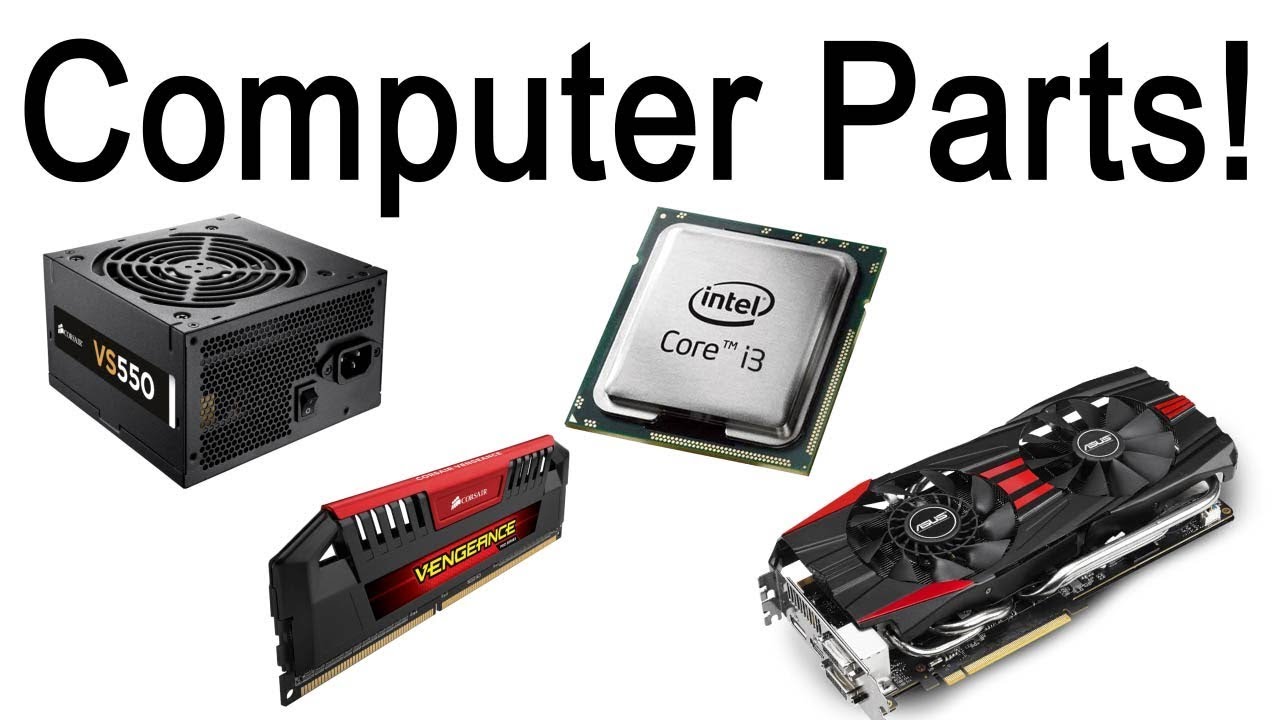
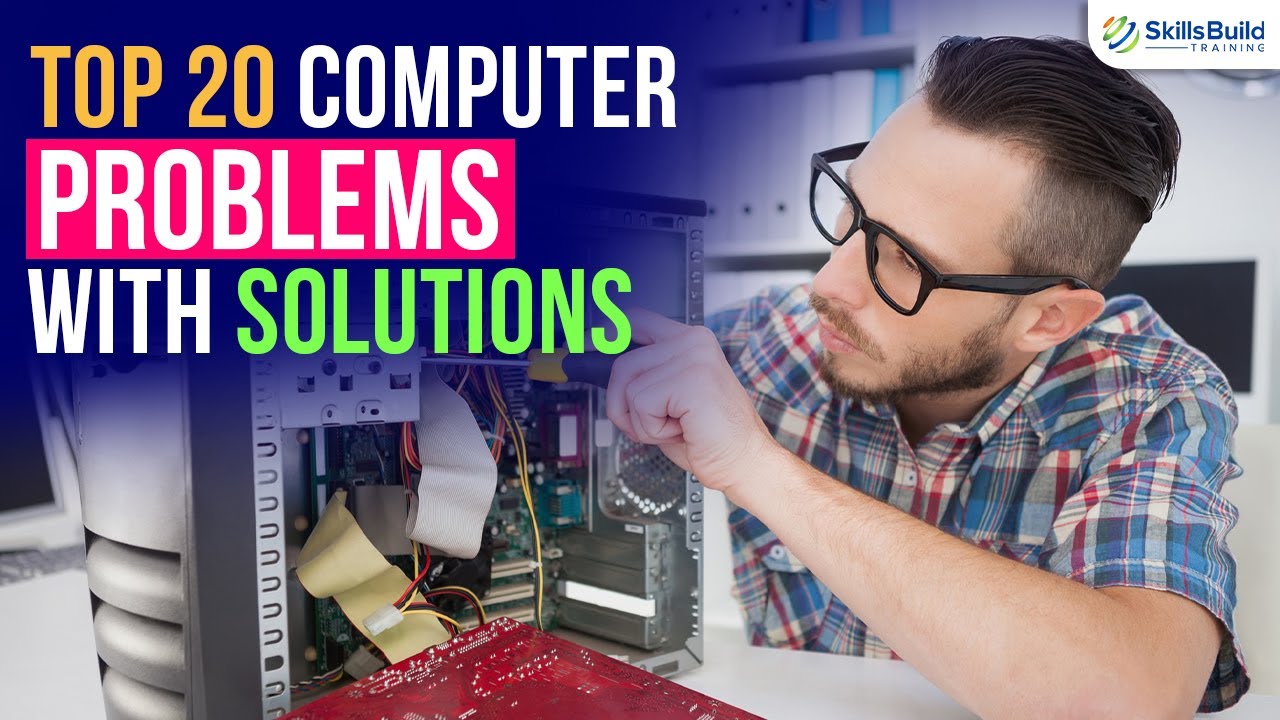
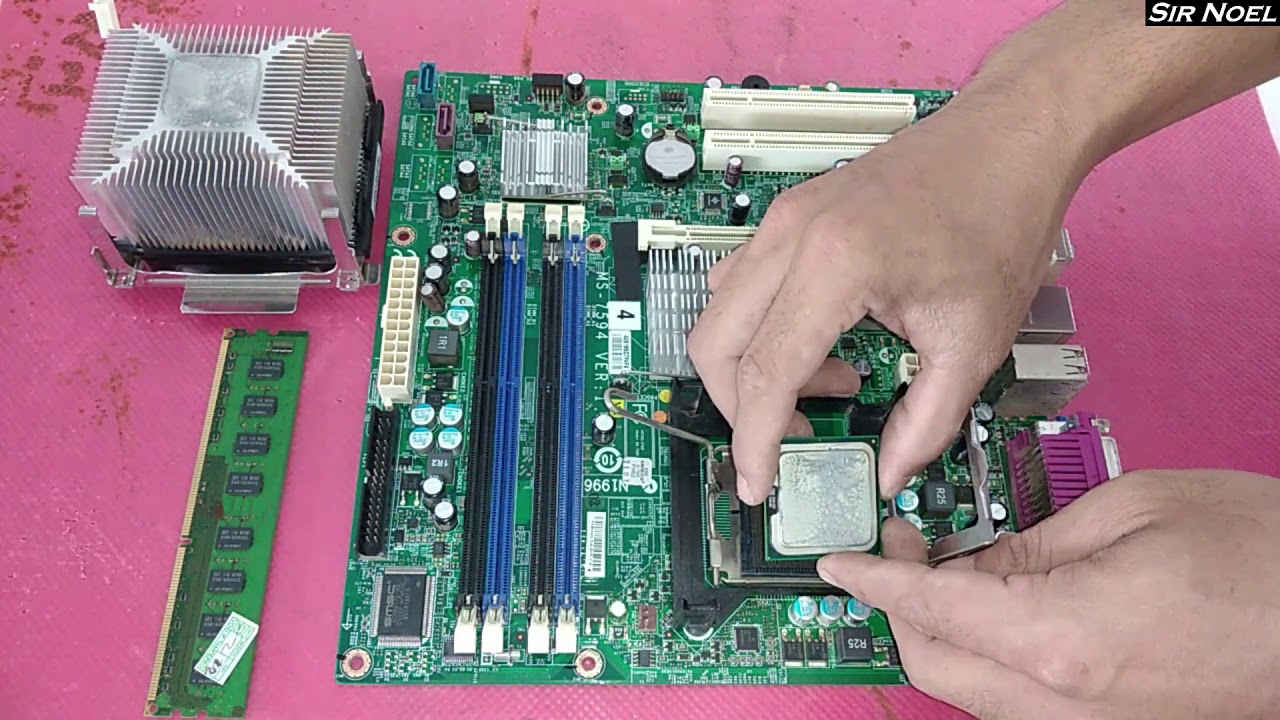
let's learn about what's on the inside of a computer this was a standard desktop computer and it has a nice and easy lift up lid and let's look at some of the parts inside the computer first of all this part right here is where the electricity comes in this is called the power supply the power supply converts the alternating current into direct current and the wires come out on the side we can't really see it though so let's see if we can take some of this stuff out just real quickly as a preview the CPU
is right here the RAM memory is right there the hard drive storage is right here and the optical drive is right here the mainboard is the green part inside there alright so now let's take a look and see if we can take out a few parts and see what they are first of all sometimes when using a computer you might find that you're running out of storage and you need more storage you've got so many videos and pictures and things that your storage is all filled out this is the hard drive this particular hard drive
has 500 gigabytes of storage space so that's quite a lot but again videos can use up a whole lot of storage space it's possible to have more than one hard drive inside a computer or you could replace a hard drive you could replace a 500 gigabyte one with a one terabyte drive or a two terabyte drive or even a four terabyte drive there's a lot of choices you'll notice this drive has two cables connected to it it has a data cable and it has a power cable those two cables are the only two cables really
needed to connect it to the computer itself I'm gonna set that to the side I'm gonna also open up this this is where the compact disk drive actually it's a DVD drive also it's just called an optical drive so this Drive has the same couple of ports it's got a data port just here and it's got a power port right here and this is about how simple of this two acts remove these drives they might have a couple screws on the side that are holding them in place but for the most part pretty simple to
replace the drive suppose you had a disk drive you notice it wasn't working for whatever reason you could easily get a new disk drive and put it in you would have to install some new software though because hardware only works when it has the correct software so we'll put that back in there put the data cable back on and put the power cable back on actually I said those wrong this is the power cable and this one is the data cable now the way we know which cable is which is because we look at the
power supply and you'll see out of the power supply there's coming several cables these are what is powering the computer so this cable right here you can see that's going over here into the mainboard that's what's powering the mainboard including the central processing unit but it's only powering the green board and the things that are really really connected clearly the optical drive has to have its own power so here's here's its power cable and the hard drive which is up here has to have its own power which is right here actually if I look closely
enough I can see that this is not actually the power that goes to the main board because this larger socket here is the one that provides the power to the main board so I'm guessing that this is maybe something different maybe it's providing power to the video card better plug those back in I want to make sure this computer is still working after we're done here so the power comes in to the main board and from the main board it can go to the drives and whatever else needs power the data cables you'll notice the
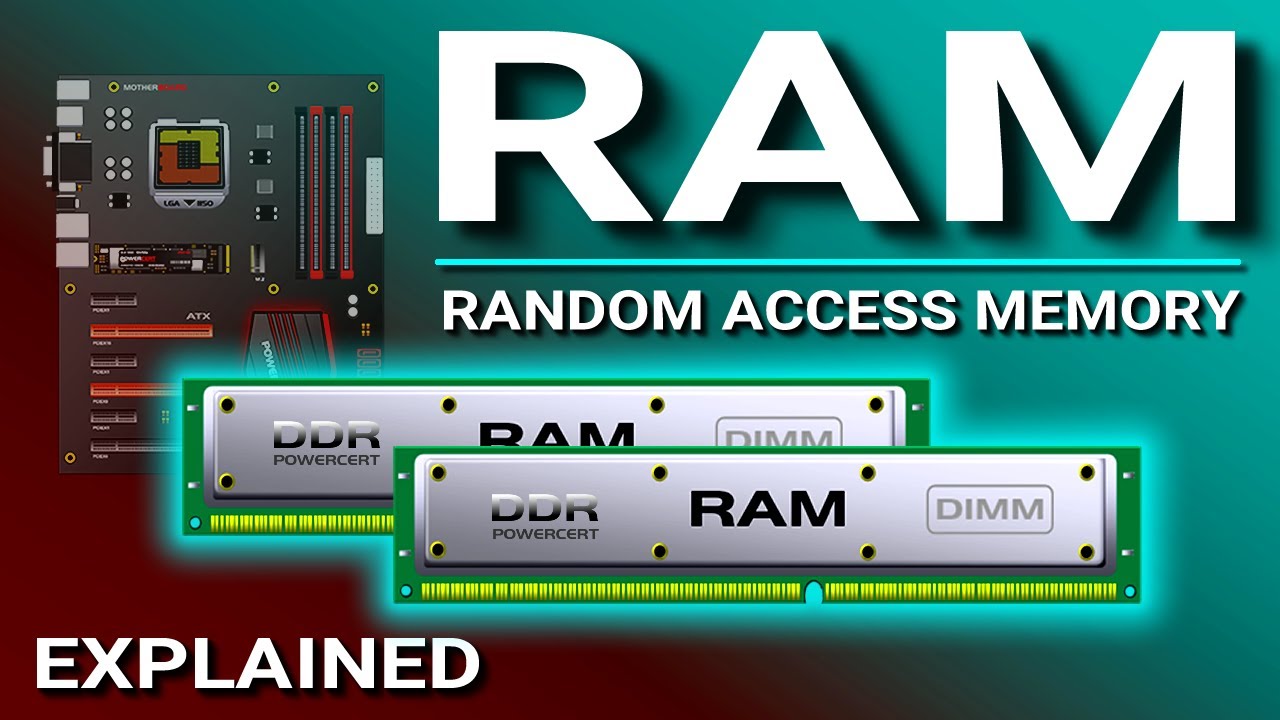
data cables are coming over here so there's the data cable that is bringing information to the hard drive and from the hard drive back to the main board there's also a cable here which is going to the optical drive inside a computer there's something called memory memory is only active when the computer is on while hard drives work this 500 gigabyte hard drive will save information it has information on it right now even though the computer is unplugged the RAM memory only has information in it when the computer is off now these cards are super
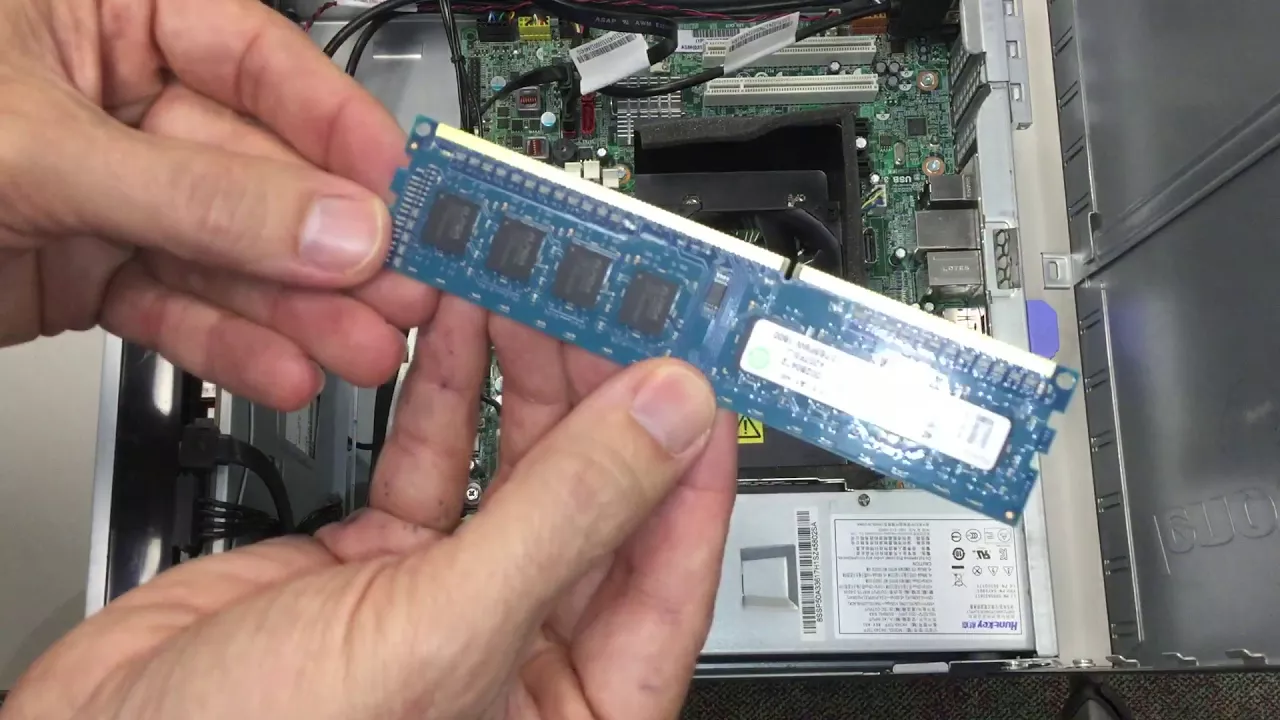
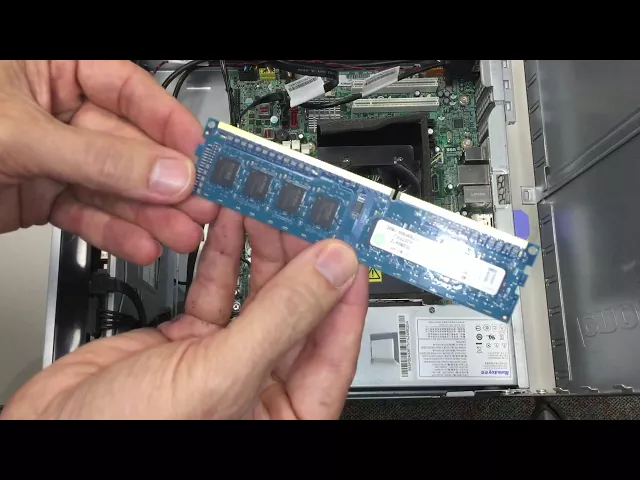
easy to take out with these little wipe tabs you just push them apart and then the card kind of slides up a little bit and I'll give you a good look at it so this is called a memory card and the memory card has some memory chips on it it looks like it has eight chips and if you look really closely at the label it says this is a four gigabyte card four gigabytes that's the random access memory now since they're eight chips on there and there's no chips on the other side each chip must
be half a gigabyte worth of storage now you'll notice that this computer has actually oh and something important when you're putting memory into a computer there's a slot along the edge here there's probably 64 little metal pins there may be 128 64 on each side but that little slot shows you how to put it into the computer so you can see there's the little slot there you need to put that in just here and we're gonna put it in the same exact slot it was in before and it snapped now what if I want what
if I was noticing my computer was slowing down when I had lots of tabs open or when I was using several programs at the same time a good thing to try would be to add an identical memory card in the other blue slot so I'd have to check and see exactly what is this brand what are all the code numbers on there buy one exactly the same or find one exactly the same put it in the blue slot could even put in four memory cards instead of one then instead of having 4 gigabytes we'd have
16 gigabytes of ram memory now the nice thing about ram memory is it's super fast and it's connected by some wires directly to the central process you know so when the central processor needs information instead of trying to access it all the way through the wires into the optical drive or the hard drive it can just grab it off the RAM the random access memory so right here you'll notice there's a fan so why is there a fan there because underneath the fan and underneath that piece of metal which is called the heatsink is the
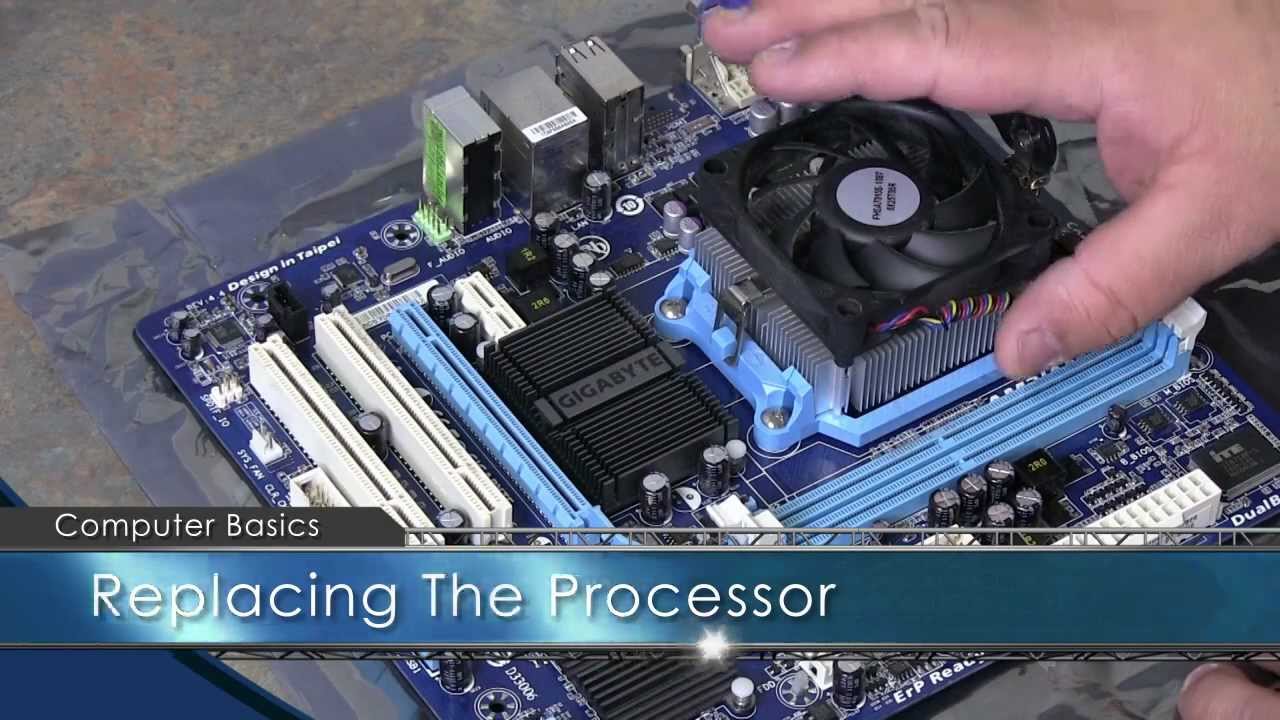
processor the central processing unit that does all the calculations and does most if not all of the work of the computer now some computers will have a second processor just to make the picture on the screen and that's called a video processor but for the most part the central processor is what we consider to be the most important processor now you'll notice there's some screws here the reason there's some screws here is sometimes maybe the fan will stop working it'll fail so you could replace the fan underneath sometimes the processor will either stop working or
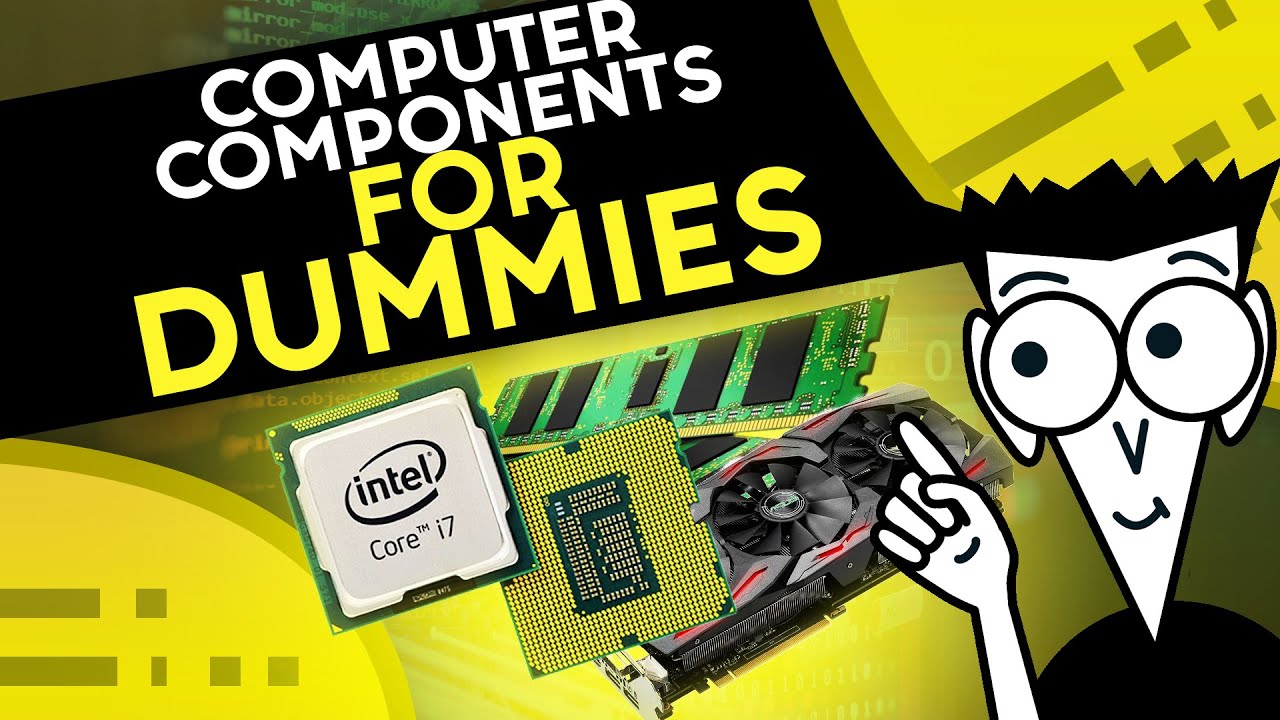
it's just been several years and the processor just isn't as fast as we want you can buy a new processor that fits in exactly the same spot and then your computer will go faster but you have to make sure it's exactly the same numbers on that processor the same type of processor so for example if you're getting a core seven processor if that's what's in it right now then you'd have to replace it with another core seven processor I see some other wires here looks like these wires might be the ones that are powering up
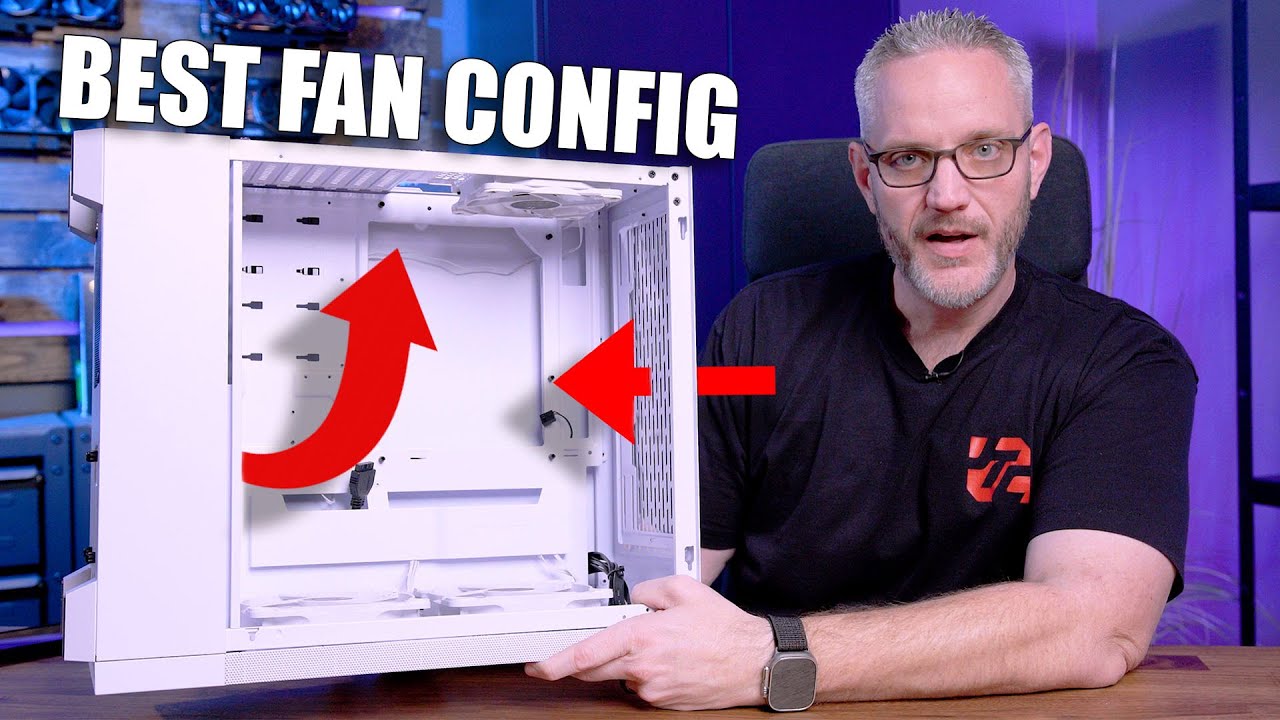
it looks like they're going to the front of the computer looks like they're powering this fan in the front again we need to make sure to keep everything cool the processor will get very very hot especially if you're using a lot of programs at the same time or maybe you're doing something like creating a video that that uses lots and lots of process or energy it causes the processor to get very hot so there's a fan there's also a little tiny speaker over here that's called the personal computer speaker which is abbreviated PC speaker you'll
notice there's another heatsink right here there's probably something else that gets really super hot right underneath there and we could probably push those pins and take it out and see what that is you'll notice something round right here this is the clock battery the clock battery makes sure the clock keeps running so even though this computer's not plugged in that clock there's a clock chip maybe it's that little chip right there and that clock chip keeps the clock running well the battery keeps the clock running if this computer were unplug unplugged for a long time
like a year or two or maybe more years eventually the battery of course would drain and the clock would not be working anymore that means that every time you turn down the computer you'd have to reset the clock or maybe the computer wouldn't turn on at all because maybe the clock is required for the computer to turn out in the back of the computer are the port's where things plug into you can see that there's some different little boxes where the ports are housed there's the USB 3s over here and the USB 2 and the
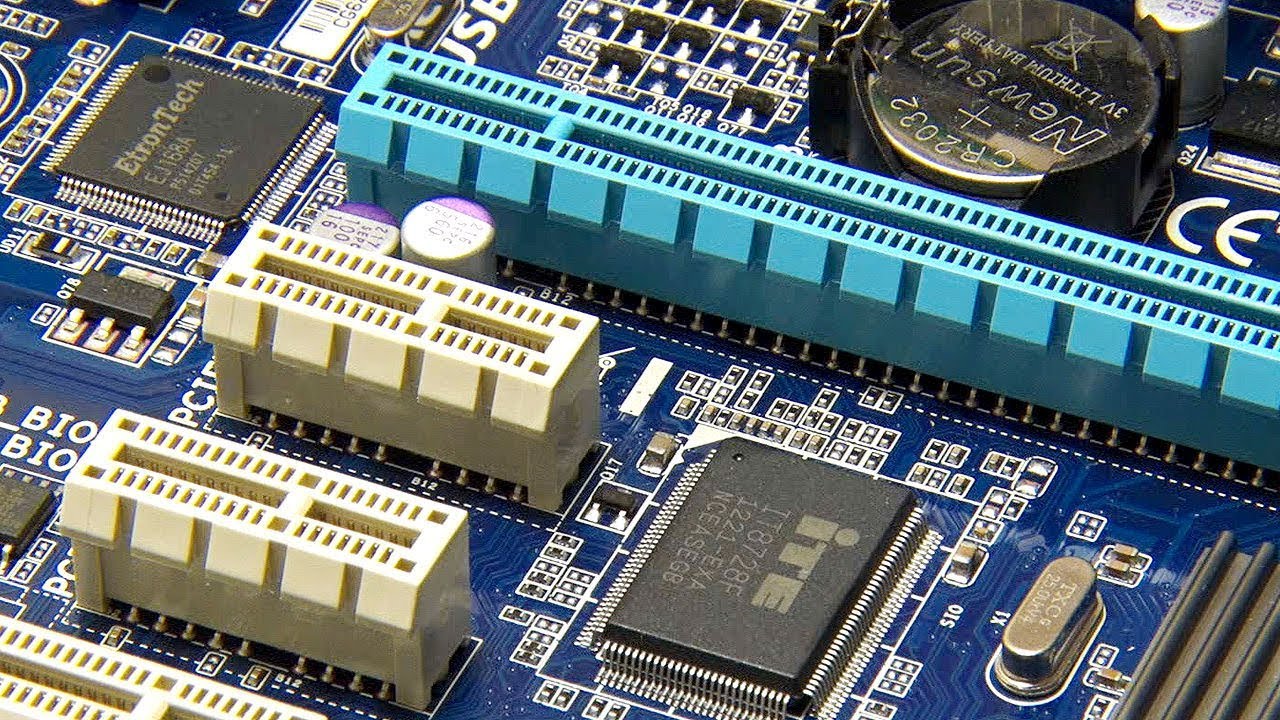
network port here there's also like a video port right there and there's a display port there you'll notice over here there are one-two-three-four expansion slots and one of the expansion slots is taken up by two more USB ports and those USB ports are plugged into this little spot right here you might notice these two white slots well suppose you wanted to do some video gaming or do something really really fast with the computer like video processing like making videos high definition or Ultra High Definition you would maybe put in a brand new card it would
look green like this and it would be a video card and it would stick out the back so you could plug in your monitor a lot of times people that game on computers will have another video card or even two video cards there's also two more little black slots those can also be used to make more ports on the back of the computer so maybe there's something you want to add like maybe you want wireless networking on this computer right now it doesn't have any but you could add a card they had an antenna in
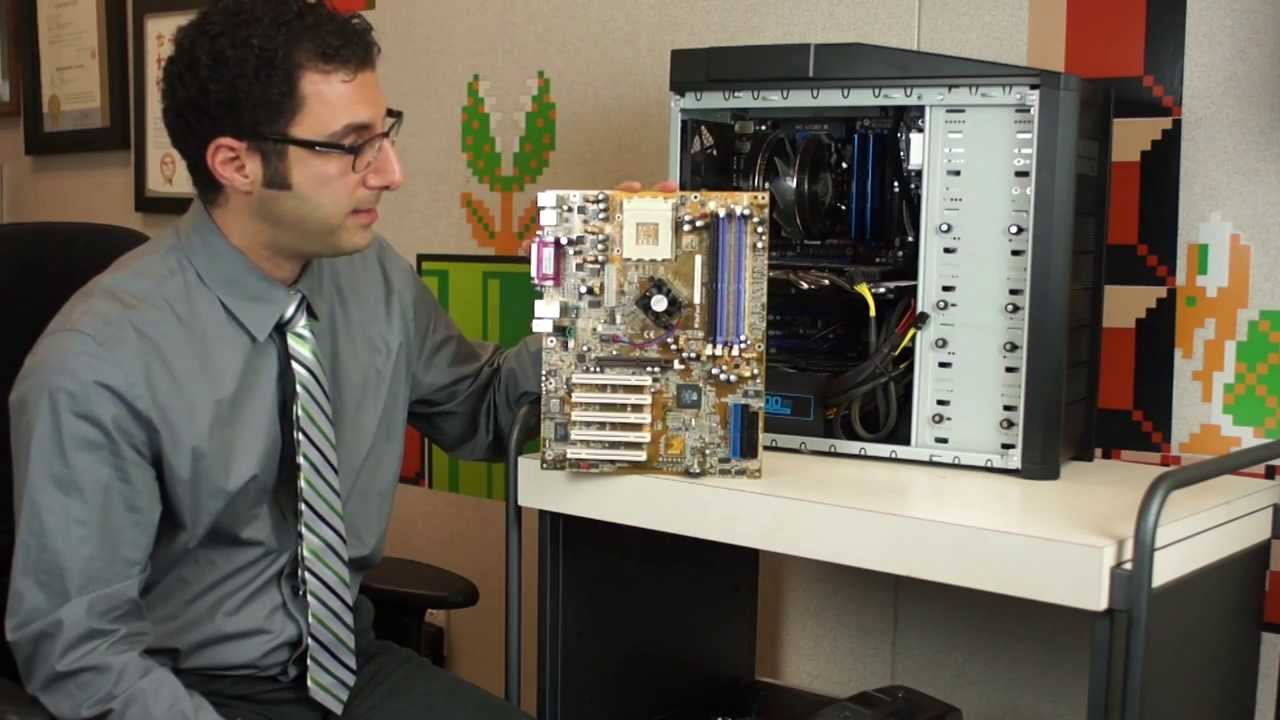
the back and have Wi-Fi in this computer so there's one two three four slots where you could add something onto the computer so that's the quick tour of the inside of a computer now many of these things can be replaced and some of them can't be replaced you could replace the mainboard if something was wrong with the mainboard you could replace the memory or you could add more memory you could replace the fan you could replace the processor if the power supply stopped working you could place the power supply the optical drive maybe you want
to put in a blu-ray optical drive well you saw how easy it was to put in this optical drive if you want to replace the hard drive and put it in a hard drive that has more capacity you can see that would be pretty simple to do maybe one of the fans is burned-out you could replace the fan on the front of the computer and of course you could even add stuff to the computer like adding more ports on the back so these computers are called expandable it's not like a phone or a tablet computer
where usually the only thing you can expand is maybe adding a little more storage like a memory card desktop computers have lots of space where you can upgrade them so that they can do more things than they did when you originally purchase them and you can easily replace things yourself if they go bad I hope you've enjoyed this quick tour of the inside of the computer to help you remember this maybe you want to take a picture of the inside of computer and label all the parts that might help you remember thank you very much
I hope you've enjoyed this a lot
![How does Computer Hardware Work? 💻🛠🔬 [3D Animated Teardown]](https://img.youtube.com/vi/d86ws7mQYIg/maxresdefault.jpg)