hello guys welcome to this guide my name is Stone and I'm going to show you how to configure uh pinet lab or even here with prox MOX environment so I hope you have red prox mock set up as I do so the first thing you need to do is to download pinet lab OVA or even OVA in my case I just download pinet lab from this link I'm going to leave it on description below so I already downloaded it's on my downloads folder and then we're going to start to upload this image to Pro prox
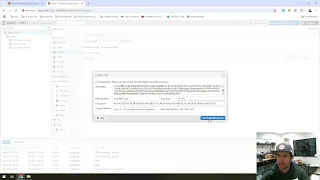
MOX but before we need to create a new virtual machine so let's create the VM uh I leave in the IDE as recommended 104 and I can name whatever you need for operation operational system I leave do not use any media it's not needed then we go to system system we can leave as the full and for diss you just need to choose your storage in my case it will be local lvm okay then we can move for CPU I just place two CPUs sockets and core and for memory you can set up as much
you need I leave this and for Network you can configure as needed it depends on your environment for me it's the just the bridge vmbr0 and we can finish okay let's wait a bit to create the machine you see 1004 has been created and botton we can see from logs create status okay now the machine has been created we can start importing now our image and perform the the setup okay I'm going to use buy to connect to my prox Mox and also we need to run wi SCP or any tool you need you have
to upload the image for for prox MOX so I am using wisp let's connect to prox Mox okay we see we are on the root folder we need to change to SL TMP because the image is going to be automatically deleted later on so that's why I like to place my files on that folder so on the left side I'm going to change to downloads okay I'm just deleting the the previous images that I was testing okay now I on left side go to downloads and copy the pet labova to TMP on proxmox okay it's
going to take a while so I'm going to fast for this video for now okay it has been finished so if you go to Party C see I for proxo and LS LP we can see that pet lab OVA is there so we can CD into this folder and run following command to uh unzip the OVA so T xvf and the name of theet lob or even image that you have you see that has been unzipped and we just need to cop this first name name for the vmdk file okay so we do this command
now to import the disk for the machine we created you see the id4 is the ID for the machine pet then qm import disk4 name of the image and you can choose the the dis that you want to to configure in my case it will be local lvm and we run format KY out 2 and we run the command format Q call to and you see that there was the error because I did not choose the the folder so I need to go place/ TMP slash the name of the the image now let it run
it will take a bit of seconds okay after finishing we can close Po and wi SCP we go back to Pro Mox and edit the hardware settings for the virtual machine that we created here we can delete the previous hard disk that was created and add the new disk that we created we can see the UN user dis zero we can edit and change the change the bus device to ID and click add for me the only device that worked was changing to ID okay we can remove the previous dis that was created in my
case it was this 32 gig and we can delete this one and leave the one gig that we create okay um okay now we need to configure nested support for this machine okay now we're going to configure the pet machine as host mode so I just run this command k set4 if if CPU host okay it's updated now we just need to change the boot order so I disable everything and just enable the HD that we created okay now when we power on it's going to be boot booted by the the HD so we can
start up the machine okay it's going to but we can see that the Linux is already loading it means that it's booting from the that we created that's very important if you don't go to this screen you might have something wrong with your configuration okay we can see that the pet lab is running and booing up let's wait a bit more okay we see that it's working normally we have have the default username and password rout and spinet we can log in it's going to request to perform us to perform a lot a few change
and it's going to ask us to perform a few change you can change the password gns IP address so change accordly in my case I'm going to add a static IP 192 168 1250 and sl24 mask and my default Gateway for this network okay for DNS I'm going to use Google public DNS and also Open DNS okay I don't use an ntp and no proxy so I can just place okay okay and the Machine is going to reboot okay once is rebooted we we are ready to set up the I share to so for this
case I like to access the pet machine to put puty because we need to copy and paste some commands and from console on prox MOX it's not easy so it's better to manage it through puty so I'm going to sess AG into this machine that I just created okay for username is root and password I mistyped the password it's the new password that we just change it okay now we go back to lob Hub and go home here you can see I share two go a bit below okay there's the script for cell I just
cop this entire script go to puty again and paste this script is going to perform everything for us we just basically need to accept and change a few settings but it's very basic I leave everything as recommended and I also recommend you to leave it as it is because it works perfect okay now we can see that the I sh two has been successfully installed so we can run the comment I share two comments now so basically basically I would like to recommend you to check the documentation for I share to but it's very basic
you run the command I share two search and the name of the machine that you want and also you can choose like Kimo and going to show a lot of Kimo available images and you can instead of Kimo you can just use the image name like Linux windows or FMC L2 sometimes you can use whatever you want to search okay on I share to documentation you can see more so I can search for L2 and just going to install the the image for switch okay I'm going to install Kimu image so in that case I
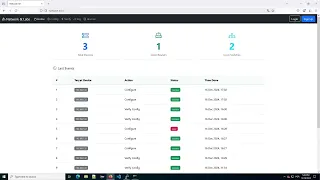
will choose 931 it's the ID of this image that I'm going to install so now I can run the commment I share to P Kimu and the name of the image that I want to install but first let's go to the pro sorry to pinet lab through the browser and I'm going to use offline mode you can use admin net it's the full you can change it later and just log in okay now that you are logged in create a new lab name it whatever you want let's create this for test only okay now I'm
going to add a node you can see that there's no nde available like a switch or router or anything else just Docker and virtual PES that these are the full okay now we're going to install the image so go back to C and run the comment I share to PO and in my case will be Kimo image IG 931 so I run this command and just is like that I share 2 is going to install for us the image and fix permissions and we don't need to use tool like wi SCP to cop the image
and then s to pet or even and run the command again for fixed permissions I'm not sure if I share to works for evg I don't think so it's only for pet lab as pet lab is based on evg okay okay we can see now that the download is finished and fix permissions has been exe executed now let's go back to the web browser and we can see here that the image is not showing but we refresh the page and we can see now we have Cisco V Vios image and we just add this image
and start the switch okay now the switch started we can open this device my case it's opening uh puty already already because I I have the tools installed I I will leave the link below so you can download the windows tools where where anything you're going to access on pet lab is going to be sh for you sorry we we open like puty or VNC on your machine instead of using browser access it's a bit laggy so I would rather to use this party and VNC okay we can see that the machine is buing up
it's working perfect now and we can perform a few configurations it is like a emulated device and it can connect to real Network and we can set up this now just to make sure that it's working properly okay now switch has been booted up and we can run comments like a real switch so show IP interface brief we can see we have this interface show version all commments might work properly we have no physical connections but now let's connect this switch to the real real Network so the first thing we need to do is go
to pet lab browser at the new network in my case as we have the full configuration we're going to use management Cloud which means it's the IP of the pinet lab and the same subnet and we're going to connect the physical connections on Giga zero okay I already have this connection you can see that it's going to change the status to up now let's configure this port no switch port and let's place his GSP to see if to works and connect to my real Network that's sweet we can see that I received JCP IP let
me try to ping my de full Gateway you see it's working properly and let's see if I can reach the internet yeah it's reaching it's working so now I have the environment successfully set set now if you need to add another image to perform your Labs you can just use I share too as I should you I recommend again to check the documentation and give me a comment if you need anything maybe I can help so I hope you like it you enjoyed and see you next time