hey what's up guys Brandon Lee with virtualization howto so you have that shiny new VMware esxi server that you've loaded up in the home lab what next what do you need to do to get things configured well stick around I'm going to dive into all of the things that I normally do with a brand new VMware esxi server configurations settings changes and just tips and tweaks that I learned over the years with working with esxi and production as well as a home lab so as always grab that hot cup of coffee let's Dive Right [Music]
In the first thing that we're going to configure is the management Network this is where everything starts with your esxi host this is how you connect to the host it's how you manage it it is where we set up the I IP address information DNS information network adapters that we're going to use for the management Network vlans and theis goes on and on so let's look and see how we configure that VMware has what's called the direct console user interface and this is the interface that you get when you log directly into the console of
the esxi server all you need to do to interact with the dcui is hit F2 and that allows us to log in to start managing things once we log in we're going to navigate to configure management Network the first thing that I want to call out is the network adapters configuration by default VMware will choose one of the adapters that is active during the installation of esxi now for proper management availability you want to have more than one network adapter configured for this manage IP address so as you can see I have another network interface
available that I can choose to also carry that management traffic if one of the network cables is unplugged from one of the management adapters the other network adapter will carry on traffic and you probably will not even notice a blip in a ping command so I'm choosing the additional network adapter so now we have some redundancy for that management Network now let look at vlans if you have a specific VLAN that you want the management traffic to flow through for your esxi host you will need to tag that here esxi is simply just going to
come out of the box configured for untagged traffic so it's just going to accept the native VLAN that is configured on your network switch so if you have a specific management Network that you want the esxi host to communicate on you need to enter that here I am just leaving this blank for now since this is just a nested test environment this is where you would configure those vlans a call out about the vlans in the previous network adapters you would make sure that your physical uplinks are tagged for that management VLAN if you were
to select multiple network adapters and not have those management vlans tagged on the ports for your network switch if one of the uplinks were pulled that other network adapter would not be able to communicate on that management VLAN and you would lose connectivity navigating down to ipv4 here is where we set a static IP address so if we want to set a static IP address we would do that here and we would make sure to configure a network mask a default gateway all of the normal configurations under DNS configuration this is where we would configure
our DNS servers that we want to use locally or public public resolvers and also for the host name here is where we would actually set that host name so I'm going to set that I'm going to set the DNS configuration as I want when I hit enter also with custom DNS configuration suffixes this is where we enter a local DNS search order suffix if there are local resources that we want to access from our esxi server via that local DNS Zone this is where we would configure that information after we configure all of our network
settings we simply hit escape and we're going to be asked if we want to apply the changes and restart the management Network we're going to enter why the management network has been restarted and we see that we have the esxi 8 test for the host a so that tells us that all of those changes have been applied to our Network management interface now that we have the management Network configured with connectivity and all of our settings I want to log into the esxi host client and enable SSH as we will use SSH for additional configuration
so I'm going to log in we're going to click the host node we're going to click actions services and we're going to enable secure shell SSH now that we have SSH enabled I can use putty to SSH into the esxi host and there we have it we have successfully logged in with SSH the next thing is patching our esxi host we may have install a version that we pulled from an ISO image that does not have the latest esxi patches so how do we do that after we established SSH connectivity to our esxi host we
can now run some commands from the command line to make sure that we have the latest patches installed esxi lets you know which software version you're running by something called a software profile now you can see your software profile by the command esxi software profile get and it will return to you the software profile that you are currently running as you can see I'm running esxi 8.0 and the software profile is 20513 97- standard the standard designation means that we are also running VMware tools as part of the installation image so that is our software
profile if we want to update to a certain software profile there is a command that you can do that to get these software profiles the VMware patch Center actually has the latest patches for esxi listed so if we find a specific patch version that we want to upgrade to then we can use that patch profile to upgrade our ESX server all we would need to do in that case is use the command that I have pasted here is esxi software profile update and then we're pulling directly from the VMware patch Center so as you can
see if I were on a downlevel esxi host and I wanted to upgrade to esxi 8.0 then I would simply update the profile it pulls down the latest uh patch level which is ES sxi 8 and it applies that patch level to our esxi HX the next thing we're going to do is set the esxi time and date to point to an ntp server we can log into the host client once again we're going to navigate to host and then to manage and you will see under the system tab we have several options but the
bottom option is time and date and as you can see the NP service status is stopped so we want to configure our esxi host to point to an antp server if we do that we can simply select the edit ntp settings we're going to select use Network time protocol enable ntp client make sure this is set to start and stop with host and that ensures that when we restart our esxi host the settings are persistent for our ntp server so I'm going to plug in the ntp server that I want to use USL pool .
ntp.org and we're going to save that setting now that we have our ntp settings set you'll still notice that the ntp service status is stopped so let's navigate over to services ntpd and we're going to start that service and you notice now it is set to running if we go back over to the system Tab and we refresh we notice that the ntp service status is now set to running so now we have configured our ntp server set settings for our esxi host and its configuration one thing I like to do as well with my
esxi host is point those host to my CIS log server and CIS log servers are great to capture logging and to go back for historical troubleshooting to point your esxi host to a specific CIS log server there are a couple of commands that we can easily run from an SSH session to get that CIS log server configuration set I'm going to paste in the first command to set configuration to a specific CIS log server and for the CIS log server I'm issuing the command ESX CLI system CIS log config set and then we pass in
the log host parameter pointed to our CIS log server then we simply need to restart our CIS log service now our CIS log configuration is set as simple as that what if we want to attach our esxi server to Shared is scuzzy storage which is a popular storage Target that many may be running in production or in their home lab well that is very easy we can add an esxi i scuzzy software adapter that allows us to communicate with our I scuzzy storage how do we do that in the esxi host client click on host
and then storage under our storage node we can navigate to the adapter's tab you'll notice under the adapter's tab we have the option for software I scuzzy it pops up the dialogue box configure I scuzzy we're going to flag this from disabled to enabled and if you notice after a couple of moments it automatically generates the name and Alias that will be the ice scuzzy initiator that will communicate with the Icey Target that we may have provisioned on a sand or NZ or another storage device it's important to note that simply adding the ice cuzzi
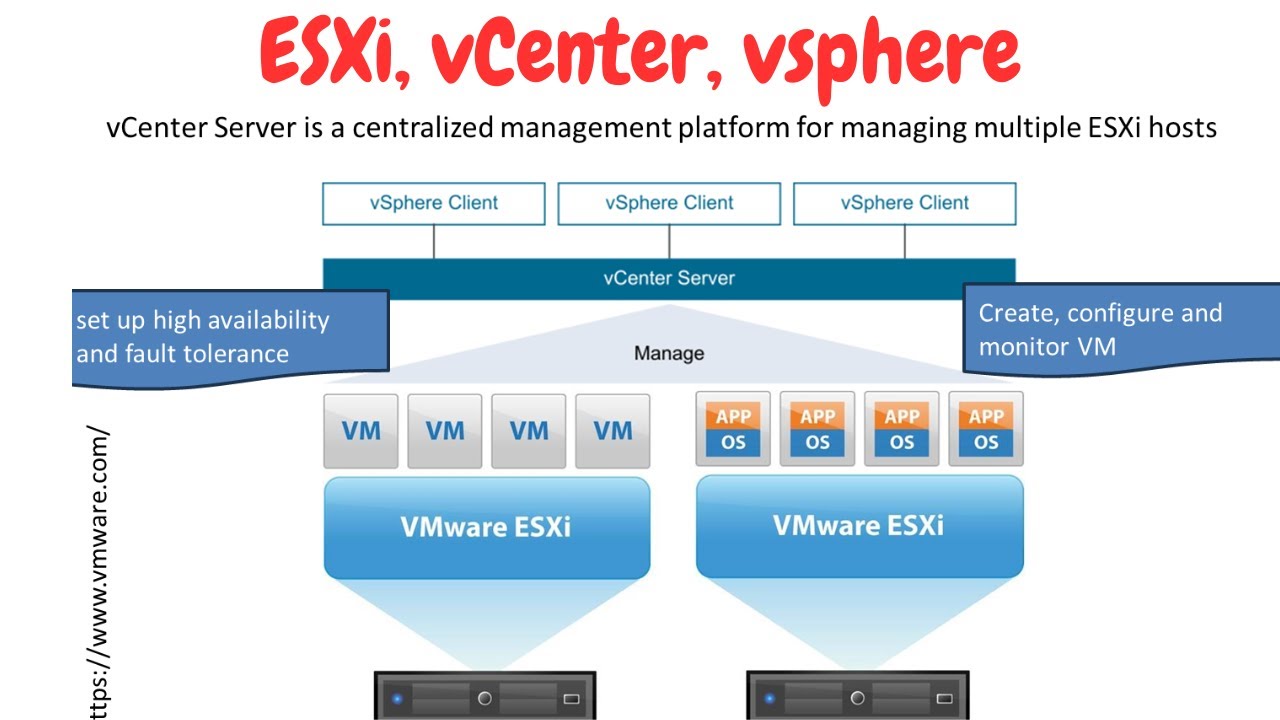
soft for adapter is not the only steps that we need to perform to configure ice cuzy storage we will need to provision a VM kernel adapter that will allow us to communicate with that I scuzzy storage however this step is necessary in a general way to begin that process next I'm going to show you guys how you add a standalone esxi host to a Venter server that you have provisioned adding an esxi host to Venter server opens up all of the Enterprise features that we get with a full-blown vsphere solution and it's definitely the configuration
that you want to have if you're in a production environment or if you want to experiment more fully in a lab environment let me show you guys how to do that in Venter server we are logged in we're going to click our data center node which is the very top node underneath our Venter server node so clicking the data center we're going to rightclick and we're going to choose the option add host now we have the IP address for our esxi host that we have been working with in the host client as well as SSH
I'm going to enter that IP address now click next we're going to enter the username and password which is our root account that we're going to use to attached to this Standalone esxi server and we get the default security alert for the self-signed certificate we're going to click yes and now we get the host summary screen that we're about to add this particular Standalone esxi host going to click next we're going to keep the evaluation license going to click next we're going to not enable lockdown mode we're going to place this simply in the root
of our data center node click next and we are now ready to complete this process very simple to add an esxi host to Venter server I'm going to click finish and you will see the host first pop in as disconnected and this is not anything alarming as Venter is setting up its connection to the host with the special user and all of the configuration information and after a few moments as you see the host goes to a normal appearance so now we have this esxi host fully managed by our Venter server next I'm going to
show you guys how to add a special VM kernel adapter VM kernel adapters are specialized really IP addresses in esxi that allow esxi to communicate with specialized services in a vsphere environment these specialized Services may be vmotion is scuzzi or vsam to establish that connectivity we need to add special VM kernel adapters with those IP addresses to to enable that communication to do that simply rightclick on your esxi host NV Center we're going to go to add networking and as you see it brings up the ad networking wizard we're going to select VM kernel network
adapter I'm going to select select an existing standard switch and we're going to choose our default vs switch zero click next and as you can see we have the next configuration as our Port Properties here select a network label we can configure a VLAN ID IP address settings MTU values and also tell Vere which specialized VM kernel services that we are going to enable with this IP address so I'm going to go through and I'm going to set this as v motion and I'm going to leave the VLAN ID as none ipv4 and we're going
to set the custom MTU value at 9,000 which is our jumbo frames value the the TCP IP stack we're going to leave it default and I'm going to select v motion click next we're going to use static IP V4 settings we're going to Simply use 19216811 100 Class C and leaving the DNS server values as the same and we're to the end of creating that VM kernel adapter so we simply click finish finally I'm going to show you guys how to license your esxi host now you can do this either from the host client on
the esxi host directly or from Venter server however if you have already managed your esxi host with a Venter server you will get an error message if you try to apply the license directly on the esxi host client I'm going to show you how to enable that in both places in the host client if you click under host and manage you're going to see the licensing tab if you click the assign license you're going to be able to paste in your license key that if you're a home lab Enthusiast maybe you have purchased that through
a vmug Advantage subscription which I highly recommend or in a production environment you're going to enter your production key if it's managed by Venter as we've already done if you click the assigned license you're going to get the error message the license for this host is being managed by Venter if we flip over to Venter server we can go to the hamburger menu on the upper leftand corner we're going to go to Administration and we're going to navigate at to licenses as you can see this brings up the Venter licenses section of our interface we
can add a license here so if we have an esxi host license we would add that license key go through the wizard and it will simply add the license however there's another step that you need to perform as you need to click your assets you will see the option for Venter server hosts vsn cluster supervisors which is is VMware tanzoo and other Solutions we're going to click the host button you have the option here to choose the host and then assign license now if we had added an esxi license we would see that listed we
would be able to choose it and then that would apply it to the host so the license process is very simple if you haven't added your host to Venter you can simply do that from the host client or if it's managed with Venter server you can assign the license in V Center server with a V client what do you think about the first things that I do with VMware esxi I hope this video helps you guys out with areas of the configuration that are beneficial to configure out of the box with a clean VMware esxi
installation all of these configurations are things that I typically do in a production environment as well as in the home lab well I'm Brandon Lee please do like the video subscribe to the channel if you've not already happy home labbing and I will see you guys soon [Music]