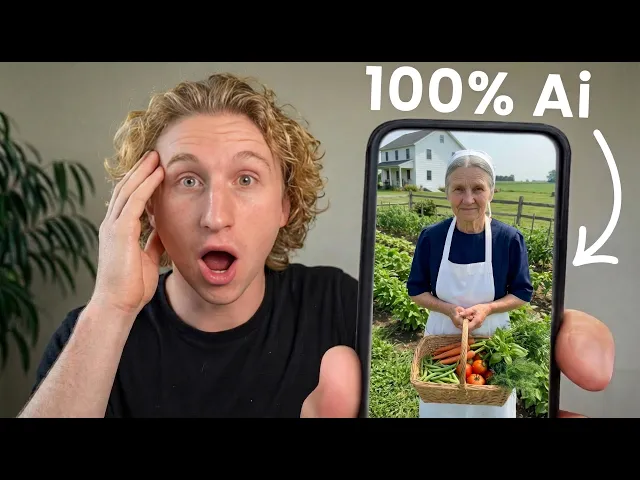
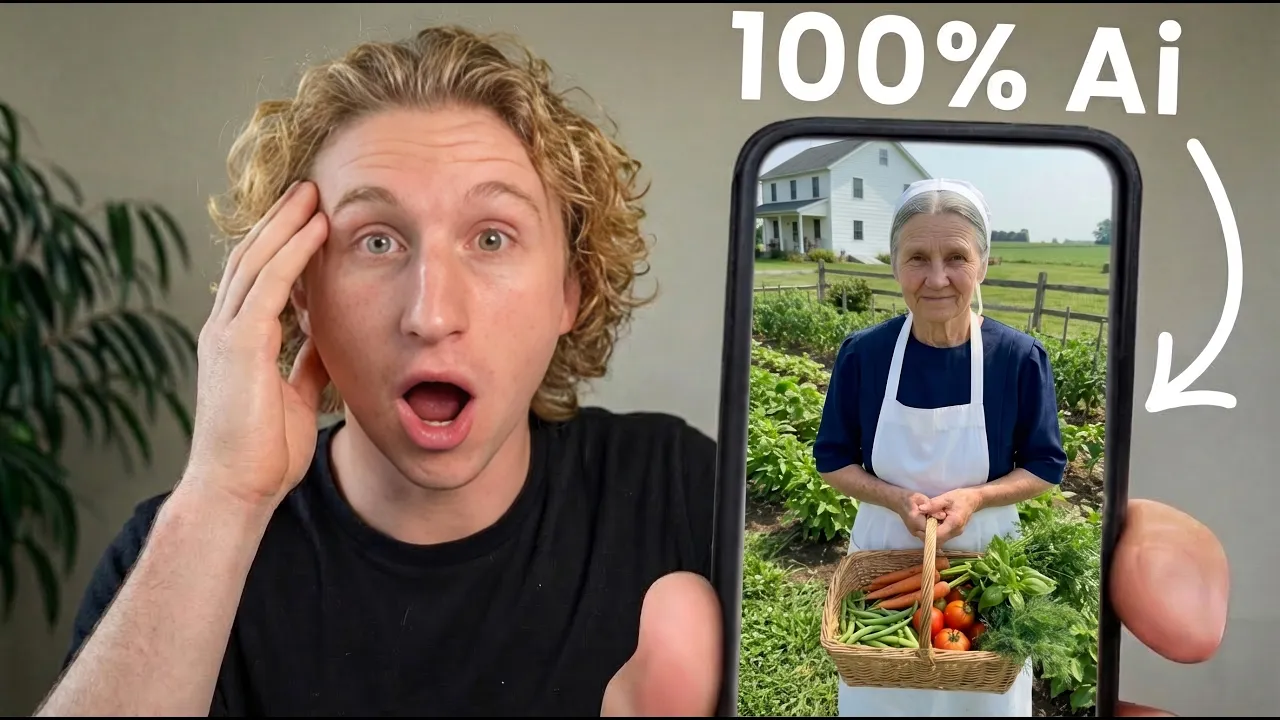
AI Tik Tok shop is the easiest way to make money online right now, but most people are clueless as how to make realistic looking videos that actually drive sales. I'm going to walk you through the exact process I use to make faceless Tik Tok shop videos from start to finish. This is the exact method my team and I use to generate over $50 million in sales as affiliates.
Everything you're about to see is the real workflow I use every single day. This isn't something from 12 months ago, not 6, not three. This is literally something I use today at a coffee shop.
The best part about this system is it even works if you have zero prior experience creating AI content. I'm going to show you how to create the AI characters, generate the voices, and find the winning content that I steal. And most importantly, how I put it all together so I can actually drive views and sales.
Before I explain the process, I want to quickly explain the two types of videos you're going to see in this walkthrough. The first type is called an account growth video. The entire purpose of an account growth video is to grow your account and build followers.
You're not selling anything with these. You're just getting eyeballs on your page. The second type of video is a product promotion video.
This is where you actually make money. These are videos where your character is promoting a specific product and driving sales. So, to summarize, one of the formats you're going to be learning today is building your audience.
and the other one is going to be how to monetize it. Both use the same characters and the same tools, but the workflow is a little bit different for each. I'm going to walk you through both so there's absolutely no confusion.
Now, before you make a single video, you need to build your character. This is the foundation that everything else runs on. It takes some upfront work the first time, but once it's dialed in, you barely touch it.
Let me show you exactly how to do it. The first thing I do is go into Claude and use a character creation prompt. Basically, I'm just describing the type of person I want my character to be.
So, basically, what I'm going to do is I'm going to just go into this prompt, and if I want to create a prompt for an Amish woman, I'm going to go in and fill in the descriptions for each of these parts. So, for description of the person, I would just go in here and do Amish woman. Insert physical description, I'll do age, let's say she's 68 years old.
Gender, she's going to be a woman. Ethnicity, we'll do white. Hair color, we can just put as gray.
Braided. Eye color, green. And then for the rest of this, we can put in her clothing style.
We can just say traditional Amish clothing. For setting in context, we can just say like inside her kitchen. For lighting, we can just say natural lighting.
And then at the top, I can just say create this extended master prompt for Higsfield. And then I'll just put that in. And then it's just going to take about 30 seconds to generate.
So now all I'm going to do is basically take this prompt and put it into Higsfield and generate our base image for our character. So I just copy this, go over to Higsfield. So I will paste this into Higsfield right here.
For my settings, I'm going to use Nanobano Pro 9x6 2K resolution. And I'm going to just do three generations here just so I can kind of see. It's probably going to take a few more generations until you get the ideal character that you want and I said generate.
One thing I would recommend is getting a second set of eyes on your character before you commit. So, when I was doing my character, I went to my coaches afterwards. I went to Lucas and K and I just had them do like a quick once over the characters.
Once they gave me the green flag, I was good to go. So, they'll catch some stuff I missed. Like, it's already too similar to another character that's out there performing well.
So, here's our final character images that just generated. So, as you can see from the three of these, this one is obviously incorrect because it has this like weird portrait thing up here. And then this one on the left I feel like just like looks too fake.
I don't really like the oven in the back there. But this one right here I think is really good. So honestly we could just go with this.
Okay. So now that we've created our base image for our character, now we're going to create multiple settings. So we could have our Amish character in her kitchen, maybe at a farmers market, maybe at a grocery store, wherever she could be.
Okay, so now I'm going to take my multiple settings prompt. I'm going to go back into Claude and have it create me three new image prompts for multiple settings. So I'm going to copy this.
I'm going to go into Claude. I'm going to say create me three new image prompts using this multiple settings prompt for this new character. And then I'll put that in below.
And just like that, Claude is going to give me three new image prompts that I can use to create three new settings. Okay, so Claude right here just said, "Can you share the reference image of the new character so I can write the prompts accurately? " So you can just go back to Pigsfield here.
You're going to just download your image real quick. Save that into a folder and then just go back to Claude. drop that down here so it has the reference image and then it should just be able to spit you out those three prompts.
Okay, so now you can see that claw gave us three different settings prompts. The first one's going to be a farmhouse kitchen table. The second one is going to be an outdoor garden and the third one is going to be a general store.
So I can just copy all three of these prompts into back into Higsfield using our original reference image and it's going to give me three new settings for this character. So I'll just take the first prompt here. I will go back into Higsfield, delete the original prompt, drag my character into this and paste the new prompt.
and it'll just say to use the attached image or the attached character in the reference image. And then I can just hit generate. We'll just only do two for this one.
Okay. So now Higsfield has generated our first two new setting images. And you can see that it used the exact same character in our base image.
So the face looks the same. She's wearing the same clothes, but now she is sitting at a kitchen table with some different ingredients, some different products in front of her, and there's a different setting. So now I'm going to just generate the other three different settings.
Okay. So now, as you can see, we have generated all three of our multiple settings. This second one right here is just our Amish character in a garden.
And the third one is her looks like she's in a general store with some products in front of her. And then we have basically three new settings that we can work with. So last I'm going to do voice design.
So I'm going to just go into this software called 11 Labs. And this is where you can create your voice. So when you go to 11 Labs, you're just going to go over to this voices thing.
You're going to hit create new voice and then you're going to go to voice design. And then from here we're going to paste in a voice prompt that we're going to generate again using Claude. So as you can see, there's no creative process that's really going into this so far.
So I'm going to go back over to my prompts. I'm going to go over to the voice prompting. I'm going to copy all of this and then paste it back into Claude and I'm going to say create a voice prompt for 11 Labs for my new Amish character using the examples below as reference and then we'll just wait for that to generate.
So, in literally 20 seconds, Claude already spit me out the voice creation prompt. It says, "An elderly Amish woman in her late 60s speaking plain simple English at a calm unhurried pace as if she is carrying a rebony as she has known her whole life, etc. , etc.
" So, I literally copy this prompt. I'm going to go back over to 11 Labs. I'm going to go to our voice design.
I'm going to paste this in. You really don't need to adjust any of these settings cuz this is already like the most optimal setup and you just hit generate voice. Okay, so now 11 Labs is going to give you three different examples of the voice and you can just select one of them and save them to your profile.
And you just want to listen to each one and figure out which one kind of sounds the most natural. And you can kind of go back and forth between your base image of your character and the options here. And then just pick whichever one sounds the best.
Well, now good day to you. I was just thinking about the Well, now good day to you. Well, now good day to you.
I was just thinking about the garden. Okay, so I like voice one the most. So I'm just going to select this voice and I'm going to call this Amishwoman demo.
And then value here. We're just going to find English and I'm going to save that voice to my 11 Labs. So, it might say that this is over 500 characters.
Then just delete this last part. It doesn't really matter too much. All right.
So, once that's generated, you can just go over to your voices now. Click on my voices and you'll see your new Amishwoman demo or you'll see your new character voice right at the top here. So, here's what's really cool about this.
Claude learns your characters over time like really good. So, after a few sessions of doing this with Claude, you can literally just go back and say, "Create me a new image setting for Aunt Ruth or whatever your character. If you want her in a farmers market, if you want her in a new setting, baud will just remember these base prompts so you won't have to feed it the new original prompts every single time.
It's a lot of upfront work, but it's basically on cruise control from there. Now that your character is built, this is what the actual day-to-day workflow looks like. Every single day starts with research.
I've set this up in a way that makes it stupid easy. Okay, so before I set timers really quickly, I'm going to just explain what I'm doing kind of with my daily workflow. So, this is a brand new account right now that I'm going to warm up and basically just train it so it feeds me inspiration and different videos every single day.
This literally takes less than 5 minutes to warm up your new account. And then once you warm up your account, it's just going to feed you inspiration and account growth videos and different product promotion videos. So you never really have to go out of your way to do research.
So I'm going to go ahead and start a timer. And then on my phone, I'm literally just going to go to reals. And for example, this first video has nothing to do with a niche.
So we're going to be looking for videos that are in like health and wellness or other AI videos. And we'll just start interacting with them. And in like the next 2 to 3 minutes, our page will literally all be the type of info we're looking for.
So I'm going to scroll past that. Keep scrolling until you find that has to do with health, wellness, food, whatever. You can see right here that I have a video of like cookies.
So, I'm going to first interact with this because this is the closest to like food helless. I'm going to watch this for like maybe 15 seconds all the way through and then scroll on to the next video. Okay, so now that we've watched this all the way through.
I'll keep on scrolling. Okay, so here's another food one. You can already see that Instagram is trying to give us more food videos.
Again, I'll like that. Maybe I'll do a little reap and then I'll keep scrolling. Again, here's another food video already.
You can see that the algorithm is giving more and more stuff within literally like the first two minutes. I'll like this one and then I'll keep going. And then now look it, we have all these food videos popping up and we've literally been scrolling for probably 3 minutes.
I want to start interacting with more like health and wellness food. Okay, so this is like the first healthier recipe that I've seen now. And again, we've only been doing this for about maybe 2 and 1 half, 3 minutes.
So, I'll watch this video, I'll like it, and I'll keep going. And then this is like kind of now starting to be more content that we would actually use as maybe an account growth video. So, again, I'll like this one.
Okay, so this video right here is using an AI voiceover. So, I'm going to interact with this video because this is like the first video that I could actually use as an account growth video. And now, we've been doing this for again 3 4 minutes.
So, I'll go ahead and repost this, interact with it, watch it all the way through, and now it's going to be suggesting me even more stuff. So, this mango pudding with chia seeds video. This is another example of what could be an account growth video.
I'm basically going to scroll until we get our first account growth video that I can then go show you guys how I can actually make this video using my character that we just made. Okay, perfect. So, I literally just found a video that we can actually use as an account growth video for this example.
So, I'm going to go ahead and save this video. I'm going to call this account growth. And then we will come back to this in a second.
So, I'll go ahead and save that. And within literally 5 minutes, I already found a background video that I can go ahead and use for my account growth video. It's literally that simple to warm up your account and get Instagram to actually start feeding you content that you're going to use every single day.
Okay, so now that the resource process is done, we can literally just go ahead and start making an account growth video. The whole point is to grow your account so when you post product promotion videos, you actually have an audience that can see them. something that we actually recommend to students is that they don't even touch product promotion videos until they get to 1K followers using this strategy.
Okay, so now I'm going to go back into my Instagram account and I'm going to just go to my saved and you can see here I saved this account growth video. So I'm going to just go to the video and I'm going to copy the link from the video and I'm paste this link into Snap Insta and then I'm going to download the video. So I'm going to take the link of the video right here.
I'm going to go over to Snap Insta. I'm going to put this in here and just hit download. So now I'm going to download this video.
Just save it to a temporary folder. I'm going just put it up to my little Drpbox up here. And now I'm going to take this video and go over to 11 Labs and do voice changer.
So back on 11 Labs, I'm going to go over to the lefth hand side here and select voice changer. And I'm going to take this video, go ahead and drop it in here. And I'm going to make sure I select the voice that we just created.
So now all I do is I literally hit generate voice, and it's going to convert the audio in this original video into the new voice of the character that we just created. If you add avocado, three hard-boiled eggs, yogurt, half an onion, chives, olive oil, and spices to a And as you can hear, it literally took this original video that we just found as the background video on Instagram. I put it in, and within 30 seconds, it just did a complete voice change on the video.
So, I'm just going to download this from 11 Labs. And just like that, we have now successfully created the audio file for our account growth video. Okay, so now that I'm in Hey Gen, I already have my character loaded that we created in Higsfield a few minutes ago.
I'm going to just go to open AI Studio. And once I got AI Studio open, I'm going to hit upload audio. And I'm going to just drop in the 11 Labs audio file that we just created.
And then I'll just hit add audio. Just like that. And then, as you can see, it just transcribed it and added the audio file.
And then I'm going to just hit Motion Engine here and switch it to Avatar 3. Okay. So, that's literally all that you need to put in Hen.
So, I'm just going to go ahead and hit generate and hit submit. Just like this. All these settings are fine.
So, this is going to take a few minutes to generate, but once this is done, I'll show you exactly what next to do in Cap Cut. So, as this is generating, honestly, like this process takes me like less than 5 minutes per day per video. I probably make about two to three, maybe four sometimes per day or for account growth videos because honestly, just the more the better.
But once you get this process down, it's just so simple. I mean, if you can scroll on your phone for 5 minutes, find an account growth video, take that, upload it to here, you have a video within 5 minutes, and this video could get you hundreds of thousands of views and hundreds of thousands of followers. So, in the meantime, I'm going to go ahead over to Cap Cut and I'm going to import our background video.
And then once this is done generating, we're just going to overlay the character on the background video. So, I'm going to go over to Cap Cut, create a project, and now I'm just going to import our background video. So, I'm importing the video from Snap Insta.
Just drag this down here. Go ahead and mute the audio. And then once the video is done generating from Hey Genen, I'm going to take this and just overlay it on this video.
Now, you can see that Hey Gen is done generating our video. So, I'm going to just go ahead and save this to my computer. Download that just like that.
Then, I'll just take this and drag it into my little temp box up here. I'm going to go back over to Cap Cut, take the video, drag it here, and drag it onto the timeline. And then I'm going to just go over to remove background.
Hit auto removal. And then it's just going to remove the background in the video of our character. And that'll go ahead and take our character and drag her down to the bottom left corner about maybe that size.
And then this is literally all your video. If you add avocado, three hard-boiled eggs, yogurt, half an onion, chives, olive oil, and spices to a bowl, then mash it all really well, you'll get this high protein, low carb filling idea that's super satiating. That's it.
That is literally a whole entire account growth video done in less than five minutes. Now I'm gonna export it, save it to my computer, send it to my phone, and then I can post that on Instagram and you've got an account growth video all done. I want you to know something that literally took zero creativity.
As long as you can literally go on Instagram, scroll, you can absolutely do this. You're finding content that already works, putting it through your character, and posting it. That's it.
So, by the way, if you're liking what you've seen so far and want even more in-depth version of what I can't include on YouTube, you're going to want to check out the link in the description for the free live training that we're hosting. These are super saucy. is going to show you everything you need to know as a beginner to make money with AI content.
Go ahead and sign up for that now and come back and finish this video. Now, we're going to talk about product promotion videos. These are where your actual commissions are going to come from.
These take longer and require a little bit more thought, but the process is actually way simpler than most people expect. You don't really need to touch these until your account has some traction, usually around 1,000 followers or so. But, let me show you exactly how they work.
So, I'm going to skip the research part for the product promotion video, but essentially, you're basically just looking for another AI avatar promoting a product. And then you're just going to copy that video. So, I already have one saved right here, and I'm going to do the exact same process.
I'm going to take this video, copy it, download it on Snap Insta first. So, I'm going to take the link, head over to Snap Insta. I'm going to find download other video.
And I also want to mention the way you basically just identify if it's a product promotion video is just if the character is promoting a product at the end of the video. So, as you can see right here, this avatar is promoting probiotic kombucha gummies. And that's how you know it's a product promotion video.
So, then we'll just take that one, put in Snap Insta, and then we'll get our script. So, now we're in Snap Insta. I'm going to go ahead and hit download.
And then once I have that, I'm going to go ahead and download this video again, just like we did with account growth videos. Now, the difference with the product promotion videos versus account growth videos is we're actually going to want to transcribe the original video because unlike the account growth videos where we are just doing a voice changer, we're going to have to go in and rewrite the script. So, now I'm going to just go over to a transcriber tool.
The one I like to use is called Vibe. And then I'm going to just select the file from my folder. So, I'm just going to drag in my video from Snap Insta and hit transcribe.
And just like that, I have the script from the winning video that we just found. So, I'm going to go ahead and copy this. So, this is where it gets really interesting.
So instead of rewriting the script myself or having Chad GBT just cook up something super generic, we're going to use the Apex A20 tool. This is a proprietary tool that we created based on our best performing videos from our top creators. So all I'm going to do is take my script over from Vibe.
I'm going to go ahead and paste it in here. And literally I'm just going to put whatever new brand I'm going to be promoting and the product name. So for the brand name I'll just put Bista and then the product name I'll just do Yerba Mate.
And then I literally just hit generate angles. So it literally rewrites a proven script. I never have to question it because it's based on data from our agency.
And it literally retrofits it for any product. It could be yerba magic. It could be goalie gummies.
It could be some kombucha gummies. It does not matter. Okay.
So now I just had generated it and it gave me five different angles to choose from. So this one says ancient remedy for brain frog using kitchen ingredients. Ancient remedy for poor sleep.
Ancient remedy for low energy, ancient remedy for bloating, ancient remedy for anxiety. So let's say we want to do one for bloating, we want to do one for brain fog, and we want to do one for low energy. And I'm going to just have it generate three scripts.
Okay. And just like that, it gave us one of our first scripts right here. So this one is for ancient remedy for bloating using kitchen ingredients.
You can go ahead and give this a read, but honestly, these require such little edits because again, it's based on proven data from our top creators. So, I usually give it a quick once over, but for the sake of this video, I'm going to just go ahead and copy this. And that is your winning script.
100% done. I want you to understand what just happened here. I found a video that already went viral.
I grabbed the script. I plugged it into a tool that rewrites it for whatever product I want to sell. And now I have multiple scripts ready to film based on a proven framework.
There's no guesswork involved because the tool does all the heavy lifting. So, now what we're going to do is go ahead and copy the first script and bring it into 11 Labs. So, I'm going to go ahead copy the script, go back over to 11 Labs, but instead of going to the voice changer this time, I'm going to go ahead and go to text to speech.
So, I'm going go ahead and paste in my script I just made from the AD20 Apex tool. And then I'm going to go ahead and select my voice. So, I'm going to do the Amishwoman right there.
And then I usually like to increase the speed just depending on how the delivery sounds when you generate it. But for the sake of this video, I'll go ahead and put it at 1. 10.
And then from there, it's kind of just tweaking it until it sounds good. One thing I do want to mention is obviously in the beginning of the script it says in Chinese medicine and we are using Amish character. The AD20 tool doesn't know that.
So that's just one change you want to make. So you just want to say like in Amish medicine and then go through the script maybe do a double check do a quick once over and change all the things that say that and then obviously it says I am Chen right here. So if we're doing our Amish one.
So for the name of the character we can switch that from Chen to Aunt Ruth. So now that the script looks all good I can just go ahead and generate speech. In Amish medicine we call it the bloating eraser.
So that speed sounds good. So, honestly, we can just go ahead and download this audio from 11 Labs. And now, we're going to go back over to Hey Gen.
Go back over to Avatar. I'm going to make sure that I have Aunt Ruth pulled up here. And I'm going just hit open AI Studio.
Okay. So, now that I'm in AI Studio again, I'm just going to go ahead and drag in my audio file from 11 Labs. So, then I can just go ahead and add audio.
And then once this is loaded, I'm going to go ahead and make sure that this is selected Avatar 5 in premium instead of the Avatar 3 because the Avatar 3 has a lot less movement. So, for account growth videos, it doesn't really matter. But since this is a product promotion video, we want the quality of the video to look a little bit better.
We want there to be more movement. So we're going to go ahead and hit the avatar 5 model. So once this is in, you literally just go ahead and hit generate.
And all of this is fine. You go ahead and hit submit. So this is going to take a few minutes to generate.
And once this is done, we're going to go over to Cap Cut. And I'm just going to show you guys how to edit it. And from there, you're finished.
Real quick before we go into Cap Cut, we actually discovered another method our agency that produces even crazier results. Way more cinematic, multiple scenes, different camera angles. The kind of stuff that looks like it was shot by an actual production crew.
I'm going to share more on this towards the end of the video. Okay, so now that our video is done generating, I'm just going to download this, head over to Cap Cut, make a few quick edits, and then the video is literally finished. Okay, so now the video is done from HGN.
I'm going to just really quickly go back over to Cap Cut, open a new project, and I'm going to import the video into Cap Cut. I'm going to drag it in here, throw it in our timeline, and as you can see, the character is speaking the prompt perfectly. So, what I'm going to do is literally just take the captions right here, autogenerate captions, throw captions on the video, a little text hook at the beginning, and your product promotion video is done.
Now, if you want, you can spend anywhere from like literally a half an hour, 20 minutes to up to an hour, 2, 3 hours on your product promotion videos. This is where you can really get the chance to be creative, test different hooks, maybe throw in different overlays as authority. Product promotion videos are really just your chance to be creative and think outside the box.
Okay, so now you can see that our captions are done here. So, I'm going to just go over to templates and I'm going to choose one of the templates here. Okay, so I usually like to go with these captions.
I'm going to just drag this into the center. And that looks pretty good all the way through to the end of the video. And then I would just go up to the beginning.
Go to the text box. Drg this down here. I'm going to add a quick text hook at the beginning for the hook.
So she says eraser if you're great. So I'm going to have it go just for the first 3 seconds of the video. I'm going to say women over 40 need to hear this.
And then I'm going to just put like a little exclamation mark. Put this underneath just like that. I'm going to go down and select background.
Make it like this. Drg this over the top. Put it up here.
I'm going to want the text to be white. Scroll up again. Make sure the text is black.
And now we have a little text hook on there. This is literally your product promotion video done editing. Again, you can get a lot more complex with this, but for the sake of the video, we'll just keep it at that.
And then you go ahead export this, upload to Instagram, and that's your whole product promotion video. Think about what you just watched. At no point in this entire process did I show my face.
I didn't film anything with a camera. I didn't need a single product shipped to my apartment. I didn't write a script from scratch.
And the video I ended up with looks like a real person promoting a real product. The output looks better, takes less time, and you can do it from literally anywhere with just a laptop. You can take everything you learn today, start from scratch, and have an AI influencer with hundreds of thousands of followers in just a few weeks.
But if you want to learn more about our Apex 8020 tool or the custom methods that we use to make these characters even more realistic, I break them down in our free training. I just can't stress enough how much I cover in there that I can't cover in a YouTube video for the sake of time. So again, if you haven't already, go check that out in the description below.