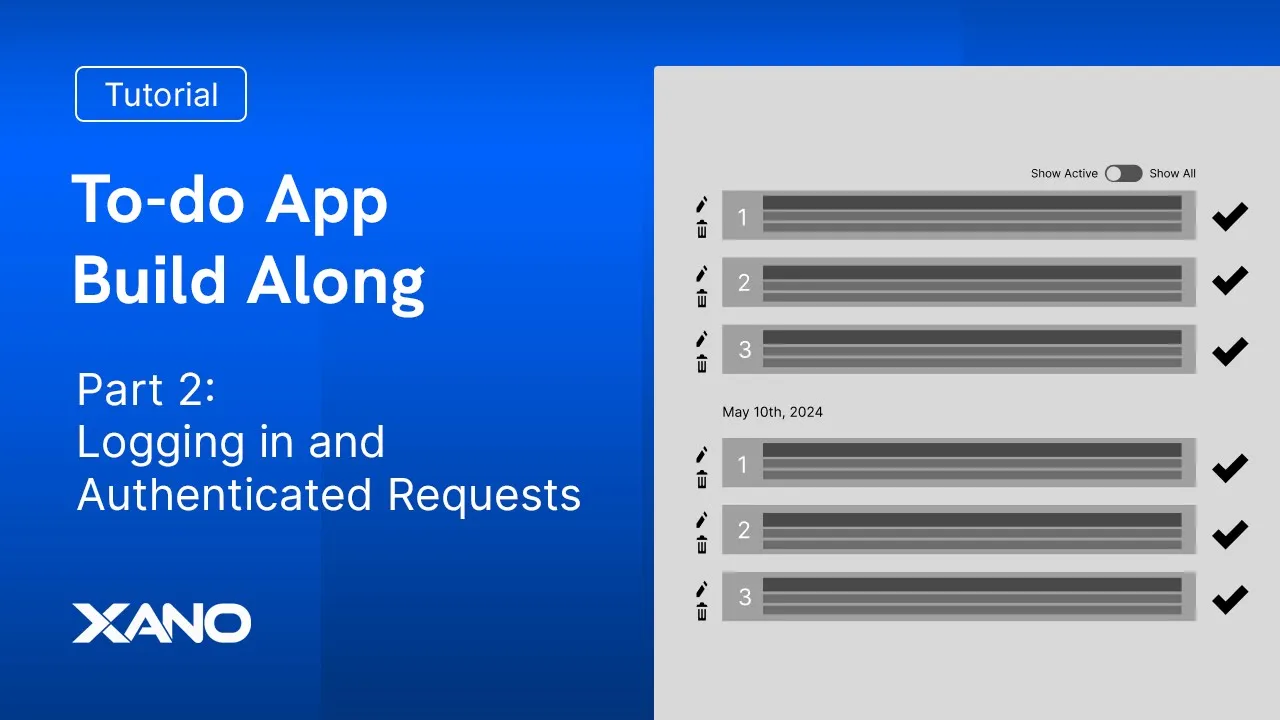
cam here from Zan support and we're going to continue on today with our second video on Earth do app where we're going to take a look at user registration and creating resources so we had our middleware out of the way now it's about taking these ideas on our wireframe and turning them into an actual app let's go ahead and continue on and let's get started so just like in the last video we're going to start off looking at our low Fidelity wireframe and we're going to be focusing primarily on the signup page and and the added Todo page so what we can see here with our sign up page we're sending in a name a username an email a password and then on our front end we have this repeat password and typically the front end handles the enforcement of that repeat password you can build it out on the back end but this is just going to be a frontend security measure otherwise we do have to ask ourselves are these usernames going to be unique and we've already answered that question in the last video as we going over database rules and setting unique indexes so yes these usernames will be unique otherwise once they have signed up we're sending them to this add a to-do page where they can add a title A do date and they'll be able to provide task content so we are familiar with the way that the structure is set up where we have a user who has a role and then we have a to-do list which has tasks what we want to be able to do when we send a user once they've just registered and they're going to be adding a task we want them to already have a list generated otherwise when they add a task there's no list Associated and we could run into some problems so that's just the first thing that we want to think about now of course you know that's coming but uh first let's just focus on that signup page so we'll go back to zenup and inside Zano we'll head to our API default group and if you don't have a default group you can add an API Group in the top right hand corner in the same way if you don't have authentication endpoints you can add them in the top right hand corner and selecting authentication and I'm focusing on signup here specifically so in our signup uh endpoint you can see that uh we have some inputs that are coming through our name our email and our password but we have that username on our wireframe that we need to pass in so we'll just add this as an input it'll be text and we'll just type the word username great so the way that this function stack works is we find the user and we're finding the user by their email column we'll go ahead and return if that user is true or not or if that user exists and if that user doesn't exist that means we can then add that user and you can see here we have some information that we can fill out for that user and then an off token is returned to our front end the off token is going to be handled on the front end that is going to be the front end's responsibility for ensuring that that off token can be stored so we have the process of what happens now we need to go ahead and ask ourselves what needs to change well first off we need to check if that username exist exist so there's a couple different ways to go about it but we're checking if an email exists at the moment we also need to check if that username exists so what I'm going to do on this get record from user just right at the top I'm going to add a conditional so we'll just type in the word conditional or find it right at the top and add it in so what we need to check is well the condition that the precondition is actually referencing user is null we're going to check if the user is null because that means their email is null but then we need to check if the username is null so what we can do is we can go ahead and select that user variable click that blue pencil and we'll say user is null so again just making sure that the email user is not found if that's the case then what we can do and I want to use a query all record so database requests and a query all records where we're going to search here in this case for our user table we're going to go to our custom query and what are we searching for well we want to make sure that that user. username equals our username that we're passing in as an input I'm going to go to my output here and I'm going to click on this blue return where I'll change that return type to an exists which will be a true or false and I can update this variable to be user exists so if this user exists what do we need to do well we need to trigger another precondition we're actually going to be leveraging this precondition and and another precondition so let's go ahead and just clone this real quick I'll drag it under my then so I have this precondition under my then and what do I need this to be my precondition in that blue pencil there I need to be measuring that user exists equals false the user shouldn't exist otherwise this account is already in use and we can say that this username is already in use cool and we'll go ahead and click save we can leave it just like that we'll take that precondition that we sort of ignored and we can actually drag it into the outs cuz it can satisfy the argument we could also leave it out in theory but I just like to compartmentalize and organize all of my functions so we have the email being checked we're then conditionally checking if that user exists or not if they don't exist well before we do anything else let's just check does that username that they're passing and exist if it does we'll throw this airor and then of course if the user is by default or email is not found we just again want to check that in that precondition otherwise once we get through this chain of logic we're going to add that user now real quick before we do that I just like to edit the descriptions of these conditionals and this checks if the username is already taken cool so we just want to measure if that email and username have been taken I'll collapse my conditional here and the next thing that I need to do well I need need to think about that task ID list or that task list rather uh that is going to be responsible for holding tasks and the next process you can of course always decide to generate the task list then when they're creating a post but what I want to do is I want to think about this in a way where we can eliminate the amount of headaches every user should have one list associated with them so what we'll do is we'll go ahead and click that blue plus sign and we'll add a record the record is that to-do list and we'll go ahead and select the user ID the user ID in this case will be from the user that we just created so if I click on this and look at its output I can see that I can reference user and then using do notation or a git filter the ID path so let's go ahead and do that I'll go ahead and select our user and again using do notation or the git filter this git filter is going to prevent errors in the event that the US ID is not found however of course it would be very weird if that was the case in this situation so you have the option of using a git filter just like this or in this case you can go ahead and set an ID using do notation now we also have this name that we're creating and I think it's probably pretty useful to go over what we can do with names that is we can go ahead and make this Dynamic by passing in a string and then manipulating that string with Dynamic content so what I'd like to say is that this is going to be names task so let's go ahead and just say names task list and in fact I'll delete that period what we can do now is we can search for a string in this case we're going to search for the name the way that we do this is we copy our name we add a filter and we go to our replace filter we're searching for that value so I just pasted that value and what are we actually looking to pass in well it would be the name input so this name will get replaced with the name being input and then it'll say task list if we wanted to we could also add a capitalize filter either to the input or to the entire group and let's do that just to the entire string so it capitalize each first letter of each word here and we can click save so what we're doing is we're creating a user and then we're creating their to-do list but before that of course we're checking if the username exists already or not let's go ahead and publish this and just double check on what this looks like so using the name Cameron and the email cameron. beano.
com with a super secure password two3 and then the username of Cameron we should be able to click run and this account is already in use because I have that cameron. b email from last time Chris Cameron and Louie are within this data table so what if we just Supply a different email address cameron. C xo.
com we do get that token back let's go ahead and change the email now to cameron. D that username here of Cameron we should get in there and it says that a duplicate record has been detected so that unique index is working for us now what I also want to double check though is if this query is set up correctly if I query this so our user. username equals input.
username this is going to come back with an exists a true or a false we want it to equal false otherwise we want a different air message to be thrown let's just double check here real quick if we go to our database and then go to our user we can see that our username table can probably be set to null this might be one of the reasons we have this error here so I'll change my type text setting to null ah okay well it doesn't look like my username here is actually um being caught so if we go to add record and user we can go ahead and then update our username and there you go that was the issue we actually need to go into our user record and map those inputs to that function or in this case the ad record we also have this rules ID and we can hardcode it manually set it here or from the database rules and we we did the database rules in the last video so I'll just click this I and disable it let's go ahead and publish this try it one more time I do need to go back to that database though real quick so I'll go to database users and I'll just delete this user here and back into my API back into my signup let's try it one more time so Cameron uh B should throw an error the account's already in use and if we do Cameron C I should be able to create this account amazing changing the email but keeping the username perfect so we get all the errors as we should checking the email and checking the username let's just go ahead and double check that cameron. c has a to-do list so the user cameron. C Perfect all this information looks correct and then we can go to their to-do list where we've successfully mapped that information and made it Dynamic so it's Cameron's task list with that cap filter applied this reference appears when you've deleted information that would otherwise be mapped to this table reference we can delete this for now to avoid any confusion but what we should now focus on here is the creation of the actual task so we have the ability now to register the user they can go ahead and sign up and we just ensure that we create a to-do list perfect if we head to our AP pi and our default group we want to focus on this post tasks endpoint when we head to this endpoint what we can see here is that we have some information our to-do list ID that's going to be passed in the name the description the order the due date and the completed we don't need some of this information such as the order this can be calculated on the back end and as well as the completed because when you add an item it's not going to be completed let's go ahead and reference our design real quick so heading back here we can see that when we're adding a to-do we're adding that title A due date a task it is going to need that to-do list and then in addition to that we are trying to ensure that it adheres to the uh the structure or the ordering so I said that that order didn't need to be passed in from the front it doesn't we can calculate it on the back let's assume here that when we're adding a to-do that it adds to the end of the due date list that it belongs to so that if we were to add a task the next one would have the I or the order of four that's the way that I want to go ahead and approach this so uh we'll just disable order and completed now this to-do list ID is going to be important how do we get that information so before we go ahead and add a task before we focus on the logic of this endpoint we should figure out how we're going to get this to-do list ID let's go ahead and head back to our o grouping here where we have our o main endpoint now conventionally and traditionally in development you will have the opme endpoint that is often times called to get pertinent information about the logged in user this is typically a conventional endpoint that would be used at any time that you need information about a user and in this case it would be very helpful to have information about a user and their task list that we added so I want to do this by heading to the output it's going to be the easiest way we can enrich that user information with without needing to query a different data table we can just simply click this add-on button now we have a to-do list add-on that we have from our other video we can create another add-on that uses a different value from our output here so what we want is a Todo list and we want a single item and we want to map our user ID here from our user table we can also sort this so that we always get the most recent task list so that when we query this aate endpoint we always have their default so to speak task list we can go ahead and uh update that sort so to do uncore list.
created at and then the order by would be descending so the first will be the highest order and then it'll continue downward so we'll click next and this is the to-do list of a user we'll create the add-on I like to delete that underscore and then click done where we'll then go ahead and click save and publish so let's uh test this out by passing in Cameron's off token and clicking run you can see here perfect we've enriched data just like we did last time but this time on a different endpoint and in fact it's the same query but just looking at a different value so we add this to-do list and we have this ID now that we can pass in from the front end so the reason that we've gone over this aan point here is because ideally what would end up happening is that after a user is logged in you would query your a me endpoint that a me endpoint then would load that to-do task ID that we can then use when we click this button sending it to our endpoint let's go back to our endpoint here where we are creating that task so we now know how to get our to-do list ID we can go ahead and pass in a task name or a title a description and the due date so when we open this record let's go ahead and disable this completed the next thing that we need to do is calculate this order so the way that this is going to work is that we're going to add a database request query all records and we are going to query for our tasks we are going to go to our custom query and we're going to refine this search such that the task to-do list or yeah the tasks. Todo list ID equals our to-do list ID input and because the ordering is specific to the due date we need to make sure that the tasks. due date equals the input due date so go ahead and click save and I'll drag my query all records above my task so let's click back on that query all records and head to our output where I'm going to go to my return blue pencil and I'm going to change my return type to account so it's going to return me a number of items that exist we can actually introduce the very cool stop and debug function so I'll just add the Stop and debug under my tasks and I'll select that I want my tasks one to be the variable returned I'll go ahead and pass in a to-do list ID of one and a due date in the following string which will be date month and then day so we'll click run again and there are zero matches so what we do with this information is now use a math filter so I can go ahead and disable this stop and debug I'll click on my tasks and in my order what I'll be able to do is reference this variable above I don't like this variable name though so let me just go to my output I've clicked on it and I'm going to change this to task count and I'll update the references so that now when I go back here all I have to do is Select task count add the filter of add it's a math filter and we'll go ahead and add the value of one and we'll go ahead and click save so let's just double check this is doing what we want here so we have our order that's going to be calculated on the back end by just finding out how many exist and then everything else should be mapped as is looks good to me so let's go ahead and click save I'll publish this and now the moment of truth that is we can create a task and we can go ahead and make sure that we are giving it a name and description a date we don't need an order we click this reset button we can see that now it's updated to reflect the items that we've removed so selecting cameron.
B our to-do list of one I'll add a task name and I'll call this uh first test task from the API and the description will be this is a test the due date will be that string in our year month day format and I'll click run where look at this we are returned a record the to list ID is what we've passed in that order has incremented to one so if we were to pass in a second test task and click run again we can see that that order actually then updates but if we change this date at all we can then see that that order resets so everything is working the way that we want it to now I have added this pre middleware I've gone into my settings for my API and clicked in my middleware and then added Access Control what I should be able to do is pass in a different user for a to-do list that is assigned to me cameron.








![Radio 70s 80s Mix [ 24/7 Live ] Listen 70s Music Hits with Best of 80s Songs ● Oldies Songs](https://img.youtube.com/vi/WnCfvAMM9eY/maxresdefault.jpg)