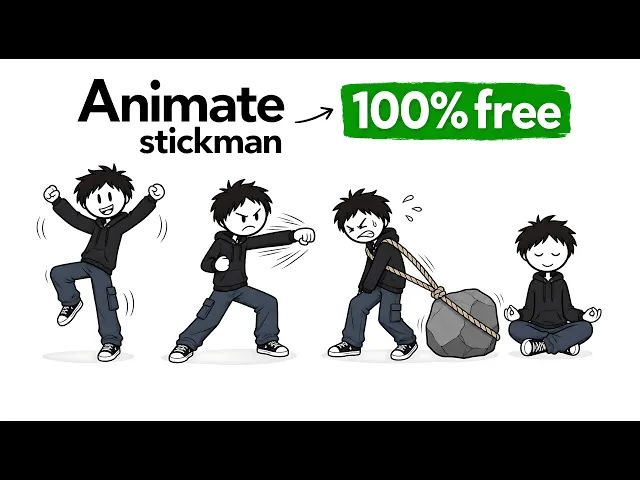
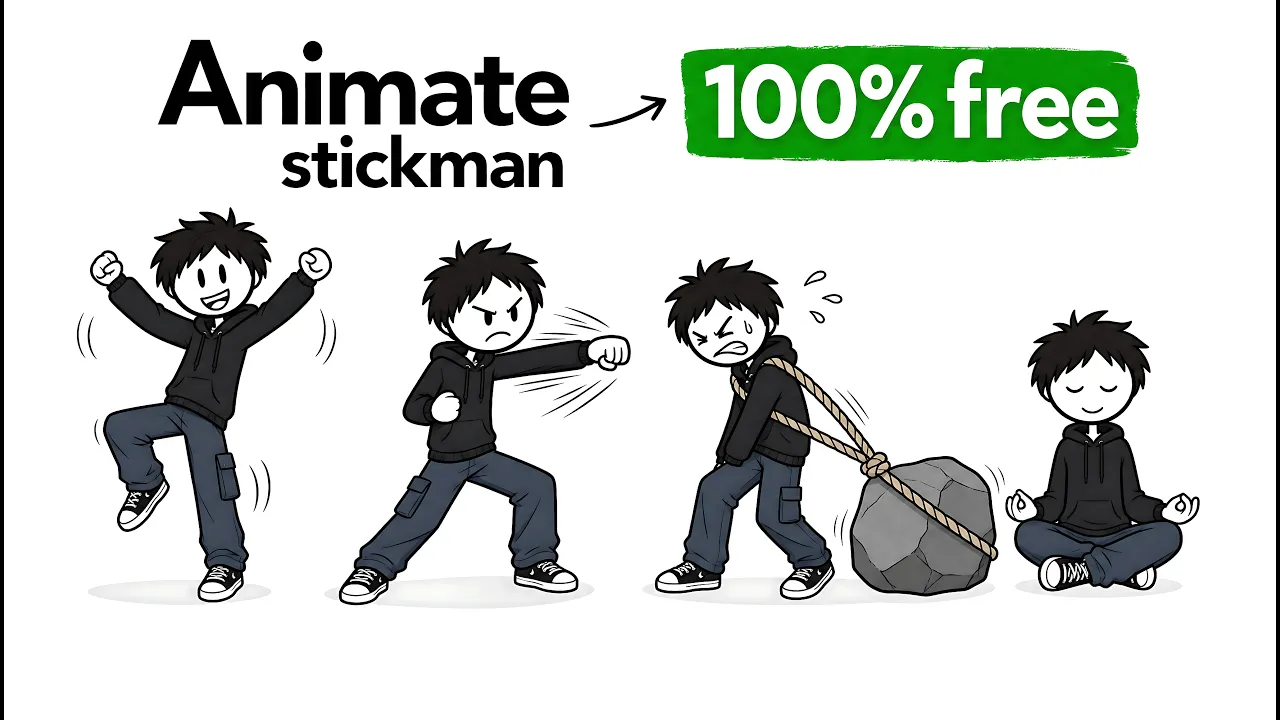
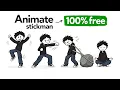
This stick figure channel called that guy dropped a video 2 weeks ago that's already crossed 280,000 views. And this channel only has 42 videos total, but they've already pulled in 217,000 subscribers and over 15 million views, which is honestly insane. And it's not just them.
Productive Peter 300,000 subscribers. And what they all have in common is literally the exact same thing. stick figure animation used to tell stories, deliver lessons, or break down complex topics.
Now, I've covered how to make stick figure animations before, and the response was insane. But a bunch of you reached out asking for a more in-depth tutorial that uses completely free tools and tests a few different models against each other, so you know which one actually wins. So, in this course, that's exactly what I'm going to do.
I'll walk you through how I'd start my own Stickman animation channel from scratch. Branding it, writing the scripts, generating the voiceovers, creating the visuals, animating the stick figures so they actually move, and editing everything together. All using 100% free tools.
Plus, in this tutorial, I'm going to share important tips that will help protect your channel from getting demonetized. The same ones I've used to keep my own channels and most of my students channels completely safe through this whole demonetization wave. And just to show you what's possible, check out this animation I made in like 15 minutes using the exact methods I'm about to show you.
Raise your hand if you've ever said, "I don't have enough time. " Yeah, me too. But here's the truth.
Most people don't need more time. They need to stop wasting the time they already have. Researchers say the average person loses around 21 hours a week to scrolling, switching tasks, and moving through the day on autopilot.
21 hours. That's literally a part-time job. So, every morning, forget the endless to-do list.
Ask yourself one question. What is the one thing that would make today feel like a win? That's your must.
All right. So, first things first, the very first thing you need is the brain of your whole operation. We need to find a chatbot.
Now, if you're going the completely free route, I'd recommend using Deepseek because it has no payw wall and gives you unlimited usage, which is honestly amazing. You've also got options like Claude, the free version works totally fine, and chat GPT, which is also a really solid choice. All of these are powerful chatbot models with advanced built-in capabilities.
But since we're keeping this completely free, I'm going to be using DeepSeek for this entire course. Now, once you've got the brain of your operation ready, the next thing you need to know is how to actually talk to that brain, which is your chatbot. And to help with that, I've created a Google doc for you.
The link should be down in the description, or you can also find it inside my completely free school community. All you really got to do is scroll down to the prompt section, copy everything there, and paste it straight into DeepSeek. Just make sure the Deepseek model is enabled, and then hit send.
Now, this prompt is basically there to tell your chatbot that we're trying to get into the stick figure animation niche so it can properly set itself up and understand what we're working on. Once you send that prompt, your chatbot's going to think for a couple of seconds and then it'll ask you for the source PDF. Now, the source PDF is just a document that contains all the important stuff.
Branding details, possible transcripts, thumbnails, templates, image references, and a bunch of other things that help the model understand the exact niche you're trying to get into. To get that, just head back to the Google doc with all the prompts and scroll all the way to the top. You should see something called Stickman source material PDF.
Click on that and it'll take you to a Google Drve where the document is stored. It's pretty long, about 53 pages, so there's a lot in there, but honestly, all you need to do is download it to your computer. Then head back to DeepSeek, attach the document you just downloaded, type something simple like docs attached, and send it over.
Now, what happens next is your chatbot starts reading through the document, absorbing all the source material, the templates, and the writing style, so it can really understand what you're trying to do. Once it's done with that, it'll reply with something like PDF absorbed. What would you like to do next?
At that point, I'm just going to type go. When I do that, the chatbot moves into stage one, which is basically all about branding your channel. It gives you channel name ideas for this specific niche, plus branding recommendations like your channel description, logo prompts, so you can generate your channel logo, and even a banner prompt, which is honestly really cool.
Now, you can choose anywhere from 1 to 20 minutes, depending on how long you want your channel videos to be. For me, since this is just a quick tutorial, I'm going to go with 1 minute and send that over to DeepSeek. Once I do that, it starts generating a script for me in this self-help niche.
Now, here's the nice part. If you don't like the script it gives you, you can always ask it to retry or even tell it to switch up the tone completely. For example, you could ask it to make the script sound more like something from a finance channel or maybe something from a fitness channel.
It really just depends on what kind of style you're going for. For me though, I actually like the tone it gave me. So, I'm just going to move on to the next step.
All right. Now that we've got our script, the next thing we need is a voice over for this video. Now, you've got a few different options here.
The first one is Noise AI, which gives you around 2,000 credits to generate voiceovers. It's pretty cool, but not going to lie, the quality isn't exactly premium. Another really good option is Microsoft Clip Champ, which gives you unlimited voiceover creation, and you've got a bunch of voices to choose from.
It's mainly an editing software, but it also has a built-in texttospech tool, which is super useful. You've also got Google AI Studio which gives you access to Google's own texttospech models. Things like Gemini 3.
1 TTS and LIA Pro Preview. So yeah, there are definitely options. But here's the trade-off.
Even though these tools might give you unlimited generations or more flexibility, they usually don't have the same level of quality that 11 Labs gives you. So what I'm going to do now is head over to 11 Labs and just log in with my Google account. 11 Labs gives you around 10,000 monthly credits, which is honestly enough to make maybe two, three, or four long- form videos before you'd need to get a subscription.
Now, if you're making shorts, those credits can stretch a lot further. You can probably make around 10 to 15 shorts before your credits run out, but honestly, if you're planning to do this regularly, it's always better to just get a subscription so you don't have to keep worrying about usage limits. All right, so once you log into 11 Labs, you should land on an interface that looks something like this.
All right. So, all you've really got to do now is click on the texttospech option, and that'll take you to an interface that looks something like this. Now, the very first thing you want to do here is switch from the V2 model to the V3 model.
And the reason for that is because the V3 model is way more advanced. It gives you access to extra features like emotional controls, natural pauses, and audio tags, stuff the V2 model doesn't really have. So once you switch over to V3, just pick whatever voice you want to use.
For this tutorial, I think I'm going to go with Matt the young professor. Then I'll head back to my chatbot, copy a chunk of my script, just a little section of it, and paste it straight into 11 Labs. Now, the reason I'm only copying the first chunk is because if you paste too much text into 11 Labs, the voice can start to sound glitchy and kind of robotic.
And trust me, if you want to avoid things like demonetization, you really want to make sure your voice sounds as premium and natural as possible. Now, one really cool feature in the V3 model is that you can also add emotional toggles. All you've got to do is hit the square bracket key on your keyboard, type in your emotional toggle at the beginning of the script, and then close the bracket.
Once you do that, the text will turn purple, which basically means 11 Labs is now using that as an emotional cue for how your voice should sound. It's almost like you're telling the voice over how to feel, which is honestly really cool. And that's pretty much how it works.
Just generate your voice over and have a listen. If it sounds good, go ahead and download it. If it sounds a little glitchy, just regenerate it a couple of times until you get something that sounds really solid.
And once you find one you really like, just download it straight to your computer. All right, so once you're done generating your voice over, the next thing you want to do is head back to your chatbot and simply type next. Now, when you do that, your chatbot starts giving you character prompts based on the script it just created for you.
These are basically text to image prompts that you're going to use with an image generator to bring your characters to life. It'll usually give you a few different variants, and all you really got to do is pick the one you like best. That character is basically going to become the face of your brand for your stick figure animation niche.
Now, once you've got your prompt ready, the next thing you need is a platform that gives you free unlimited access to image generation. And I've got a couple of options for you here. The first one is Meta AI.
Just head over to your browser and search for Meta AI. Once you get there, you can sign up using your Instagram account or just use your Google account, whatever is easier for you. And once you're in, they pretty much give you unlimited access to image generation, plus access to their video generation model, too, which is really nice.
All right, so once you sign up, you should land on an interface that looks something like this. It's pretty simple. You've got a prompt box, and you'll also see options like create image and create video.
Now, another really cool platform that gives you unlimited credits is Google Flow, especially if you're focused on image generation. You can actually use Nano Banana 2 on there without any limits, which is honestly amazing. All you've got to do is sign into Google Flow and create a new project.
And once you're inside, if you look down at the bottom right, you'll see Nano Banana 2 available at zero credits, which basically means unlimited generations. So, yeah, you can generate as many images as you want on there. Now, another cool platform that gives you access to this is Google Gemini.
That one also gives you unlimited image generation. So, it's definitely another good option to keep in mind. And one last tool you can pretty much use for this is Tik Tok Symphony.
What's nice about Tik Tok Symphony is that it gives you unlimited access to both an image model and a video model, which is honestly really useful. All you've got to do is search for Tik Tok Symphony in your browser, then log in using either your Google account or your Tik Tok account. Once you do that, you should land on an interface that looks something like this.
Now, once you sign up, you'll pretty much want to click into the image generation interface since the platform also gives you access to a video generation model, too. And if you know Seance, that's actually released by Bite Dance, which is the parent company of Tik Tok, which is honestly pretty cool. But for now, we're focused on image generation.
So just click on the image generation section. Once you do that, it'll take you to an interface that looks something like this. And over there, you'll have access to a couple of models like nano banana and flocks context.
Now, the only issue with this specific model is that it only generates images in a 9 to6 aspect ratio, which means everything is going to be vertical. So yeah, it's not really ideal if you're trying to make horizontal visuals for long- form videos. But since we're just creating a character image right now, that's honestly completely fine.
So what I'm going to do is head back to my chatbot, copy prompt variant number one, and then paste that same prompt into every single model. That way I can see what each output looks like and figure out which one gives me the best result. Now, after a couple of seconds, we've got our outputs.
And so far, this is what Tik Tok Symphony gave us. Honestly, it looks pretty good. Let me check what Gemini came up with, too.
And yeah, Gemini did a really great job as well. This one looks good. Google Flow also did a really nice job.
And honestly, so did Meta. They all came out really well. It's a very simple, minimalistic drawing, which is exactly what we want.
I think for this one, I'm just going to download the version from Google Flow. And I'm also going to download the one from Tik Tok Symphony. Honestly, I think the Tik Tok Symphony version has a lot more personality than the other models.
So, I definitely want to keep that one, too. And just so you know, your chatbot gives you a few different character options, and each one has its own personality and style. So, you can really just choose whichever one fits your brand or whatever specific vibe you're trying to go for.
For me, I'm just going to keep running through all the prompts my chatbot gave me until I find a style I really like. And once I've got that, we'll move on to the next step. Now, I ran all the prompt variants my chatbot gave me, and I ended up with a bunch of outputs.
Honestly, I like all of them, but I think I'm just going to pick one and clear out the rest of my tabs. Then I'll head back to my chatbot. Now, here I'm just going to type next because I want it to move to the next state.
It then asks me which character I picked from the variance it gave me. For me, I'm going to go with number one because that's the one I like the most. So, I pick number one and it locks it in as my main character for the brand.
Then I just type next again so it can move on to the next step. And for the next step, it's asking me if I already have a visual flow for this animation or if I just want to let it take full control and build one from scratch. Now, I know AI models are pretty advanced and they're really good at generating whatever you prompt them to do, but the issue here is creativity.
Most models actually struggle when it comes to creative direction, especially with visuals. With text, it's easier. They can follow patterns, understand formats, and even take a few transcripts and turn them into completely new scripts.
But that's mainly because it's text. When it comes to visual animation and creative direction, that's where you usually need to step in and guide it yourself. Now, I already have a visual flow I want to use.
And basically a visual flow is just the sequence of how you want your animation to go. So for example, if your stick man wakes up, the first scene is just him waking up in bed. Then it cuts to him going to the restroom, then the kitchen, then maybe him driving to work.
That's all it is. It's just the order of events in your animation. Now, you can let the model create one for you, but I usually recommend doing it yourself so you've got more control over the story.
So, I'm just going to paste in my visual flow and send it. Now, once I send it, the chatbot takes in my visual flow. And even if you didn't create a visual flow yourself, it'll still take your script and generate a detailed visual breakdown for your animation.
Now, with newer and more advanced models, we can actually do multi-shot style generations now. So, what the chatbot gives you is basically a multi-shot prompt broken down into chapters. For me, I've got about four chapters.
And honestly, it's really detailed and super well structured. What I'm going to do now is just take chapter 1, pair it with my stickman character, and generate the video. And for that video generation step, there are a few platforms we can use.
Now, the first platform on our list is a new feature called Google Vids. So, what you want to do is head over to your browser, search for Google Vids, and it'll bring you to an interface that looks something like this. Once you're there, just click sign in to Google Vids and log in with your existing Google account.
After that, you'll land on another screen. Here, I'm going to select my aspect ratio. Since I'm working with landscape content, I'll pick that option.
Then, I'll choose the model I want to use, which is Google V3. After that, you'll be taken to another interface. Now, I'm going to click the top drop- down menu and select animate an image.
Then, I'll upload my Stickman image that I just created. Once that's in, I'll go back to my chatbot, copy the full chapter 1 prompt, and paste it into Google Vids. Then I'll hit generate.
And at that point, it starts generating. Now, while that's running in the background, I'm going to head over to Google Flow, which gives you access to the Google V3 model. They usually give you around 200 free credits per day for video generation, which is actually pretty nice for testing stuff out.
So, I'll just create a new project. Then, I'm going to upload the image of my avatar, the character I just made. Next, I'll switch the model option from image to video.
After that, I'll set how many outputs I want per generation. I'm just going to pick one video. Then I'll choose my aspect ratio, paste in the prompt, and send it.
Now, another tool we've got is Gemini. Not a lot of people know this, but Gemini can actually generate videos, too. So, I'm going to head over there, upload my reference character, and paste in the same prompt.
Then, I'll switch it to the flashlight model and just send it. Now, another platform we can use again is Quen AI. So, just head over to Quen, open the website, and sign into Quen Studios.
Once you're inside, just click the plus icon, then hit create video. That'll take you to a new canvas. From there, upload your character image again and paste in the prompt you got.
Then, just send it and let it generate. Now, for some reason, Gemini didn't manage to generate my video, so I'm probably going to try that again later. All right, let's try it once more on Gemini and see what we get.
And just to make things a bit more interesting, I'm also going to test this on a paid platform called Higsfield. So, I'll head over there, click the video option, and upload my reference character. Then, I'll paste in the same prompt again.
And just to experiment, I'm going to pick the Sedance 2. 0 model. I'll set the aspect ratio to 720p so it doesn't use too many credits.
Then, I'll just send it and see what happens. All right. Now, after a couple of seconds, we've got our first output from Higsfield, and it looks like this.
Not too bad. The animation is a bit flat, but it's all right overall. Now, let's check what Quen gave us.
Yeah, this one honestly doesn't look usable. I don't think Quen did a great job here. And that's the thing.
You'll still get outputs from these models, but sometimes they come out in chunks or just don't really hit the mark. What we're really trying to test here is whether they can actually handle multi-shot sequences properly. So far, Higsfield did okay, but Quen Studios didn't really deliver.
Let's check Gemini next. All right, I kind of see what Gemini is trying to do, but the aspect ratio is off and the animation isn't really smooth. Now, let's look at Google Flow.
Okay, Flow actually handled the multi-shot structure pretty well. The animation looks decent. Apart from Higsfield, I'd say Flow is probably second best here.
Now, let's check Google Vids. Yeah, this one actually did a really good job. The animation looks nice, the colors are good, and everything just feels more polished.
So, at this point, I'm just going to download the best results. Then, I'll go back and run my chapter 2 prompt across all the models and just keep repeating this until every chapter from my chatbot becomes a full video. Now for the second output, we've got videos that look like these.
First off, Higsfield did really well. Again, I actually like how this one looks. It kind of feels like Higsfield performs significantly better than the other models for this kind of video generation.
The output just looks more polished. And I also like that it can generate voiceovers and sound effects, which is really cool. Now, let's go back to Quen.
All right, so it looks like Quen tried to generate everything as one long sequence instead of splitting it into shots. It just keeps running everything into one continuous flow. At least the aspect ratio is a bit better this time, but overall it's still not really usable.
Just a slight improvement from before. Now, this is what we got from Gemini and it's okay. The aspect ratio is off and the animation feels a bit slow.
Then for Google Flow, this one actually looks pretty good. And Google Vids also came out solid. So, at this point, I'm just going to keep repeating this whole process, turning all my images and chapter prompts into full videos.
And I'll just keep downloading whatever model gives me the best output. Now, once you've got all your clips ready, the next thing you need is a nice, soothing background track. And one of the easiest places I usually recommend for this is YouTube Studio.
So, if you've got a YouTube channel, just head over to your channel page, then click into YouTube Studio. Once you're inside, go ahead and click on the audio library, and that'll take you to an interface that looks like this. Now, over here, you've got a bunch of options, different genres, moods, artists, and track durations.
Now, once you've got all your assets ready, the next thing you need is an editing software. And for this course, we're going to use Cap Cut, mainly because it's super beginnerfriendly and really easy to work with. So, once you've signed up, downloaded Cap Cut, and created your account, you should land on an interface that looks something like this.
From there, just create a new project. Now, what you want to do next is import the folder that has all your materials. What I usually do is just keep everything in one folder.
My voice over, my footage, and my background track, so everything stays organized. So, just import that folder into Cap Cut. Once that's done, open the folder.
And the first thing you want to do is drag your background track onto the timeline. Now, here's the important part. Lower the volume a lot around minus7 dB so it doesn't overpower your voice or sound effects.
Then just add a fade in and fade out so it comes in smoothly and doesn't hit too harsh at the start or end. After that, just drag your voiceovers onto the timeline in the exact order you generated them. Then trim your background track so it matches the full length of your voice over perfectly.
Next, select both voiceovers. Just hold control or command on your keyboard and click them. and then increase the volume to around six or seven dB so the voice is nice and loud and clear.
Now, once that's done, the next thing you want to do is drag your video clips onto the timeline in the exact order you generated them. Now, you might notice something. The clips could end up being longer than the voice over, and that's totally fine.
All you've got to do now is start lining everything up so it matches the voice over properly. So, just go through, trim each clip, and adjust everything so it syncs with what the voice is saying. This part might take you maybe 10 to 20 minutes depending on how fast you are and how comfortable you are with editing.
So, just take your time and make sure everything is properly adjusted. And the nice thing is the multi-shot generation already did most of the hard work for us, so we don't really have to stress too much about syncing everything perfectly from scratch. Just listen to how the voice over plays out and adjust each clip so it matches the narration.
You just want to make sure your voice over and animation are in sync so everything flows properly. Once you're done, just preview the full video and check how it looks. And if you like it, go ahead and hit the export button.
Export it to your computer. Pick the right aspect ratio and set it to 720p since that's what we used for the clips. Then after exporting, we can always upscale it later to boost the quality.
Now, once you're done creating your video, the next thing you want to do is make your thumbnail. For that, just go back to your chatbot and continue the same chat you were working on earlier. All you've got to do is type next.
And once you do that, your chatbot moves into the final phase of the whole process. And this is where it gives you a thumbnail prompt. Basically, a readytouse prompt you can use to generate your thumbnail, which is super helpful.
Now, for this part, we're going to use Google Flow since it's simple and you've got unlimited image generations there. So, just sign into Google Flow and create a new project. Make sure you switch over to the image model so you don't waste credits, especially since image generation is basically free.
Once that's done, go back to your chatbot and you'll see it gives you five thumbnail prompt variants. From there, just test them out since you've got unlimited generations anyway. So, copy each prompt, paste it into Google Flow, and run it to see how each thumbnail comes out.
then just check the results and pick the one that looks the best for your video. It's really just about trying a few options until you find the strongest one. Now, the really nice thing about this prompting system is just how detailed the prompts are.
Because of that, the thumbnails you get end up looking really good. They match the reference channels really well, and you can pretty much just download them and upload straight to YouTube. And I'm already seeing some really nice examples, like this stop wasting time one.
This one looks really good. I like the text. I like the font.
I like the check mark. Everything just looks clean. It also gave a couple other variations like 21 hours wasted per week, which is pretty cool.
The whole style just looks really polished overall. Now, if you want something a bit different, maybe like a model channel or another style, then you can just give the model a reference image of what you want. But honestly, the prompt is already detailed enough to get you great results.
Because this thumbnail right here, it looks really impressive. I really like how it came out. And just like that, we've pretty much built everything.
We've created the channel idea, written the script, cleaned it up, generated the visuals, edited the video, and even made a really solid thumbnail. Now, the next step is actually setting up the channel itself. If we go back to the very first output from our chatbot, it also gave us branding suggestions like channel names and identity ideas we could use.
And honestly, there were a few really good ones in there, but I think I'm going to go with Clarity Animations. So, I'll just pick that name and move on with it. I'll just copy the name, then head over to my YouTube channel.
Click on my YouTube icon, create a new channel, paste in the name I want, and then just create it. Now that we've got the channel, the next thing is to brand and design it properly. If we go back to the chatbot, it actually gives us a couple channel description options as well, which is really nice.
I like how catchy they are, and I think I'm going to go with option B. So, I'll copy that description, head over to my YouTube channel, click on customize channel, and that'll take me into YouTube Studio. From there, I'll scroll down to the description section, paste it in, and then maybe add a few emojis just to make it look a bit more appealing.
Now, once we've added the emoji, the next thing we need is a logo and a banner. So, if we go back to our chatbot, it actually gives us a logo prompt, which we can just copy. Once I've got that, I'm going to head over to Flow.
Inside Flow, I'll switch the aspect ratio from 16 to9 to a 1 one square format because that's what most logos usually use. Then I'll just paste in the prompt and see what it generates. Now, for the banner, that one is a bit more complex because it needs a more customized design and layout.
So, for that, we're going to use Canva. Just head over to your browser, search for Canva, and sign in with your Google account. And yeah, the free plan is totally fine for this.
Hit the create button in the top left. That brings up a menu. Search for banner.
Then I'll select the YouTube banner template, which opens a fresh canvas. Every person viewing your channel, whether they're on mobile, desktop, laptop, or even TV, they're all going to see what you put inside this safe area. So, this is where we need to place all our important branding details.
Now, let's quickly check the logo and see what it looks like. And this is what we got. A simple stickman on a black background.
I'm just going to download this because it actually looks really clean. It's minimalistic and you know I like that kind of style. So I'll download the image.
Then I'll head back to my banner design. Now for the text, I'm just going to type subscribe. I might also add a white heart emoji just to make it look a bit nicer.
And then I'll change the font style. Make it bold so it stands out more. And lastly, since the logo is black background with a white character, I'm going to change this text to white so everything matches properly.
So I'll just click on the color wheel, pick white, and apply it to the text. Then I'll click on the background banner itself, and that brings up the color options at the top. From there, I'll just switch the background to black since we don't really need the default template anymore.
And now we've got something that looks really clean, simple, minimalistic, and neat. And the good thing is this will show properly across all devices, whether it's mobile, desktop, or TV. At this point, I'll just hit share, download it to my computer, and that's it.
Then I'll go back to my YouTube customized channel page, upload the banner I just made, upload the logo, too, and then just click publish. And that's pretty much it. We've just created and fully branded a Stickman channel from scratch.
We went from writing the script to generating the voice over, making the visuals, animating everything, editing it, and even designing the thumbnails. That's basically the full pipeline for a stick figure animation channel. Now, of course, consistency is what really makes this work.
If you want to grow in any niche, you've got to stay consistent, put in the work, stay creative, and keep improving your content if you want to stay monetized or actually build something valuable. But for now, if we go back to the channel and refresh the page, we'll see something like this. And honestly, it looks really good.
I like how the black theme just ties everything together. It blends nicely with the layout and just feels clean. Everything looks really solid.