I wanted to take a moment to show you some really cool stuff that you can do with what's called Deep linking and Maps so I've just got a little demo app here that lets you search for a location and then creates that location in the database all right so I've just got users locations a name which I'm not even going to use I'm just going to use this location property here I've already put in my Google Maps API key all right if you don't know how to get this there's another video on that as well
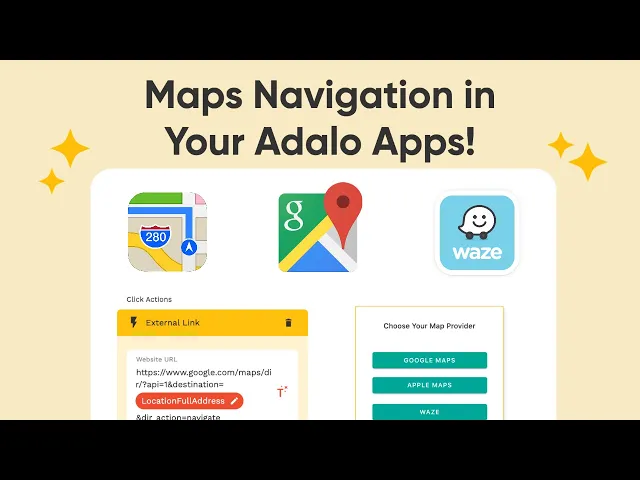
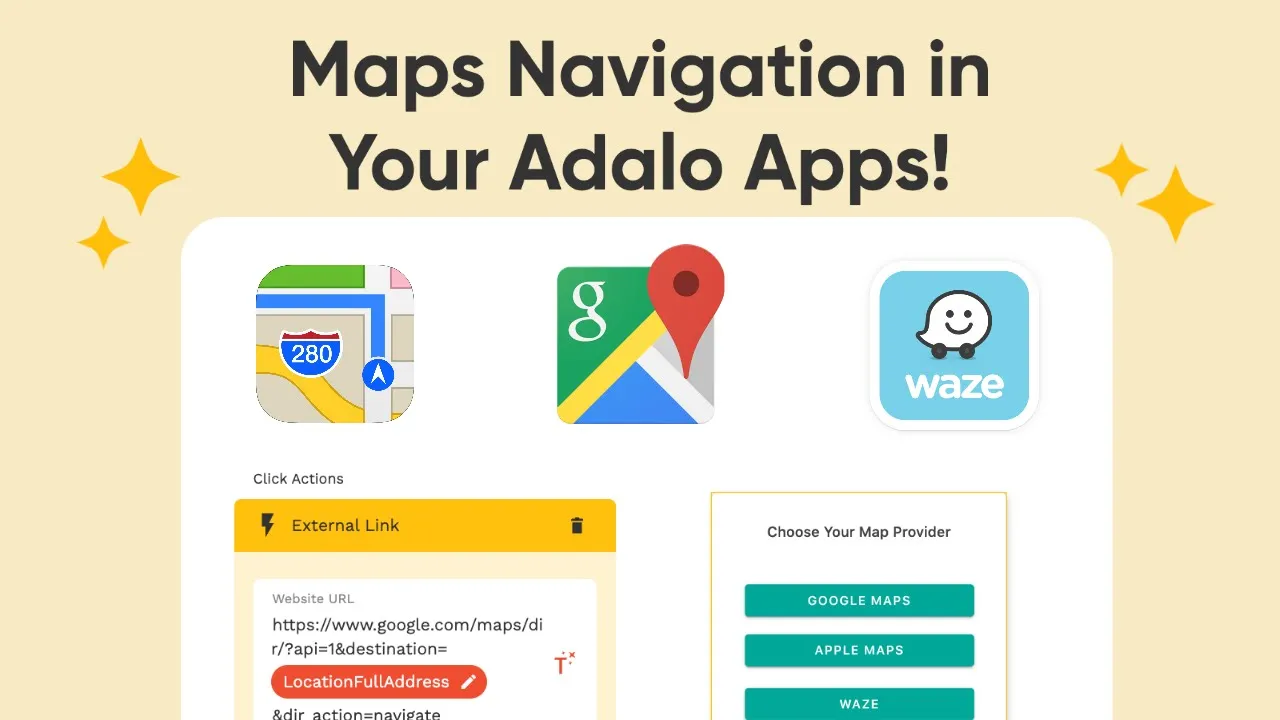
that I will link to um but once you've got this you should be able to use this feature you don't need a Google Maps API key to do exactly what we're doing today though we're just going to be basically making it so that when a user Taps on this little car icon uh I want to show them a modal that lets them choose which map uh which map app they want to use to get directions to that location all right and we can do this through deep links so that when they click on it it
will actually open that app on their phone from the adalo app so if they're using an Android device or whatever or you know they they want to use Google Maps they can click on it and it'll take them to it'll open up Google Maps with the driving directions already started all right so there's some really cool stuff that you can do with deep links here um let me go over here to the Google Maps well actually let's create a modal first to do this so let me go over here I'm going to select this list
here I've got a right section here this icon when they click on this let's just link to a new modal screen let's go down here to miscellaneous we'll choose a modal make sure that the transition is set to modal and uh choose your map provider all right and I don't really need these buttons actually so I'm just going to delete these and we'll maybe extend this down a little bit let's go ahead and drag in some some other buttons here drag in one here let me make it a little bit wider here and this one's
going to be maybe like Google Maps all right and this one's going to be maybe Apple Maps and let's add one more I'm going to show you three today this one is going to be Waze which ironically is owned by Google now so how do we do this how can we make it so that you know when they choose their map provider it takes them and opens their respective app but we can do this through deep linking and I've got three tabs open here one is to the Waze documentation how to use their deep links
I've got one to the Google Maps documentation showing how to use their deep links and one to Apple's documentation showing how to use their map links and I will link these in the description of the video as well so that you have access to these let's focus on Google for now though if you once you get on this documentation you'll see very quickly that we don't need any authentication or any API keys to do this right so if you've just got like a you know your users are entering these addresses manually or the the address
never changes you can just create one of these links and it'll work which is pretty cool so there's kind of four different options here I can either search for a specific place and it will display the results I can request directions and launch Google Maps with the results uh and I think this is probably the one that we're going to be using uh this time around um where we can display a map so there's no markers or directions if you just want to open Google Maps and then you can even display like a street view
Panorama of a specific location if street view exists for that location which is pretty cool so let's go ahead and do this one though I'm going to just kind of copy this URL here and you'll notice that this end here that says and parameters these are the kind of the defining characteristics these are what's going to tell Google exactly what we want to look at or exactly what we want directions to and this is the case for all of these different deep links that we're going to look at today they all kind of function the
same way all right so I'm just going to copy this link and then over here on our Maps demo I'm just going to click on this button and then we're going to add an action to link to a website and I'll just paste this in here now if I just leave it like this it's not going to really do anything it's just going to kind of open Google Maps so if that's all you're trying to do then that's pretty much all you need to do right it's just going to open Google Maps and kind of
show you that application on the user's phone but what I really want to do is kind of add in some extra stuff here to specify what I want what I want to look at so uh all I really have to do you can go as far down into this documentation as you want right and you know Define queries and locations and all this stuff right categorical search you can do all these kinds of things but essentially we want to define the destination that we want to get to and there's two parameters here that I that
I really want to use in this case one is the destination parameter here which defines the endpoint of the directions so if there's not one that's provided it'll just kind of provide a blank form to let the user in enter where they want to go and I want to do this one direct direction action navigate right and even though this is optional this launches those turn-by-turn directions immediately right and if you don't want to do that then just leave this off right so but those are the two that we're going to add to this so
to do this I'm just going to go here the first one is just destination so I'll just copy this we'll go back to our link here to the end of it I'm going to add an ampersand symbol here to show that I want to include this parameter in the URL I'll paste my destination in and then I'll put the equal sign here and then what I'm going to do is I'm just going to go to the current locations location full address right and you um these typically have to be URL encoded in order for Google
to get it don't worry about that a dollar does that for you automatically for all of these external links that you put in here right it kind of handles that on the back end for you so you can just put in the location full address there and then we need to add another Ampersand here for the this direction action net equals navigate right and this is going to tell Google Maps that hey we want to immediately start the navigation to this uh you know to this place right um and I'll show you what this looks
like in just a second but let's go ahead and get uh let's go ahead and do this for the Apple Maps side of things all right so let's go to Apple Maps here we'll kind of do the same thing we'll go to link website and let's go to the Apple map links documentation now this one's a little bit more interesting uh it's it's a little bit simpler to use there's a bunch of different parameters here right that that you can use I like using this d-a-ddr datter um and basically it's the destination address so this
is it kind of equivalent to the destination parameter in Google right you've got a bunch of different ones here as well you can use Query right you can use say Q equals and then search for something and see what pops up so you can kind of explore these on your own but the data one is the one that I'm going to be using here and the one that I the you the kind of the base URL if you will of this is just this uh maps.apple.com with the question mark the question mark tells us that
we want to include parameters on the end of this URL here and instead of the queue like see this says Q equals Mexican restaurant right uh this example we're going to use this data okay so we'll just paste this in here and the data I'm going to put an equals to tell it this is the address that I want to search for and same thing here we're going to go for the current locations location full address all right and that will start the directions to the address that we specify and final thing for Waze again
same thing here we're going to link to a website we'll go to the Waze deep links and this one is a little bit more interesting in the fact that we should probably use the latitude and longitude and you can see that there's a kind of a good example here that you can literally just copy paste to do this we will have to change the latitude and longitude but that's very easy to do with our location property that we have so I'm just going to copy this we'll go back to our deep links demo here kind
of paste it in there and again I found my question mark here so I want to place all my parameters after this question mark LL stands for latitude longitude so I'm going to take out everything from this Ampersand symbol up to the equal symbol here right and you'll see this this as well this is a good tidbit this percent 2C this is the URL encoding for this for a comma but you don't even have to worry about this uh you don't even need to put this back in I'll show you kind of what we can
do so I'm just going to take this out and I'm going to go to the current locations location latitude I'm going to put in a comma physical comma not the URL encoding because remember a dollar does that for us we'll go to our magic text again we'll go to the current locations location longitude right we've already got that Ampersand symbol in there so we're good there we're telling it yes go ahead and navigate this is very similar to the Google version of it right yes go ahead and navigate and this is setting the zoom of
the directions right so this is kind of an optional parameter that you can either include or increase decrease to determine how zoomed in you want the the directions to be on your car basically so that is pretty much all you have to do and I will show you kind of what that looks like on an actual phone all right so I'm here in the app that we've got set up I've got my location search and my save location I'm just going to add one oops I'm just going to add one one location here this is
the University in my hometown here so we'll just save that location and when I click on the car icon here you can see we've got our modal uh I want to get the Google Maps first so it's going to open up the Google Maps and start those driving directions there and let's go back we'll click the done there and let's try the Apple Maps version so it gives us kind of the the routes we can pick a couple of different routes here is the way apples works and then if we go back and click done
we'll do the Waze one as well and see that it's picked it up and it's tried to start the the the navigation there all right all right I hope it was cool to actually see that at work on a device I want to emphasize as well that it does work a little bit differently on a native device than it does in a preview so when you go to actually link out to the app it will actually open the the respective Maps app uh based on which one you select but whenever you go back or you
know go back and instead of going back to a safari a saved Safari bookmarked page it'll just go back to your native app that you're going back to so uh some other cool things that you can do here is let's say you didn't want to provide you know a modal with buttons uh you could actually Place some conditional actions on this guy right here so instead of putting the actions over here on these buttons you would place the actions here on this button uh in the list and you can actually use some components from the
marketplace here actually let me go in here and search for it yeah so you can use either one of these components and place it on that uh the main screen there and we can actually get information about the device that the that the that the end user is using and we can kind of direct them direct them to the appropriate Maps application based on what device they're using so if they're using an an uh you know an iOS device we can direct them to Apple Maps automatically or if they're using maybe an Android device we
can direct them to Google Maps it's really up to you there's a lot that you can do with this type of functionality it's really just kind of how you want to set it up in your app