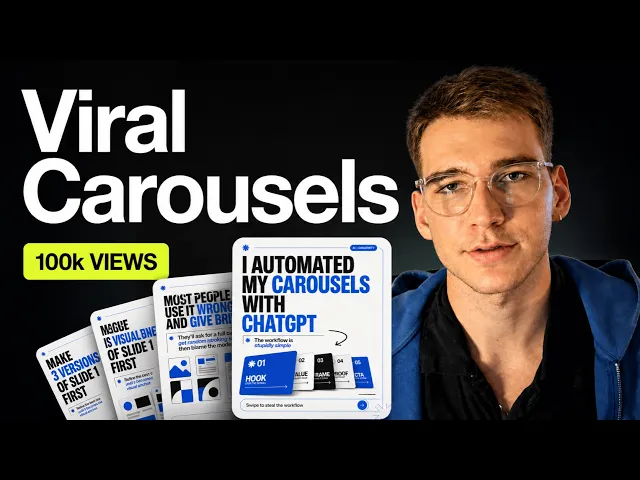
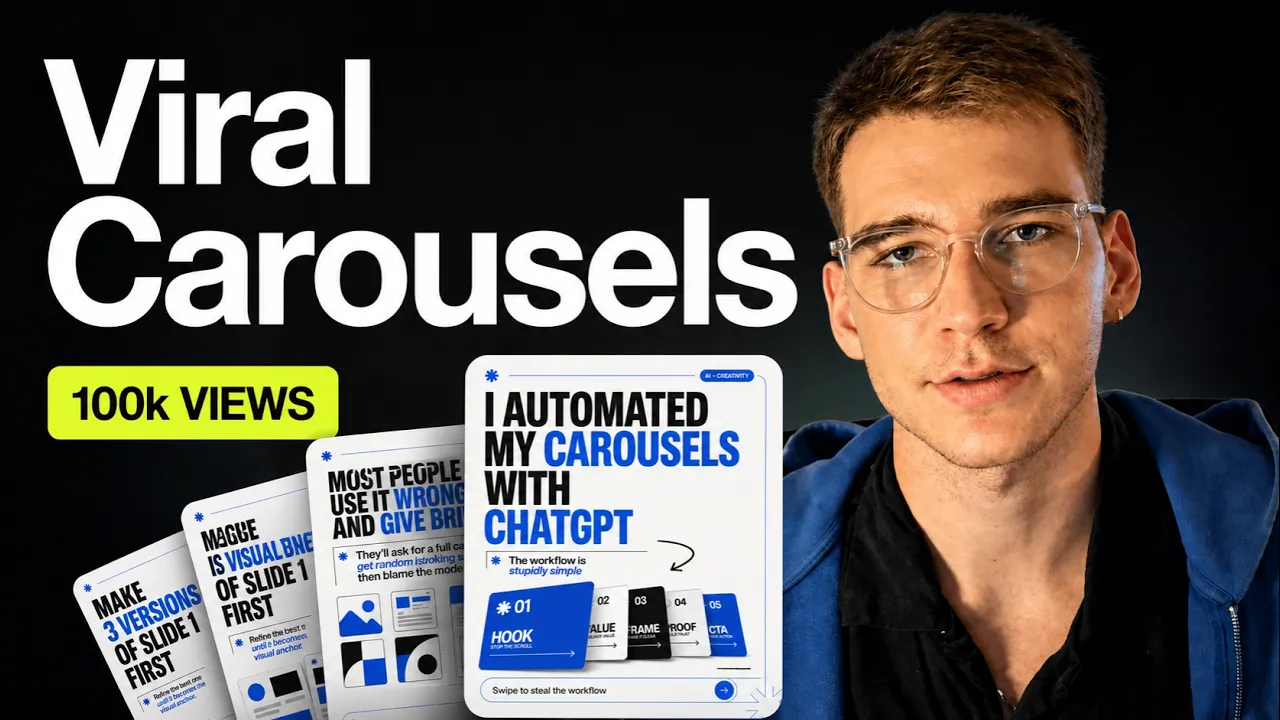
You know the carousels I've made using Chat GPT image too and actually posted one of them on my Instagram. It got nearly 100,000 views and a lot of engagement as you can see here. Each carousel only took me like 15 minutes to make which most of that time was spent me waiting for Chat GPT to actually generate different variations and the system is actually very simple once you understand how Chat GPT image model actually works.
By the end of this video you'll have your own system to automate your carousels as well. And to be honest with you I'm pretty bad at design. I used to spend hours on Canva trying to find a template that would fit the vibe.
And once I find it, I'll spend way too long tweaking it and making it perfect. So the problem with most people when they try using image gen like Chat GPT or Nana Banana to generate carousels that they would type something like create me a six slide carousel about X. And as a result they would get it back a generic AI looking carousel and would immediately give up.
Then they would blame the model and go back to Canva. But the truth is is that image gen models are only good at generating one image at a time. The second you ask for a full six slide carousel the whole thing falls apart because each image is not aware of each other.
So essentially creates a new image from the brief each time. So the solution is to provide a visual anchor for each slide generated. The anchor is just your first slide done very well.
Once you have one slide that nails the typography, the colors, the mood, you attach it to every other slide as a reference image. And now every new slide generated is forced to match it. Here are two carousels that were generated giving the same topic and brief.
One is generating using one shot prompt and another one was using slide by slide generation. As you can see one shot prompt carousel looks okay. It's a bit messy.
It just doesn't have any taste. On the other hand, slide by slide generated carousel looks very polished. It's consistent from slide to slide.
Looks something like a designer would make and think through. That's why a carousel like this was able to generate nearly 100,000 views. Every carousel has to start with defining how many slides there will be and what text should go on each slide.
This is probably the most important step the majority people tend to skip, but please don't skip it because of copy as it doesn't matter how pretty your carousel is. For that reason, I created a project inside ChatGPT called Instagram carousel copy writer and I gave it two files that tells ChatGPT how to write copy. Those two files were trained on this comprehensive document breaking down the patterns of what makes carousel go viral.
And don't worry, all the instructions and files will be in the description. Now, we're just going to give this project an idea and it'll give us a copy for each slide. So, I already prepared one already.
I said, "Make me a carousel about my morning routine and habit. " Which is actually all true. I wake up every day at 7:00 a.
m. I have a cold shower. I do a bit of stretching.
I walk outside for 10 minutes to get sunlight in my eyes. I journal and pray for 10 minutes. I don't use my phone in the first hour of the morning because it disrupts the dopamine.
All these habits are actually true. I try to stretch every day, but it doesn't really work. And it gave me eight-slide carousel with multiple hooks as an option.
Also gave me a caption and a hashtag. You can go back and forth with it to refine it further, but I'm pretty happy with it. So, we can move on to the next step.
Now, we're going to find a visual reference on how we want our Instagram carousel to look like. For me, I want to stand out with my carousels. So, I don't actually look for inspiration on Instagram.
I prefer to look at Pinterest. The reference could be literally anything like a book cover or a poster. In my case, I found this and I think it'll work perfectly.
I'll be using this image as a reference for my morning routine Instagram carousel. Now, inside my ChatGPT, I'm going to paste my visual reference along with side with this prompt. In this prompt, we're essentially asking to create five visually different versions for our hook slide and we're telling it to use reference image as a visual inspiration only.
Now, in the text for slide one section, we're going to go back into our chat and copy the slide one text. I'm going to paste it in. You can also play around with visual directions if you want to include any illustrations or brand guidelines if you have any.
From here, it will generate us five different versions of the hook we can pick from. And if you don't like any of the versions, just keep asking until you settle on something you're happy with because this is the most important step. This is your visual anchor and it will set the mood for the rest of the carousel.
So, you should spend the most time here to refine it until you're happy with it. Now that we have our visual anchor, in this case, I picked this one. I like it the most.
We're going to generate the rest of the slides. I'm using this prompt where I will swap out all the text in square brackets, the proper stuff that we got from our copywriter project. For example, this is slide two text.
I'm just going to copy in here. And adjust all the slide goals, slide type, that all of that information is given to you in this copy project. So, I just paste it here in my visual anchor, I pasted the prompt, and it gave us three versions for each slide.
The reason why I like using multiple versions is that it saves me a lot of time from getting unexpected outputs. For example, some of these don't quite look right, but one of them actually looks decent, so I'll pick this one and I'll continue doing so. So, after around 10 minutes of prompting, giving a visual anchors, we have eight slide carousel.
I downloaded them all into a folder and I found this tool online just to show you how this carousel would look like on Instagram. Scrolling through, I can see that this carousel has consistent font and design system. It uses same colors and elements and the positioning is consistent from slide to slide.
I'll be happy to post that on my Instagram. And sometimes you'll find that ChatGPT gets you 90 or 95% there. The overall vibe is right, but maybe one element or text is slightly off.
Instead of regenerating the whole slide, I'll drop it into Canva and use their magic layers. So, to use that, go into Canva, go into homepage, and you'll see magic layers. Click on that and upload one of the slides you generated.
I already uploaded one, which I hook slide. And if I open the project, you'll see that every layer is now editable. So, the magic layers turns any image into editable layers that you can move around.
So, I can move this little thing around, and I can also change the text to my morning routine. I can't spell. Um and I only use magic layers if the fix is very small.
Otherwise, I'll let ChatGPT do all the heavy lifting. And another cool thing you can do with the system, you can also generate LinkedIn infographics that currently crashing on LinkedIn. For example, this infographic is recently posted, has 1,200 likes, 400 comments, and probably got a lot of leads.
So, I found two infographics that I wanted to copy, this one and this one. And I gave it a prompt and I just said recreate this infographic, and it created this beautiful-looking LinkedIn post that I can probably get couple of hundred likes and couple of leads. So, you don't have to use the system for Instagram carousels.
You can also use it for LinkedIn, X, and any other social media platform. So, if I had to summarize this video, the whole thing is just four simple steps. Make sure the copy is good, meaning they have number of slides and text for each slide.
You should spend 40% of the time here. Number two, generate hook slide because this will serve as your visual anchor and will set the mood for the rest of your carousel. You should spend 50% of the time here.
Number three, build one slide at a time using the visual anchor from step two as a style reference. You should spend only 10% of your time here. And if you want to make small tweaks like text or spacing, use Canva magic layers.
And all my prompts, instructions, and references will be in the link down below. And if you want to go deeper on stuff like this, I also have a school community where we do a weekly call where you can ask me any questions. Link is also down below.
Hopefully, this system will help you generate more content and spend less time doing so. Subscribe for more videos like this. I post them every week.