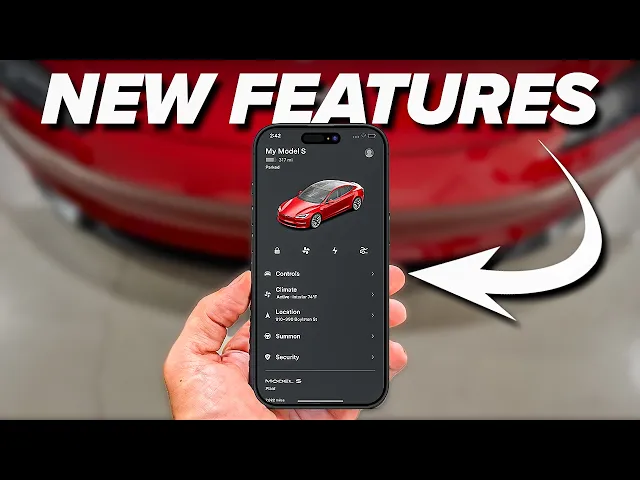
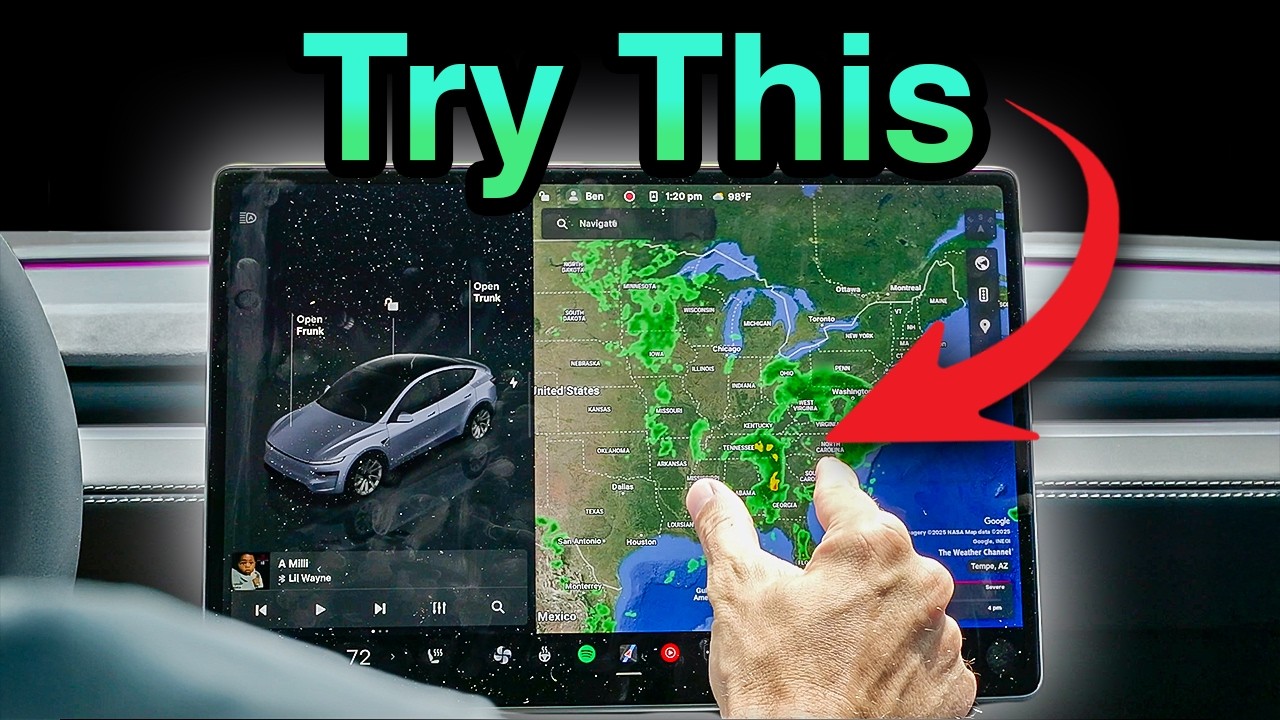
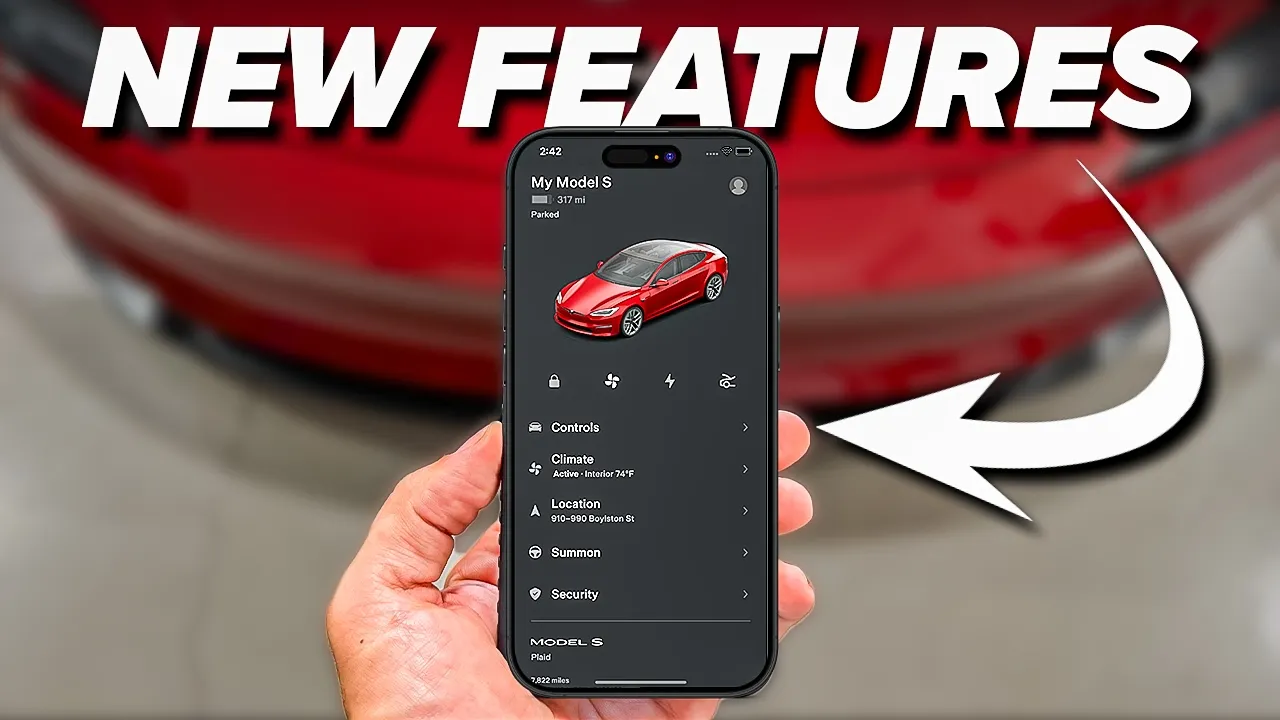
I'm going to show you 17 features of the Tesla app that you should absolutely be using on a daily basis or at least be aware of them. These are very simple to operate. The app itself has a ton of technology packed into it and Tesla's app works way better than any other car out on the market.
So, I'm just going to walk you through. Some of these are advanced, some of these are very basic, but I think everyone will learn something. The first thing we're going to show you is sending your navigation from your phone to your car.
So, from here, what you do is click on location. Then you type Las Vegas. Click on Las Vegas and boom, it shows destination added 267 mi away.
Now, it also shows you how long you will need to charge at each location. And if you click set departure energy, you can move it up to 100%. And if you hit save, it reconfigures the route based on your battery's current state of charge.
So, if I know that I'm leaving here with 100% battery, then I will only have to charge in Kingman for 8 minutes and continue on my trip and make it to Las Vegas with 9% state of charge. Second is route planning via the phone app. The other thing you can do is edit your trip.
So, if I want to add another stop, let's say I want to add a stop and unplug performance and hit done, it will then go and reroute me. So, this is really useful if you're night before your trip, you're planning it out. You can have all of this set up as crazy as trip.
as you want to make it, you can do that. You can also set your arrival state of charge in your Tesla navigation. You can go all the way up to 50% or all the way down to 5% depending on how comfortable you are with it.
My recommendation is if you know your end destination has a charger, set it down to the lowest setting, which is 5%, and then you can charge up when you get there and reduce your charging time on the trip. So, leaving with 100% state of charge battery is ideal. And then if you know your destination is going to have a charger, put it down to 5%.
Now this third one is really cool and most people don't even know you can do it. So on your home screen right here in the Tesla app, you can see there are four icons across the middle, but I bet you didn't know that you can add a fifth one. Now, this process is a little finicky and it sometimes takes some playing around to do, but grab one of them and drag it to the right side of your screen and a little gray bar will pop up on the right as you can see here.
And then that will let you insert a fifth icon into the Tesla app for your quick access. Number four is very simple but very useful. This feature of the app, everyone knows about it, but I just want to reiterate, and that is your climate control.
And there's a few things you can do in here. one. Um, this is a new Model Y that I'm controlling right now.
So, I can click on the seat and I can do cooled and I can do auto. So, heated, auto, or cooled seats is what you can set up and that will start working immediately. You can then also hit on for your climate control and get the cabin cooled down to where you need it to be.
So, in Phoenix, Arizona, for example, maybe you're going to the grocery store or maybe you're playing golf, for example, and on the 18th hole, you can hit cool the cabin down and when you get into it, the car is perfectly cooled off. There's even things like keep. If you go to the grocery store, before you get out, tap keep and just keep the cabin at its current temperature.
It's actually more efficient if you're going in for 15 to 30 minutes to just let the car stay cool as opposed to coming back out to a hot car and having to overwork the AC to get it cooled back down, especially in the hot summer months. I say just let the car run on keep. It's an extremely useful feature.
The other thing you have within your climate settings are you're able to vent the windows. So, you click that and your windows will pop down. And again, I don't know if you can hear it, but it's happening immediately behind me.
And the connectivity of this app is incredible. It just works. There's so many other cars.
I owned a BMW years ago and it had an app and I would click vent and it would I'd get to the car, the windows would be up, it would say still connecting to servers. This works incredibly well. It's fast.
So, you have defrost your car. You have bioweapon defense mode. Bioweapon defense mode would be good if you're in an area that has having fires or bad air quality.
You can turn that on and protect everyone in the cabin. Camp mode lets you run the air conditioning or heat. If you're out camping somewhere in the car, it won't shut that off after a certain amount of time.
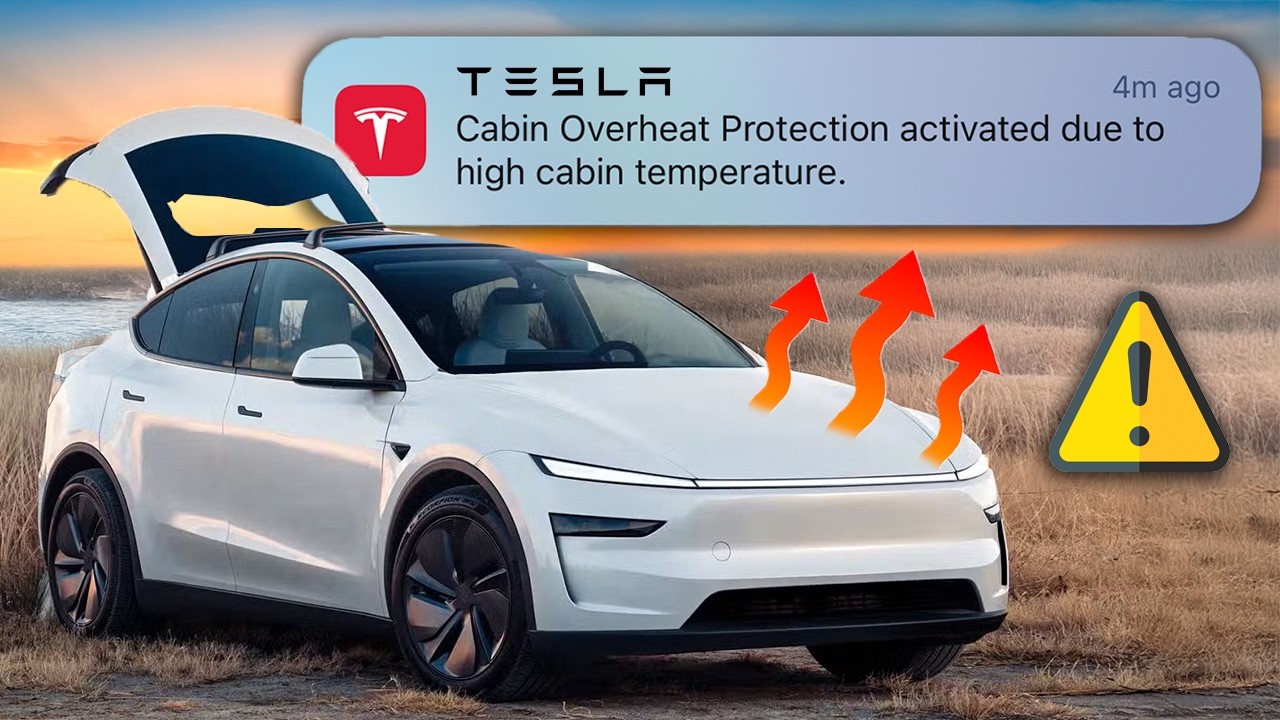
So, that's very useful. And then you have dog mode. The other thing I want to show you is cabin overheat protection.
I usually leave that on, but no AC. If you leave it on with AC, that can chew up a lot of battery, especially if you're sitting out for work. If you leave it on with no AC, it just lets the fans run and still keeps the cabin cooler.
So, just something to note. But again, these features all work incredibly well. Number five is the dash cam viewer.
Now, all Teslas come with dash cams built in, both for the exterior and interior. That's how they're able to do so well with their full self-driving with vision. It's really well done.
And just having a dash cam built in is so useful. So, if you click on security and drivers and then you click on dash cam viewer at the top, you can see what's previously happened here. So, we'll click this footage right here.
You can just see someone standing uh beside the car. And then you can also switch to different camera angles while this event happened. You can also download this 30- secondond clip to your phone's photos.
So, if you have a police report or incident or breakin or accident, you can download these right to your phone and hand them right to the police or anyone that needs it. So this is really useful and again you want to make sure that this is activated. So right under dash cam as you can see here there's sentry mode and you want to click on and you can exclude places like home but you can also once sentry mode is turned on you can click view live camera and when you're viewing the live camera you can see me waving right now on the screen.
So again really useful feature. Six is GPS tracking for your terrible children. Now, for GPS tracking, again, you click on location and then you can see exactly where the car is currently located.
You can also see the speed that it's going, if it's moving or anything like that. And that can just be really useful in case of an emergency. Or if you're just instead of texting someone, say, "Hey, where you at?
" You can check the Tesla app. If you share the car with your wife or husband or you share it with your wife's boyfriend or whatever, you can see exactly where that is happening. Seven's a quick one, but it could be useful.
in the top left where it says Model Y. Here it says 41% battery. If you click that, you can see how many miles that represents and all you have to do is click.
Another thing that would be really useful is getting your data removed for the internet. And that's why today's video sponsor is Delete Me. Delete Me is a hands-free subscription service that will remove your personal information that's being sold online.
Since I started using Delete Me 2 years ago, they have scanned thousands of listings with my information like phone number and address and removed it from 28 sites. saving me a ton of time and keeping my information private. Delete me starts by having you fill out a profile of your name, common spellings, your phone number, address, or previous addresses you've lived at to find your information that data brokers are selling.
These data brokers organize your data and then license it to sell to other data brokers or organizations who can profit from your data. Delete Me will generate your first report and it can take a few days all the way up to a month to get your information removed from the internet. The best part is they keep removing your information every 3 months when it pops up on websites.
Plus, as more data broker sites pop up, Delete Me will add them to their list and make sure your information is removed. I just received my eighth report showing where my information has been removed from and where they are working on getting it removed. So, Delete Me is offering Jeb's viewers 20% off DeleteMe US consumer plans when you go to joindeleteme.
com/jbs20 and use promo code Jebs20 at checkout. And there's also a link for international plans. And thank you to Delete Me for sponsoring today's video.
Eight is how to change your car's name right from the app where it says Model Y. You can hold down there and you can change the name of it. So I can change it to subscribe.
Subscribe. Subscribe. And that will change the name of your vehicle.
So again, another shortcut right there. Nine will let you send access to your vehicle via text message. Now, maybe you have a friend coming in town or a family member and you want to give them access to your car and you don't want them to have to go through the hassle of using the key card.
You can just text them access. So, if you scroll down to the bottom, you click manage driver and I can click add driver, create invitation, and then from there, you can send a text and that will give a person a link to download the app and give them full access to your vehicle. They can even save their own profile name or anything like that and have access to your Tesla.
That way, if they go to a charger or want to use the features of the app, they can rely on their phone and get the full Tesla experience. I highly recommend doing that. Number 10 are your specs and warranty details.
This can be useful if you're selling your car. At the bottom of the app here, see where it says specs and warranty? Tap that and that gives you the exact specs of your vehicle if you happen to be selling it or if you're like, I can't remember.
Uh, I didn't know this came with a tow hitch. I guess all the launch editions came with a tow hitch, but I didn't uh didn't show it. Okay, so I just learned something.
There you go. So, you can see the specs, but then you can click on warranty and you can see your basic vehicle limited warranty and it shows you exactly when it expires. So, March 4th, 2029 or 50,000 mi.
And then it has the battery limited warranty, which is March 4th, 2033. Everyone forgets about the warranty on the batteries on these things, and it's excellent. Yeah.
So, there's how you see your specs and your warranty info if you happen to be selling the car. Really good way to access that. Number 11 can be useful during tax season and tracking your mileage and charging data.
Here's how to download it. Now, if you're someone that's in uh real estate or like me, I used to be in medical device sales and I would have to track my miles. And at tax season, it's kind of hard to track all of that down or keep up to date with it.
So, in the top right, if you click the three stacked bars and then you click charging, then you click history, it will show you all of the times that you previously charged it. It charged. And this literally goes back years.
You can even search based on what vehicle you're looking at. But this goes since the beginning of owning the vehicle. So that can be really useful if you did a long road trip and it was maybe it was a road trip for personal use or maybe part of it was business.
You at least have some reference in here of where you were, what date, and how much you charged. That can be very useful to you. And this can all be downloaded and exported into an Excel file.
Also within this charging page, there is manage payment. That's how you change the credit card uh that's hooked up to your car that pays for charging or any additions that you want to add to it, you can change it there. Now, if you have the Tesla app and you have another EV, for example, I have a Rivian, you may want to subscribe to their membership charging, and this is how you do it.
And then at the bottom, you see it says membership. So, if I want to go on a long road trip, I'm going to want to use either Rivian's chargers or Tesla's chargers cuz they're the most reliable, at least for me. There's a lot of other ones that are it's much better now, but for reliability, I like those two options.
If you do membership pricing, you get a better deal overall and you can just subscribe for a month while you're doing the road trip and not have to do it all the time. So, that could be worth looking into for a longer road trip with a third party EV. 13 is how to change your photo within the app.
You can also see the top here, my profile picture is blank, and you're able to add a picture by clicking on it and then clicking the plus and then you can add a picture in here. Now, number 14 for you moms out there, calendar sync. This could be a lifesaver.
So again, we are going to click these top three stacks in the top right and then we are going to click on your name. And then at the bottom, you can see it says calendar sync. So when you turn that on, it syncs up to your calendar and all of your events will be locked up.
Now, here's where it's cool. So my cameraman the other day, he bought movie tickets to go see a movie. And when he does that through AMC, AMC automatically sends a calendar invite to you.
That invite was sent into his car. So when he got in his car to go to the movie, it automatically put it into the navigation so he could drive to the movie theater. Imagine going to your kids sporting events.
Imagine going to kids birthday parties, road trips, things like that. This can make it incredibly useful and one less time where you're taking your phone out and trying to look at it. Your car is one step ahead of you.
This can be extremely useful to a busy person. Now, the other button you'll notice within your app is schedule. So this is your charging.
So, this can be really useful if you have a variable uh electricity rate. A lot of people or some people that have a lot of people some people that have EVs will opt for the variable charging rate cuz when you're pulling the most electricity charging your car late at night, it's a reduced rate. So, they'll charge up at night or they'll run their pool pump at night to reduce cost.
So, you can schedule that charging. So, I can schedule Monday 10:00 p. m.
to 6:00 a. m. is when it will charge.
You can schedule a light show for the vehicle. If you want it to be 8:00 p. m.
on Halloween, you can do that. And then you can precondition and set a climate. For example, my wife takes my daughter to an activity on a weekly basis.
And it's an hour when they're in the store. And then when they come out, it's 110° in Phoenix. So, she sets the car on Mondays to be preconditioned for when they come out of the event.
So, it's all cooled down. Little things like that. And then you can hit save and have it happen on Monday, Tuesday, Wednesday, or just on Mondays or just one time.
You can click repeat weekly, or you can turn it off for just a one-time event. These are so useful. And again, it's an electric vehicle, so you're going to want to be using these features that you wouldn't in a gas car, like running the air conditioning.
You wouldn't leave your gas car running while you're in an event for an hour. In an EV, you can. There's also parental controls here.
So, if you go down to security and drivers, and then you click these three little dots left of parental controls, turning it on and off. You can also set a pin when you turn it on. So, you click those three dots.
You can set a maximum speed limit. You can reduce the acceleration to chill cuz these things are quick. If I'm a new driver, you probably don't want them getting 0 to 60 in 4 seconds.
It's very quick, but you can turn that on or off. So, in chill mode, it does 0 to 60 in 7 seconds, which is a more normal feeling to a vehicle. You can customize all of this.
You can send curfew notifications. You can require safety features such as speed limit warning. So, if they hit a certain mile per hour, it can warn them how fast they're going.
These cars are incredibly safe. They're also incredibly quick. So, you do have to be responsible when driving them.
But, I think for a teenager, as crazy as it sounds, you can get a used Tesla for like 15, 16 grand. Still gets software updates, still very safe, and you still have these parental controls, uh, which I think are great and as especially as a parent. So, not only can you customize the parental controls, you can then turn them on and off.
So, that is really cool. You can also have speed limit mode, which this is useful even if you're just you driving around. If you want to set it to 85 mph, I recently had a Model S Plaid from Tesla service.
It was locked at 85 mph because otherwise I would have gone 200 everywhere I went. So, just for your own uh safety, if you're on a road trip and you want to max it at 80 miles per hour, just so you know that you're not going to get in trouble by the police, you can do that in here. So, I think that that is really cool.
You can also look at things like phone key best practices. It'll show you how to reset it, how to troubleshoot, all of that stuff. Just very useful.
And then you can set up your Bluetooth audio. Now, additionally, within the app, you have service. So, if you click on service, you can go down to ask a question and you have Tesla's AI assistant can help you with basic questions.
You can also click on your service history for future appointments and things like that. There are video guides in here of charging, essentials, touchscreen, autopilot, support, all of this type of stuff is already in here. And then if you click down to battery health, you can see that your battery health is all good.
And you can even run a battery health test in service mode that will then be reflected in this battery health setting right here. So, there is a ton in here. My main point with this video is get you introduced to all of the sections within the app, see what works best for you, and then you're just getting the most out of your vehicle.
These are very simplistic looking on the interior, but the app and the technology in them is what separates them from any other vehicle on the market. Now, if you want to see what settings you need to turn off in your Tesla, click this right here. And if you want to see what accessories there are for this Model Y, click this right down here.