heidy are doers when managing my inventory there is something essential to keep in mind fruits they are vital for any good inventory management process as they are used to control product manufacturing chains products default location or to help in rental management by generating automated product moves and stealthy would we use them because they help us streamline processes and save time with roots I can also add steps like quality control after sales services or supplier returns which will help us keep track of our products quality at each stage of their lifecycle there are many different ways
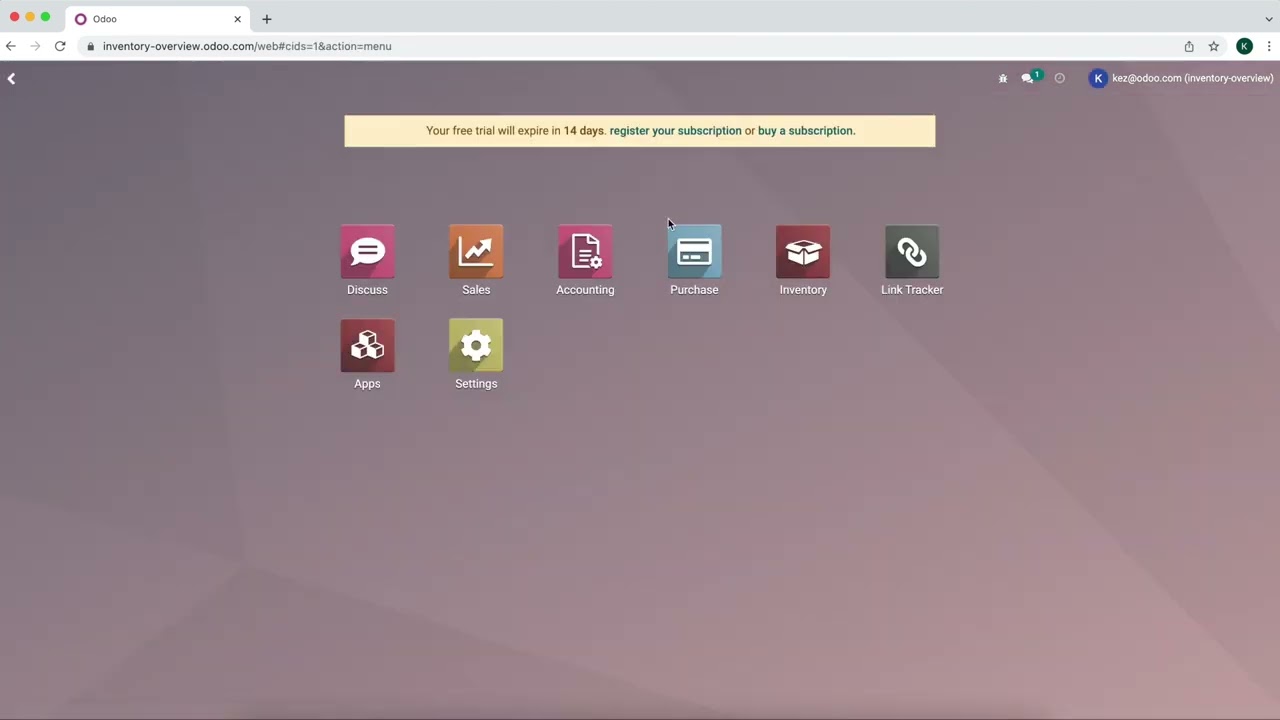
to use and apply routes so I'll jump into stealthy woods database and have a look at all the different uses all right so here I am on my database now the first thing we want to do is be sure we have multi routes set up so we're gonna go to inventory configuration settings and on the settings page we're going to scroll down to be nearly at the bottom underneath the warehouse section we're going to activate multi-step routes all right so since usually we will use multi-step routes this also implies that we will use storage locations
as well so this system is automatically going to enable this feature once you select multi-step routes and that's good we want to save both of them which I have already done here now of course some companies also need to use several warehouses so if you do take advantage of using several warehouses you can activate the multi warehouse option here from the settings underneath the warehouse section as well but it's healthy wood we only need to use one warehouse for now so let's go ahead and look at it so I'm gonna go to configuration warehouses and
I have my one warehouse of course if I'm using multiple warehouses I will see all of my warehouses here all right now I'm gonna go ahead and click on this and then click on edit so I can change my warehouse name if I would like to and then below we're actually going to be able to decide how we would like to receive and deliver goods for this specific warehouse so I can do that in multiple steps if I would like to for example I can receive the goods and input and then add them to my
stock or I can receive the goods and input check the quality then add to my stock so it depends on your business's needs at the stuff they would we keep it simple we just receive and deliver and one-step and of course you can change this up a bit as well so if I want to deliver goods in one step I could still receive goods and three steps so that again that depends on your business's needs but let's save this and now we're actually gonna check out the routes that we have for this warehouse I'm gonna
go to this smart button here now if you do have multiple warehouses and you have some routes that are specific to that warehouse you will see the warehouse name before the route as we do here definitely would inventory receive in one step okay and you can also see the multi you can also see the company on the right so if you're in a multi company environment so right now I have a few routes but let's just look at one we're gonna look at the replenish on order route okay I'm going to click on edit so
of course I have a company which I can select if I need to I have a name of the route and I can also say what it's applicable on so I've some choices I can choose product categories products warehouses or even sales order lines as you can see I have multiple selected here products and sales order lines so you do have that choice and then below we will be able to add our rules so I'm not gonna go into this in too much detail because I do cover in another video be sure you check that
out but we are going to open up this rule that I have here so we have the action so we're going to pull from our source locations of warehouse stock we have our operation type here and then the destination location which will be our partner or customer location and then we even have arts supply method so you can choose take from stock trigger another rule or in this case we say take from stock if unavailable trigger another rule so with our replenish on order items we don't have any on hand we would like for the
system to trigger the buy routes so I'm going to keep this selected so that it will automatically generate an RFQ so let's go ahead and save this and let's see that in action I'm gonna go to the sales application and create a quotation okay so I'm going to create a quotation for a yeah okay and then I'm gonna go ahead and add a product so let's add some drawers okay I'm going to just sell one drawer to Adrian right now and then we're gonna save this and confirm now I want to mention that on the
product configuration I do have both the replenish on order and the buy routes selected okay and then when I confirm the sales order a couple of things are going to happen first of all a delivery order is going to be generated automatically so let's go ahead and select that and then once we're on the delivery order we're gonna see that we're waiting on another operation so the system looked at the quantity that we had on hand for that product which was zero so triggered the buy route and that generated an RFQ automatically and that's what
it's waiting on we're waiting to receive that item so let's go ahead and check out our RFQ so if I go to purchase I have an RFQ here so I see that there are two sales orders related to this so in this example we're going to see more products than just the product that my customer ordered now in this example the request for quotation does contain the other products because they have the same routes and rules as the drawer that Adrienne purchased okay so this is really convenient it just combined everything into one RFQ since
it does have the same vendor and as I just saves me some time which is really cool so let's go ahead and confirm this order and since I'm receive in one step we're gonna simply click on receive products and validate so it's going to take the reserve quantity or in this case the demand and mark that as the done quantity since I didn't manually specify the amount and if we go back to our quotation or to our sales order I should say we can go to the delivery and we'll see that it is no longer
waiting for anything it's ready to be delivered and then we can validate so basically that's how I can manage routes and if needed I can create as many as necessary with all the essential rules so the possibilities are that's all for this video thank you for watching and if I don't see you good afternoon good evening and good night