hi this is Professor wber from app.org and USF I'm going to show you how to build apps with App Inventor 2 and I'm going to show you how to build a paintt app where you can kind of take a picture with your camera and then draw funny lines and and circles on it it's a it's a fun app and it's also it'll teach a lot about programming okay so go to ai2 doapp inventor. mit.edu and this is this is the new app inventor 2 go to Project create click new and then I'm going to name
my project paint pot all right so this is going to open up the app inventor designer where you kind of build your user interface now the first thing I typically do is once I get App Inventor up I open up my App Inventor 2 Companion so on my phone which is sitting on my desk here and I'm projecting onto the screen I've got MIT App Inventor 2 Companion and what you want to do is get that from the Google Play Store it's a free easy install and once you do that you can test your app
apps in a in a really nice way so I'm going to right now click on scan QR code on my phone okay then I'm going to come up and in the App Inventor I'm going to choose connect and AI companion and I'm going to scan that QR code that comes up what's going to happen is it's going to show me the app that I'm building right now and you'll notice my app's not very interesting it just shows screen one at the top that's the title right and that's all that that's all there is but anything
I do now it's going to you know show show up on my phone okay so we're going to build a drawing app so go to drawing an animation and pull out a canvas component drag it out canvas components like a panel on your screen you can have numerous many of them you know but what you can do inside them is put Sprites that are animated and then you can also allow the user to draw inside inside the canvases all right so I've got my canvas almost always you want to set its width to f parent
and that just means to feel the whole screen all right then to set its height to like 300 pixels that'll leave us some room also for some buttons that we're going to use to let people change color and and do that that sort of thing so I've got a canvas I'm going to choose change its background image I'm going to upload a file you can upload any file you want I'm going to upload a picture of Hal ablon who's the App Inventor creator of his cat this cat's become famous because it's been used in a
bunch of these App Inventor tutorials so I'm going to open up this little kitty and he's going to show up on on my screen all right so now I've got a drawing canvas where I'm going to draw and we're going to be able to draw pictures on this on this H laon cat and notice it shows up on on my phone as well okay so I've got my canvas set up next I'm going to add some buttons all right first thing we want is a row of buttons so we can you know kind of change
the color so I'm going to grab a horizontal Arrangement and this just allows me to create a horizontal row of objects and then I'm going to go to use user interface and just throw some buttons in there okay there's one it's a little tricky to get them in there but make sure you get it so it shows up within the horizontal Arrangement then finally I got my third for the button so I've got three buttons all right with buttons you've got a couple things you want to do one is you want to change the text
so I'm going to change button one's text to um red so this will be the button to change the drawing color to to Red all right I'm also going to rename button one I'm going to call it red button the important thing about kind of renaming your components you know the user is not going to see this right but when you go to actually write your code in the blocks editor you're going to be able to distinguish between the different the different components you have okay so I've got red button last thing I'll do to
it is change the color of it and I'm going to go to um background color for the button and choose red okay so I've got this button all set up and you know I'm not going to do this on on the screencast here but change these last two buttons to blue and green okay make sure you change the names and change their color all right we'll come back and and and okay so I've added the other buttons and notice I've renamed them up here as well all right next thing I'm going to do is go
to screen and I want to actually align everything Center okay because I want my buttons to show up more in the in in the center of the screen so now I have these this first row of buttons which are going to allow me to change color I want one more cuz we're going to do some other function so I'm going to add another horizontal Arrangement right below here and this one's actually going to have four buttons so I'm going to grab some buttons and put them directly into my second horizontal Arrangement okay and so the
fourth one see if I can fit it in there yeah there it goes okay so I'm going to have one button which is going to say take picture Okay so this allows to change the background picture the second button allow me to kind of clear the interface okay it won't clear the background color but will it will clear whatever's been drawn and then third I'm going to have a big button and a small button these are going to allow us to change the size of the circles that get drawn all right so I've got this
row of buttons that allow us to do a bunch of stuff I'm going to go ahead and rename them I'm going rename them kind of like I did with the color buttons like take picture button clear button big button and small button so you should go ahead and do that when I come back we're going to go ahead and and start building the behavior of the app all right so I renamed the buttons in my second horizontal Arrangement and you know last thing I want to do before we go to the blocks editor is I
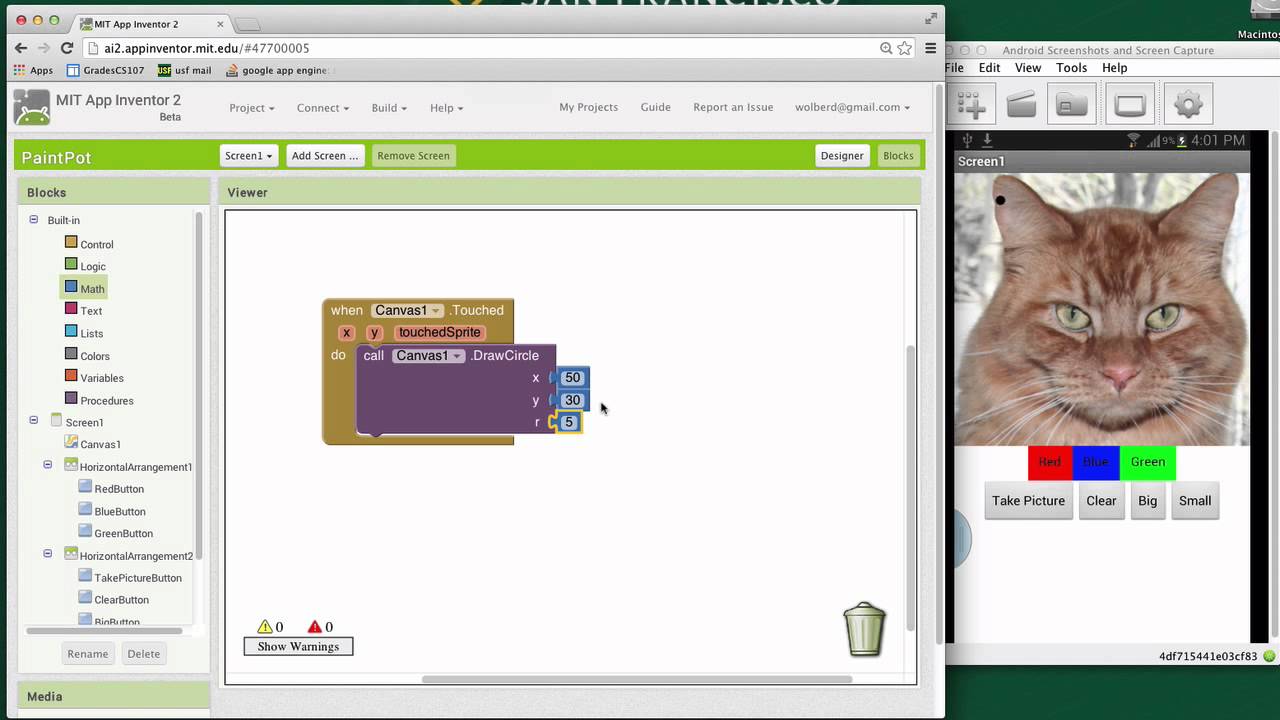
want to add a camera component so go to media and just grab this camera out it's a nonvisible component so you drag it into the UI but notice it shows up kind of below okay and it does not show up in the actual UI that the you the user sees okay we're going to need this to to take pictures so that's why we need to add it to to our interface all right so I've got the design all set up uh next thing I'm going to do is show you the behavior we're going to click
on the blocks and actually show you how to make make it so the user can draw













![Building a SQLite Backend | Part 1: Building a Medium-Style Blog with AO [Bootcamp Spring 2024]](https://img.youtube.com/vi/45I-4xyecys/maxresdefault.jpg)

