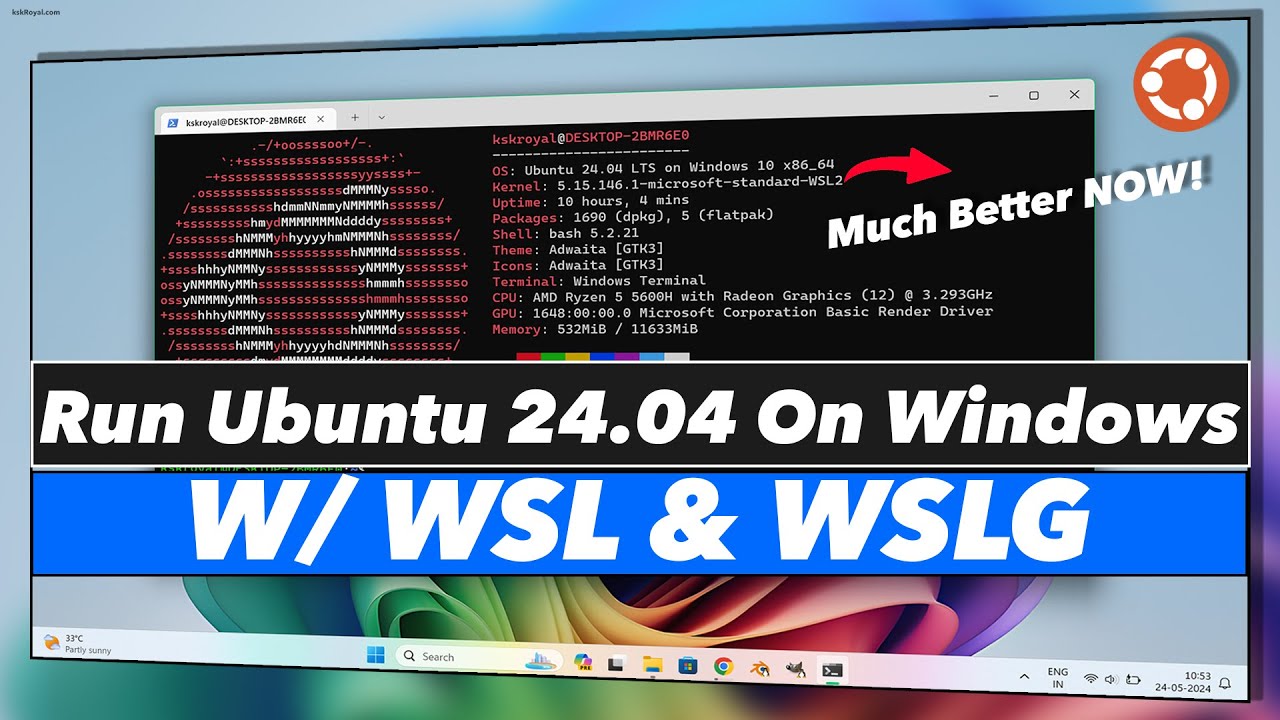
a what's up I'm troubleshoot welcome back to another video in this quick guide I'll be showing you how to install Ubuntu desktop on Windows WSL mind this I mean you can run desktop GUI applications like you would under Linux before Ubuntu more specifically but on Windows you can run Ubuntu home Linux specific apps programs Games Etc on Windows natively through WSL too in my previous video I showed you how to do something similar using a remote desktop server and connecting to it this is completely different this is setting up an official GUI where you can
run programs officially in the description down below you'll find a link to the guide that I'll be following install Ubuntu on wsl2 and get started with graphical applications this was uploaded or published sometime in September 2022 which is a few months after the previous video that I uploaded on this topic for commands you'll find them on that page there which is again Linked In the description down below first of all we need to enable some features in Windows previously you needed to hit start type in features open tone Windows features on or off and inside
of here tick both virtual machine platform and windows subsystem for Linux okay restart your PC after a small update but now it's even more simplified hit start type in Powershell and we'll be opening Windows Powershell as administrator now inside of this new window here simply type in WSL space hyphen hyphen in storm upon heading into it'll download and install the windows subsystem for Linux as well as anything else that is required now as I already have these installed I'll close out of it when this completes we'll likely need to restart our computer so just be
prepared save all of your other programs and things like that as you may need to for me I don't I'm pretty sure as I've already got these things enabled before this point and now if we hit start all apps you should see windows subsystem for Linux a new app here perfect now all we need to do is download and install Ubuntu for this openly Microsoft store then search for Ubuntu at the very top and simply install Ubuntu which is located here just make sure it's from canonical group limited click install but what we can do
as well instead is do this via the command line while this is downloading in the background I'll head back to Powershell CLS declare and I'll run WSL hyphen hyphen list hyphen hyphen online and it'll tell us what versions of open2 weekend crab or rather what common distributions here we see 2204 LTS this is probably what you'll want to install so you can simply run WSL hyphen hyphen install space hyphen d space followed by the distribution name on the left which would be 2204 just like that when it's done installing you should be able to run
WSL hyphen L hyphen V and you'll see a list of distributions installed I think I need to open this one first for it to install and register in Windows first so I'll open it up once and we'll be on the first time setup but checking with command once more yes there we go Ubuntu running version two great alright so we'll enter a username I'll enter technum password password again and there we go you can see we're running 2204.1 LCS and we're logged in great now what we need to do is update Ubuntu so I'll clear
suda apt update space and and sudo apt full hyphen upgrade as such hit enter enter the password we just created I'd recommend having this the same as your Windows password just to keep things simple if you don't have a Windows password just leave the password blank when you are setting it at this point it'll connect to Ubuntu servers and try to update if nothing happens however it's more than likely a DNS issue I'll let Ctrl C to cancel as it is and referring to a previous video of mine showing you how to permanently change your
DNS what we simply need to do is sudo Nano Etsy resolve and inside of him change the name server from whatever it is to say one one one or eight 88 and we also need to stop Windows automatically generating this by modifying the Etsy WSL config file and uncommenting these two lines here or adding them so I'll control s and Ctrl X to save and close then sudo Nano Etsy WSL and inside of him we'll copy and paste this as we saw previously save it with controllers control X to close and now if we try
to Ping something it should work great clear let's try updating once more using sudo apt update and sudo apt full upgrade there we go this time things are working properly now it'll probably download a few hundred Megs worth of packages and upgrade so this will take a short while to complete after we confirm it by hitting Y and enter now when this is done the next thing we're suggested to do is enable system D which was added in September 22 that unlocks a huge number of things even including the ability to use step packages from
snapcraft.io to do so we need to sudo Nano etsywsl.conf as such then inside of him on a new line assuming you've typed things in we need to enter inside of square brackets boot system D equals true as such control as control X perfect now we simply need to restart this by running WSL hyphen hyphen shutdown in Powershell there we go when we do some Ubuntu and all of our other distributions will shut down they'll stop responding so we can close these tabs and now we just need to relaunch it so we'll just wait for a
few seconds and there we are now sudo apt update we'll wait for this to finish once more of course things are failing ping pings aren't responding ah I see this resolve config reset itself all right let's try once more sudo apps update and now to test things out it asks us to install the X11 apps so sudo apt install X11 hyphen apps well it Andrew yes to confirm and around 10 megabytes of packages will be downloaded and installed sweet now to test it out they recommend X eyes Ledger and here we have a program called
X eyes when I move my mouse around it'll record movements and point towards my mouse however as soon as I masked out of this it's not working as you would expect to test out whether apps can interact with each other we can instead run X eyes and hit such to open it up in a separate process and we'll run X calc now we have a calculator moving this around and our Mass inside of it you can see that the eyes are following us successfully meaning that these apps are working pretty much as they would natively
inside of a normal desktop environment which is amazing obviously these gooey apps work as you would hope sweet now just a quick note you'll know Linux apps apart from other apps on your PC as on your start bar over here they are displayed separately but in the very bottom right you'll see a Linux icon the tux icon represents apps running under Linux or Ubuntu so you can tell them apart pretty easily now we can do even more advanced things they talk about installing octave sudo apt install octave yes this is a 900 megabyte download so
just be prepared should you choose to do this but I'll give you an example of what it does here and there we go now if we run octave hyphen GUI and as such it'll open up on our PC we'll click through this seems good enough now we have this big window here so they talk about drawing a fractal just to give you an example so I'll copy paste in a whole bunch of text that they have on the website select everything isn't working for me for some reason I'll make a new file paste it in
which you'll find once again on that link in the description down below and do install and use a GUI package that will simply save this file so control s and save it as Julia m now they talk about opening a second editor window so I'm clicking you at the very top paste this in and we'll hit run at the very top here they say to name it Julia test so I'll do that and now you'll see a new GUI window pop-up which is the fractal that we generated here pretty cool so this is completely transparent
on Windows we can put other programs in front and behind them it's great it's pretty much like running GUI apps in normal windows and that's really about it now I'm assuming you want to do Ai and things like that using a Nvidia Cuda support in the description down below you'll find a guide on how to set that up and get going with it but anyways that's about it for this quick guide this is a heck of a lot better than trying to remote desktop into a desktop environment and run things that way it works pretty
much seamlessly with Windows which is amazing thank you all for watching mine's been troubleshoot and I'll see more next time ciao