welcome to our first excel workshop and on this one we're really going to focus more on how to customize your screen and organize your data so that you can work with it more easily if you'd like to follow along under the resources tab for our week you'll see the excel tutorial file so if you want to just kind of pull that down and [Music] watch this video at the same time you're welcome to do that and then that way you can pause me as you also do the things that i'm doing on the screen and
you'll be working with the same data file that you see right now on your screen so welcome again so part of what um one of the things that i've learned in working with excel and pivot tables for 10 to oh gosh now we're approaching 20 years okay so i'm dating myself so one of the things i've learned is that how you format your screen and how you organize the data will either help or hurt you as you're moving on to do things like pivot tables so right now on your screen you should see an excel
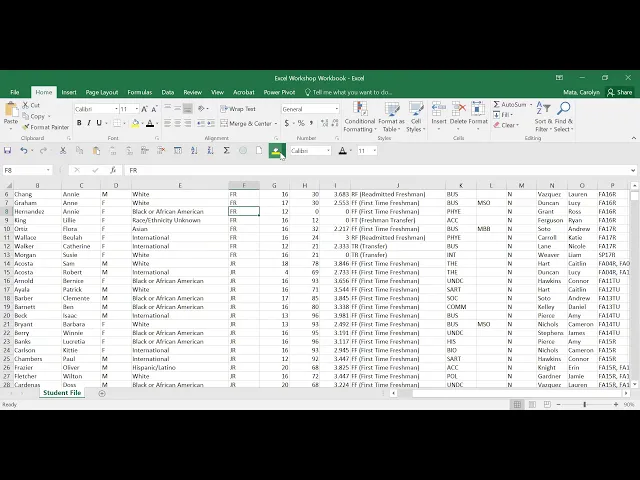
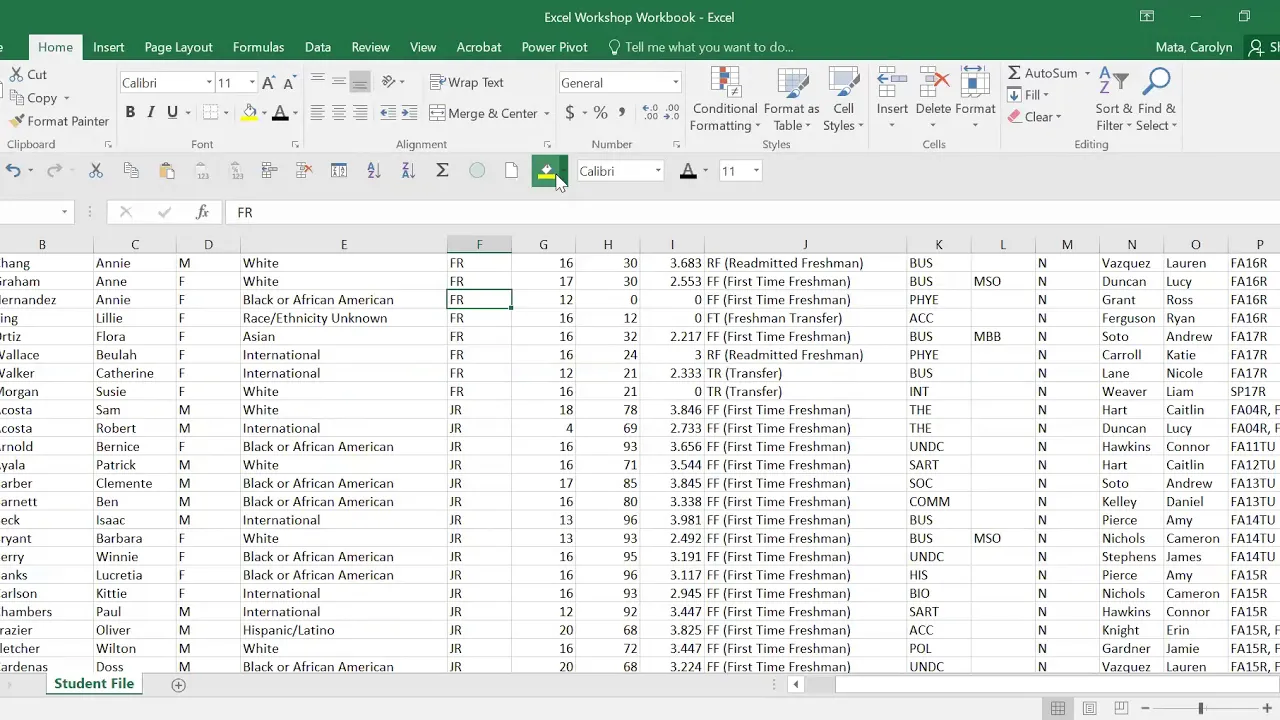
workshop workbook and you'll notice that it's got student ids now again these are all fake so none of you appear in here we're not violating any ferpa here so ids to the left followed by a last name first name gender ir ethnic description class active credits act all completed credits cumulative gpa student admit status major sport whether they participate in greek life who the advisor's last name and first name and what their student start term is so we're not working with a whole lot of data here in fact you know we've only got um columns
you know a through p and if i look at the total number of records we're looking like what's that i can see down at the bottom about 450 or so records here so we're not working with a whole lot of data so imagine instead if this workbook like some of the other workbooks i've used have gone out to the double letters or um you know or had thousands and thousands and thousands of records so this this is a little more manageable for us but it's also still too much for us to really make sense of
so you know if i you know condense this down using this this little slider at the bottom of my screen that you see right here if i make the if i make this smaller you know i can scroll and scroll and if you were to ask me a question like you know are most students involved in greek life looking at this data right now i couldn't tell you i could not give you an answer um just eyeballing it i would say no but i really couldn't tell you what percentage same thing by majors right if
i'm looking at majors up here and i'm trying to figure out okay what's the most popular major i see a lot of biology and business it looks like but i really again couldn't tell you much so today we're really going to focus not on the actual pivot table because how we would make sense of the data that's in here would be for us to actually use those pivot tables right but instead let's just go ahead and think about how we would format the screen so everybody has a different way that they like to do excel
and what you'll have to do is really play with it to figure out what works for you as i'm looking at this right here you'll notice one thing that's kind of interesting which is this this kind of group of options right here this quick access toolbar you'll notice that mine is not at the very top of the worksheet in fact most of you when you first use your excel yours is probably going to show above the ribbon and that's what that looks like so now notice how my uh my quick access toolbar is way up
at the top so that's how most excel workbooks are set up initially um and usually the only you only have about four icons up there right you have like a save maybe a save as a new an undo and a redo or something i mean so it's real basic so you one of the things i learned and i'm gonna be honest and say i really didn't even do this until um not that not that long ago right it's probably only been a couple of years that i've really customized my toolbar the first thing i noticed
was i'm less likely to use it if it's all the way at the top of my screen and i have to move my mouse up higher to use the things that are up there right i also don't like that it doesn't have a lot of differentiation in color right everything is white white as the icon which seems like it wouldn't be a big deal but it doesn't because there's no color it doesn't draw your eye up there which means you don't end up using that toolbar very often so i went ahead and just moved mine
show below the ribbon as you can see mine is here now it's a little more colorful it's not that far of a of a step for my fingers to move from working in the workbook to moving up here so that's what i would call probably step one in this is go ahead and move your ribbon to where you're actually going to use it the second thing i would say is go ahead and start customizing your ribbon if there are things that you use frequently why cut why have to make yourself go all the way up
here um you know go over to you know format or why go to insert right or data or the page layout why have to scroll through those different ribbons up there when you can just take the things that you're most likely to use and put them all in one space i have found over the last few years that this has saved me a whole lot of time particularly um in thinking about summations or averages that are right here um i i sort um multiple times a day so instead of my instead of me having to
go all the way over to the sort and filter click on it and then select sort a to z or sort z to a instead i've now just got one click it's right here so if i'm over here i might just go boom and so it saves me a few steps which again doesn't seem like a whole lot of of time savings but when you're doing things like that over and over and over again it actually does work out that way so let's go through how do you do this if you have not customized your
ribbon before this is your tutorial if you have customized your ribbon you may want to watch because maybe you might learn just one trick that's new here so you can when you go to this customize quick access toolbar one of the things that you will see is the most common um things that are on people's toolbars are right here so new open safe those are the ones that are traditionally up there i leave open um i don't have open on my quick access toolbar because i'm not typically not going to open um a document from
that i don't mind going up to file and opening a document i need these are also ones that i don't use very often i probably should select spelling so let me go ahead and add that in as you can see i now have that little spelling check mark and i'm actually going to move that actually nope not that way i'll show you how to do that in a second so selling undo redo sort ascending but i like to go to this more command when i go there now i have just about every option in excel
accessible to me to add to my quick access toolbar so here are all the ones that i have and this is where i would move them so i just added spelling so i'm going to go ahead and ask and move that so notice how i did that i just clicked on whatever it was and then there's like an up arrow and a down arrow and this is basically move up so i'm actually going to move this over to actually i'm going to put it right where right above my sum average so part of the reason
you would want to move these things around is you want things that are like each other you want the tools that are like each other to be near each other so notice that my cut copy paste paste values paste values and number formatting are all together my insert and delete cells are together my custom sorts and my regular sorts are together and then my data um analysis ones are together my sum and my average so i like um you know doing them that way notice here at the top you'll see what it says choose commands
from and it says popular commands okay so right now this is telling you all the things that are are showing are things that are most popular as far as commands that you would want to maybe consider moving over but depending on the kind of work that you do you may find that the things that you use are a little less common to folks but more common to you and that's the point at which you could go ahead and click down here and go ahead and say okay the things that i'm usually using are on that
data tab well on that data tab um you know you might use some of the things that are over here right so you could scroll through here and think about the things that you'd want so if you're pulling data frequently from sources you might want to add some of these in there as you scroll down you know even that refresh you know honestly if you're working in excel pivot tables a lot adding that refresh one is actually good so i'm actually going to add that to mine right now so i've clicked on refresh i'm gonna
add it over here and it basically adds it wherever i kind of left off in using i'm gonna move refresh down below my sum and my averages okay scrolling up let's see if i see anything else that i am interested in and bringing over okay for me there's nothing else there that i'm really all that interested in having um you know within the formulas tab for example you might find that you do a lot of certain types of calculations you may want to consider bringing those over in here so just just play with these is
what my suggestion would be you know if you have five to ten minutes after we get done um with this video go ahead and just open up excel and think about what it is that you most use you can go to all commands if you want to see everything that's in there but as you can tell this is a whole lot um so i like how they have it sorted into which tabs and then the ability to kind of pull out from that let's go back to the home tab um i one of the things
i don't that i use often that i haven't um moved over would be some of these align right so typically the align left or the align middle so i might put those together um and for me i'll keep those near things like fill and font so let me move that down um that way i'm keeping the the things that how my screen looks together there we've got all of these you know bold how do you want to do you want to add remove filters clearing content let's see deleting cells deleting rows so duplicate values is
a good one also um i i typically work in that one so i'm going to go ahead and add that over here as well but i'm going to move that up by right next to my sum average duplicate values there we've got all the fills that you see increasing table size merging i happen to use that one a whole lot the the merging cells so um let's go ahead and just do my merge cells i'm going to add that over there as well except i'm going to move that down again by where my alignments and
my fonts are so this is just a quick first part of our tutorial which is about how to customize your screen so that you can work more easily in excel i'm going to hit ok notice how my screen up here has now changed just a little bit it's uh quite a bit bigger but i'm okay with that so that's really about customizing your screen so now let's think about the organization of data so people have different ways in which they like to organize their data typically before i even get into pivot tables i'm going to
figure out how my data looks so i might do things like um put filters right so if i if i click over to sort and filter up here at the top right and i go down and i click on filter i can then kind of look and make sense of my data without actually having done any pivot table so if i click on here i see that gender in my file is based um is limited to female and male if i go to ir ethnic description i'm seeing here are the different race ethnicities that are
that appear in my file part of why this is good is it allows you to see if there are blank values so if i come over to sport for example i see that there are a variety of sports associated with the students in my file but notice that i do here have a blank category and so that allows me to stop and pause as i'm looking at my data and think what does blank mean well in this data file blank means that they don't play a sport but in other data files blank may mean something
different and so it allows you to just ask those questions you know we've talked in previous weeks about ethics with regard to data analysis data collection data presentation and so this is again where you'd want to kind of examine your data just to make sure that you understand what all the options are if i come over here i can see okay the different types of admit types for my students i've got auditors first-time freshmen freshman transfers readmitted freshmen so i've got a good understanding of of who is in my file um i can even look
at um all completed credits and i've got everything in my file from zero all the way down to 160 accumulated credits so now as i've looked at this and i probably would have done this for each of my tabs just each of my columns just to make sure that i understand what this data looks like so that being said one of the first things i would do before i mess with my data before i concatenate which we'll talk about in a second or before i join cells or reduce things or make changes i am always
going to copy this file so i'm going to go over here to the bottom click right click on student file which is my tab name i'm going to click move or copy i'm going to create a copy and it's fine it can move to the end and now you'll see i have two of the exact same thing so typically i would have done this even before i started filtering and seeing what my data looked like i'm going to go over here and i'm going to rename this one i'm going to call this raw data so
the reason i do this is because have you ever worked on an assignment you're in the middle of typing somebody comes in asks you a question you pause real fast you answer it you look back at your screen and you can't remember where you left off you can't remember which changes you made what what did you and i find that i do this often right if i'm going in and i'm making any type of manipulation and not manipulation in a bad way to my data i don't want to then um come back to it and
go where did i leave off which you know which of these did i combine and so by having this raw data i am basically preserving the data as it was presented as it was given to me before i made any changes or any manipulations to it so um i you know i tell you that as a best practice um i can tell you that there have been times where i don't do that and i am just in a rush and i take that quick little shortcut and then later on i get asked something about the
data and i have to go back and pull the data from whatever source it was once again so again just a good practice go ahead and do it it doesn't take much time at all and you will always have that raw file to refer back to so a couple of really quick um you know tips and tricks and i have in our course posted um pivot table tips i have posted excel tips feel free to pull these down print them off keep them at your desk um once you start to use them they start to
become you know you start to get used to using them and then you stop kind of doing like things that take four or five steps and just doing the shortcut themselves um but one is if i'm coming over here and let me click in my workbook if i hit control all i've now highlighted the entire case all the cases in that worksheet so notice how um you know so i could stop i hit control all so i could have done that hit control c gone to a new file and control v pasted so that would
have been one way for me to do that let me go ahead and delete that so i don't have a million tabs in my worksheet in my workbook so that's one nice little thing if you haven't played with that before because it can be annoying to go ahead and highlight like this and then scroll you know all the way up through thousands of cases again so that's one little way to do it the other thing that we can do is we can actually you know highlight our duplicate students so we may want to find in
some cases if this were several semesters worth of data or several sales periods or several point in time employee files here we might want to find which duplicate students we have right so i can go over to data um actually you know what no let's do it this way because again there are many ways um you know they say to skin a cat right so you can do that here i'm gonna actually use this conditional formatting um i never used to use this but i have um started to use this more and more and more
so i can go to highlight cell rules and then i can come down here and say duplicate values okay so if i do that and again this is in my raw data sheet so i really don't want to do that here right in fact i'm actually going to go ahead and put a tab color and make it red that way i really don't mess with it the other thing i can do if i want to make sure that i don't mess with this file is that i can go over to review and in review i
can protect this sheet so i'm going to hit protect and i'm just going to protect all the whole worksheet and i'm going to put a password so i'm going to put protected okay and so allow users of this worksheet to do none of those right i'm going to protect the worksheet okay i have to re-enter protect it sorry i changed that let's go i think i put protect okay protect okay oh all right let's see what is that okay okay so now we're protected so if i want to notice if i try and click it'll
say the seller chart you're trying to change is on a protected sheet to make a change unprotect the sheet so this is one way for me to a protect it from others but also to protect it from myself so that i don't inadvertently make a change to this so i've now colored it red i've protected it i feel pretty good about the fact that i'm not going to mess with it so coming back over here as i i said we may want to figure out whether or not we have duplicate students so i'm going to
go back over to i'm sorry over home i'm going to go to that conditional formatting i'm going to go to highlight cell rule and i'm going to go to duplicate values so it's going to say okay what do you want to do so i'm going to format the cells that have duplicates as opposed to uniques right because i want to figure out who's who are the same and i am going to have an option here light red filled with dark red text i can do um you know a number of different things or i can
custom but that works for me i like the red so i'll hit okay oh actually you know and let me let me highlight that whole column and do the same thing duplicate values duplicate okay so let's scroll through here as i'm scrolling as i'm scrolling i don't have any duplicate values so that's really good but let's say i do this ctrl c and i'm going to go ahead and insert if i do that again conditional formatting highlight duplicate values notice how now um i've got these two are highlighted red and red text i could let's
say if they were spread all throughout this this this column this worksheet one of the things that i could do to organize them a little bit better is again to go to that sort and you can actually do a custom sort expand the section okay and i'm going to say sort by id i'm going to sort the based on the cell color and i want my red cells to be on top so this then moves all of my duplicate values all together into one thing this is really useful um depending on what type of work
you're trying to do if you're looking at hr stuff for example and you want to and obviously you have um you know you collected hr reports every month well unless you have huge turnover you're going to have the same people showing up in those monthly reports all together so if that were to happen um you might want to put these all together so that then you could figure out okay well you know of all the people who are continued employees you know what's their um total accumulated hours right or how long have they been there
if you were tracking um a tenure at a place so that's one thing that you can do there so another thing um you know and i'm actually going to i want you to understand that conditional formatting actually takes up a lot of power on your machine and it doesn't just go away so even if i were to delete one of these even though it doesn't look like conditional formatting is still happening it actually is so i'm going to come over here and say clear clear rules from entire sheet so to me that's a little bit
better i'm not like suddenly having some of the power of my excel being being taken from that one of the things in order to prepare your data so there are many many many occasions in which you're going to be working with data that has something like a first and a last name right so this is great i love having this broken out first and then last name separately but it's actually also really really good to have one column that actually has the first and the last name together and you may say well why what does
that matter well if i were to move this and and make a pivot table right now last name would be its own element which means then if i add first name to it it's actually going to put the first name under the last name so let's say we have an eva green and an elizabeth green it'll have green and then underneath it will be a eva and then it will be elizabeth and that just tends to be um not how people like to see their data right we like to see just who you know information
about eva green or information about elizabeth green not necessarily kind of pulled out that way so there are obviously in excel you may watch this and say um dr mata that is not how i do it and that is perfectly fine you don't have to do anything the way that i do it because the great thing about excel is there's typically you know four or more ways to get to the exact same um combination or the exact same work that you're doing so um if you want to do it a different way you certainly can
and that is perfectly fine so um let's say right here i want to create i want to merge these first and last names together and again we're still talking about just best practices in organizing your data before we get to the pivot tables so here i'm going to go ahead and insert which luckily is right here right i don't have to go all the way over so i can just insert here and here one of the first things you should do with before i even start to use any formulas and start doing anything else is
put a title to that column so i'm going to call it full name you might say well why does that matter well if i don't do that and i then go ahead and sort it is going to assume that the sorting is only for this right here so if i did not have full name and i went and i sorted based on id all of the rest of this information to the right would stay the same and all the stuff to the left would move all of a sudden your data is really really bad and
you are going to be grateful you have this raw data file to fall back on so here i can say okay equals concatenate right and you'll see this says join several text strings into one text string all right and i'm going to say i want first name comma i want a space so i'm going to add my camera and here's where you're going to say dr mata don't you know this i cannot recall if i need to i think i do i'm going to put a space like that and i'm going to say last so
notice what i did there i said concatenate c2 which is eva comma then i put a space within quotations so that it recognizes i want a space between eva and green and i'm going to hit control and notice i did that right right so here i've got eva green all in one name it's going to make my work so much easier once i get to my pivot table then i can go down to the bottom corner right here and you see how it turned into a little bit a little plus a black plus if i
double click that it will copy that format that formula all the way down so now i've got all my stuff here again i'm probably going to want to do this also with my advisor names so over here i'm going to go ahead and insert a column first thing i'm going to do is say full advisor name just so that i don't end up forgetting to do that later and you'd be amazed at how easily you will forget i'm going to do concatenate again and i'm going to say we have his we have first name comma
open quote space oh that's what i meant to do okay open space end quote comma and the cell where the last name is i don't have to actually put in that um uh parentheses uh the enclosure here so i can just hit that my full name is already together and and then one last thing i'm going to teach you right now if you have not done before is let's say we're over here in this admit status we have a code which is the ff for example and then we have what that means which is first
time freshman there are times where i really don't need to have both of those things all together i really just need the first two letters right so let's make sure that they're all two letters as i look through this they are right everything here is two letters okay so what i'm going to actually do is i'm going to go ahead and create a space again another one and i'm going to put code right actually we'll call it admit code admit code so here and i'm going to say equals and i really want the left two
letters so i'm going to just type in left and it's going to be this comma and the number of characters so they're all two characters so i can just say two notice now i have that i can do my little handle where i either drag or i just double click all right so this is one way to make sure that you know that my data looks good there are other ways in which i could have moved that admit code for example i could have done a text to column so let's do that one's a little
bit messier here let's try let's do you know what let's do name again i'm going to create a another name um and i'm going to need i since i'm breaking this up into two i'm going to go with first last so one thing i could do is i could go over here and um and in the data tab say text to columns this is going to split a single column which is our row our column d into multiple columns right okay sorry i need to to select that first go over to text to columns i'm
going to go ahead and say okay oh you know what i don't know if that'll work given that i have a formula in there but we can try it you know what let's not i don't want to mess with my data too much um you know what i'm going to do here we go it since if you notice none of these names that you that appear here are actually names right excel sees this as a formula right so instead i'm going to actually um copy this and then i'm going to paste it but i'm going
to paste it as just the values notice the difference now here and now it says eva green even though over here it said concatenate leave a green concatenate and that's because here i pasted it as um as a value so now if i wanted to this is when i could do my text to columns if this was how the data were given to me i'll say next it's basically a space right so notice how if i say comma it's still going to be one if i say it's a space between those two things it's going
to split them based on that space next and finish let's go ahead i'm just going to say okay and i can undo what i'm doing notice how now it's split it eva and green so that's another way to split um information that's in one cell so let me get rid of those things we're still back to you know what we've got here one last thing would be let's say we want to filter stuff so there are times where i don't need a pivot table i really just want to pull a certain group out so for
example i get asked all the time can you tell me among business majors xyz or can you tell me among athletes xyz so one of the things or i actually get asked all the time can you give me a list of my athletes can you give me a list of my business majors can you give me a list of those who are in greek organizations so what i could do here if i was going to do that um as opposed to going right and saying okay copy this you know let's see copy this person and
this person and this person right that would get really tiring instead i can go over here to my filter i can say i'm interested in everybody except those that are blank because they're not athletes right now everybody in here is an athlete i can click in this top little box up here that selects all or i can do what we learned earlier which is control a then i can control c to copy it i can come over to this edition and i can control z to paste it and now notice this is a much shorter
list right because all it did was copy the people who were in that filter i'm going to delete this sheet for now okay um that's it that is us spending time figuring out best ways to customize our screen right here with our toolbar at the top and also how to make um some sense of what we have in here i'm going to go ahead and select all of this again so that in our next tutorial we are working with the same data so this is the conclusion to our first tutorial i hope that you learned
something new about excel and something that will make you way more efficient in the work that you're doing you