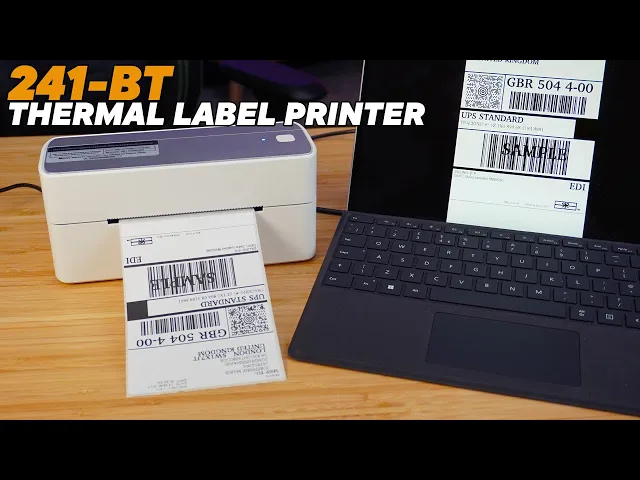
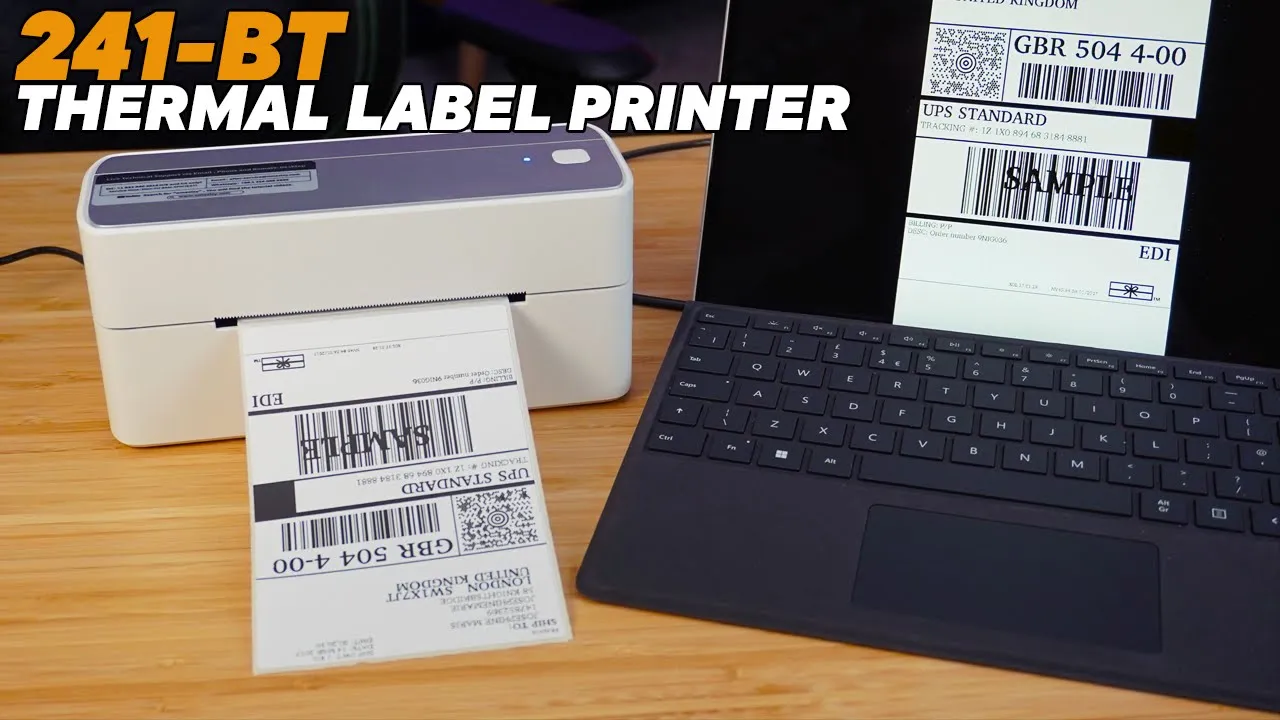
okay so today we're going to be looking at the Amazon pm241bt thermal label printer now if you run an eBay business or you're selling out a lot of goods printing out labels on paper cutting them out sticking them onto your product can take a long time so this product could be a really handy Time Saver for you so we're going to unbox it and then I'm going to set it up and check it out so open in the Box I've got a quick start guide and a safety guide given us a few labels to get
us going and then opening the box itself we've got the white and silver label printer now it does come in other colors as well but I think this white silver looks really nice I've got a power cable and power supply we've got a USB cable and a USBC to USB in case you've got a Mac or like a surface where you don't have an old-fashioned USB port and that's it let's take it out and have a look so it's really tiny and compact so you can pop this on your desk you'll hardly know it's there
if you are packing up on maybe a lot of eBay boxes for setting up for sale this could save so much time printing out labels sticking it on and you're away now looking around the device itself you can see that the printed label comes straight out the front on the top you've got a power button and a light on the back you see where you feed your labels into the actual machine we've got a USB B connector so we can plug it through to your laptop now it does also have Bluetooth so you can put
the app on your Android or iPhone and send the labels wirelessly we've got the power button rocker and then this little black button here as we press it it pops it open so you can get inside and that's pretty much it very straightforward on the bottom we've got a couple of little rubber grippy feet holding it nicely and firmly on your desk so there we go that's the actual product itself so as you can see it's very Compact and it's nice and light you can pick it up one hand pop it somewhere on your desk
almost forget it's there so now let's get it set up and give it a go right so we're going to quickly set this printer up first things first I'm going to plug in the power cable put my power cord and you can see the rocker switch to the arm button is there foreign quickly load up the labels okay so it says I've got to hold the button until the blue light flashes two times [Music] and we're now loaded and ready to go so because this actual printer has Bluetooth capabilities first I'm going to do is
I'm going to set it up on my phone I'm going to send a label over via Bluetooth so they give you an actual QR code if you don't want to actually find it in the App Store so I'm going to give that a try so I'm going to choose scan QR code for my options menu open link now obviously this is for apple or for Google but I've got a Android phone here so it's brought me up to the label life I'm going to just install that app right open the label life software gives you
some useful options to get started right please start your device make sure it can connect normally instantly it's found the pm241bt in the list just going to connect to it connecting okay just successfully right so we can actually use a PDF with a label that we've already downloaded this printer can print from any different career services from eBay to mail to UPS they're all available I'm just going to use my own custom label just to show this working now obviously you can use any labels you like there are plenty to choose from I've got some
six by four inch labels so I'm just going to choose one of those and I've got the horizontal and it brings us to a natural little template where we can actually create something going to put in test label to show printer working there we go there's plenty of different options in here you put images draw lines barcodes other bits and places but this is you know so if you're labeling jam jars or just how much you can create in here or you can just print off your standard mail labels yourself so let's just print that
see if it works excuse me printer how many copies do I want I'm just going to just go for the defaults here and there we go got my label obviously if you're using this and you're doing a lot of printing labels maybe you could see an eBay seller this would be such a quick way to print your shipping labels stick them straight on to your Jiffy bag or box to save you from cutting out and sticking out hundreds of Bits of Paper from a printer so this could be a real Time Saver so it's amazing
that you can choose any number of different labels from within this software so you don't have to worry about what you buy as long as the thermal transfer label gives an amazing print quality and you can do it from Bluetooth sitting at your sofa putting them straight out within five to ten meter range so you have to sit at a desk like I'm doing here to do it now of course you can do it on an actual PC as well I've got a surface here they give you the USB C to USB a cable because
obviously there's no USB C on my little surface here and they do give you the printer cable so let's just quickly try setting it up with the surface put my be into the printer right let's plug it in C plug in our printer and go to the website and get the software it gives you all the information on the actual booklet that comes with the printer it is available for Windows and for Mac obviously Windows Surface here so obviously I'm getting the windows version let's go to the websites so I'm going to download the driver
I'm going to choose my windows Windows driver it's nice and small and openly install that okay by USB so I can download the label life software as well for Windows and I'm going to give it a quick reboot I'm going to print some off so I've just downloaded an example UPS label I'm going to just see if it prints off okay so instantly picks up my pm241bt printer I'm going to just change it to Portrait because the label type I've got and let's give it a print just one selected foreign [Music] UPS label straight to
go on our package so much time saved plus not mucking around with printers and ink sticker stroney package