Scribe
Scribe

마음에 드시나요? 리뷰 남기기

크롬 확장 프로그램 받기

둘러보기

  • 인기 동영상
  • 최근 동영상
  • 모든 채널

무료 도구

  • 자막 다운로더
  • 타임스탬프 생성기
  • 동영상 요약기
  • 단어 카운터
  • 제목 분석기
  • 자막 검색
  • 동영상 분석
  • 챕터 만들기
  • 퀴즈 생성기
  • 동영상과 채팅

제품

  • 요금
  • 블로그
  • 크롬 확장 프로그램 받기

Developers

  • Transcript API
  • API Documentation

법적 고지

  • 이용약관
  • 개인정보
  • 고객 지원
  • 사이트맵

Copyright © 2026. ♥로 제작 Scribe

— 이것이 당신의 삶을 더 쉽게 만들었다면 리뷰를 남겨주세요! 우리를 행복하게 만들어 줄 거예요.

Related Videos

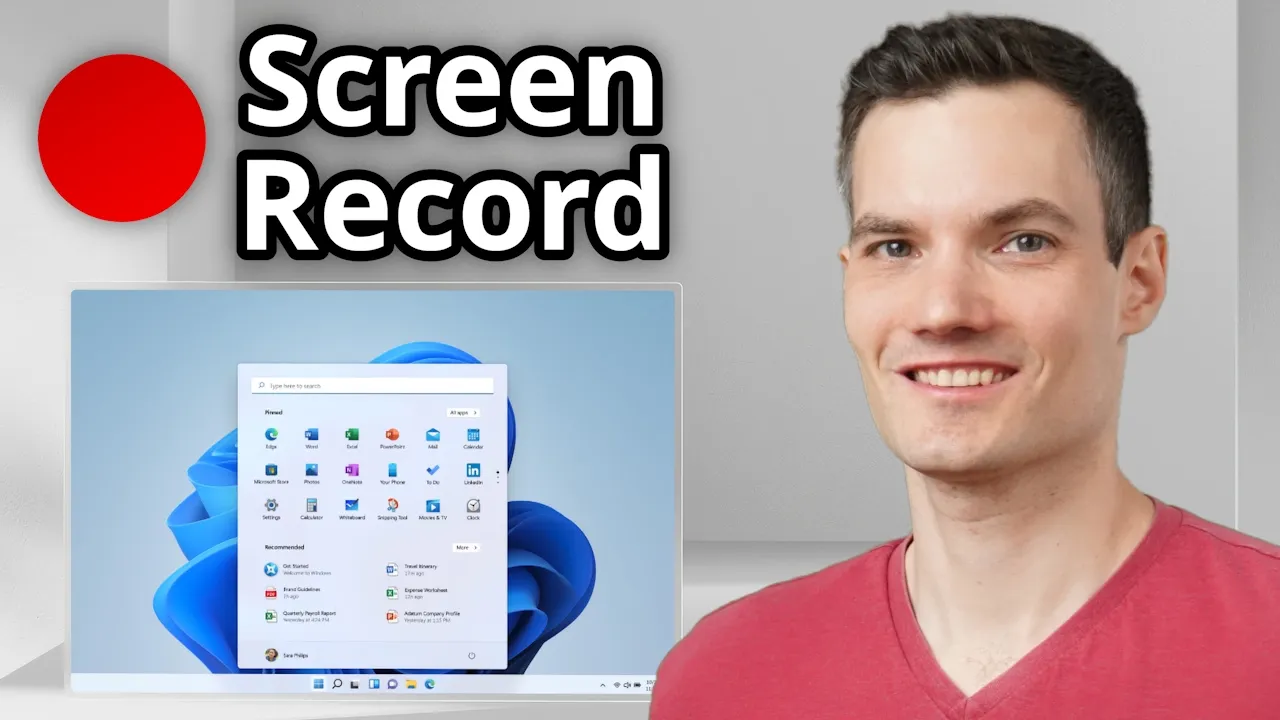
How to Screen Record on Laptop

Video thumbnail
1.17M450 단어2m readGrade 5
공유
Channel
Kevin Stratvert
Today, we're going to learn how to screen record  on your laptop. It turns out it's really easy and   you probably already have this app installed. Let's dive in.
To screen record your laptop,   press the Windows key together with Shift and  R and this opens up the Snipping tool. You can   now highlight the area of the screen that  you would like to record. Or alternatively,   you can also select the entire screen.
Here,  I'll record my entire screen. Right up on top,   you have a few different options. Here, you can  turn your microphone on or off and you can also   select the mic that you would like to record  with.
Over here, you can also decide whether   you want to record the system sound. So, think of  that as audio or sounds playing on your computer.   Right over here, to kick off your recording, click  on the Start button and down below, you'll see a   countdown timer and right now, it's recording.
If  you'd like to pause your recording, right up here,   you can click on the pause icon and to resume your  recording, simply click on Play again. And here,   you can see how much time has elapsed since you  kicked off your recording. Once you're all done,   click on the Stop button.
This opens up the  screen recording and down at the bottom,   I can play it back and there you see my mouse  moving around. If you'd like to make edits to your   screen recording, maybe you'd like to only keep  a portion of it, in the top right-hand corner,   you can edit in an app called Clipchamp. This is  a free video editing app provided by Microsoft   and it's actually really decent and you can  make some really good edits with it.
Up here,   you can also save a copy of your screen recording  and when you click on this, you can save it as an   MP4 file. I'll cancel this. Right up on top, you  can also copy your screen recording and then you   can paste it into other applications.
And, all  the way on the right, we have the three dots and   when I click on this, we also have some settings.  Let's take a quick look. There are two different   settings related to screen recording.
Right here,  you can define whether your microphone should be   turned on by default and you can also decide  whether your system audio is set to record by   default. You can toggle these on or off. All  right, there you go.
That was easy. Did you   know that you already had that app installed? Let  me know in the comments.
I'll see you next time.
관련 동영상
Screen Record In Less Than 5 min (Windows 11 & 10)
Screen Record In Less Than 5 min (Windows ...
Emelie Lindström - Productivity & Work Skills
159K views
How To Screen Record On Mac - Full Guide
GuideRealm
655K views
How to Fix OneDrive Sign-In Error 0x8004deef in Windows 11/10
How to Fix OneDrive Sign-In Error 0x8004de...
AidensGotGuides
5 views
4 Hours of Deep Focus Music for Studying - Concentration Music For Deep Thinking And Focus
4 Hours of Deep Focus Music for Studying -...
Quiet Quest - Study Music
2.2M views
Europe is finally standing up to Donald Trump. This Is Why.
Europe is finally standing up to Donald Tr...
Sky News
343K views
How To Record Your Online Course Videos
FreshLearn
3.9K views
How to Screen Record with Audio on Windows 11 or 10 PC
How to Screen Record with Audio on Windows...
Tech Tips
1.3M views
5 Hidden Windows Features You Should Be Using!
5 Hidden Windows Features You Should Be Us...
Kevin Stratvert
173K views
Incredible Safari Moments Caught on Camera
Clip Context
185K views
Watch Ukrainian Drones OBLITERATE a Russian Plane
Watch Ukrainian Drones OBLITERATE a Russia...
Beyond Military
1.1M views
12 Minutes of Jim Carrey at His ABSOLUTELY Funniest!
12 Minutes of Jim Carrey at His ABSOLUTELY...
Televize
427K views
How to Screen Record on Windows 10
Kevin Stratvert
4.1M views
4 Hours Chopin for Studying, Concentration & Relaxation
4 Hours Chopin for Studying, Concentration...
Classical Universe
2.7M views
How to make lesson videos, screen recordings in less than 6 minutes
How to make lesson videos, screen recordin...
Andrew Borne
1.2M views
Quickest way to Record your Computer Screen on Windows 11
Quickest way to Record your Computer Scree...
Teacher's Tech
234K views