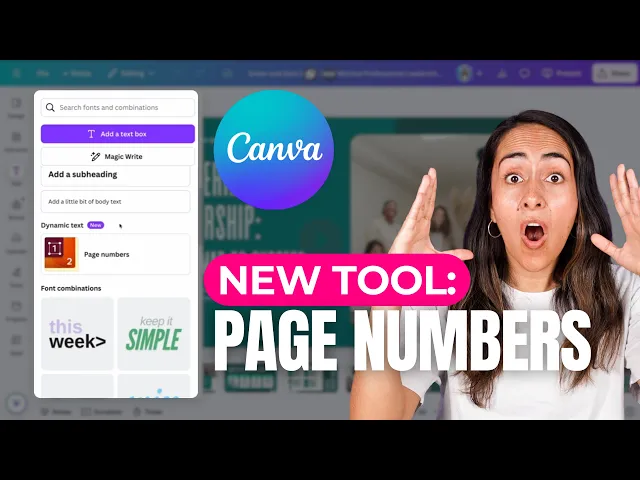
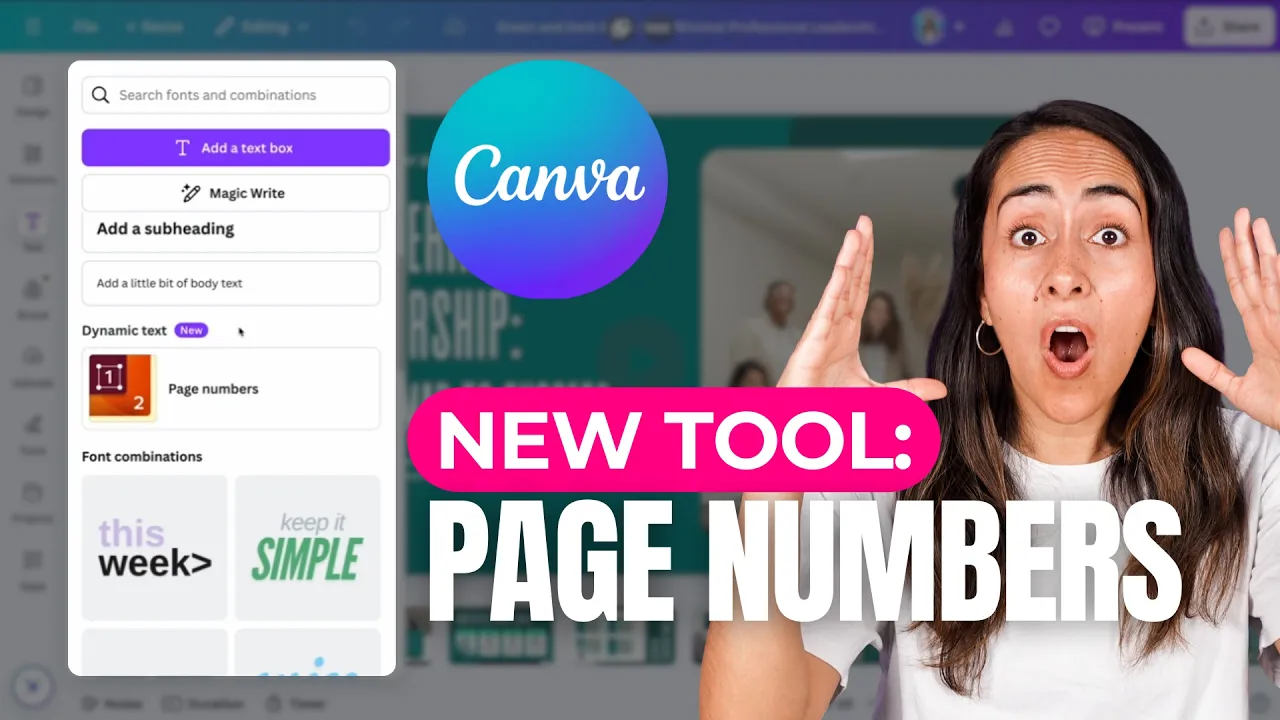
what I'm going to show you today is not a trick and is not a hack canva finally released a tool that allows you to add page numbers so let me show you how to access and how to use this tool first on desktop and then on mobile you can find this tool to add page numbers on any document type in canva except Ducks so I'm talking about these ducks right here you won't be able to find this tool in here so I'm going to open a document that I have created recently in here you can
actually find this template in the canva library I'm also going to leave you guys the link in the description in case you like the design so let me open this file once in the editor you're going to the left panel and click on text in here you will find a new section called Dynamic text and the new tool is here this one is called page number and it is pretty simple to use you are just going to click on this button and automatically you will have all page numbers added to all pages in your design
you will see the little numbers right here and I need to mention that this tool is free to use so every canva user has access to it once you have added your page numbers you will see this window appearing on the leftt from here you can adjust the format so let me just come closer to the page numbers so you see them changing actually let me go to another page like this one so you can see the little numbers now let me come back to the page numbers window because I'm going to change the format
so you can see the different formats that there are available in here at the moment we have numbers only so we only see a number but we can change it for Page Plus number so we will see something like this let me click on this option so you will see now page seven and then if I go to page six I will see page six and so on every page has the word page in it now let me go back and change it for page X of Y now if I go here you will see
that there are 10 different pages in this document and we are located in page eight and then you will see that every page has exactly the same format something good about page numbers is that that it is dynamic so what happens if I delete one page let me delete page 10 and then go back to the previous page you will see that now is not page n out of 10 it's page nine out of nine because I just deleted one page and what happens if I go back and add that page that I just deleted
pay attention to this number I'm going back to add the page that I deleted so we see now page 9 of 10 and then if I keep adding Pages it will keep adjusting and this feature also works if you hide pages so at the moment I have 13 pages in total and what about if I select three and I hide these Pages the pages that you hide these don't have a page number and the page numbers will adjust if you're going to work with page numbers you need to learn how to open the settings window
that was positioned on the left to open it you simply click on any text box with the page number and it will appear automatically on the left now I opened this window one more time because there is something else that we haven't discussed from here you can change the appearance and the position from your page number so once you have your page number selected you can go here to adjust the font the size color and so and so let's say that I want to change the font for another kind of font Maybe something bold like
this one then let's say that I want to have this font a little bit smaller and let's change the color for yellow now let's go back to edit this is another way to access these settings on the left hand side and then you simply click apply properties to all pages let me just go to another page before I click here to show you that the other Pages have the previous formatting so I'm going to page 11 which is the page page number that I have customized so let me go to edit and click apply properties
to all pages you will see a message on top properties applied to all pages and then if I check the other Pages you will see that the formatting has changed on all and you can also adjust the position of your page numbers so let's say that this position on the lower right corner is not working on your design so let me position this page number on the top right corner and then again I'm going to click on this button and I want to show you one example here because the position of the page numbers on
this design I think it's working really well except one page page number six because we have this background right here with the photo this page number is not so visible so I could simply take this page number and change its color if you want to change the position or the formatting of just one or a couple of pages you can do it without affecting the others just don't click the apply properties to all pages button lastly if you want to remove all page numbers select any page number and then click remove all page numbers you
will see that now every single page number has been removed from your design now let me quickly show you how to access page numbers from a mobile device you're going to tab on your design to open it in the editor and from here you are going to search for text at the bottom of the screen from here you will see page numbers and it will work exactly the same as we already saw on desktop as we're working now on a smaller device a smaller screen you may need to drag this window a little bit up
to access the remove all full page numbers button but apart from that everything looks the same and works the same the only thing is that if you want to go back to this settings window or the page numbers window you will need to First tap on your page number and then at the bottom of the screen you will see this button that says edit this one will bring you back to the page numbers window to continue learning about canva you can check out our Cana Master course you can scan this QR code click on the
card that I'm leaving on the screen right now or you can also find the link in the description and by the way I'm leaving here a tutorial that I'm sure you are going to love I think this is it for this tutorial and I hope to see you in the next one bye