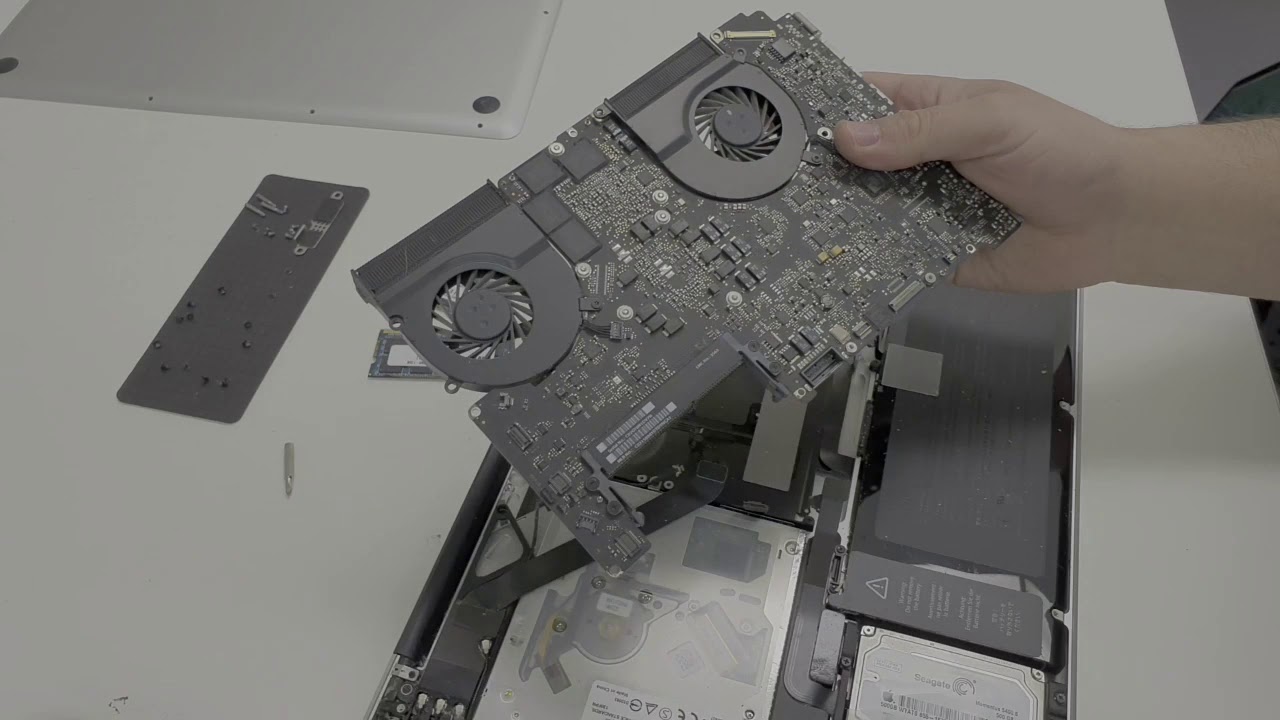
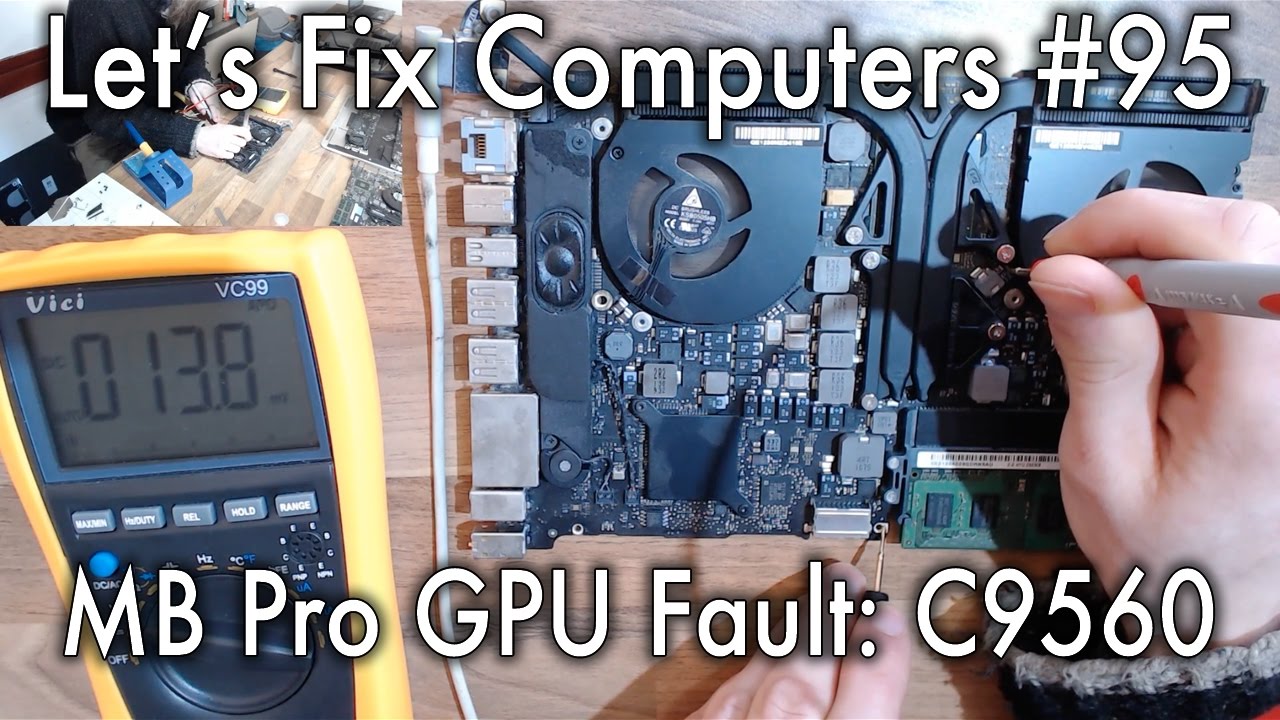
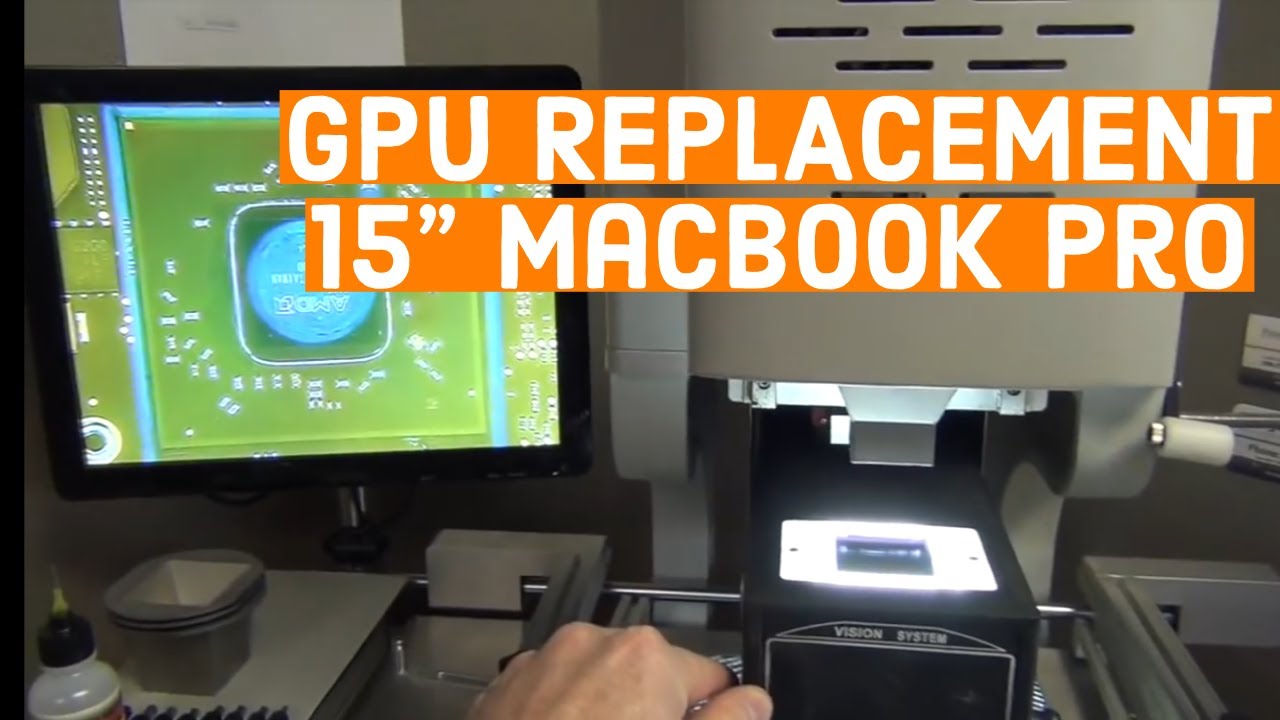
[Music] powerin twelves welcome to let's fix computers today I'm going to show you how to disable the GPU on a mid 2011 AMD graphics card macbook pro that has suffered GPU failure now firstly a quick bit of background all of the MacBook all of the 15-inch MacBook Pros from sort of 2009 to late 2011 and some of the years or the early 2012 ones with USB 3 have suffered GPU issues of one form or another now in the vast majority of them this can be fixed by replacing c95 60 which is a well-documented repair of
replacing one of the filter capacitors on the frame buffer circuit and that will revive your graphics chip however if you have a mid 2011 with the AMD graphics card is your GPU which is toast and there ain't no fix for that there are no replacement there are no new GPUs so if you have a mid 2011 with the AMD graphics card you have had it and just to clarify that is with logic board number 8 - OH 29:15 so that's what we're dealing with here on the screen in front of me so the other thing
to remember as well this is not a permanent fix this is a workaround for the problem and this workaround is only good until new reinstall MacOS or otherwise we set your efi settings because this is an EFI hack that we're going to do so this is not this is not an end-all fix this is basically a make good to get the laptop working again because it's mission-critical for some reason or another so yeah I mean theoretically you can go on using the laptop however once you've done this repair you will lose things it will drink
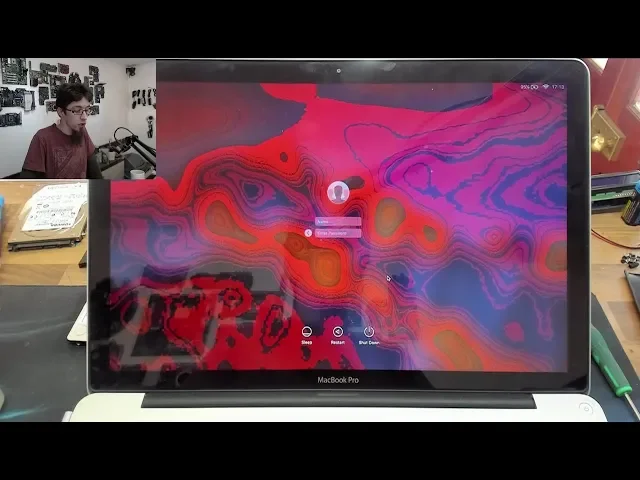
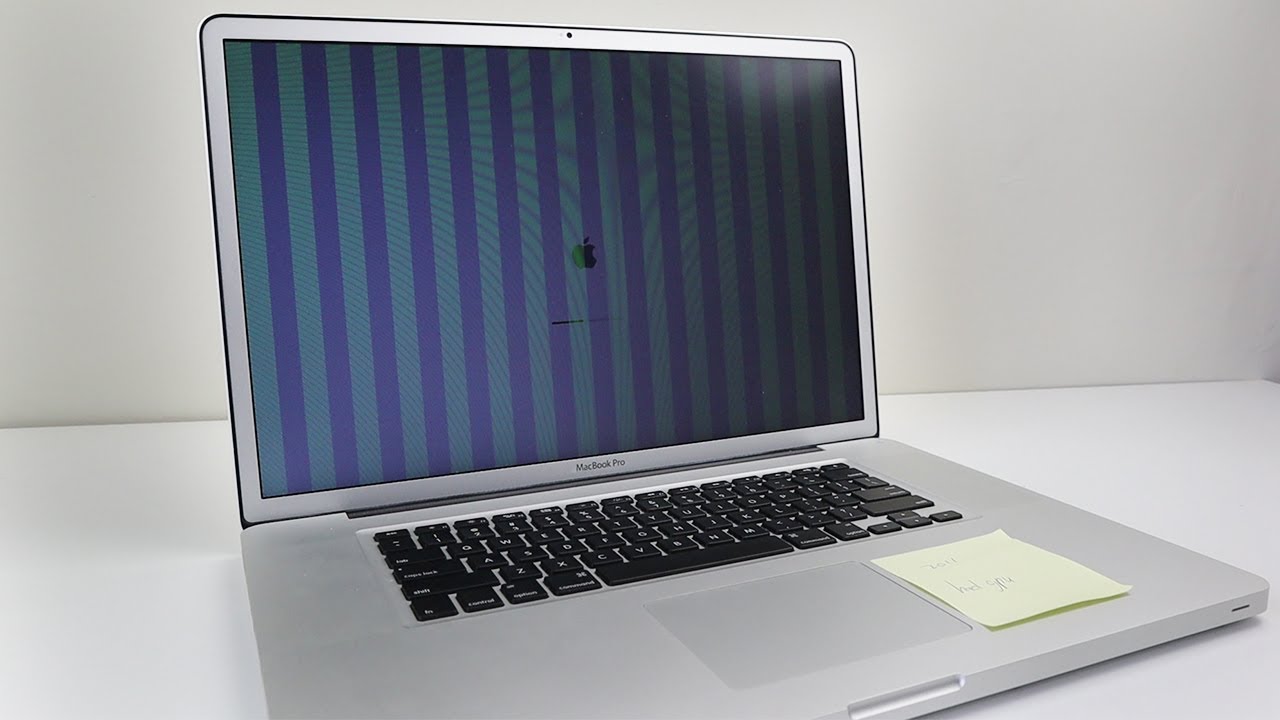
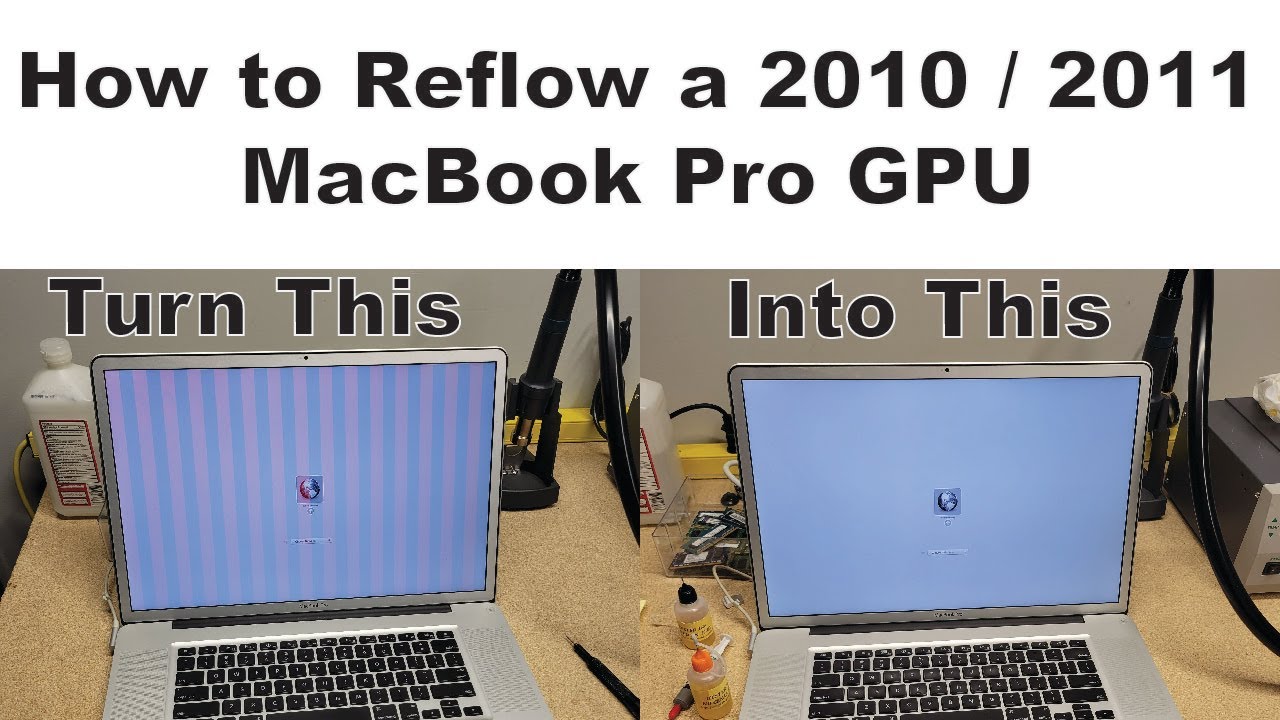
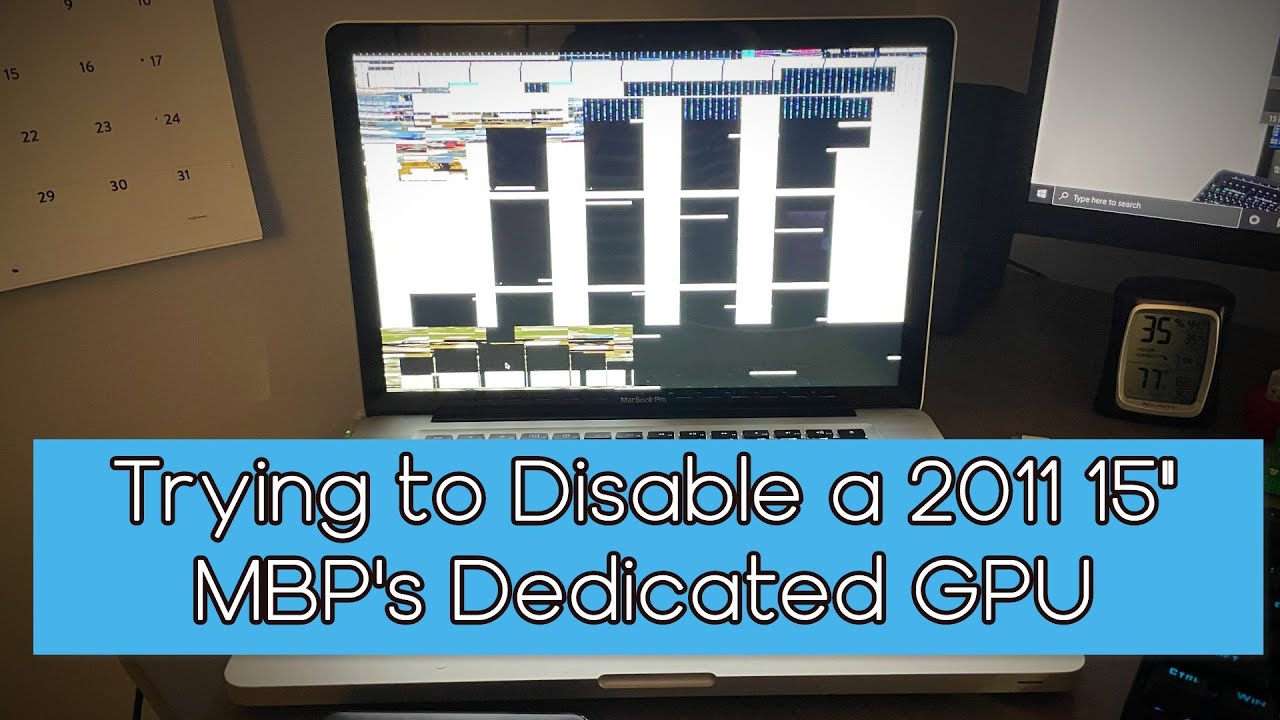
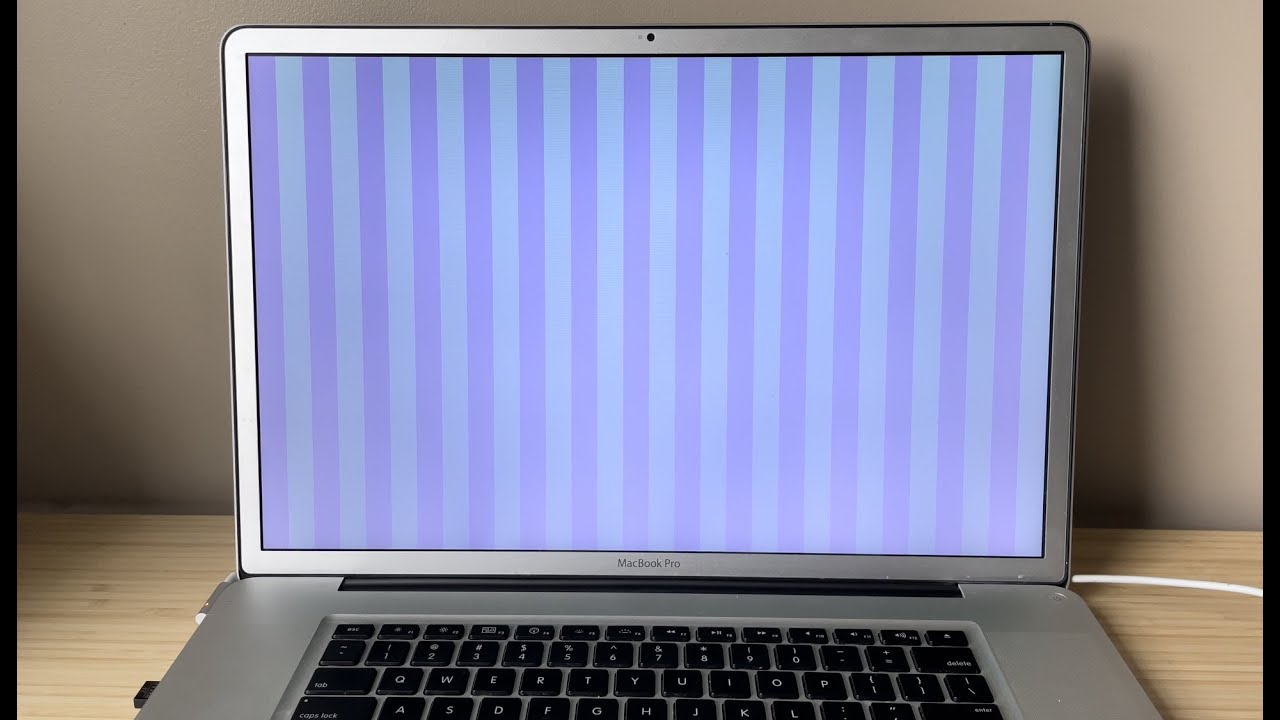
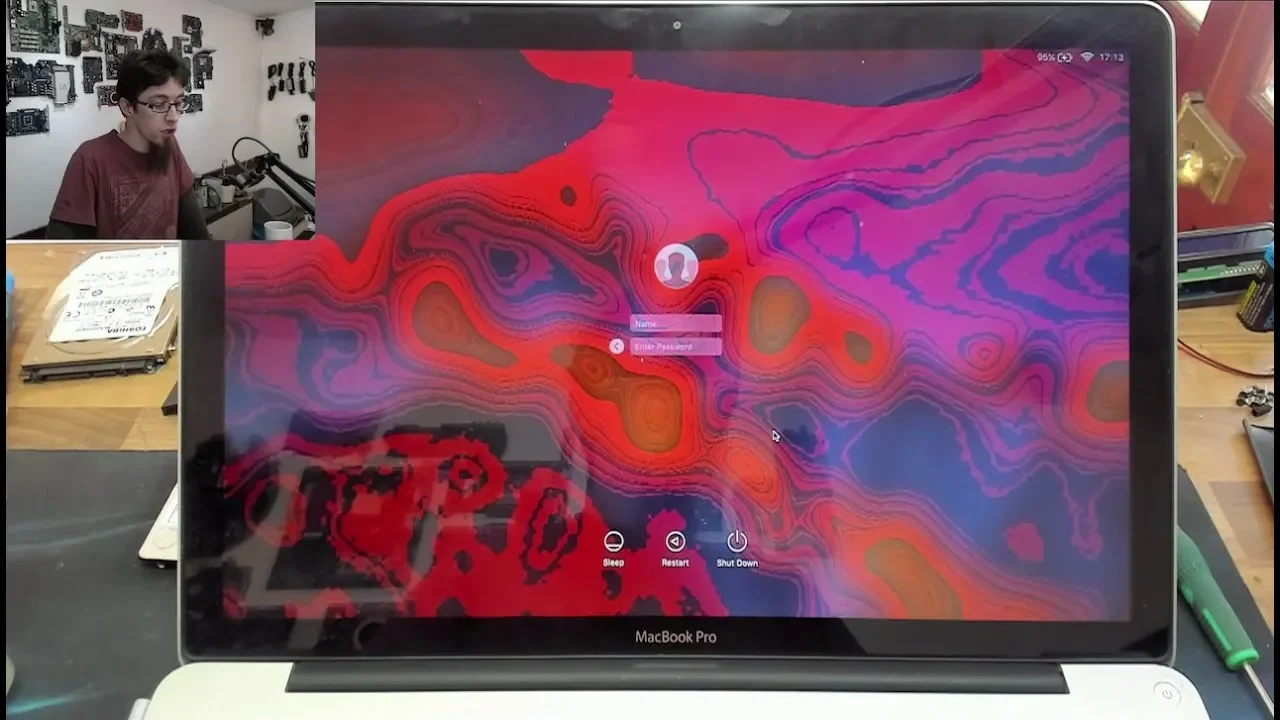
its battery and sleep won't work properly so with that warning in mind let's get started so firstly you can see on the screen all of this guff on the background that should be a nice smooth shape as you can see it's it's not at all and if I can restart that you'll see on the startup screen that we have classic artifacts all over the screen so let's just wait for the Apple logo to appear there you go and as you can see the Apple logo is interlaced red lines and there's visual artifacts on the loading
bar as well so this is cool failed graphics card so let's turn that back off again all right now in order to do this you will need you will need a flash drive so I've got just an ordinary SanDisk's flash drive here and you'll need to preload this with an arch linux distribution so if you want to get that you need to download an arch linux iso file here i've got the I've got the January distribution here needs to be 64-bit as well so you can download that from the RT Linux website and then you
can use Rufus which is a simple utility for writing an ISO to a flash drive so there's Rufus so stick in a flash drive and select it and then select your ISO with this button here and you can select your Arch Linux ISO and make a bootable flash drive from the Arch Linux ISO so that's what you've got to do for your preparation so once you've got that so we've now got our arch linux flash drive and stick that into a USB port in the side when turn on the laptop and hold down the option
key for the boot menu right and again as you can see we've got artifacts all over the boot screen here so we're gonna select EFI boot and now I'm just going to I've just cursor keyed up and down to interrupt it just so I can speak so we want the Arch Linux distribution however we want to modify this before we start we need to boot to a command line so I'm gonna press e to edit that option and then I'm gonna hold down the right cursor key and just take my cursor all the way to
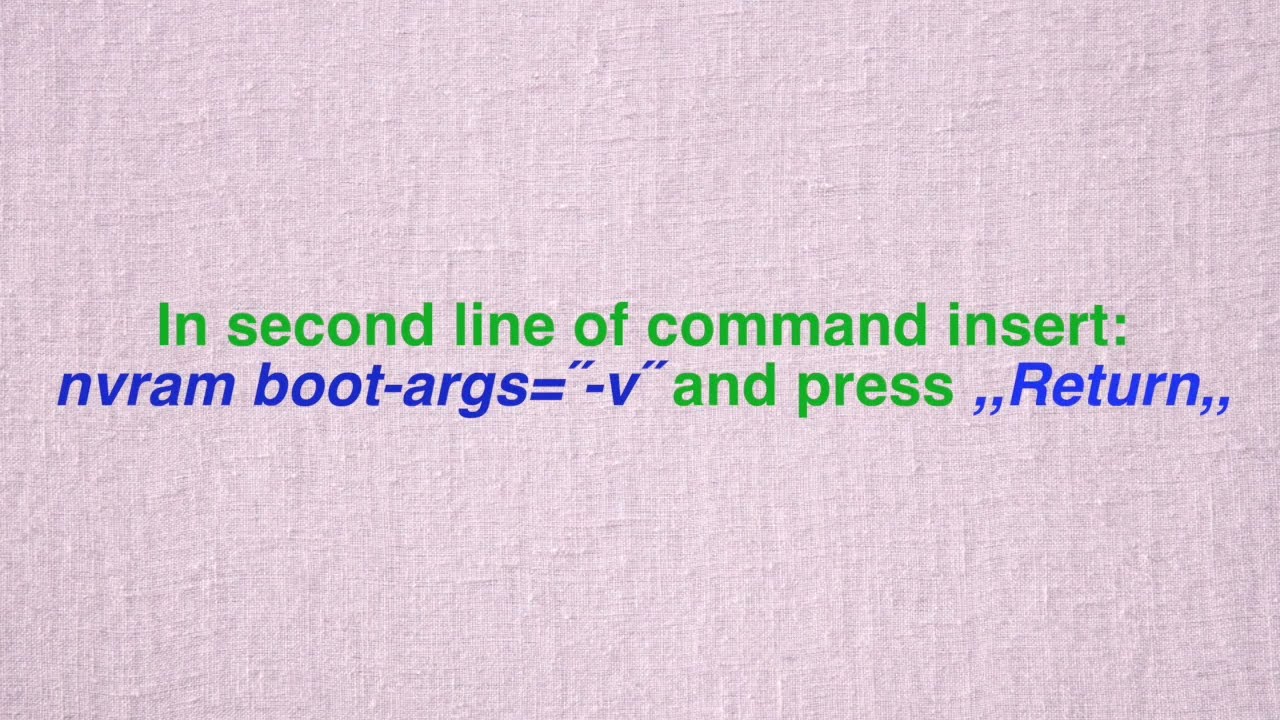
the end of that boot sequence and we're gonna add no mode set to the end so no mode sets that means no display mode set so it means that it won't launch a GUI it'll take us straight to command line because if we go into a GUI then we're probably gonna we're probably gonna crash so smash that in and off it goes right while that loads up I'm going to move my face to the other side of the screen because it's going to be in the way right so now we're at a command prompt we
now need to start editing EF find variables so what we're going to do if I just refer to my notes over here we need to go CD sis firmware EFI ef5 VARs and if we do an LS in this directory we will see various EFI variables and the one we're interested in is this one here GPU power preferences this is the Preferences file that stores the power settings for the GPU so we need to edit this file and the first thing we're going to do is delete it to get rid of these stock settings on
it now the problem is is that you'll find that if we try and RM GPU power preferences here like this we're going to be unable to now this file has what's called immutability on it if my terminology is correct and basically this is this means carved in stone you cannot delete this file you cannot modify this file you cannot sudo this file so a lot of people keep saying oh you have to mount the filesystem readwrite immunes etc etc no no no it's the immutability you need to get rid of on this so thankfully our
Chinooks has a tool for this so what we're going to do is we're going to type in a chat TR minus I so chat TR is whatever the commander's I don't know what R stands for then - immutability on GPU power preferences so I'm talking in GPU power and then I'm using tab to autocomplete the line like that so now we've stripped away those power that immutability we can now go RM GPU power tab to autocomplete and bam now we've deleted that preference file okay so now our efi GPU prep our preferences file is now
gone we can write a new one so we're going to do that we're going to type printf and then we want to do double quote and we're going to go back slash xo7 and then we want to do three sets of double zero so backslash XO o XO o XR o then XO one then another three Zero's XO o XO o XO o double quote and we're going to print that into GPU power prefs and now we have to type out that big long number that was there before which because of reasons is not on
my screen now so I need to look it up and that big long number is f-14 e28 D TAC b6 to F TAC c4 c99 tax 9 CC 3 TAC 6 8 1 5 6 8 6 e 3 0 f9 ma'am there we go and if we do another LS as you can see down the bottom there we now have a GPU power preferences file again now finally we want to add immutability back to that file to make sure that nothing can update it again so we're gonna go chat TR + i2 GPU power tab
enter and that file now has immutability again so it can't get messed about with and then someone else comes all the messes about with it nau right so now we're all done we have applied our workaround so now just to clear up we need to do we need to safely dismount this volume just to make sure that nothing gets damaged by when we shut down the computer so we're going to see the route to come out of that the efi partition and we're going to zoom out sis firmware EFI EFI vast let's just correct that
my glass and now we're safe to shutdown the laptop so I'm just going to press the power button and down it goes and now once we've shut down we'll remove the flash drive and power it back on again and we should find that it boots up with no issues there we go our interlacing red lines I've gone and everything looks ok let's wait for it to start up alright and we're back into Michael's again and as you can see all of that garbage across the screen is now gone so this laptop is now stable again
quote-unquote so like I said this is not really a perma fix because if you reinstall MacOS or I think if you reset efi or update year fire or anything like that it will probably clear those efi preferences and you'll have to do it again however as you can see once you've done it once it's not actually that difficult so if replacing the laptop really isn't an option you can just keep doing this fix just to work around it however bear in mind the laptop will not sleep in this condition so if you want to if
you want to close the lid and move the computer you have to shut it down which kind of sucks and in addition to that it will burn battery like it's going out of style so like I said this isn't really a fix at all is just a make good it's a bodge repair just in case the laptop is mission-critical ultimately though if you encounter an AMD based macbook pro like this one get rid of it basically get rid of it it's done if it's not failed yet it is going to fail so get rid of
that is my strong professional advice thank you very much for watching everyone I'll see you next time you