the anal operating system or EOS for short is an amazing framework for businesses of all sizes to run their operations more smoothly and efficiently from getting the right people in the right seats to running more efficient meetings to documenting your goals and corly objectives the US framework is used by tens of thousands of businesses worldwide and we at Zen pilot even use it internally and it's been a great framework for us to run our operations more smoothly and efficiently and just help us stay on track of our goals and initiatives so the purpose of this
video not debate whether EOS is right for your business or even dive deep into how EOS works but I want to show you how you can run EOS and build that framework inside of clickup by leveraging clickup you're able to keep everything in one place your rocks will be directly tied to work that's inside of your project management system your meetings can be run documented and store directly inside of clickup and this will make your meanings way more actual because you can create tasks directly from your meeting docs in your IDs your identify discuss and
solve can be run directly inside of clickup which again is just going to make this process much more smoother and allow you to make all of this way more actionable because where you're holding your meetings is also where all of your actionable items and tasks are going to live and lastly your team will easily be able to find your VTO your scorecards their rocks and all of your long-term issues because it's going to be built directly in where they're seeing their tasks on a daily basis so by keeping your mission and vision directly where the
work is to actually achieve that mission and vision you'll be able to gain much more traction than you would otherwise so let's begin and walk through how to set this up inside of clickup all right let's jump into clickup here and talk about how to run EOS directly inside of clickup so again this is not a video that's going to debate whether or not EOS is right for you or even everything about e but more of focusing on how we can build the US framework inside of clickup so if you're not sure what e is
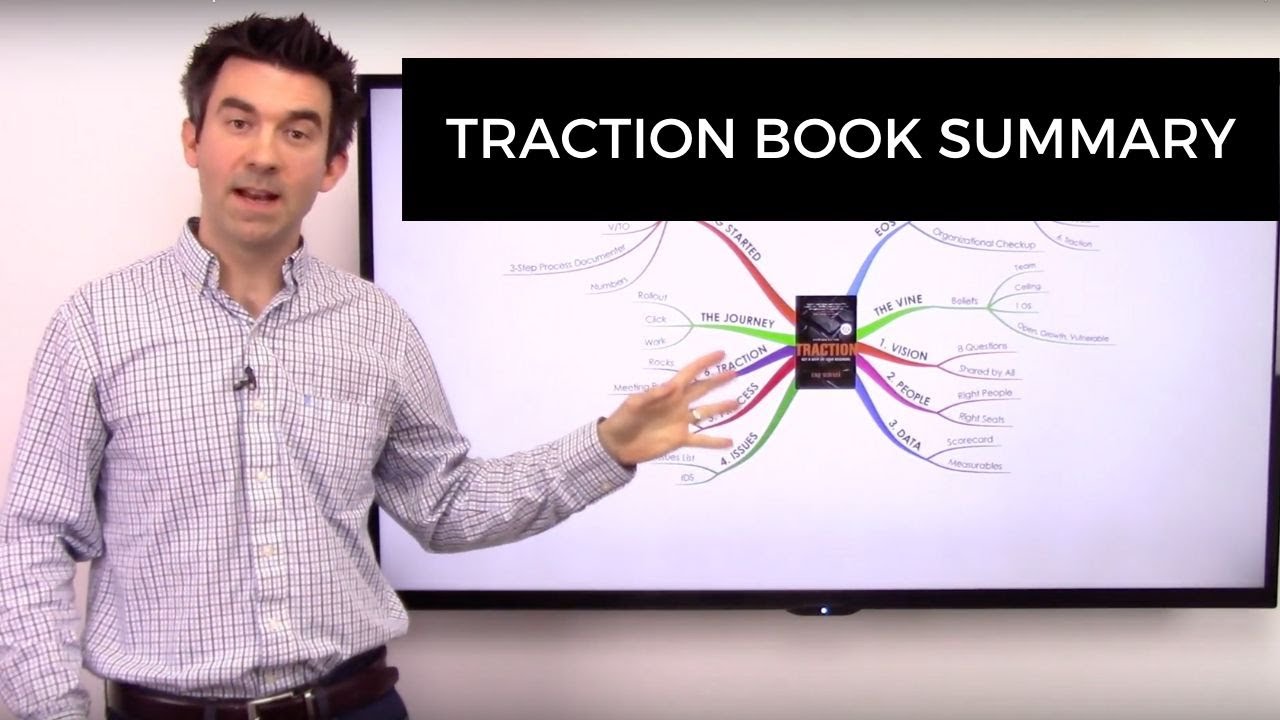
the entrepreneur operating system I recommend you you check out a few resources one being the book what the heck is eos another being the book traction and then I feel that this is an awesome summary from the process hacker going through the the overview of what the heck is eos as well as potentially just go to the EOS website um and talk to a EOS implementer that can help you kind of um Implement EOS for your business um but a lot of these are great resources that you can get started I'd highly recommend especially the
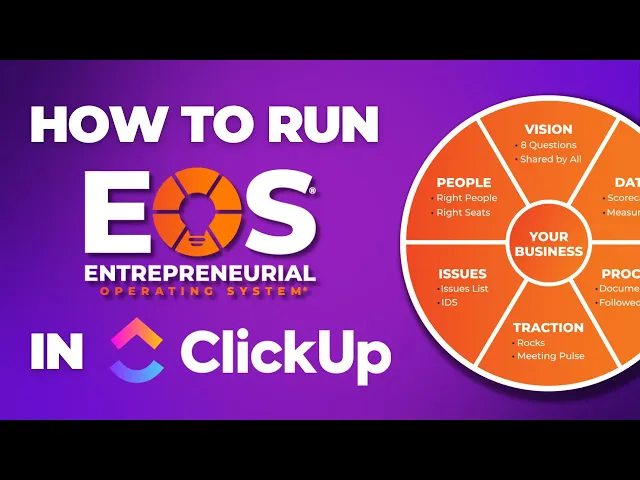
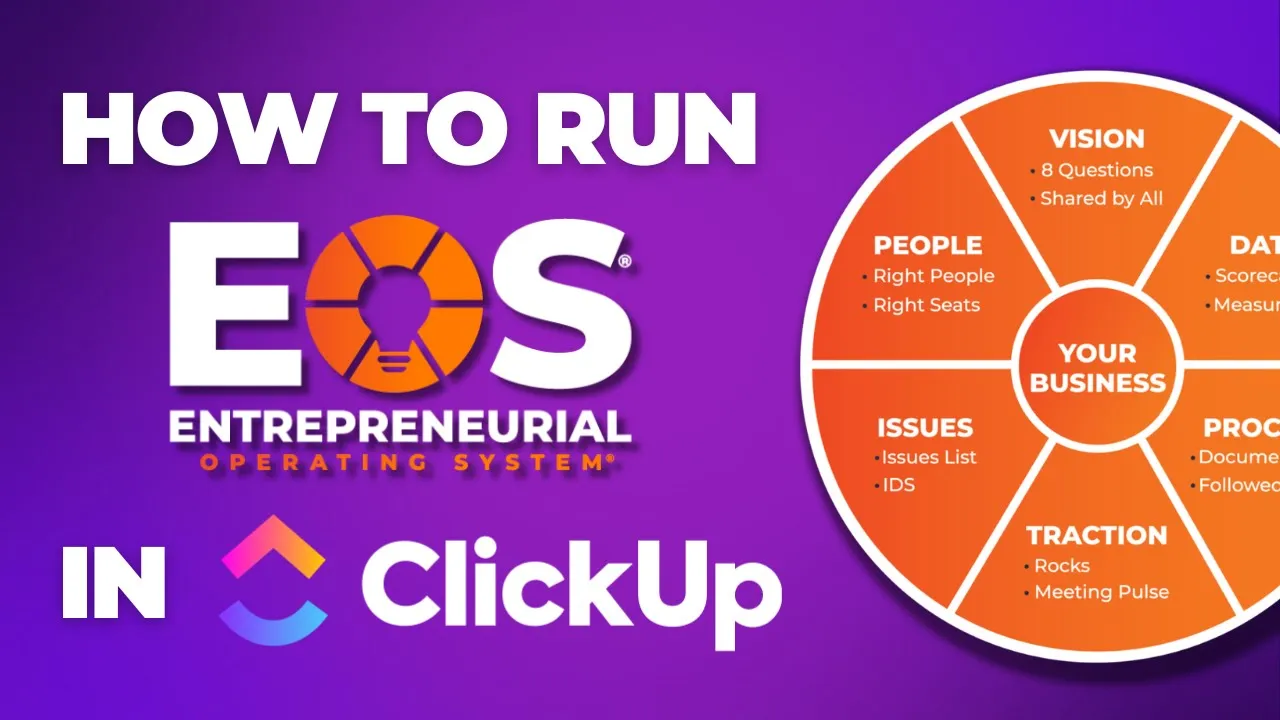
level 10 meeting agenda I think those are a great way to structure your meetings to make them more actionable just make sure you're not wasting everyone's time especially with a lot of us we spend a lot of time in meetings the L10 meeting framework is a great uh way and agenda to run your meetings so um that's EOS in terms of an overview of the structure and sort of the six main components that I'm going to be kind of diving into in this video and how you can build that inside of clickup you'll see here
this graphic um the main pieces we have Vision the eight questions that are shared by all um those are going to be sort of looking at your core values your cor core Focus 10e Target marketing strategy threeyear picture when you're playing rocks and issues um that can all be documented inside of clickup um your data your scorecards and your measurables these are just kind of ways based off of that 10-year picture um threee and one year um how do we get there um we're going to be tracking weekly sort of um measurements um and looking
at benchmarks as in maybe it's website traffic for the marketing team Revenue um meetings booked things like that we're going to be looking at those weekly and filling that out and those can be not necessarily built in clickup I like to use a Google spreadsheet for that but they can be embedded back into clickup so again everything's built I me kind of stemming from one system so it's easy to find I me document all that information so that stuff will be in clickup as well the process again clickup is a great way to build out
your processes to make sure everything's standardized documented and followed by all so you want to have that in your project management system um traction and issues these are two big components as well traction a lot on the rocks in the meetings so you can document all of your rocks directly inside of clickup and for those that don't know rocks are essentially sort of the 90day initiatives per person or per the company so each person's going to have three to four rocks per quarter or 90 days essentially this is what you need to do in the
next 90 days that's going to help us achieve our goal so um for each position they're each going to have their own rocks that are basically their high level these are what you're doing for the next 90 days that you need to to focus on and complete um and then meetings you're going to have all your meeting agendas directly inside of clickup which is a great way to Mak everything more actionable because you can create a task directly from a clickup doc as well store all that so it's in one place and easy to find
and then issues IDs I'm going to go deep into how that's run inside of clickup uh this is awesome because you can essentially create a clickup list um that allows you to put all your issues in there and you can got to go through prioritize them as well as complete them when they're done and create sort of to-dos after that's done so we'll go through through a lot of that but then people on the right people in the right seats you can build your accountability chart directly inside of clickup as well make sure that's stored
there so you can easily edit and update it when necessary and also just put it front and center for everyone to kind of know who is in what seat what are they held accountable for and sort of what are the main um components or parts of the business that they are in charge of so all of that together is going to be built out directly inside of Click out I'm going to go over this framework but just so you know for those that don't know EOS as well those the six main components um that make
up the OS structure and framework um so in addition to that um how I'm building this out it's always helpful to have something like that as you can see here what I've been kind of walking through what the heck is eos as well as the EOS terms it's always helpful to have that documentation directly inside of clickup as well so if you bring anyone new on board you want to make sure you have that right in front of them so when they're on boarding maybe they don't know what EOS is at all this is a
great way to have all those resources directly um in your project management system so it's front and center when they come to get onboarded they'll see all this um so helpful to have all of that in and click up here documented for anyone new coming on board to read a little bit about sort of how you run your business um with EOS so now that we've gone over sort of the high level of Usos the framework let's dive into building it out in and clickup so as you can see here from a hierarchy standpoint I
have an EOS space with a couple folders if you want this EOS framework can be built inside of your operation space and if you don't know our clickup hierarchy I'll put a video in the top right here as well as in the description below you'll want to watch that um it's going to go over all these spaces that I have here but for Eos I can build this as its own space if I want to keep all this separate as well as I could just build it in the operation space as well so you can
make your choice there and sometimes it's helpful to kind of leave it separate and just put all this in in one spot as opposed to putting in the operations a lot of this is operational focused so you can build that in there if you want however in this there's two main folders or folder structures here so the first one is going to be your VTO where you're going to store your Vis traction organizer obviously your accountability chart rocks issues and things like that in addition then you're also going to have a folder for your L10
meetings so your L10 meetings can be um for your different teams as well as leadership so you'll want to have a folder for all of those l10s for examp pilot we have a delivery L10 which is where our client services um Team meets we have our growth um L10 where our sales and marketing meet together as well as operations where operations teams meet there and then a leadership L10 as well so that would be four different folders there um so you can just take this this could be saved as a template um and I can
kind of duplicate that for for each team to have their own L10 um and own folder to store the Rocks issues and things like that but let's before we get into that let's go through our VTO here so as you can see this folder structure we have three different lists as well as a document let's start at the document here so this document is going to be a place for you to store your VTO and all the information that comes uh with your VTO so if you've never seen what this looks like this is a
great example of it you can find this on the E website um for those that are running e you've already built this out hopefully this is just kind of a way for you to store your core values your core Focus 10year Target marketing strategy three-year picture one- year plan rocks issues list things like that so you want to have this documented and this you'll create this nice PDF of it and this can then be embedded um or linked out to from clickup again putting everything in one place so we have a central source of truth
that way everyone can just come to one document one place and find everything they need to rather than having to go ask for it or search through uh your Google drive or something else to go find all that information so link it out um here that's where you store your VTO in addition you'll have your accountability chart that can be built directly inside of a clickup whiteboard or you can leverage a tool like mural or Lucid whatever you want to to kind of build build that out um those are easy tools to use but clickup
is great because build that on a clickup whiteboard and it's easy to embed in here I can embed Muro and and loose it as well this way when I want to go edit it I me click up already I can easily edit it just like that so you'll see that here it's embedded but I also have it directly in this um list here the accountability chart I'm going to have this build out and um I can choose that build that framework you can see here now I have my Visionary integrator sales marketing operations Finance um
again this is just an example but you want to make sure you have the the person in that seat so make sure that's labeled as well as sort of the five things that really their held accountable for or their sort of main um job description there as well as make sure we have a hierarchy so everyone knows sort of who they're reporting to on each of those different things so it's a great way to keep it front and center for everyone there um easy to edit if we have to make changes but just documented inside
of a project management tool so if anyone needs to know anything they're already in clickup they're already working on a clickup they can easily go there and find it so that's your accountability CH in addition you're going to have a company scorecard um so this can be built inside of a Google spreadsheet I'll show you that in a second when we get to the L10 um meetings here but that can be embedded uh directly inside of clickup and for those that don't know how to do that you can use your slash commands embed and I
can embed any website or as you saw there I can also embed a clickup list if that stuff is built directly inside of clickup so and that's pretty easy you just put the link in there and you can as you can see up here I can see it directly inside click up or if I just want to have the link out to it that's that's fine as well but you'll have your scorecard there again I like to use Google Sheets and then embed it back into clickup um and then lastly we have our core values
our core Focus 10e Target and three your picture nothing fancy here just having it all in one place it's documented out easy for people to find to see that information the more that people can find that and sort of see our focus our Target our three or picture things like that the more that we're going to keep any everyone sort of on the same page so it's front and center for everyone it's going to be uh keeping everyone on the same page and help build that traction which is what EOS is is all about all
right so in addition to this document you'll see I also have a few additional things inside of my EOS VTO folder which are long-term issues and rocks let's start with issues this is going to be a list that you have all of your issues stored so essentially issues are things that are kind of getting in the way from you achieving your vision so what are those you would want those all to be documented directly in here that way it's easy for us to go and prioritize them it's easy for us to go and solve them
um so when this is solved I can easily close this out as well as if I need to take any notes on this it just makes everything much easier to to keep in one place have conversations about that so when you're going through your outside meetings you're always going to be going through your issues you're going to have issues for the company the the long-term issues as well as issues for sort of each L10 meeting um that can be built and kind of go through the same way of of your IDs you're identified discuss and
solve and we'll go over that more in the L10 folder here but you'll want to store all those in here and these can be added to multiple lists which again I'll go over in a little bit more detail when we come over the L10 meeting but this is a great way storing this and clickup it's in one spot we can all find them we can go through our running our meetings just have this list open and kind of go through as we uh need to prioritize them we'll prioritize them with these flags here and then
we can once we solve them we can close them and then we can all celebrate that we we've solved that issue and we can move on to the next one so it keeps everything in one place easy to do your IDs um and make sure all those issues get solved and if there's any action items from them um you can also sign that out directly and click up so it's all in one one place there so in addition to your long-term issues as we discussed are the Rocks so the way that your rocks are going
to work you're going to have sort of the the company rocks um again those are the things that going to be more of okay when we're trying to solve our our threeyear picture one-ear plan as well as the the 10-e picture as well we want to make sure that we have rocks for the company of where we need to get to and then each person's going to have their own personal rocks as well so the way that this works in clickup is I can store all of this in my all rocks list so every single
Rock for the company is going to be in one spot so anyone can come here we could see all of them for our leadership team it's it's in one place and I can come here and I can see a few things and those are all going to be built into custom Fields so as you can see here we have this rocks by S View that way I can see everyone um at the company all of their rocks they have if you have any Milestones which I highly recommend you build out those Milestones with a smart
Rock planer you can add those as subtasks underneath all of these different tasks so my rock two I could go and add all the subtasks with the due dates of when I need to achieve that that way I kind of stay on Pace and if I don't hit that uh Milestone then the rock is going to be off track so you can add those as subtasks but here what we're going to see a few Uh custom fields are rock status this is going to be a drop down custom field very simple off track or on
track for every meeting I'm going to be tasked out to update that so when I come to a meeting I'm going to read my rock and say whether it's on track or off track if there's any issues that stem from that again we can add that directly to our issues list but here very easy off track on track so leadership can come through and see all that see how we're pacing um in terms of reaching our our vision there also rock type so is this a personal Rock company rock or growth operations delivery you can
add those sort of perer teams and apartments as well as just the personal and and Company there and then quarter you can add on this is a drop down as well add on additional uh quarters as time goes on that way we can see we'll get a lot of historical information from this so as quarters passed if we complete rocks or we don't we're always going to have that data in here and be able to see sort of which quarter was this how do we do each quarter and how did we progress so that's going
to keep everything documented again even if I close this out it might disappear from this view but I'll still be able to access it when I create another view and if I'm if I'm showing closed there so um that's a great way to keep everything documented sort of show what quarter we're at and see all that historical information and the department um again just growth delivery operations another drop down just kind of lets us see sort of which department is this part of how's the delivery team doing how's the growth and the operations in addition
if you have a bunch of action items from this rock you'll see we can link a bunch of tasks to that so in my workspace and my growth delivery or operation spaces where my tasks are actually living I can go through and Link a bunch of tasks directly just to this so that anyone kind of see what are the tasks that you're doing and taking and completing to actually finalize and finish this rock so we can tie all that into one place um I could be able to see all the tasks that are tied to
to this specific Rock and then the last thing which is super nice in clickup is the tasks in multiple lists um this is U something you want to turn on here but you'll be able to um directly with this as you can see I have this in the Team rocks as well as the all rocks folder um or list so you want to make make sure that all these rocks are in your all rocks list but then you also want to make sure that they're then put into the specific teams list so here you could
see I have um in the Team rocks list which is meaning that it's right here so that team would then become delivery grow or operations instead of just team I can make sure I go and add that to a separate list um down here to make sure that's in two places so again we have our sort of central place where all our Rocks live directly in this all rocks list and then for all of my L10 meetings I'm going to have those in the correct rocks list there that way each department has a narrower view
of just what rocks are tied to their department so it's going to make it super easy to manage your rocks and see all of them at a high level as well as a department level all right and that's basically it for um our rocks list again bunch of different views that you can create over here um whether it's a bunch of list view by the rock types um by quarter I can kind of see a nice board view there but a lot of times you'll be looking at the Rocks by aign um list there so
after our VTO now is where it gets super fun with our L10 meetings so the L10 meanings here again it's going to be folder with a few different lists as well as a document this document is really going to be where everything's stored and where it's super nice and clickup to have this information so if I go to my L10 meeting template you'll see here I can either save this as a template inside of clickup like this save as a template or sometimes it's easy enough to just take this and uh duplicate it just like
that and then what I can do is I can drag that label it so whatever uh meeting it is I can just put the date on there as you can see um here I have all my dates here for when my l10s were held but with this essentially what it is it's just the the barebones of our meeting agenda so we're going to have our segue these are how L10 meetings are laid out we're going to have our segue customer highlights scorecard review onboarding offboarding highlights Rock review IDs to-do list cascading message is meeting rating
and feedback you also see I have all my times on there so whoever is um has the timer you always want to make sure someone's kind of keeping track of time if we go over we're just going to move to the next thing so we want to keep these um moving quickly and making sure we're not wasting time on any of these topics but we'll have that Bare Bones sort of skeleton of it agenda uh meeting here built out and then I can take that easily duplicate it and then as you'll see here it's super
nice with sort of the way that the clickup docs are structured because now I'm able to um build sort of sub dos underneath this so I can just have delivery team meeting and store all those underneath here or if maybe that gets too busy as you have a ton of L10 meetings you want to break that up into different quarters I can then Nest these sub these docks underneath another one so if I labeled this here if I that was q1 or Q2 or whatever I could put all of my Q2 um docs in there
makes it super easy to keep this organized and just keep all of your agendas in there to stay organized and have all that historical information but to dive more into each of these agendas and sort of what's on here again we have our segue nothing special really about that just make sure you got a piece of personal good news as well as professional good news our customer highlights that's just another thing that we're going to document right here but this is where it starts to get a little bit more exciting in terms of the US
framework built out inside of clickup so the first thing is going to be your scorecard review so either a as I mentioned ear earlier you can embed this directly into this document or if you prefer you can have a separate list just like this as I go here to the scorecard list this is going to be a Google spreadsheet that is then embedded directly inside of clickup so you can see this here I can see all the information if I want to edit it I'll kind of go and um go to this actual spreadsheet I
can link out to that again in the meeting document but it's pretty easy all I have to do is go to view embed and then enter the URL of your scorecard directly here and this way it's front and center again for everyone so as they come here they can easily fill it out they can easily see it so as we we go we're just going to read through this whoever really owns this specific metric and we can say hey is this on track or off track and you can add some conditional formatting in this spreadsheet
that essentially says um if it's less than the target we'll make that red if it's higher than the target that's going to be green so makes it super easy to track everything again you'll want to have a scorecard for each um Team here to make sure that we're keeping up with sort of our goals and those metrics that we have um so that can all be built in the spreadsheet and then linked back back and embedded inside of clickup to again create that Central source of Truth stem out from from one place so that's your
scorecard you're going to go over that every single L10 meeting that can be embedded directly in the stock or in that clickup list as I showed you there we'll go over onboarding and offboarding highlights um a little bit more on this in a second um when I go over IDs here um but the onboarding and offboarding highlights just want to make sure that's labeled and we can talk a little B about the CRM and how that kind of ties together with this as well but the Rock review um again as we mentioned earlier that's going
to be built out in those all rocks list and then be added to another list directly in here so all of these are um in the all rocks list but also in this list as well so this is just the delivery teams uh rocks here I'm not going to see everything else because I don't need to focus on that but we're just going to kind of go through each person's going to read out their rocks um they're going to talk about uh the rock status whether it's on track or off track and we're going to
make that super easy then we can also again have those milestones here as subtask so that rocks list will live in here as well again use the tasks in Multiple List feature to have that in both of those those list there but again I can take that I can either just link out to it there or I can easily go and I can embed um any clickup list that I want to um so I can go and just search for that and I could put in the Rocks list there so that I can see that
inside of this document rather than me having to go to the list right here so whether you want to run your meetings like that have it all in this document embedded or you want to kind of go through each of these lists it's really up to you but it makes it it's super easy to to run through all this information all right so now IDs and we're going to talk a little bit about this in a second but IDs the way that this is going to be run is you're going to have all of your
issues listed out in here so as you can see here I have my my issues um so once we get to this IDs part of our meeting everyone before the meeting is going to be assigned to add issues to this list and they can provide context into that issue whether it's screenshots a video or just a description of it they can leave that description right here makes it super easy for us to kind of know what is this issue so they can go and explain it but it's always helpful to have some notes directly on
this task in here so before we start this um all of these can be at a priority of of nothing so these can just be cleared out and as we go to prioritize which issues we want to talk about first we can just prioritize three of them so all those can be made urgent so as you have more and more issues in this list you're going to have some that are Urgent we'll start with those and then some that maybe high normal or low or just either urgent or nothing so we'll make sure we prioritize
and talk about each of these we're just going to go down the list this one this one and this one we're going to try to solve it um and you'll see here once we solve that we can go ahead and close it that makes it super easy um for us to to solve those issues but in addition those that are submitting this issue the'll label themselves at the zsu and they'll talk about whether this is decision needed info to share or info needed just so we can have a little bit more context in what kind
of issue um this is for the team but makes it super easy for us when we're going through our L10 meetings to have that issues list to go through and just as we saw them we're going to close that task and then the best thing about clickup here is that even though those were closed we can still go back to see all the issues that we solved so we have a lot of historical information inside of our clickup workspace so that's your IDs another thing that I said I wanted to get back to is going
to be this little note here so active accounts with a house score of three or lower will automatically be added to the issues list and that kind of goes with um this as well both of these things onboarding and offboarding highlights can be tied to our CRM so our CRM I have another video about this uh we'll put up in the top right here but also in the description below if you build out a CRM and clickup this is a great way to store sort of all of your deal information so I can have labeled
in here my onboarding offboarding or inactive um you'll see here status is onboarding active offboarding or inactive so that kind of gives me I can see that list here and then document that in my level 10 meeting agenda but in addition here the really cool part about this is if you have your account managers every single week go through and update this list to make sure we're kind of adjusting those Health scores talking about um more about why they would be happy or unhappy we can make sure all that's documented here U but as they
adjust this health score I can create an automation directly inside of clickup allows me to say whether your health score is a 1 to three scale or just a green yellow red I could essentially say when any time a client here gets marked yellow that automatically adds this task here not moving it but it's going to add this task to multiple lists so the shro farm crer retainer if this one gets moved to red or say yellow maybe it's green and then it gets moved we can automatically add that to the issues list here so
what that's going to do is if there's a problem with a a company or one of our our clients that's going to automatically add that to our issues list so we make sure that we talk about that and we don't forget about it all right you're probably wondering how I actually set up that automation so let's go over it uh real quick so from here as you can see in my deals list um I can go and I have an automation here or I can go to my automations by clicking on um the list settings
here as well and fin I do that we'll see that automations right there so that's just a couple more Clips clicks so I can go to this automations right there if I want to but here essentially what the custom the automation is going to look like is when this happens the custom field changes of Health score from any or it can just be green to any of the other ones but let's just say it changes from any to Yellow I can add to the list of Team issues so let's try that out let's say that
L pies here this one changes from green to Yellow that's going to be triggering this Automation and what that's going to do is as I come down here that's going to add that directly into um the list so what that's going to do is again that just makes it so we need to talk about this we're seeing a pop up here let's make sure whatever this issue is why this this customer is now at a yellow Health score or as I had in that document a three if that's your scale we need to make sure
we talk about this and once it's solved instead of completing this we're just going to go through and you can easily take this and and make sure we get it out of this list so now we've solved that we're going to move it out and uh we're good to go so that's your issues list again great way to to go through your identify discuss and solve and make it super actionable easy to follow easy for people to add issues and kind of give some context to that um in the comment or the task description of
that task so again that can either be embedded directly in here or you can just link out to that um from this document if you want to do it that way and then the last thing here or a couple more things we have our to-do list the main big thing um in this is you'll see here the last list we have is a to-do list and So within this too list this is going to be sort of any action item that comes out from our meeting as well as our actual just L10 meeting preps and
the actual meeting so you want to make sure all that's inside of clickup so you can see see here um everyone is going to have to prepare for this meeting each person's going to have a task and that's going to be recurring every single week they're going to go here this one's assigned to me and I'm going to have to update my rocks so I'm going to have to say whether it's on track or off track I'm going to update my scorecard there as well if there's any metrics that sort of I'm in charge of
documenting um and then if I have any issues I'm going to make sure I add those to the issues list as well so you going to have a couple checklist items I'm just kind of what I read through there add issues update scorecard update rocks make sure I do all those things that everything's linked out pretty easily here so I just basically have to go to one spot and I can easily go through and add my um issues um adjust my scorecard and make sure I have my rocks on track or off track based off
of what the status of it is so it makes it super easy for everyone they're going to have those tasks and then in addition to that they'll also have their um either running or attending that L10 meeting as well so make sure all those tasks are in Click up for people to Time Track have that time estimate um to them um to make sure that's in their workload view as well just help us kind of see capacity there um and then lastly on this is um from your to-do list you can also if you want
to say something comes from an issues list you can come here and I can say task number one whatever it may be and click up it's great that's why I said it's super actionable inside of these meeting docs so I can go create a task and make sure that gets put in the right spot so this is going to be in our to-dos I can set a due date on that I can assign that to someone we'll say it's me let's say this is going to be due Friday I in my time estimate make sure
that's on there as well let's just say this going to take 30 minutes now I can go create that task and so that's going to live inside of our to-do list here um as well as um over there so just make sure when I do close that you'll see this is going to get updated let's close that out and then we'll see when we come back to this issues list or this to-do list that's going to be green um right here so now that just kind of gives us a nice status of it so that's
going to be tied directly to the stock but also living in that list as well and then just the last things about this are going to be our cascading messages those can be all documented here and then we want to go over the meeting rating feedback everyone gives a a one to 10 10 there as well as their feedback on what can make this better so we can leave all that documented and then we're going to have all that historical information there as well to make sure we're making our L10 meetings better each time we
go through them but overall that's the EOS framework build out inside of clickup again super simple um just a couple folders um lists and then making sure those rocks and everything is documented in there big part of this is going to be running your L10 meetings inside of clickup which is a great way to make everything more actionable and continue to to make sure everyone's on the same page and there you have it that's how you can run EOS directly inside of clickup so if you like this video please hit subscribe we're going to continue
to deliver content specifically for a is trying to get the most out of clickup and to help you get started running on EOS or just running L10 meetings we've built an L10 meeting document template directly inside of clickup um you can download that for free on our website the link is going to be in the description below so go ahead and download that and start running L10 meetings directly inside of clickup or if you're ready to start running e completely inside of clickup or just transform your operations go ahead and go to Zen pallet.com call
and book a call with one of our experts at Zen pilot we've helped close to 3,000 different agencies from all over the world build more productive profitable and healthy teams by streamlining their operations in clickup so whether you're looking to boost productivity improve profits improve team health or just create a system that runs without you so that you can finally go on that well-deserved vacation we're here to help taking your operation seriously will change your life and I want you to experience this life-changing impact so I'm looking forward to you being our next agency success
story we'll see you again next time not to waste it it's about time it's about time