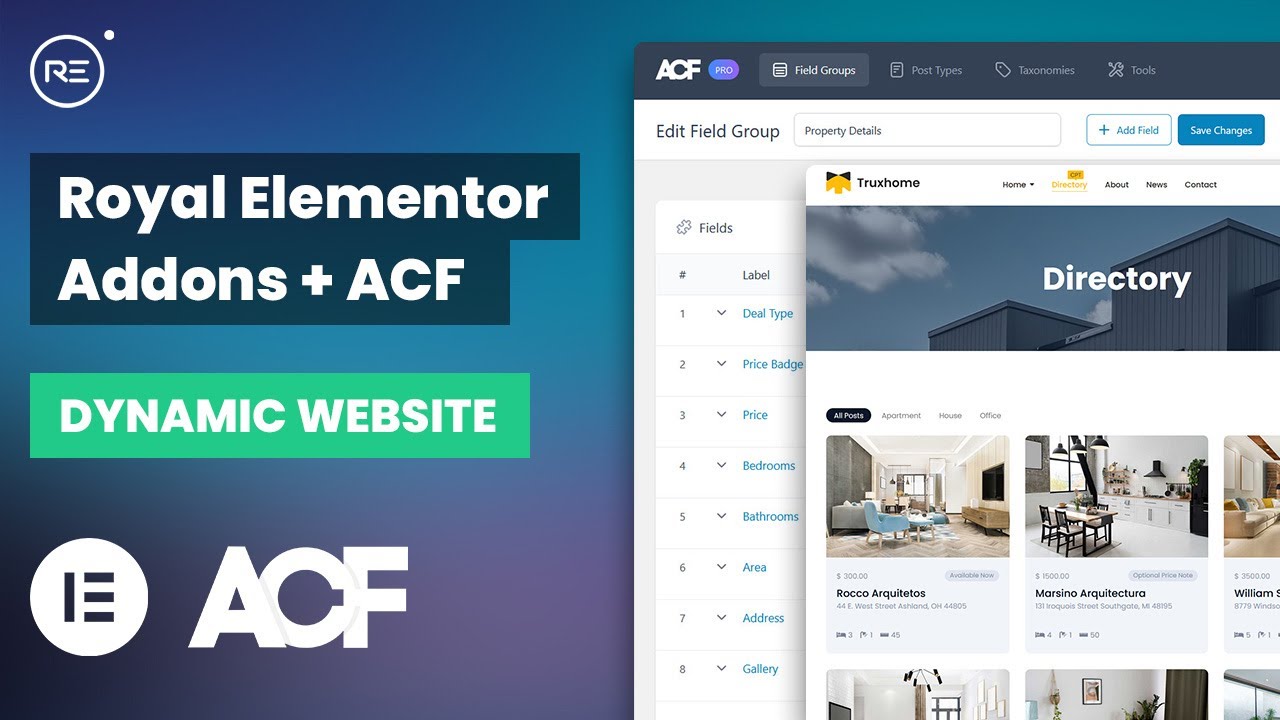
hi everyone in this tutorial i will show you how to create a fully functional menu or navigation for your wordpress site by using royal elementor's addon which is free and comes with stunt of great features so these are some of the examples of what you can do by using the now menu addon as you can see this addon lets you create all kinds of menus and submenus and they can be horizontal or vertical depending on your needs before we start please subscribe the channel and press the bell icon to get new tutorial updates in the
future in the first part of this video i'm going to use the free version of royal elementor addons plugin so please go ahead install and activate it and in the second part i will use the pro version to show you all the additional features that you might find very useful for your wordpress site i have already setted up a demo page with a quite standard design but this page has no navigation yet so to add one i'm going to create another elementor section right on top of the page so let's click this plus second select
the structure scroll down to royal addons and drag and drop the widget called nav menu and it instantly creates a pretty standard navigation for us and the reason why i showed this navigation is that i have already created it by using wordpress menu editor in your case it could be different but if you have not created your navigation already down below there is a link which will take you to the wordpress menu editor and on this page you can create any number of wordpress menus by clicking on this link so let's go back to our
page and see what other options we have right on top of our menu editor we have these two buttons the first one is a widget preview which will take you to the very same page which i have already shown to you with all kinds of different navigations and designs the second button that says predefined styles will take you to the library of menus that comes completely free with this addon you can preview them by clicking on this little icon and when you find your favorite style you can insert them directly onto your page as you
can see it automatically inherits our menu items but for sake of this tutorial i'm going to stick with my default menu the most basic setting that i would like to show you is how to align your navigation by clicking those little icons you can choose either left center or right alignment in the menu item section there are many settings that will allow you to customize your navigation according to your needs and hover effect is one of them you can choose from multiple hover effects like overline and even double line there are also border and background
options that come with the pro edition and i will show them to you later in this video by default fade is menu's hover animation and you can select none if you don't want any of them and as you can see hover animation also has some options that come with pro but more on them later we can change transition speed which defines the speed of the transition on mouse hover or menu drop down by adjusting this number for example 0.5 will be half second and as you can see transitions are now slower there's also an option
to choose the econ for the sub menu right now we have this little triangle but we can choose from a few others like an angle or chevron but i think i'll choose this plastic for now you can also choose your sub menu display option right now it displays a sub menu on a mouse over but we can change that to a mouse click and from now it will show sub menu only if someone clicks on it and it stays visible unless a user clicks somewhere else and by the way it is a good ux practice
especially for touch devices mobile menu section is where you can configure how you want your navigation to behave on a mobile devices or on small screens in general show one is the option that defines the screen size on which mobile menu should appear the easy way to find out how your menu looks on the smartphones and tablets is to click on this little icon next to the tubular line option and from here you can choose either a tablet or mobile mode i'm going to choose mobile and our page width will become as small as 360
pixels and that's exactly how your menu will look on a mobile devices stretch is a really important setting because it defines the width of the menu when someone opens it on a mobile device so if you choose a custom width you can define the exact size of the menu by default it is 300 pixels but you can always change it according to your needs you can also align menu items to left right or center from toggle econ option we can choose a different icon for our menu there are plenty of options from more creative to
very minimal and finally from toggle align you can change the position of menu icon in the style section you will find all the settings to customize the visual side of the menu we have two states normal and hover normal settings define the default state of the menu and hover settings define how the menu will react on mouse over from here you can change the text color disable or enable active item highlighting and you can change the size of the sub menu we can in typography section there's tons of different options that you can add just
like font family or font size so feel free to play with this settings and when you're done with it go and do the same for hover state from style section you can also customize the look of the sub menu and its items once again you can change the color of the text as well as the background color apply same settings to typography increase or decrease horizontal and vertical paddings add some sub menu offset which is this little space between main menu and sub menu and change the styles of the item divider which is the thin
line that divides submenu items you can disable it if you want or you can change its color and increase its height if you want to make your navigation sticky which is a quite popular trend today click on the navigation section itself on this little dotted econ and go to advanced tab where you can activate this option that says make this section sticky all right it's time to see all the exciting features that come with pro version of wp royal's navigation addon in menu item section we have already discussed hover effects and in pro version we
have two more effects like border and background if you select background your menu item might not be visible anymore depending on your text color so to make it visible again let's go to style hover and either we have to change the text color like this or we need to change the color of pointer itself if you are using a pro version in menu items you will find a new setting called hover animation you can choose from wide variety of different animations like fade and grow or maybe shrink there are lots of animations available and i'm
sure you will find one that suits your needs sub-menu entrance is another setting that's only available in pro version it defines how your sub-menu appears when it becomes visible you can choose either fade or slide and now if we click on our sub menu it will have this little cool transition effect from top to bottom if you want to change the width of the sub menu just go to style settings and in sub menu section there is a new setting and from here you can choose a custom width or just enter any number you want
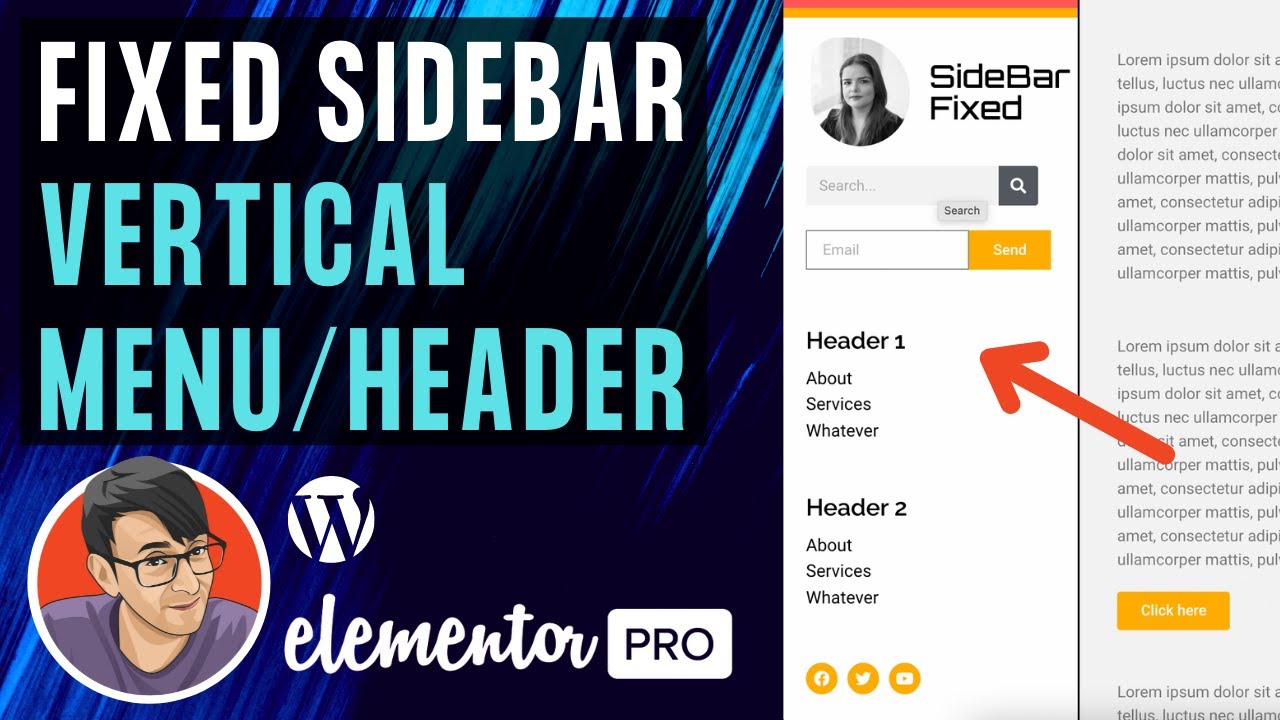
pro version also does let you choose menu layout by default it is horizontal but you can also choose vertical which will completely transform your navigation and if you need your submenu position to be absolute instead of inline go to the menu items and in sub menu position choose absolute but for now our navigation takes the hundred percent of the sections with and that's why you cannot see the sub menu so let's go to advanced options and in position settings we have the option to choose custom width let's adjust it as we want and now the
sub menu will become visible in pro version you have more options to choose when and where you want your mobile menu to appear if you choose all devices and show on options mobile version of your menu will become your default menu and it will appear on all screen sizes and devices in case you want some text instead of this hamburger econ in styles option choose text and it will give us two more settings toggle open text and toggle close text toggle open text default value is menu but you can write whatever you want let's write
main menu and in toggle clause text let's write close menu to adjust the width of this textual button go to style section and in toggle button settings increase the button width so by default it will say main menu and when someone opens it it will say close menu so i think that's it for now as you can see we can create all kinds of menus or navigations by using royal elementor's now menu addon once again it is completely free but if you want some additional features please go to royal elementor addons website where you can
easily download plugin or upgrade to pro version and contact the support team in case you need some help if you have any questions please write your comment below and don't forget to subscribe the channel and like the video to get more tutorials like this in the future thank you for watching and i'll see you in the next one

![Free Elementor Sticky Transparent Header Tutorial. [Sticky Header On Scroll Effects] No CSS, No BS😜](https://img.youtube.com/vi/-fMpH_aKRcI/maxresdefault.jpg)

![How To Use Canva For BEGINNERS! [FULL Canva Tutorial 2023]](https://img.youtube.com/vi/un50Bs4BvZ8/maxresdefault.jpg)