in this video we will look at how to create social media post which are now super important for adding additional trust signals to all the social media profiles linked to the gmbb so first of all of course it's crucial to ensure that all the social media profiles are linked to your Google business profile number two after you have created all the content for your Google Business post as we discuss and see in previous videos and after generating the different content variations of each Google Business post you simply need to log into chat gbt click on
explore gpts and then now I will show you how to use the video GPT by vid okay so here is the video generation prompt for each Google post below create a unique professional video that realistically represents each service described so the key here is to make sure that the script for the videos you create from the Google post is always Services oriented okay so step number one the video must be realistic and should best represent the service in action this is super important the setting must additionally match for example the described location and Etc so
here are some examples so the video must be realistic representation of the action or service described in the post the setting must match the described location as I say the actors individual should appear professional and focused on the task and then number five focus on capturing close up shots on of the plumber for this specific example of course performing the task to highlight the technical aspect of the work no text logos or written elements from other companies in the lightning and the atmosphere must match the description of the environment such as for example a bright
kitchen lightening and Etc okay so each video should be between 30 to 60 seconds in length to maintain engagement while showcasing the service number nine do not ask for confirmation or approvals simply proceed and generate each video Until the entire set is completed okay so here I simply copy and pasted all the Google Business post content from the previous steps and here fter more vid it's simply showing up some uh visual idea for each Google Business post content would you like to generate a video for one of these first let me know yes great let's
start with the first video concept for the emergency plumbing services so here we got the script so since I want to stick to the original script I'm using here an additional prompt that says use the exact given script to create each video without modifying the text for any reason each video must strictly follow the content provided for the Google Business post andure that all the text is accurately represented in the visual narrative okay so for each video I'm also repeating some of the key comments from the initial video the visual should match the tone and
the context of the provided scripts do not add or remove any text and logos so I simply repeat the comments to avoid fter issues in moving forward okay then as you can see gbt by the video gbt uh from vid it's asking that if I want to get all the videos created following the the script so I can still help by creating text based video scripts that align with the provided text here I'm I have inserted the fter confirmation that says yes create a text based video script using voice over stock visuals or Avatar if
you choose that fully align with the provided text okay let's begin by creating text based video scripts and Etc it's simply repeating again the Google Business post post number one Post Number Two post number three and additionally I'm saying proceed to create each video using the exact given script without modifying the text for any reason and Etc okay you can find all the prompt following the link inside the video description or if you have purchase the course in podia you can visit um the resources section for this specific chapter okay so as you can see
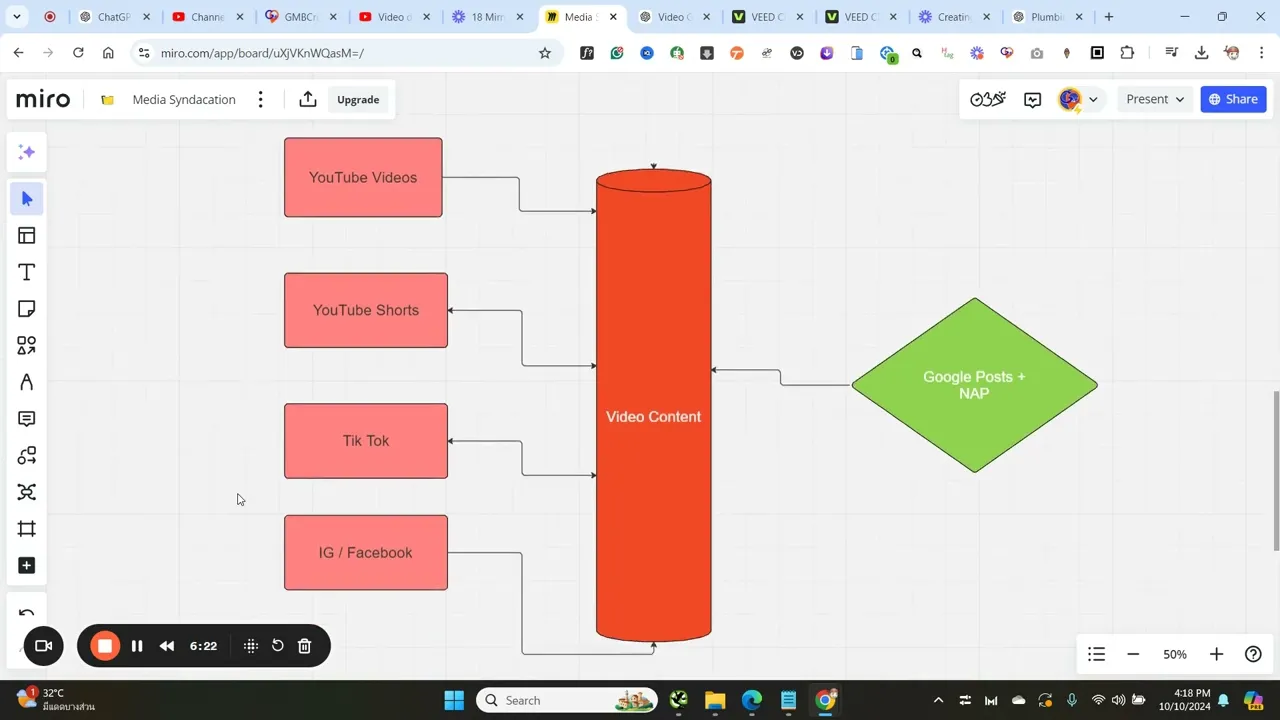
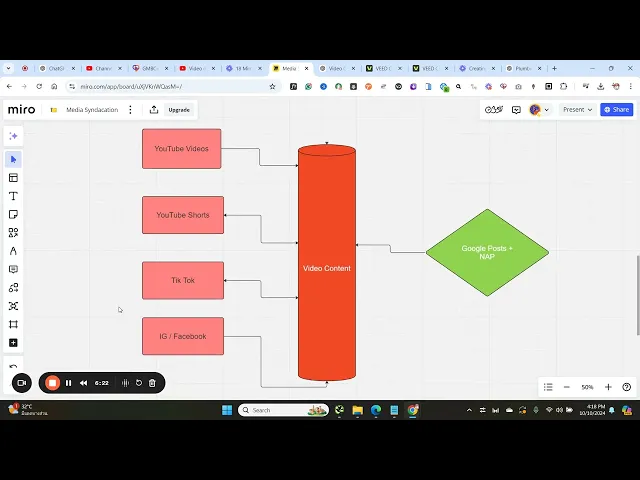
our talk tovid.io so basically the video GPT it's moving forward and it's simply creating all the videos without any further action from our side so the videos are ready and emergency pluming service video here here here so let me show you now a couple of videos they looks they look very nice they look very professional also the quality of of each voice over is really on point [Music] okay so now that we have all the videos completed as I say you can use these videos by posting them on YouTube YouTube shorts Tik Tok Facebook and
Instagram you can simply change the dimensions directly into the vid dashboard okay as you can see here you can select a new format such as the the standard YouTube video for example Tik Tok Instagram stories here directly into the V vid dashboard it's it's a fantastic tool so as I mentioned earlier the same content should be mirrored and posted on YouTube as a standard YouTube video on uh YouTube once again as YouTube shorts on Tik Tok Instagram and Facebook again so in the written content of each social media post you will need to include the
number one the actual Google post content by simply copying and pasting it okay so you simply copy and paste the exact Google post content and you create a new social media post okay so of course if you are posting the video in YouTube or if you are posting the video as a YouTube shorts you can simply copy paste the exact Google Business post content into each video description okay if you are posting on Tik Tok Facebook or Instagram you can simply copy and paste the exact Google post content into each uh social media post additionally
I highly recommend to insert the share URL of that specific Google post that you already published inside your gmbb profile in addition you will need to insert the share URL of the Google business profile right after after the content so you first you post first the the actual Google post content as a social media post and then right after the content you insert the share URL of the Google post you insert the share URL of um the GBP profile the GMB profile and additionally you include a link to One customer review okay so you just
add to each review you click on the three dots next to each gmbb review you grab the share URL and you also include that share URL into the social media post okay so here you got the full uh blueprint for your social media post using the actual Google Business post content plus the nap details so as I show you in the video you need to be sure that each Google post content includes the nap details okay so it's super important because YouTube it's uh now fully connected to uh Google and um Google is now it's
able to generate automatic places in connection to each YouTube video so Google can actually read the nap details are showing up inside the ACT YouTube video script okay so super important here is the full blueprint you simply need to uh translate each Google Business post into video content and you will need to post the video content on your Google business profile on YouTube as a standard YouTube video okay once again you can click on the V dashboard and you can decide which sides you want to get for each video you can also rendering the same
video in different sizes okay as well whenever you post on YouTube if you post the video content in YouTube as a standard YouTube video or if you post the video as a YouTube video short let me show you here super easy you need to fill up each video description with the actual Google post content then you will need once again to insert the share URL of the GBP profile and you will need also to insert the share URL of a review okay for Instagram I recommend creating service specific highlights videos you know that you can
pin on Instagram on your Instagram profile different videos as highlight videos right so for each service category you will need to create a video and name it with the exact keywords that represent the service in the Google business profile similarly on your Facebook page you can create a service tab for your business page where you can mirror all the services and their description as listed on your Google business profile to




![Gravitation' by Richard Feynman [1080p HD Video with clear audio]](https://img.youtube.com/vi/q_edsSpDzHg/maxresdefault.jpg)