welcome to the basic measurements using the wideband power sensor video we are going to look at the basic operation of the wideband power sensor using the 5000 XP handheld power meter as the interactive display before we begin to take measurements we will look at setting up a couple of the basic features of the power sensor first we're going to talk about zeroing the sensor over time the sensors zero value which is the reading with no applied RF can drift due to Environmental factors such as temperature and humidity this can make the readings performed by the
sensor less accurate by the Mount of the drift to get the most accurate readings you should always zero the wideband power sensor before taking measurements uh the steps to zero the meter are one ensure that the sensor has reached a stable operating temperature two ensure that no RF power is applied to the sensor three press and hold the zero key for 2 seconds [Music] a message will appear asking you if you want to zero the meter select okay and press the blue okay button to start calibration will take about 60 seconds do not interrupt the
calibration the bar on the screen will display the progress if the calibration is successful pass will be displayed on the screen press okay to return the 5000 XD to this normal operation the second feature we are going to review is setting the smoothing of the wideband power sensor smoothing tells band power sensor how many samples to average together for the displayed reading this feature helps the power meter to display stable readings for this demonstration we will set the smoothing to eight samples the first step is press the menu button use the up and down keys
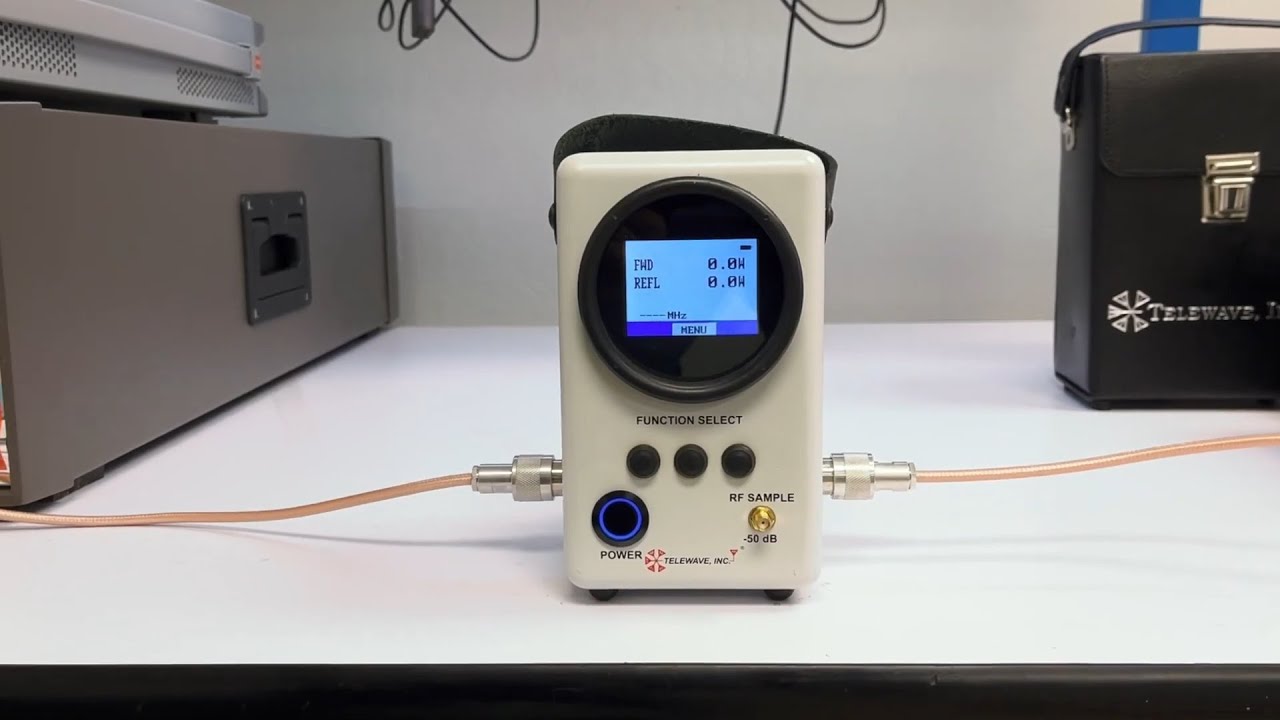
to navigate to the smoothing function and press okay use the up and down keys to select eight samples and press okay then use the left Arrow to get back to the measurement mode now that we have set up the 5000 XT and Y band power sensor it's time to take a few basic power [Music] measurement the currently selected measurement type in this case the forward average power will appear at the top of the screen with two other measurements at the bottom to cycle through the different measurement modes press the left and right arrows [Music] if
you would like to see only the selected measurement you can press the plus minus button at the bottom of the unit each mode has options for displaying the measurement information to change the units of measurement simply press the up or down arrows for power measurements you can display the data as Watts or dbm for the measure match mode you can display the data as bwr return loss or match percent