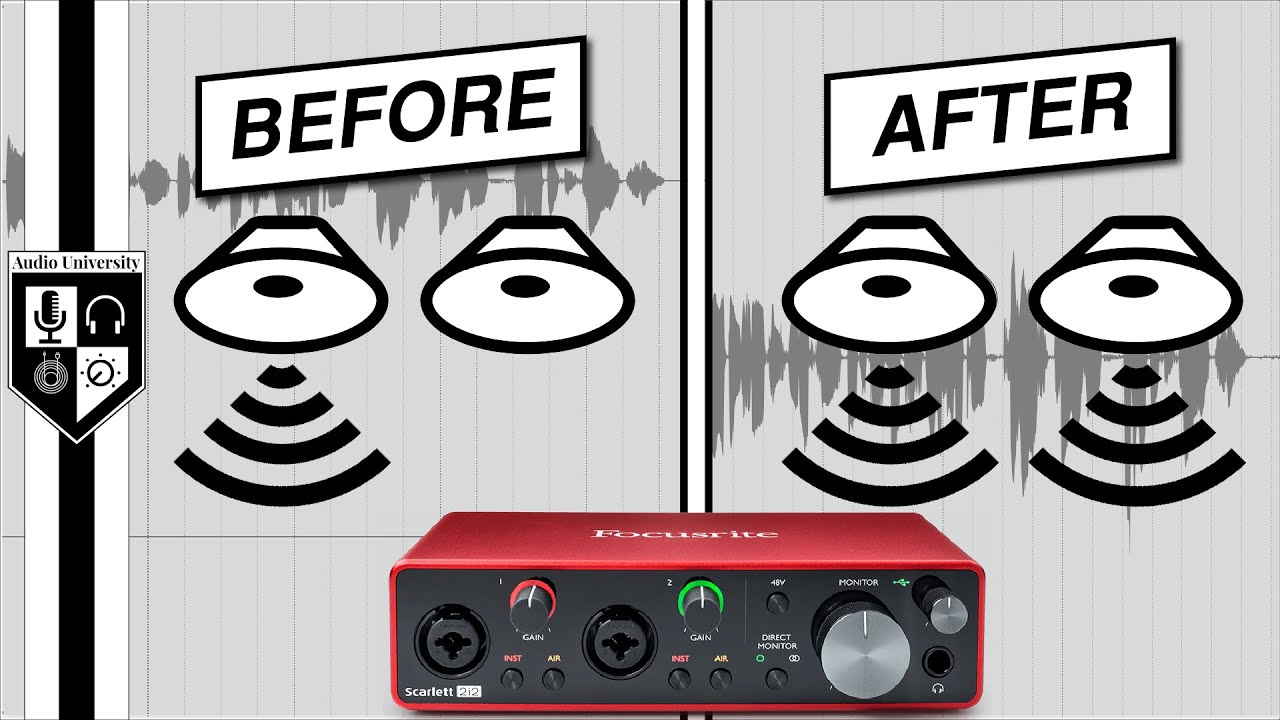
what's up my name is technobo here for troubleshoot and in today's video i'm going to show you something incredibly useful if you like me and you have an audio input device that is only mono my microphone uses a balanced xlr cable into my audio dac basically that means that it's taking both the left and right channel inverting one of them to get rid of any noise that's created in the cable and of course means that the signal will only be mono as in only one channel this is usually only the left channel so if i
were to record myself speaking you'd only hear me in the left ear now of course recording and streaming isn't too much of an issue as inside of obs you can set it to work with mono devices but for something like discord or another piece of software you may only be able to hear yourself through the left ear or other people may only be able to hear you like that which can be incredibly annoying now my previous solution was to install a virtual audio cable quote unquote listen to my microphone through that device and set that
one to be mono why exactly was this issue caused well simply opening up my audio settings over here and here across to recording you can see that my current input device when i go to advanced is only two channel meaning that it's supposed to be stereo even though the actual input is only mono so how exactly do we go about fixing this well it's actually incredibly simple and really powerful without the need of a virtual audio cable or anything like that what exactly am i talking about while i'm simply talking about equalizer apo and peace
what exactly are these well i'll simply open up peace over here so you can see what i'm talking about peace is a system-wide audio equalizer that works for output and input devices as you can see i'm currently listening to music and the peak value is over here if i adjust any of these sliders it'll affect my live windows output without the need of a virtual audio cable and a delay or anything like that so you're probably wondering what exactly am i talking about well yes this is an equalizer and yes it does affect the sound
that goes in and out of your pc directly in the actual devices itself over here how exactly does it do that well as far as i know it simply modifies some settings in the registry to redirect audio through itself and then out to the actual device or into your pc how exactly it works i have no idea but i can tell you that it does work if you'd like to set up equalizer apo and peace check the description down below but only need for this video is equalizer apo let's go ahead and install it for
this i'll be using a windows sandbox just so you can see how the setup works i'll simply head across to google and i'll search for equalizer apo then i'll click the first link but of course this will be down in the description below click download and then i'll wait for this i'll click run and when the installer opens up i can close out of my browser next i agree next install then we'll get a pop-up that looks something like this though of course this is blank because it's on a virtual machine at this point we
need to tick some boxes in here and then click ok after doing that we'll be asked if we want to restart our pc now or later simply click reboot now and then finish but of course to show you exactly what happens i'll head across to my desktop pc so in order to head back to that same window i'll head across to see program files equalizer apo and here you can see the registry files that i was talking about with the voodoo magic of getting it to work but opening up configuration.exe i get this menu over
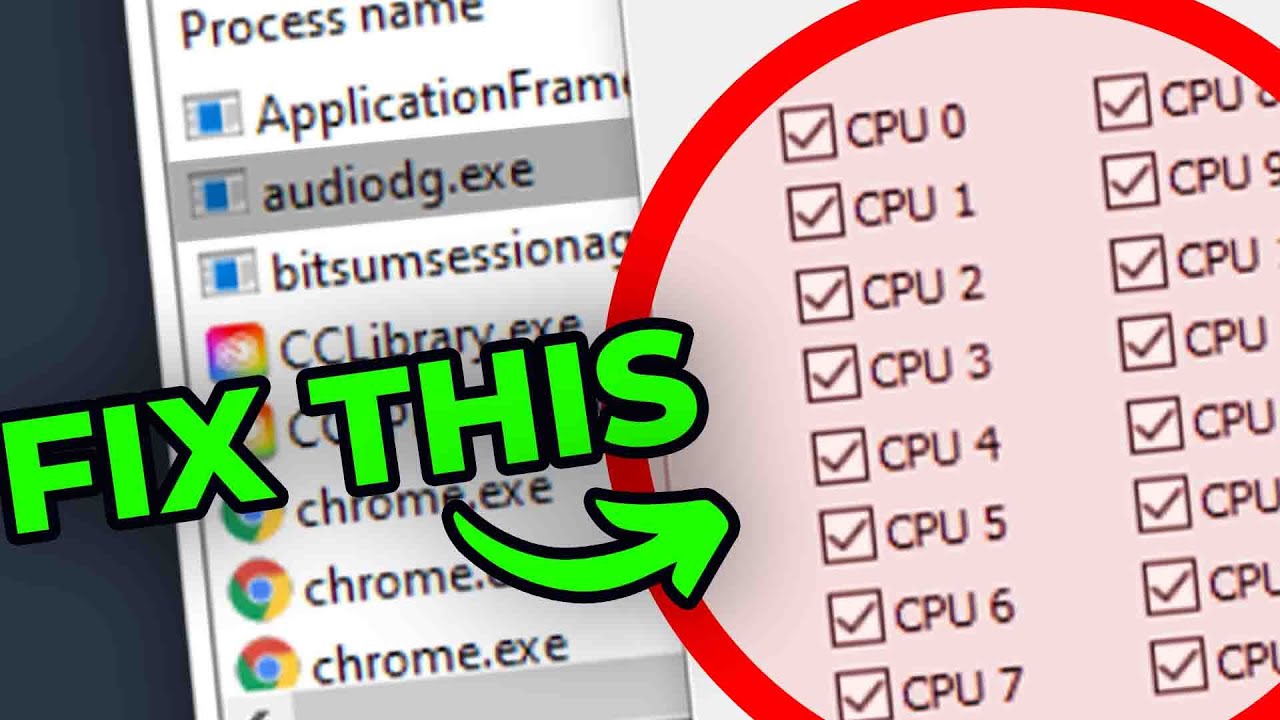
here basically what we want to do is locate the audio devices that would like to have this on we have playback devices listed in this first window and i have my output over here as i do apply eq to it but if you're interested in making a mono audio device on the input side stereo technically for your pc head across to the capture devices section and check the microphone that you're going to use then hit close and you'll be asked if you want to restart your pc again hit i want to reboot now then upon
rebooting simply head back to that same folder see program files equalizer apo and then we'll be opening up editor.exe then after opening up editor you'll see something like this though yours will look a little bit different i've already got mine set up if you have peace installed then you'll more than likely see this over here a power button with include ps.text as such what we want to do is hit the plus at the very bottom and then click control then we'll click device change and we'll select a device here so uncheck select all and we'll
choose input 1 2. after doing that we have this over here how exactly does the screen work well it works top to bottom what exactly does that mean well over here i have my audio input device then everything below this point affects just that input device when we tell it to select another input device or output device everything below that only affects that until we select another device with that aside we can reorganize these by dragging the side box over here so now that we have our input device added i'll hit the plus button and
head across to basic filters and then copy then we'll see this over here all we have to do is simply look at this over here simply drag the left box over here and while you have your left mouse button down after hovering over it you can see we're now pulling around an arrow simply drag it and release on the r at the bottom over here i won't be doing this as i've already done it up here and i don't want it breaking anything with my mic currently while i'm recording but with that aside you now
have it copying from the left audio channel to the right audio channel over here so what exactly does that mean well when my microphone comes into my pc as it's quite unquote stereo it's only working in the left channel this over here is copying it from the left channel to the right channel and then it's getting sent into the rest of my pc to work with other programs now of course the question on your mind probably is won't there be some kind of delay now that i'm sending it into my pc then i'm copying the
left channel to the right channel and then i'm sending it to the rest of my pc is there some sort of delay well in my experience not really at all to prove this i'll open up adobe audition leaving it at the highest available settings i'll simply hit record over here and then i'll simply clap to create a nice sharp waveform that we can look at on both of these channels the top being left the bottom being right after doing that we can see three sharp waveforms if we zoom in on the top one over here
you can see exactly how the clap looks and if we click somewhere here we get a straight line from the top to the bottom let's simply hover over here where the clap begins as you can see this line that's drawn is almost perfectly straight down if we zoom in as far as we can you can see that these points are almost exactly the same if not exactly the same with no audio delay between them what exactly does this mean well the audio delay between sound coming into your pc and it being copied from the left
to the right channel is quite literally nothing so if you're worried about adding a copy effect from the left ear to the right ear or anything like that then it's not really something you should be worried about of course if you want to do this with another input device we can hit the piece of paper on the far right over here and we'll get a slightly different screen we can add assignment left right channel we can choose a bunch of options here and we can add it to a different output we can add a sub
command to also copy it to another output and we can click the minus next to it to get rid of it if you're wondering we can drag these around here as well and copy them to both outputs i won't be doing this though but anyways that's about it for this video hopefully you found this video somewhat useful i definitely find the software incredibly useful and of course the way that i mentioned copying left to right as an effect there are tons of other effects that we can add that work at the windows system level we
can also add vsts and the rest of it which is really cool without the need for a virtual audio cable but anyways that's about it for this video hopefully you found it somewhat useful my name has been technobaby here for troubleshoot and i'll see you all next time ciao