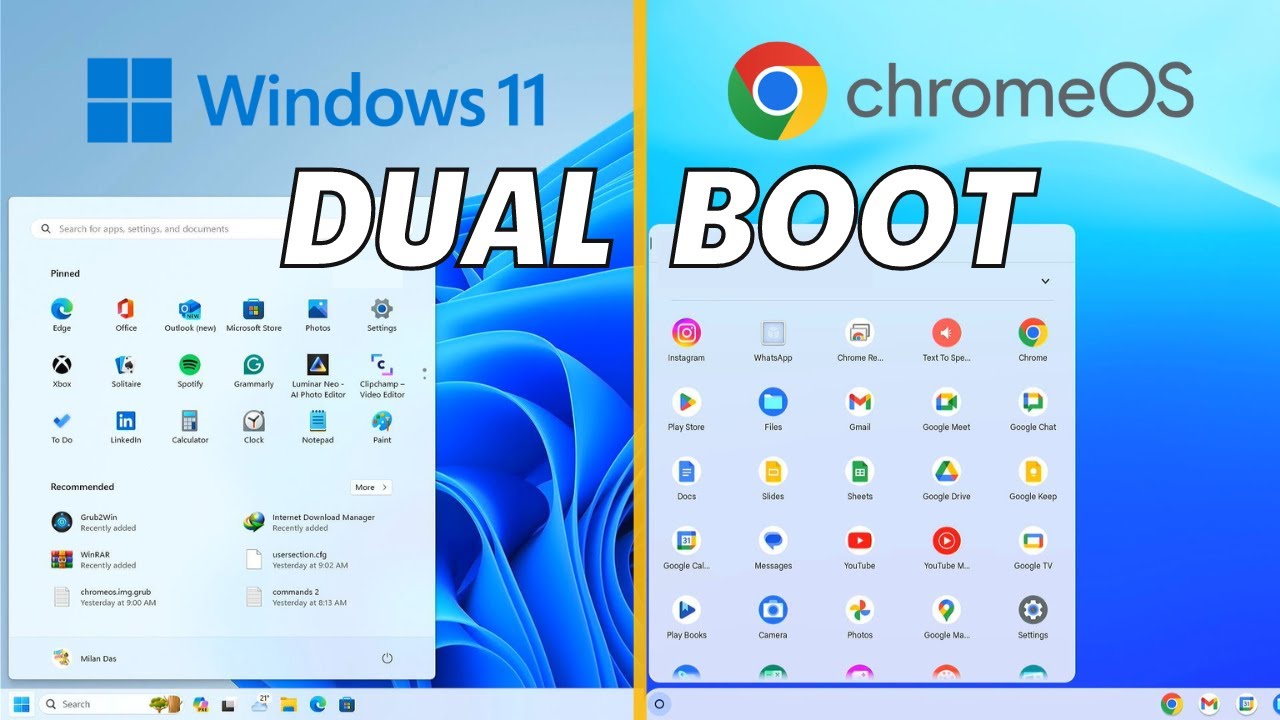
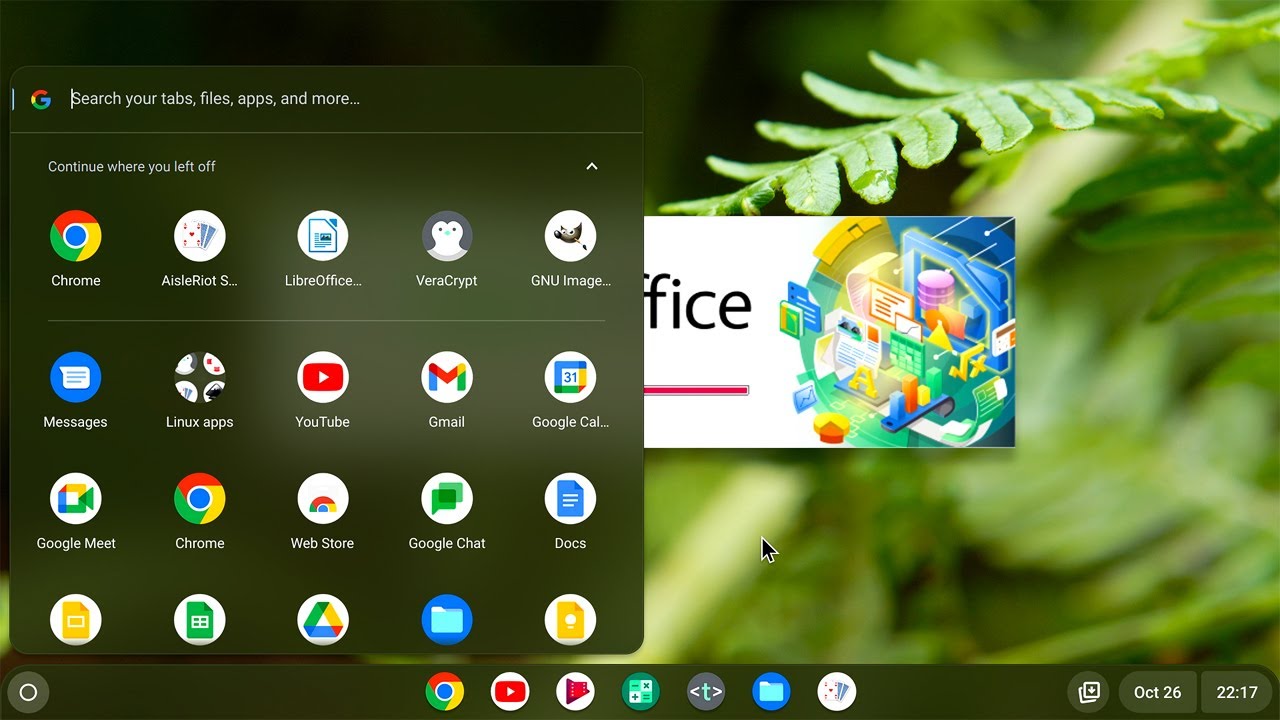
chromeos is a popular operating system made by Google it's a very light with operating system it's popular for its Android and Linux app support chromeos is exclusive to Google's Chromebooks and Chromebox devices there's still no official way to install it on your Windows PC or laptop Google launched another operating system called Chrome Ox Flex for PCs and Macs but it does not come with a Google Play Store which makes it somewhat unpopular among Tech enthusiasts this is however an unofficial way to download and install the latest Chrome OS on your laptop and PC for that
we need to download a couple of files and perform some steps we'll discuss all of that in this video so let's see how to download and install Chrome OS and Google Play Store on a Windows PC before going ahead you should know that we are going to install Chrome OS as the primary OS on our PC and replace the windows OS completely so make sure you proceed taking a backup of all your important data first first of all boot your computer into BIOS by holding down the BIOS key you need to disable secure boot from
the bias of your computer while you are here also find something called virtualization and enable it on Modern computers it's enabled by default so if you don't see this option then it must be enabled already now we need to download the chromeos recovery image as Google doesn't provide the Chrome OS image file we'll download it from a third party website on your browser enter cross. te there are different chromeos images available for different CPUs and generations you need to know which chromeos image you will require for your PC for Intel third gen or older CPU
you you need to download Samos Samos is the code name of the recovery image similarly Intel fourth and fifth gen CPUs download Ramos from the Sixth Gen to the n9th Gen download shyana for 10th gen Intel CPU download Jan for 11th and above download wxel and for the AMD ryzen CPU download gumbos as you can see I have an Intel Core i38 gen CPU so I'm going to download the shyana recovery image just type your code name here then download the latest table build which is 121 for now also we'll require the latest seong Branch
file to make all of this work you can download it from jiub after downloading extract the files using 7even zip or vrar now create a folder and name it Chrome OS then move the extracted file into this folder rename the recovery file to Chrome OS the next step is to install the ubu terminal on our system to do so open Powershell as administrator enter this command into the Parell window this will install virtual machine platform windows subsystem for Linux and ubu on your system now reboot your PC to make the changes take effect after reboot
the Ubuntu terminal will automatically launch and ask you to create a username and password just do it then enter this command to install PV and C GPT packages now you have to mount the directory where the download files are located type CD space SL mn/ then type the folder path in small letters after that enter this command to create a Chrome OS disk image file this process can take 15 to 20 minutes depending on your hard drive speed so please wait after the process finishes hit enter and exit the ubun to terminal we have created
Chrome OS disk image now we have to make a bootable USB drive using a program called Rufus the download roofers from its website open it it will automatically detect a USB pen drive you just need to select the Chrome OS disk image file from your Chrome OS folder then start writing it to the USB our Chrome OS bootable USB is now ready if you want to install the Chrome OS on this PC then keep the USB plugged in and restart the PC while restarting press and hold the boot menu key from the boot menu select
a USB drive and hit enter after booting into the USB brunch will Mount the root file system so please wait a few [Music] minutes after that it should show the welcome screen the chromeos is not yet installed on your hard drive it's just running from the USB to install chromeos on your hard drive or SSD you have to run a few commands using a shell window we can do so by using Chrome OS as a guest while the browser is Open Press control+ alt plus F2 to open a shell window type root and hit enter
we need to find out the dis name in which we'll be installing the Chrome OS for that type this command this command will present you with all the storage and partitions on your system we need to determine which dis is our Target disc for installation in general it should be SDA or nvme I have a 500 GB hard drive and a 250GB SSD on my computer I'm going to install Chrome OS on the nvme SSD drive to do so type this command at the end type your disk name for me it's nvme0 And1 the installation
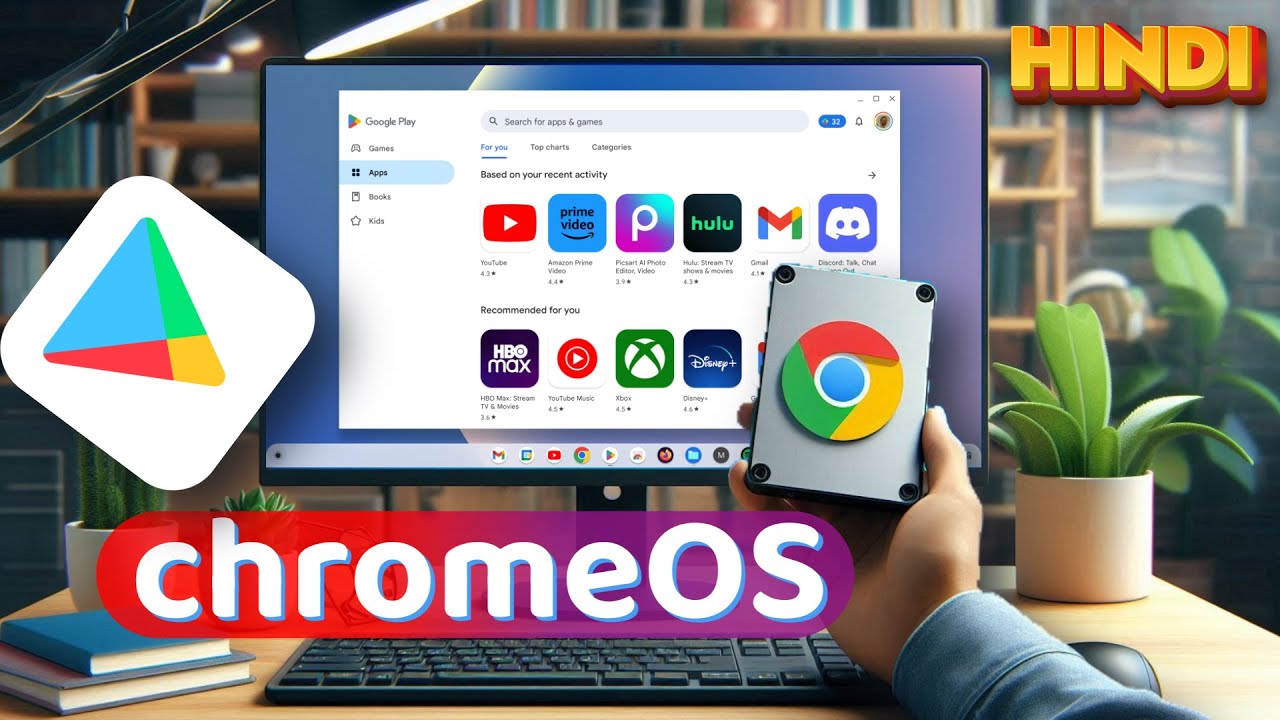
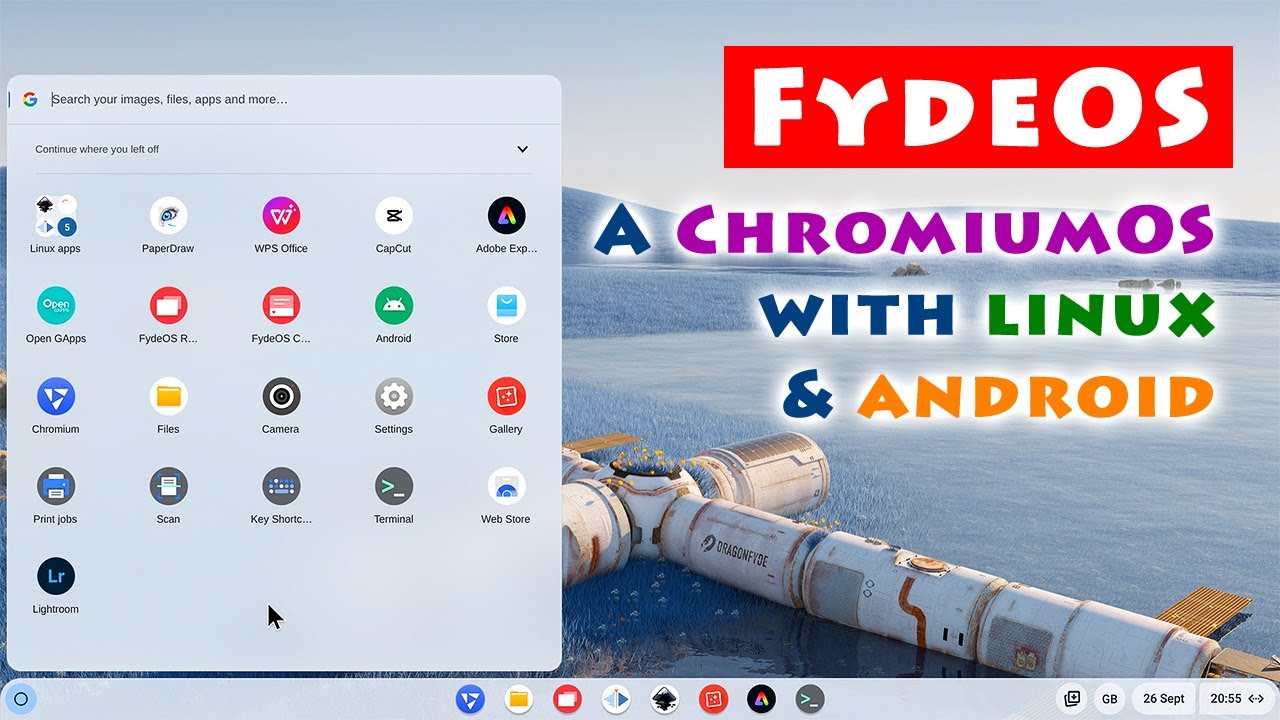
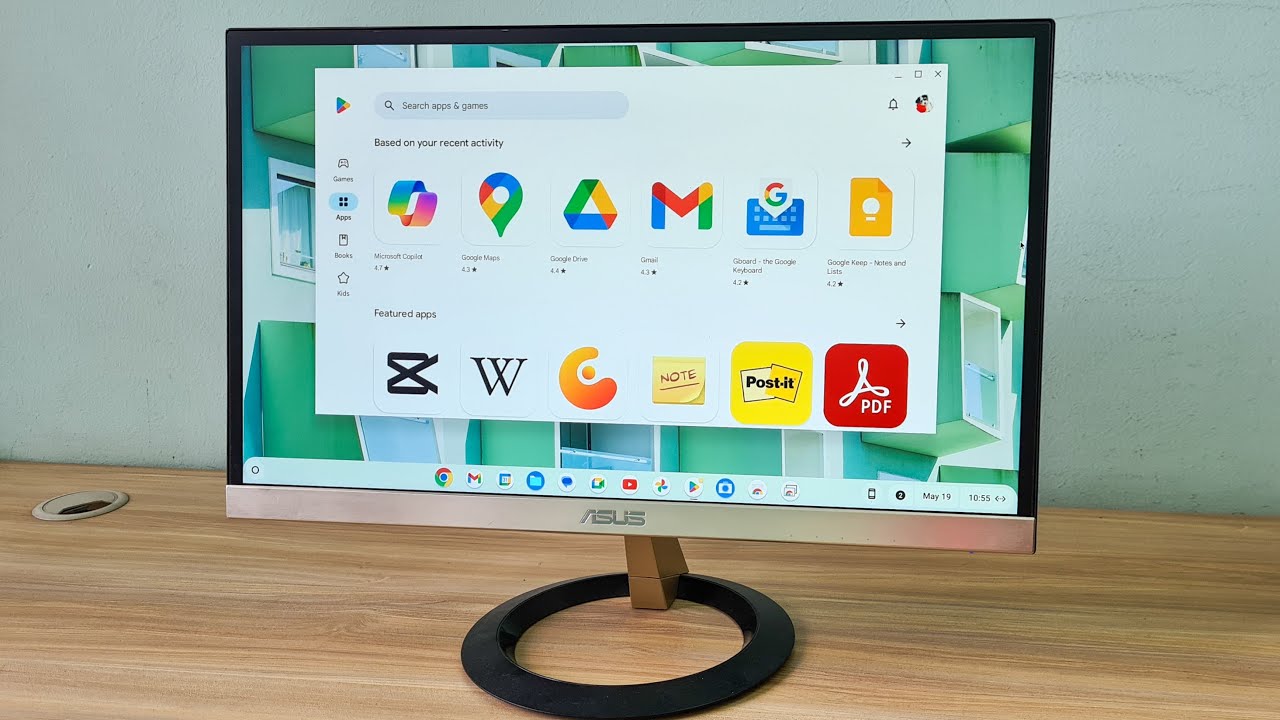
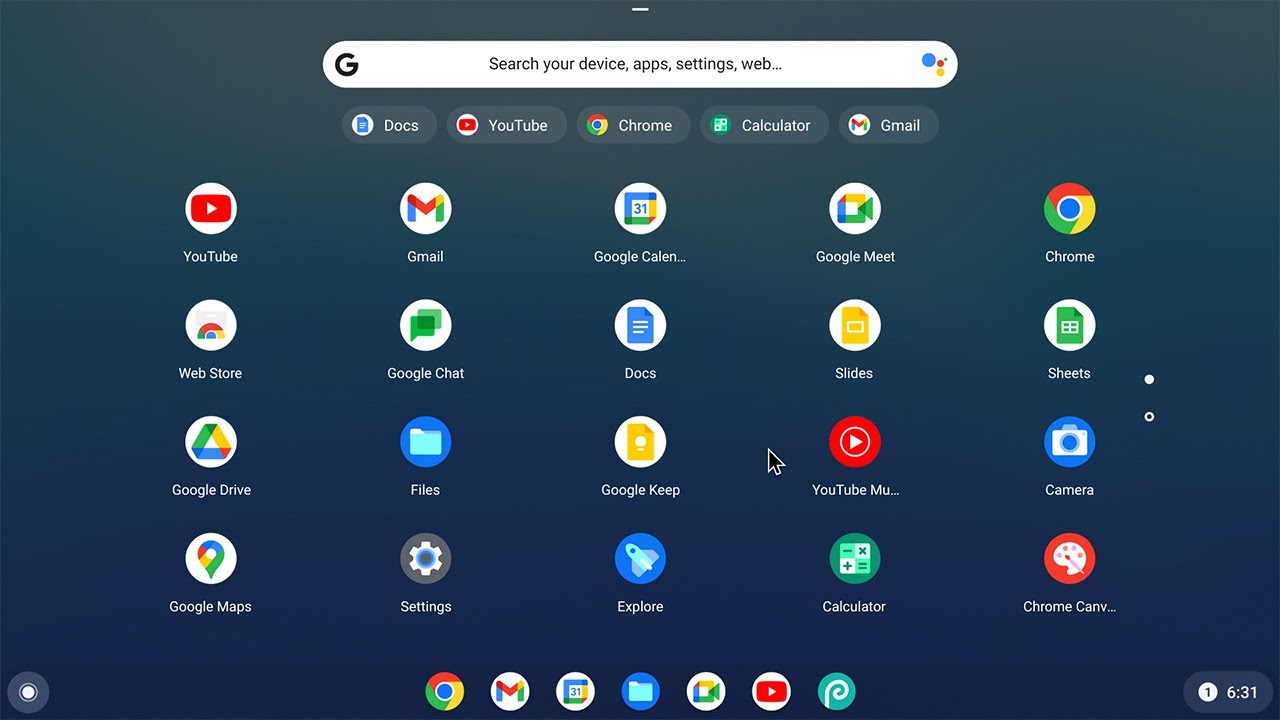
can take time depending on your dis speed after it's done you will see a message saying that Chrome OS was installed now you can just shut down your computer remove the USB drive and Power on the computer again [Music] now your computer should boot into the chromeos you just installed follow the onscreen instructions to set up your new chromeos you can now start using Chrome OS with a Google Play Store pre-installed you can download and use a variety of Android apps from the Play Store you can do video editing photo editing and other creative work
work on a larger screen with your favorite Android apps you can even play popular Android games like pubg Call of Duty Etc many people also wanted to use Google assistant on their Windows laptop Windows 10 has cotona assistant but it's not very intuitive and rarely anyone uses it nowadays chromeos supports Google assistant so you can perform all the actions that you do with Google assistant on your smartphone so guys congratulations on successfully installing Chrome OS on your Windows laptop or desktop I tested Chrome OS on my Intel I3 H gen PC and the performance is
pretty amazing if you're facing any problems while installing Chrome OS on your PC then comment down below and we'll surely help you out [Music] [Music] [Music] [Music] [Music]
![Using FAKEDISK: Mount Floppy Disk Images on DOS [#TPCXmas24 Part 23] #doscember](https://img.youtube.com/vi/sgTTxIUOmhE/maxresdefault.jpg)

![Create a macOS Virtual Machine on Windows PC [using QEMU]](https://img.youtube.com/vi/GahN_Y6C0wU/maxresdefault.jpg)