- Uh, what's all this? - [Crew Member] Aren't you teaching scrapbooking? - Scrapbooking?
- [Crew Member] Yeah, like photo albums. - Oh, right. Yeah, we're making photo books, but we don't need all this stuff.
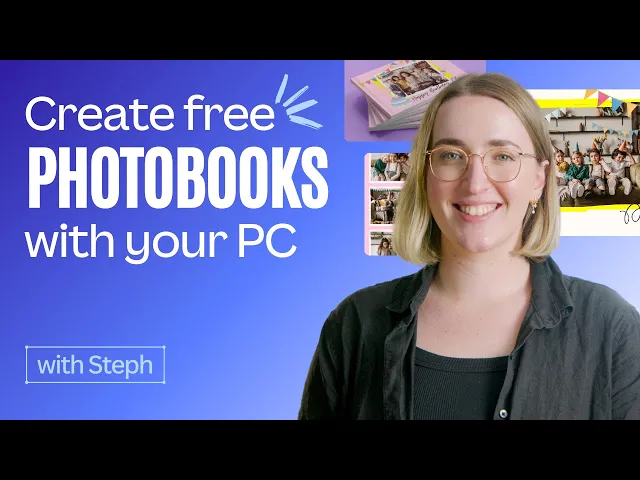
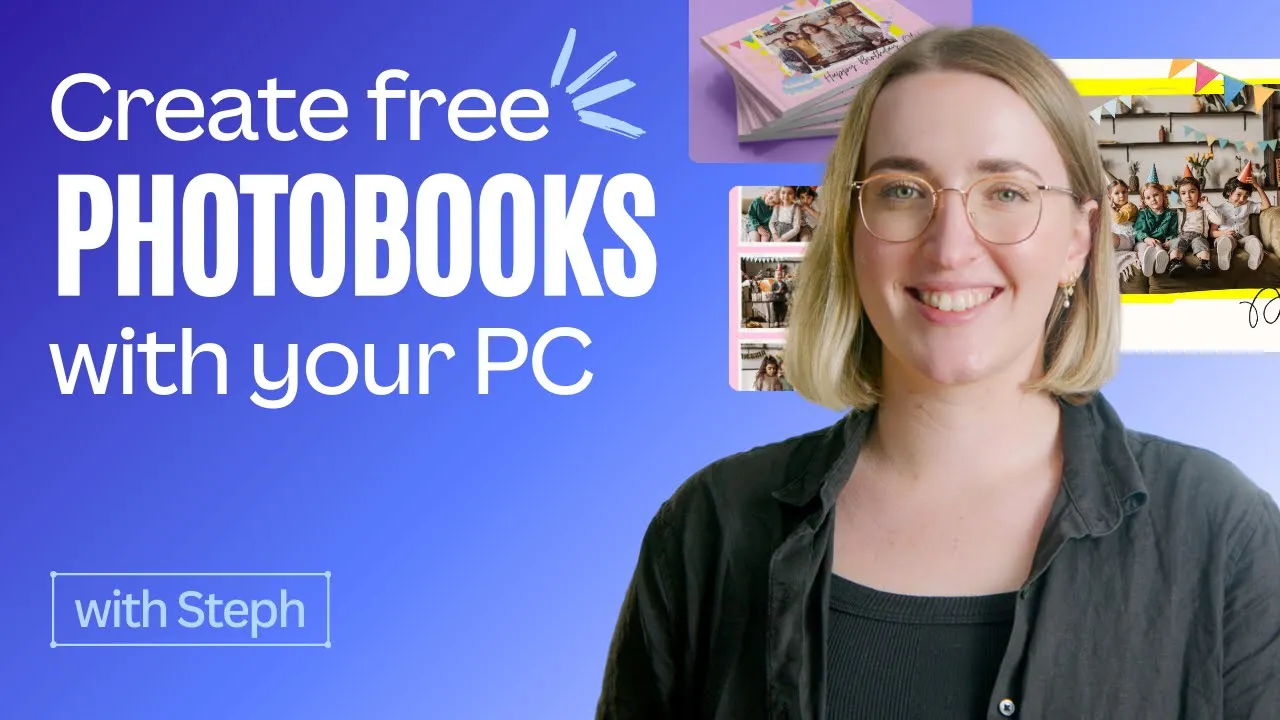
(objects clattering) These days, you can create everything digitally and print it out. (bright upbeat music) Hi, I'm Steph, a brand designer here at Canva. Looking through physical pages of a photo book or album is so different to the experience of scrolling a computer screen.
Personally, I find it way more satisfying and special. And, let's be honest, how frequently do we actually back up or share or even take the time to browse our digital photos? Having them printed and curated means you can really spend time with your images strengthening and enhancing those special memories.
That's why, in today's tutorial, I'm gonna show you how to select and enhance your best shots, then beautifully organize them into a photo book using Canva. You'll learn how to add graphics, text, and layouts, and help bring each page to life. And we'll even cover how to share it via a link so others can keep a copy of what you've made.
If that sounds good, then make sure you subscribe to the channel and we'll cover all sorts of topics each week. For this tutorial, I'll be creating a special photo book for my friend's daughter, Olie. I have a bunch of photos from her fifth birthday party that I want to turn into a keepsake present.
It's the sort of thing I can imagine Olie looking back over the years to come and remembering this fun day. I'll start by searching for a template. With over a thousand designs, I'm bound to find something suitable.
Anything with a crown is for Pro and Canva Team users. Anything without is free for everyone. This one looks cute, and I know Olie loves pink.
First thing's first, the front cover. I'll delete this photo and add a simple frame to hold an image. (bright upbeat music) Now, I'll upload all the photos I want to use by heading over here.
(bright upbeat music) Aw, aren't they cute? I'll use this one for the front cover. Now, I'll change the text to, Happy birthday, Olie.
Next, I'll add some elements to liven up the page. Here's a secret tip for anyone making a birthday book. Search Canva birthday without the space and you'll find a ton of curated graphics.
This one's sweet, and so is this. I'll add a few, then arrange them on the page. I'll move the flags up to the top and the cake over here.
(bright upbeat music) I'm really happy with how it's looking, and I don't think I need much more. Actually, I could add a tint to the photo. That would look nice.
Let me show you how. I'll select the image, head over to Effects and hit Duotone. I want to give this a subtle pink hue so it matches the background.
Let's use blush. Oh no, that's way too pink, even for Olie. Let's adjust the intensity.
That's much better. Now, I'll adjust the brightness. It's important not to go overboard here.
Just a slight tweak is all it needs. That's looking so good. It's subtle, but I believe small additions like this make all the difference.
Having said that, you're bound to find some pages that don't need anything extra, like this one. For this page, I'm simply swapping the photo. Instead of deleting the one that's already there, I can drag my photo into the frame to replace it.
Now, onto the next page. Hmm, this one looks similar to the last, so I think I'd like to create my own layout instead. I'll delete everything here and change the background color to pink.
Next, I'll add some elements to form a grid. I'll do this by adding some frames, then arranging them into a straight line like this. To duplicate an element, click this icon.
Or, use keyboard shortcuts to copy and paste. I'll place one more frame up here in the corner. This can display the feature photo, so I'll make it double the size.
I'll stretch out this corner until both of these frames align. Can you see how this is creating an invisible grid? Aligning elements on the page like this can help to guide the viewer around the page.
With this layout, the viewer's eyes would start in the top left hand corner, then move in a clockwise direction. If you wanna make sure edges are perfectly aligned, there's a tool for that. Go to File, and click on Rulers and Guides.
Now I can add some guidelines like this. I'll zoom in to help me with the placement. Then when I'm done, I can drag them off, and they'll vanish.
I'm almost finished here. I'll just add the text. And then this fun party hat to complete the look.
That's much better, cute and festive. While we're on the topic of layouts, let me show you another tip to make the page look more appealing. It's called the Z-Rule.
On a page like this, the human eye takes in new information by moving from left to right and top to bottom, forming a Z shape. Designers use this to their advantage and arrange information along these lines to influence what's seen first to last. Let's see how this rule can be applied to a photo book.
I like the yellow elements used on this page, so I'll keep them and just add some more photos. Next, I'll arrange them into a zigzag pattern. I'll reposition this photo to the back by clicking here.
So far so good. Now for some text I'll use the same scrolly font as before. I'll write the children's name in here, and then a few sweet comments to fill up these spaces.
And finally, some festive stickers. Which do you prefer out of this layout and the grid formation? Let me know in the comments, and we'll see what the majority thinks.
Now I know it's called a photo book, but you can also use different fonts and stylized text to make the page stand out. Let me show you how. I've already added the text and other bits this time, so we can just focus on the fonts.
To keep some consistency, I'll use the same font as before to write, Olie is. Then I'll pick words to describe her using different fonts. Once I've added all the text, I can select expressive fonts that'll suit the words I've used.
Ah, I love this one! I'll use it for the word, daring. (bright upbeat music) And how about this one for energetic.
See how stylized text adds character and meaning to the design? I'm loving this. The only thing that's missing now is that homemade look you usually get when scrapbooking.
You know, the little page decorations that make it feel really personal. Let's add them in. Let's see what comes up when I search scribbles.
Ah, these will work. One here, and one over here. This looks great.
When you are done creating all your pages, simply click on Print Photo Book. Choose the size. I think I'll go with medium.
I'll also choose hard cover as I want this to last for a while. And finally, I'll use gloss paper so it can't be written on, and any food dropped on it, like cake, can be wiped straight off. Click continue.
Add in my details, and Canva will deliver it to your doorstep. Oh, mine will be here in five to seven days. Of course, you could also create a view only link like this.
By selecting this from the share menu, I can send a link to Olie's mom. And, she could send it out to the other parents so all the kids can remember what a great day it was. This is what they will see.
(bright upbeat music) Now we've created this photo book to showcase the birthday celebration, but think about the other events you could capture in print. Weddings, family get togethers, holidays. It could even be a collection of random images that sum up the year.
It's the perfect excuse to go through all the shots you took and build a narrative to look back on. Making a photo book allows you to get creative, express yourself, and relive happy memories for years to come. They're a great gift idea and an inexpensive way to ensure your photos don't get lost or forgotten.
(bright upbeat music) So, what will you create? Let me know what you'd like to feature in your photo book. Will it have a special theme, or be a random collection of photos?
And, if you enjoyed this video, please give it a thumbs up. Share it with your friends and subscribe to the channel for more awesome design inspiration and content. Thanks for watching.