Hello and welcome back to my course on learning commands in Minecraft. My name is slicedlime and today we're picking up where we left off last time with more of the basics of using commands. Last time we got a command block to run a command for us - which is useful, but a very common scenario is that we want our commands to happen all the time.
This is where the left-most button in the command block user interface comes in. For our command blocks from last time, that says Impulse. An Impulse mode command block is one that runs the command only when it gets a signal to do so - an impulse.
As we saw last time, that impulse is either a redstone signal or the command block itself being set to always active. There are three different modes for command blocks - Impulse, Repeat and Chain. A repeat command block does exactly what I said before - runs the command all the time.
To be more specific, the command runs every game tick. To understand what is going on there, we have to take a little bit of a side track to understand how the simulation of a world in Minecraft works. You can have a pretty high FPS in the game, but the simulation of the world always happens at a fixed rate - 20 ticks per second.
Each such tick is one round of simulation. All the AI "thinks", gravity affects all entities, everything moves a tiny bit in its direction of travel, damage gets dealt and so on. In between these 20 steps per second, the game does something called interpolation, which basically means taking smaller steps in between to make everything look smoother than it actually is.
So with that in mind, what a repeating command block does is run your command once every such tick. This means every time the game moves things around, your command has a chance of running, detecting any specific scenario it was looking for and making any changes to the game world it wants as a result. That's a pretty powerful thing, but it also means it's easy to cause a lot of spam or lag.
20 things per second happening is quite a lot. Let's use our say command from last episode again and setting that command block to repeat, for instance - notice how everything from chat before scrolls away almost immediately. .
. and trying to chat with someone on a server if this was happening would be impossible. The chat scrolling is a very mild form of this problem too - it is quite possible to make a repeating command block kill every living entity every tick, or double the amount of entities every tick.
Both those scenarios quickly lead to the world becoming impossible to play in. Used with care, however, repeating command blocks are a very useful tool. If you notice that you've activated a repeating command block with something bad in it, it is usually a good idea to just punch the block out and start over.
So now that I've properly scared you of how incredibly dangerous this thing is. . .
let's continue to use it! It's not actually that common that you shoot yourself in the foot with this tool. To demonstrate the use of repeat command blocks a bit better, let's learn the basics of a new command.
That command is the setblock command. Before we do get into that command, let me ask you to please take a moment to command up a click on the like button for the video. That helps get YouTube to suggest the video to more viewers, so I really appreciate it.
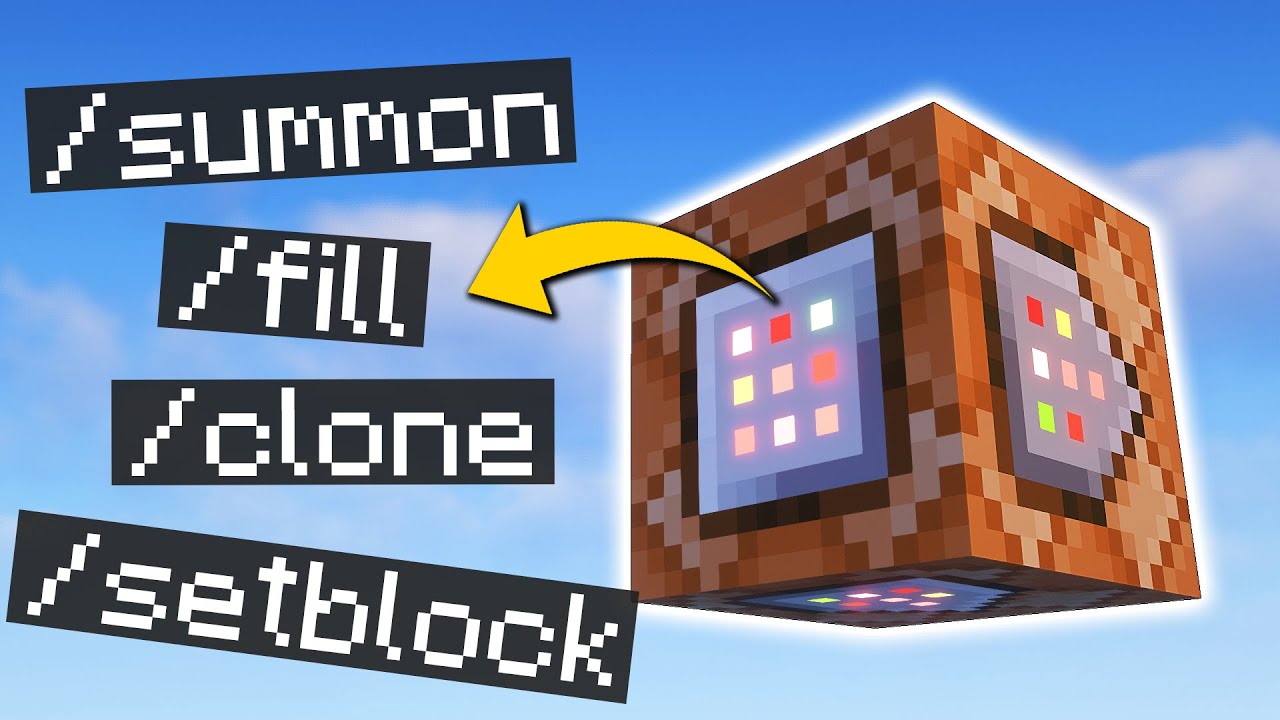
Thank you! Now let's dive into the setblock command. In its most basic form, setblock wants a set of coordinates followed by a block.
To find out which coordinates to use, we'll take a look at the debug screen. You've likely seen this screen before - it's activated by hitting the F3 button and shows all kinds of useful information. .
. and quite a lot of less useful information too, which makes it kind of hard to look at sometimes. Usually when you are playing you might look at your own coordinates - that is, the coordinates for the block you are in, which I've highlighted here.
When making command block systems, often it is more interesting to look at the information on the right-hand side - for the block you're aiming at, in this highlight. So in this case, we can take those coordinates and use them in our command to change the block into something else, like a gold block. The auto-complete function that we spoke of last time also comes in handy here.
If you're aiming at a block when typing in a setblock command, the coordinates of that block is what the game will suggest - so just hit tab to automatically enter them! Okay, so now we know how to change a block in the world to something else. We can take that command and place that in our repeating command block instead.
Let's set the block to always active and see what happens. Well the first thing that happens is that the block is now always a gold block. I can punch it out, but as you can see it gets immediately replaced by a gold block again, since our command is being run every tick.
The other thing that is immediately apparent is that even though we don't have a say command, chat is still being spammed. Why is that? The reason is that by default, commands output their result to chat, regardless of if they were run by a player or a command block.
This is sometimes helpful, but when we get into making these systems with commands that run every tick, not so much. Let me turn this command block off for a moment while we discuss what to do about this - I can do that by simply switching this repeating command block from Always Active mode to Needs Redstone Signal mode. Now that we have some peace and quiet in chat again, how do we deal with this?
The answer to that is what is known as a game rule. Game rules are simple settings that change how the game behaves in one way or another. Throughout this series we'll be learning about a number of game rules, but let's start with a single one today, one called commandBlockOutput.
This game rule is a simple on/off switch for command results ending up in chat, which is exactly what we wanted. To control gamerules we use another new command - type in /gamerule followed by the name of the game rule of interest, in this case commandBlockOutput. Remember that you can use the autocomplete function to find out the available options if you're curious about the other ones and want a sneak peek.
We can hit enter here to find out the current setting - it's currently on. Of course we knew that from being spammed already, but sometimes it can be useful to find out the state of game rules without changing them. In this case we do want to change it however, so let's add another argument to the command - /gamerule commandBlockOutput false.
The game rule is now off, and we can verify that by turning the repeating command block back on. We're no longer getting the chat spam, but if I punch the gold block we can easily verify that the commands are still running every tick. Infinite gold!
And that is certainly enough for this time. My name is slicedlime, thank you learning Minecraft Commands with me. Don't forget to get the companion map download and go through the exercises there to get some hands on practice with using commands.