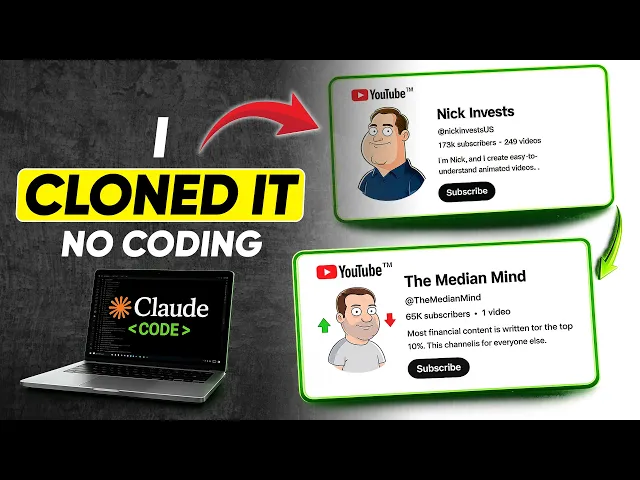
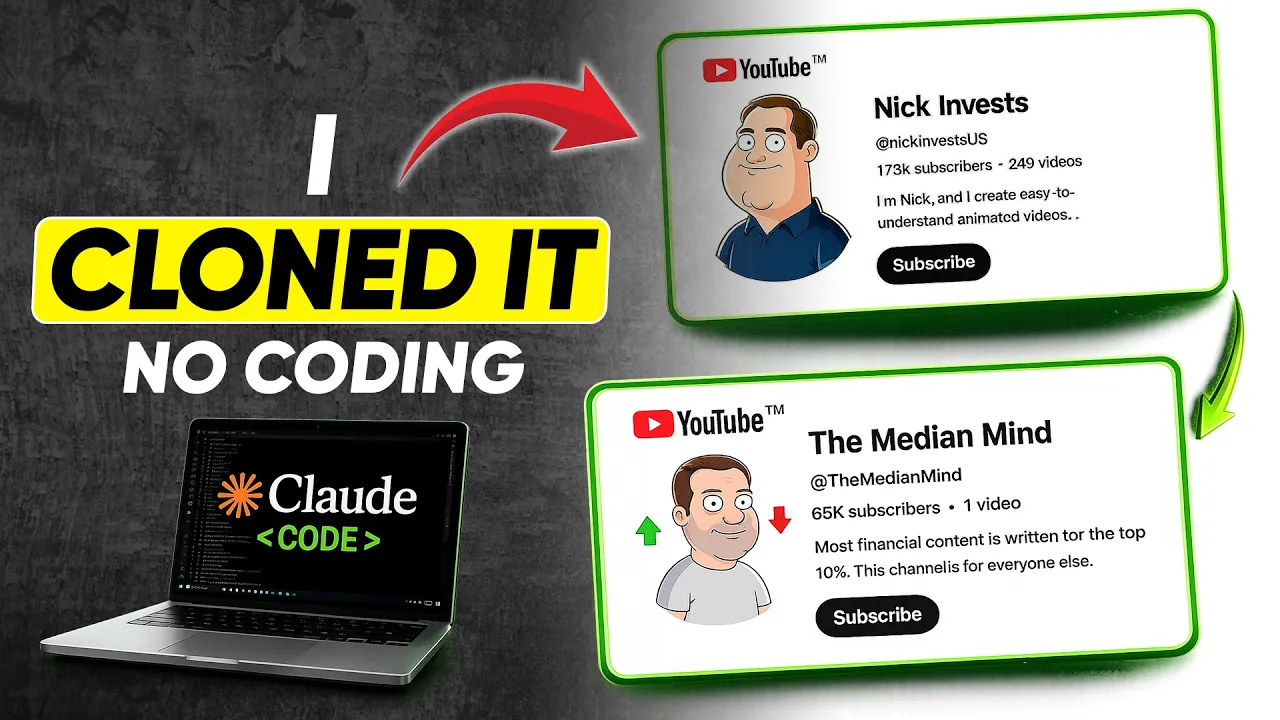
Now, you can clone literally any YouTube channel using a 100% free workflow and AI tools, whether it's documentary, history, 2D animation, true crime, or a high RPM finance channel like Nick Invest. In this video, I'll show you how I clone the Nick Invest channel using 100% free tools. Simply visit Claude AI.
You'll see an option called Claude Code, which is literally a gamecher. However, it's only available for paid users. But don't worry, we will clone this channel using the free plan.
Simply copy this YouTube channel cloning engine master prompt, paste it in Claude AI and execute the prompt. You can clearly see that we are on the free plan. Now, you just have to follow the steps Claude is providing.
There are a total of eight steps from reference to export. In the first step, it will ask you for reference channel information. It's simply asking for the channel URL that you want to clone so the Claude channel clone engine can analyze the channel properly.
Since we're going to clone the Nick Invest channel, simply copy the URL and paste it into Claude AI for a better analysis along with the channel URL. Go to the channel you want to copy. Then copy the channel description and all other important information from there and paste it into the Claude Code channel cloning engine.
Next, go to the video page and take a screenshot of it. Then paste that image into Claude AI as well. Once you provided all this reference information, simply hit send to execute.
You can see it has analyzed all the provided information and first gave us a surface level breakdown. This channel has 173,000 subscribers, 246 videos published so far and 15 million plus views since January 2025. The channel features whiteboard animated personal finance content with an audience of people looking to grow wealth, escape debt, or build passive income.
The language is simple, jargonfree, and follows an entertainment first approach. Now, our channel clone engine moves to step two where it will do a deeper analysis and decode the channel niche in depth. For that, it's asking us to provide two to five full video transcripts in a specific format.
Simply go to the channel and start with a recent video that exploded in views. I think this one crossed 87,000 views in just 13 days. Open the video, copy the video title, and paste it into Clawed AI.
Then expand the video description and click the show transcript option. If you see timestamps, click the three dots and select toggle timestamps to remove them. Then copy the complete transcript and paste it into Claude AI.
Do the same for the second video. Go to the popular videos tab. Open the most popular one.
Copy its title. Paste it in Claude AI. Then copy and paste its transcript as well.
Repeat this for the third video. Open the second most popular video. Copy the title and transcript and paste both into Claude AI.
Now, three video references are good for an in-depth analysis, but I want even more accurate results. So, let's add a fourth video, too. Go back to the popular videos tab, open the third most popular video, copy its title and transcript, and paste them into Claude AI as well.
Then, finally, hit send. Claude AAI will now generate the channel intelligence profile for Nick Invest. It will cover niche and content category, personal finance education with a psychological and emotional lens, target audience profile, yam including age group, income profile, life stage, writing style, hook structure, script flow and narration rhythm, average word count, topic and format patterns, channel growth angle, how Nick Invest grew to 173,000 subscribers and 15 million plus views in just 16 months.
After the in-depth analysis, it provided us with 10 channel name suggestions for creating a similar channel. All these names are really amazing. But before you finalize any name, first make sure the exact username is available.
To check this, simply copy the channel name, type youtube. com/ in the address bar, paste the channel name, remove any spaces, and hit enter. If it redirects to an existing channel, that username is already taken.
Skip it and check the next one. But if you get a message saying the page isn't available, that means the username is free and no one is using it yet. In our case, the median mind is available.
So, we'll go ahead with that. Once you finalize the channel name, enter the number and the name. It will then provide you the complete data for cloning the Nick Invest channel, including the channel description and channel tags.
Simply reply with confirmed. Then in step five, it will perform a visual style analysis to help create the profile picture and channel banner. To do this, open any popular video from the channel you want to clone.
Copy a frame from the video and paste it into Claude AI. Do the same for three to five frames from different parts of the same video. It will then analyze and provide a complete visual style profile of the Nick Invest channel covering art style, color palette, lighting style, camera composition, character design, and overall aesthetic signature.
Once the visual style is locked, the channel cloning engine will generate a text to image prompt for both the profile picture and the channel banner. And we're doing this for free, too. Simply copy the prompt for the channel profile picture.
Then go to flow. google Google to access Google Flow. Open a new project and yes, Google Flow is a 100% free AI image generator.
Make sure the image option is selected. Set the aspect ratio to 1 one for the profile picture. Paste the prompt and hit send.
And just like that, your profile picture is ready. Now, copy the channel banner prompt, paste it into Google Flow, switch the aspect ratio to 16 to9, and hit send. There's your banner.
Next, reply with confirm and it will move to step seven, thumbnail analysis. Simply upload two to three thumbnails from the channel you're cloning and hit send. It will provide a complete thumbnail style guide covering text placement, font style, color scheme, subject, background, composition, and the emotional hook.
With that, your thumbnail style is locked. Now, if you want to export the full channel cloning guide, simply reply with yes, and here it is. Um, you can easily download it to reference later.
Now, using all this data, here's how you actually set up the channel. Step one, create the channel using the channel name, username, and profile picture. Then go to YouTube Studio and add your channel banner, channel description, and business email for the channel watermark.
While many people use their logo, if you want to grow subscribers faster, use the bell icon instead. I've linked it in the description below. Once done, publish the updates.
Next, go to settings and set your country to USA. Enter the channel tags provided by Claude AI. Then, under advanced settings, check the box.
Do not show potentially inappropriate words. Next, verify your phone number and complete the video verification to unlock advanced features. Then, under upload defaults, set visibility to unlisted, category to education, and change the video language to English, United States.
Do the same for the title and description language. Finally, under community moderation, enable the option hold comments with hashtags and URLs for review. And just like that, you've successfully cloned a channel in just a matter of minutes.
Um, but this is only part one. Setting up the channel is not enough on its own. Now, we need to actually create and publish videos that go viral.
Um, and we're doing that with 100% free AI tools, too. But before I get into that, if you're finding this valuable, uh, please hit the like button and subscribe to support the work. It genuinely helps a lot.
Now, cloning the channel is a one-time process. Um, you only have to do it once, but for creating viral videos, you'll need to follow these upcoming steps every single time you want to publish a new video. So, watch this part carefully.
First, open a new chat in Claude AI. I've created this the YouTube faceless video generation engine master prompt. paste it into Claude AI and it will ask you to paste the channel intelligence profile we generated earlier.
Along with that, copy three to five viral video titles and their full transcripts just like we did before. It will again provide information like niche and content category, target audience profile, and word count for each script. We've already covered all of that, so simply type confirmed.
This time it will generate 25 topic ideas for your new channel that have serious viral potential. Pick a topic you connect with. I'd suggest choosing from the milestone threshold format category.
I'm going with the fourth idea. It will then generate a topic intelligence report covering the niche category, target viewer profile, hook strategy, script structure map, retention techniques to apply, and estimated video length. Type confirmed again.
And this is where the magic happens. This video generation engine will produce a complete readytouse video script. Honestly, I was blown away by this.
The script comes in at 3,500 plus words, which is outstanding for watchtime and monetization. Go through it, make any changes you'd like. And once you're happy with it, copy the script and save it in a notepad file.
Then type approved to move to the next step where we'll provide the visual reference information. But before that, let's generate the voice over. and and yes, 100% free.
Go to Google AI Studio and open the texttospech feature. Select the Algenib voice as it works really well for finance content. Uh now, here's an important tip for a natural and engaging voice over.
Don't paste the entire script at once. Copy only two to three paragraphs at a time and paste them into Google AI Studio. Then hit run to generate the audio.
Once it's done, download that clip. Repeat this for the next two to three paragraphs and keep going until you have voice over for the entire script. Now let's move to the visual analysis.
Copy three to five frames from the same video we used during channel cloning and paste them into Claude AI. It will create a complete visual style profile um just like before um covering art style, color palette, lighting style, camera composition, character and and subject design and the overall aesthetic signature. Once you have the full visual profile type confirmed and the video generation engine will produce text image prompts for every single scene, each paired with the corresponding script line as a visual reference.
Now we need to generate scene images for all 127 scenes and again completely free. Copy the prompt for scene one. Go to Google Flow.
Uh make sure the image option is selected with a 16-9 aspect ratio and choose Nano Banana Pro as the image model. Paste the prompt and your first scene image is generated. You can repeat this for every scene the same way.
Uh but honestly doing it one by one for 127 scenes will take a huge amount of time and effort. So, I'd strongly recommend using the bulk image generation method instead, which is also 100% free. Uh, not a single penny needed.
To set that up, copy and paste all the scene prompts into a notepad file and make sure to add a line break between every prompt. This is important and will be required for the bulk generation process in the next step. Once all the prompts are saved in a single file with a line break after each one, go to Google and search for VO automation Chrome extension.
Visit the link and once you're on the extension page, make sure it's from the exact developer shown here. If the developer name is different, it won't work. Install the extension and pin it.
Then go to Google Flow, open a new project, and launch the extension. Now do these exact settings. Set mode to text to image.
Concurrent prompts one. Random delay 25 to 40 seconds. Output per prompt one.
Set your output folder. Then go to settings and set default mode to text to image. Set image model to Nano Banana Pro.
Set max retries on failure to two. Hit save. Um, go back to controls.
Paste all your prompts into the prompt box and make sure the numbers at the start match the scene numbers. Then hit run. And the magic begins.
It will generate and download all scene images to your output folder one by one. Just make sure the screen stays active the entire time. Don't close the browser or switch tabs.
Within a few minutes, all 127 scene images will be generated and downloaded automatically. Now, go back to your Clawed AI video generation engine and reply with continue. It will ask whether you want to use static images or animated motion in your video.
This is something really important I want to highlight. If you simply create a slideshow using these images, your content will be flagged as loweffort and inauthentic and your channel will not get monetized. So we are going to animate these images and again completely free.
Reply with animated motion and it will generate imagetovideo prompts for all the scenes. Now let's generate the actual video clips for each scene 100% free. Copy the imagetovideo prompt for scene one.
Then go to Meta AI, which is a fantastic free AI video generator, perfect for this type of content. Click the create option in the left sidebar. Upload the image for scene one.
Paste the prompt and hit send. Within seconds, your scene 1 video is ready. You can repeat this manually for every scene, but honestly, doing that for all 127 scenes will take forever.
So, I'd highly recommend automating the whole thing. Search for Meta AI Automation Chrome extension on Google. Go to the Chrome extension page.
Uh verify it's from the exact developer shown here. Install it and pin it. Then go to Meta AI and launch the extension.
Quick heads up. At the time I'm recording this, this extension is completely free. So, make sure you take advantage of it before it potentially goes paid.
Now, do these exact settings for the automation to work perfectly. Um, under controls, mode, frame to video, concurrent prompts, one, random delay, 10 to 25 seconds, output per prompt, one, set your output folder under settings, default mode, frame to video, max retries on failure. Two, click download settings.
This step is critical. Make sure ask to download is turned off. Hit save.
Go back to controls and upload all scene images in sequence from scene one to the last scene. Once uploaded, verify that every image is in the correct order. You know, this is important.
Next, copy all the imagetovideo prompts into a single file with one line break between each prompt. Just like we did for the images earlier, paste all the prompts into the extension prompt box. And before hitting run, double check that the image numbers, prompt numbers, and scene numbers all match up perfectly.
Then hit send and it will convert every single image into a video scene and automatically download them all to your output folder. Again, keep the screen active. Don't close the browser and don't switch tabs until everything is done.
And there we go. All videos generated and downloaded successfully. Now comes the editing.
And trust me, this part is surprisingly simple. Uh but it is extremely important. Import all your voice over parts and drag them onto the timeline.
Then import all your video clips and drag them to the timeline as well. All you need to do now is sync the voice over with the video scenes. Use the script lines from the Claude AI video generation engine as your reference while syncing each scene with the audio.
Once everything is synced, preview the full video before exporting. Picture this. You're sitting at your kitchen table, laptop open, and you're looking at a confirmation screen.
Payment received. Balance 0. 00.
000. You've been imagining this moment for 2 years, maybe three. The full 17-minute video is linked in the description if you want to watch the complete result.
When you're happy, go ahead and export it. Now, we need viral metadata to give this video the best possible chance of blowing up. Go back to the Clawed AI video generation engine and reply with continue.
It will generate a viral video title, an SEO optimized video description and video tags. Reply with confirmed and it will ask for thumbnail style confirmation. Upload three to five thumbnails from the Nick Invest channel and hit send.
It will create a complete thumbnail style profile covering text placement, color scheme, subject and character positioning, background composition, and the emotional hook. Finally, it will give you five different text to image prompts for generating thumbnails for this video. Copy the first prompt.
Head over to Google Flow and generate your first thumbnail. Use the remaining prompts to create the other four options. And just like that, all five thumbnails are ready.
Upload your video using all the metadata generated by Claude AI. Attach your best thumbnail and publish it. One last thing before you go.
Your first video may not go viral immediately, and that's completely normal. What matters is consistency. Make sure you publish your next video within three to four days and trust the process.
It will gain traction. If you've watched all the way till here, please hit the like button and subscribe to support this work. Drp your feedback in the comments below.
I genuinely read every single one. Both master prompts used in this workflow are linked in the description and pinned comment below. And if you want to set up a high RPM, low competition Australia channel, you absolutely cannot miss the video linked above.