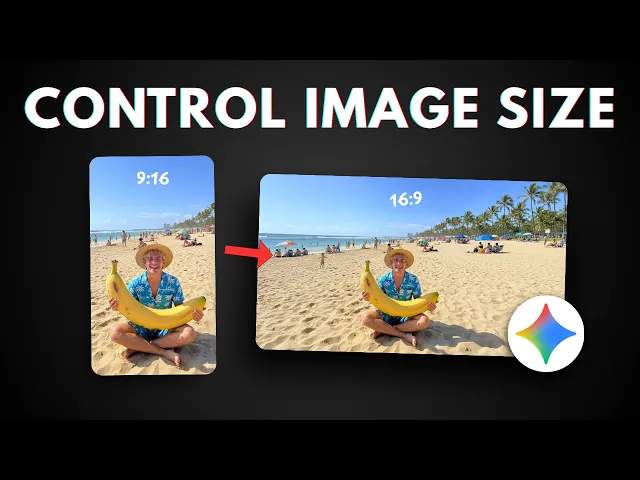
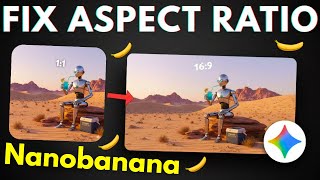
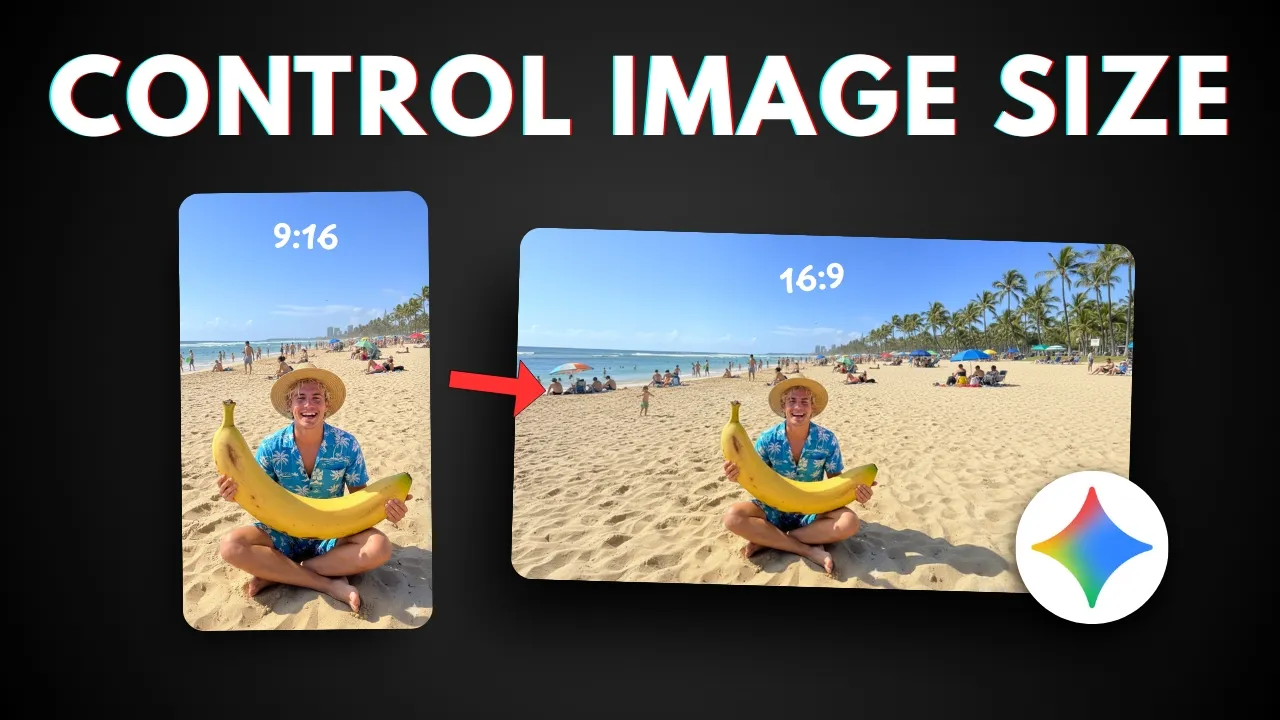
So, there is a known issue when you're creating or editing a picture with Gemini 2. 5 plus image preview, also known as Gemini Banana. Essentially, it is difficult or maybe impossible to get the correct aspect ratio that is based on your chrome.
Like in this example, I want to get a 16x9 aspect ratio and yet the picture is square. It should be a horizontal picture. How about this one?
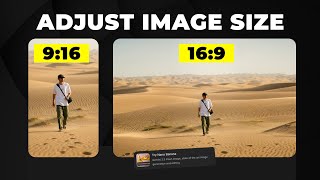
I just provided a vertical picture and I want to add a hat uh into the cat and also I want to turn the picture to be a horizontal aspect ratio and yet the final picture is still a vertical picture. So this is a known problem with the Gemini not the banana and there is apparently no way you can fix this problem and also what I find to be hilarious is this answer from Google help community which is official and basically there is a person having this problem and this is the answer which I find to be embarrassing and hilarious. So it says, "Hi there and I understand your concern.
To guide Gemini towards a specific tone, you should include explicit instructions within the prompt. " [music] Yeah, that is a genu highlevel answer. That's just basically useless.
That's exactly the things that people have tried and it doesn't work and it's just giving you this useless answer. So not even Google knows how to fix this problem apparently. But there is actually a general fix on how you can create a picture or edit a picture with a specific aspect ratio.
And the way to do that is basically to provide a blank picture. Let's say you want to get a 16x9 aspect ratio picture. You have to create a blank or empty picture with 16x9 aspect ratio and then use that to reference or to guide Gemini about the aspect ratio that it needs to produce.
So it is actually quite a reliable way to get a correct aspect ratio. But the problem is that you have to create multiple different pictures with depending on the aspect ratios that you want to get. So you have to use Photoshop or maybe some other third party tool to be able to create those blank pictures.
But actually there is a simple way to get uh that kind of file using Gemini AI. And here's how you can do that. So let's go to Gemini first and basically we want to create an app that can produce some blank pictures based on any aspect ratio.
So this is the prompt that you can use and don't worry I'm going to provide the prompt in the video description down below. It's a very long prompt because again we want to create an app. So click tools click create sorry click canvas and just send the message.
Now depending on uh what or when you're watching this video it could be there could be a different version of Gemini and therefore the app mic look a bit different but basically it should be still serving the same purpose which is allowing you to create some transparent PNG pictures with blank content but you can specify the aspect ratio. So I'm going to wait for a bit. It should be able to create the tool any second now.
It is actually quite a simple tool and there you go. So the tool has been created and it look like this. Again the interface or the UI could be different but more or less the function is the same.
So here I can select the aspect ratio like 1:1, 4x3, 3x2, uh 16x9 and 21x9. But I can also manually select the aspect ratio. Now in this case I want to create a 16x9 aspect ratio picture.
So I'll select this option and then click download PNG. And as you can see, I have this file. There is essentially empty.
There is nothing here. It's just a fully transparent picture. There is no info about it except for the aspect ratio.
Now we are ready to use this file to guide Gemini Nano Banana. So let's go to Gemini again and I will try to edit this picture. Sorry to create this picture again, which is a photo realistic picture of a frog riding a train in the 1950s.
I'm going to copy it. Now I'm going to paste that into this and I'm going to upload that transparent story that blank picture. It is actually transparent.
I'm going to click it. Click open. So it's just nothing there.
There's no info about it. And this is the extra instruction that you must provide when creating a picture. Don't worry.
I'm going to provide you the guide on uh how you can edit a picture using this technique. Now click tools, click create images and send the message. So you will see that it is not creating a vertical or square picture anymore.
It is going to be a 16x9 or horizontal aspect ratio picture. So I'll wait. Still generating the image.
It should be done any second now. Okay, there you go. So the picture is definitely not square, not vertical.
It is actually horizontal. Although there is this black bar but it's easy to fix and you can also just redo the process and maybe the next iteration will give you a complete picture but overall it is not uh it is following the pro it is following the instruction the instruction which is creating the picture based on the aspect ratio that we provided. Now how about editing a picture?
So, it's actually quite simple. And I will try edit this picture again, the cat, and I'm going to add a red hat to the cat. So, I'm going to go back to Gemini.
I'm going to upload this picture. And now, I guess I have to download Oh, sorry. I still have that transparent file.
Sorry about that. I still have that blank transparent file. Okay.
And I don't have to, you know, download another file. Now, I'm going to click this again. upload files and then select that transparent picture, the blank picture.
And this is the prompt that I will use. Make the cat wear a red hat. Just this prompt and paste that.
And this is this the extra instruction that I'm going to provide to [music] Gemini. And don't worry, all the prompts should be available in the video description down below, including the prompt to create the uh PNG picture generator. So, this is the prompt.
Use the second picture as the reference for final aspect ratio and fill the area that wasn't shown in the original picture. Click tools, click create images, and send the message. So uh it's basically you can specify it could be a second, third, fourth or maybe the first picture depending on the order when you are uploading the picture to edit the picture.
So in this case the second picture was actually the transparent picture and that's why I said it is the second picture. Okay, just wait and there you go. So this is not a crop picture.
It's actually the details that are created by Gemini because again the original picture sorry uh the original picture look like this. And yeah it is vertical and now we have a horizontal picture. So that's basically how you can fix Gemini not banana unable to create a picture based on the specified aspect ratio.
Again all the prompts should be available in the video description down below. Thank you so much for watching and I'll see you on my next video. Have a great day.