hi welcome to give a cat the most simple and affordable self-hosted EHR solution for clinics and private practices in today's video we are going to see the amazing feature of telemed in kvk the first thing is you get two different options that is Google meet and zoom for this services and the most amazing part about this is you can directly use it in the core version of KV care instead of buying the pro so if you don't know what is pro and core then you can check out our previous videos and understand the heavy cap
better and this add-ons doesn't work simultaneously so you can choose one of them and use it directly in your website let's begin the video with taking an appointment for the tenement service the process is just similar like normal appointment so we'll choose the clinic first then in the doctor section the difference will be seen is the doctor will have this video call icon so you can understand this doctor is giving the telemed service so I will select that doctor and then in the service section you will select the telemet service that the doctor is giving
there can be many more services or the normal services so you have to select element one and you will go ahead and all the rest of the things are just similar so we'll just fastly skip that process and we will now go to the doctors tab where you can see we have the appointment calendar in which you can see we have this telemed appointment and going in that you will see we have this meeting link which you can directly copy if you are a doctor and use it whenever you want to so that is also
that then going back and then we will go into the appointment where you can see our appointment has been booked and you also have this check-in option this can also be done by the receptionist but right now we are more focusing on the telemed things so I will just do it from here and you can see after checking the doctor will get this button to starting from here and whenever the meeting is scheduled you can just click on that start now going into the patient module you can see in the appointment tab the patient will
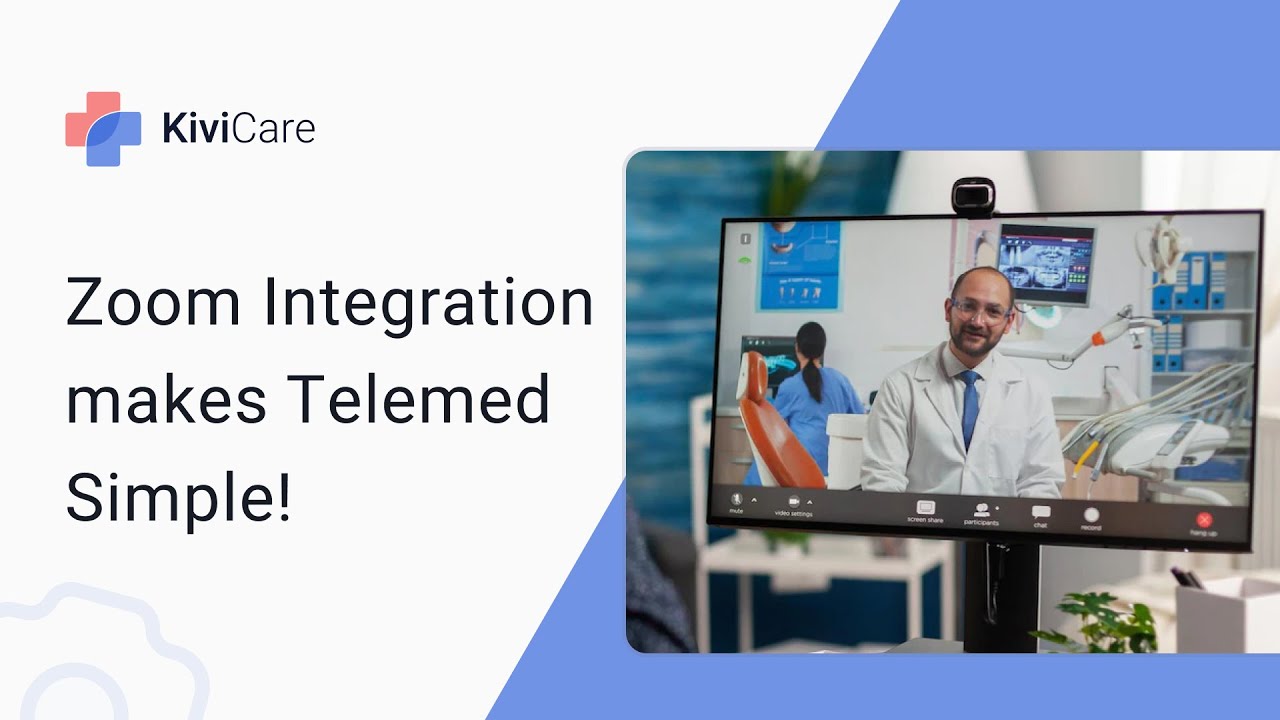
have this join button so whenever the meeting is scheduled the patient can just click on join button and it will direct them so from the doctor tab we will just click on this start and this will direct you to the zoom where you will launch the meeting and wait for the patient to join now in the patient tab we can see we have the join button so we'll click on that and it will take you to the zoom and from that you can connect to your doctor and start this service in between this Consulting the
doctor will get take all the encounters and know they need and the prescription just like the normal appointment so if you don't know how to add a prescription or encounter you can check out our previous video and I'm just keeping it right now so after the Consulting is completed the doctor will close the encounter and check out the patient so this is how a telement appointment works it's just similar like the normal appointment the difference is you are on a video call this was the zoomed animate Google meet is just similar to this there are
some difference in the setup of both of them so we'll just see them now so starting with the zoomed element setup we are on the admin page of kiwi cat where in the plugins you can see we have the core plugin of cubic air and the pro so now we will click on add new plugin and we will select our ZIP file and we will just drag it here and install now then you will activate the plugin and you can see our zoomed element plugin is added in here now let's move to the doctor tab
where you can add a telemed service for your new doctor all the existing ones so we'll see with the new doctor so you can just add on it and you can fill up the information and going below you can see we have this telement option you can just turn it on and there you need the API key and API secret for starting download option if you don't know how you generate them we have added this guide next to it you can just follow it or we will also have a playlist video where you can go
and check it out how to generate this key I already have them so I will just add them fast and then you will add a consulting fee in it and you can click on Save and our doctor will be added and for the existing doctor the process is same and you can just turn on the element and that doctor will also have that service and that's how a zoom setup works it's so easy so now we'll see how to add the Google made add-on so we will just click on add new and drag this ZIP
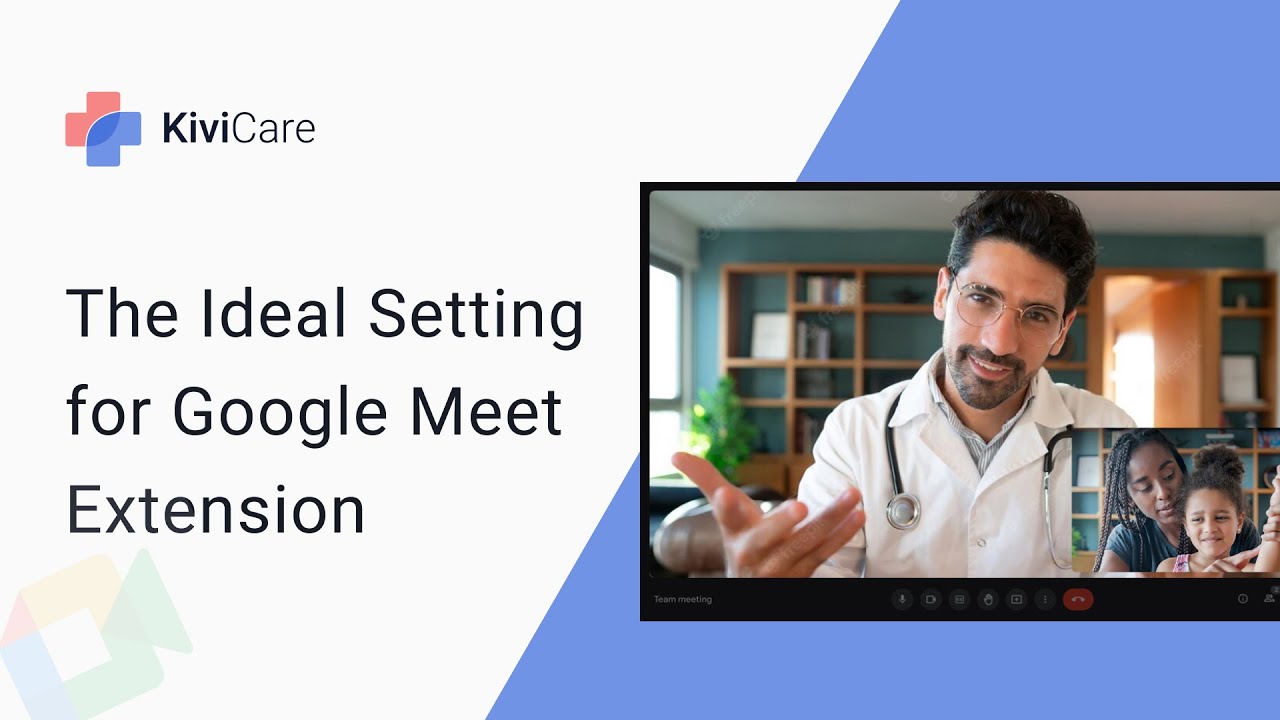
file of Google meet here and install now then we will activate that plugin and you can see our plugin has been activated here now I will go into a main admin dashboard in the zoomed element we visited the doctor tab but this time for the Google Map have to go into the settings so in the settings you can see we have this Google made option where you will click on it and just enable that Google mid option when you enable it you have to give the client ID client secret and app name so if you
don't know how to generate them we have this guide given next to it or you can just have the video in the playlist you can just check out how to generate I already have them so I will just quickly give them the data and click on Save below that you also Google with event template whenever patient books a telemed meeting with the Google mid they will get the reminder using this event template so you can also change it if you want and save it too and this is not the and for the Google mid there
is one more step in Google made that you have to follow to start the telemet service in qvcare so we'll go into the doctors Tab and in this heading we have Google mid integration so the doctor has to integrate their Google account with that cleaning so you can just click on this button and add your email ID and how do Google meet services so this is how you can have the telemet service in kvk your patient can easily book an appointment for the telemet service either it's Zoom or Google with it can work effortlessly so
launch your digital Clinic with kiwi cam


![I Replaced ALL my ADOBE APPS with these [free or cheaper] Alternatives!](https://img.youtube.com/vi/5EfqHg49kMk/maxresdefault.jpg)