Hey everyone, welcome back to the channel. In today's video, I'm going to show you how to fix audio message not working on your iPhone. So, let's dive right in!
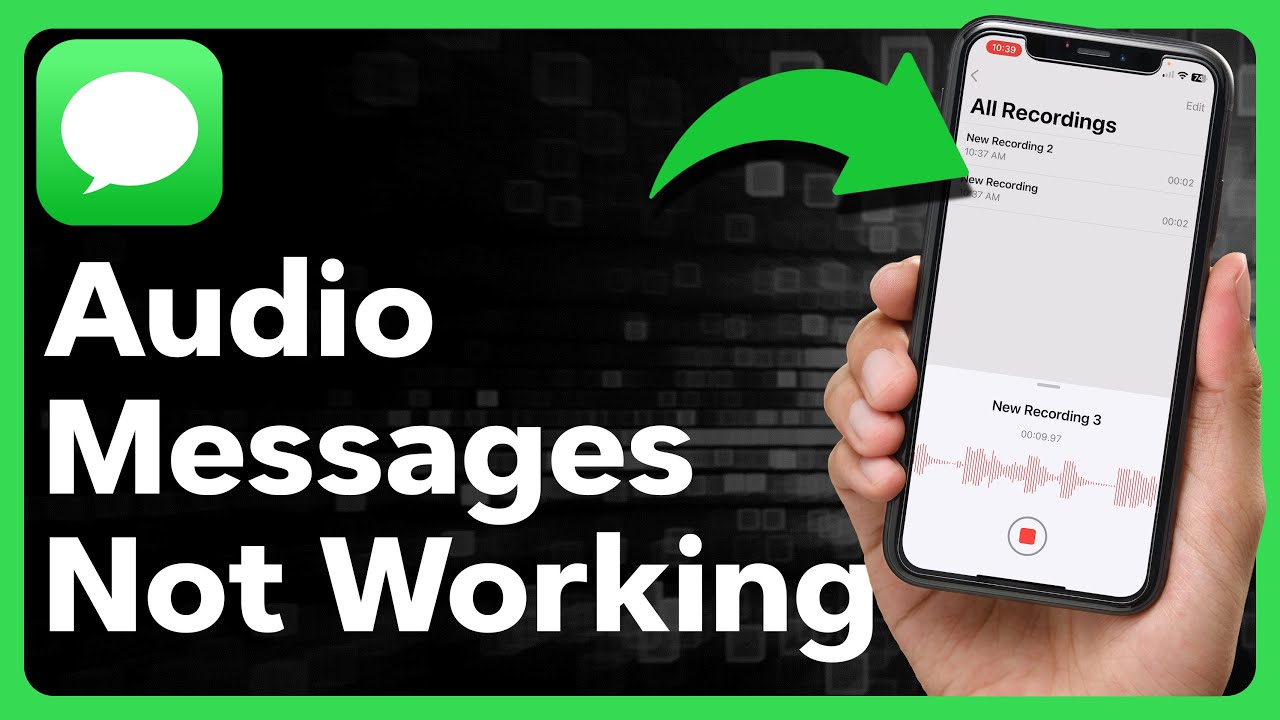
But before that, let's test the audio message feature. First, open the Message app. Here, I'm texting myself as an example.
Now, under the blinking cursor, tap the plus icon and then tap "Audio. " This will start recording your voice. Once you're done, simply tap "Pause" and then "Send.
" If everything works, the audio message should send and transcribe automatically. But if it's not working—whether it doesn't send or nothing happens when you tap—then it's time to troubleshoot. Step one is to check iMessage settings.
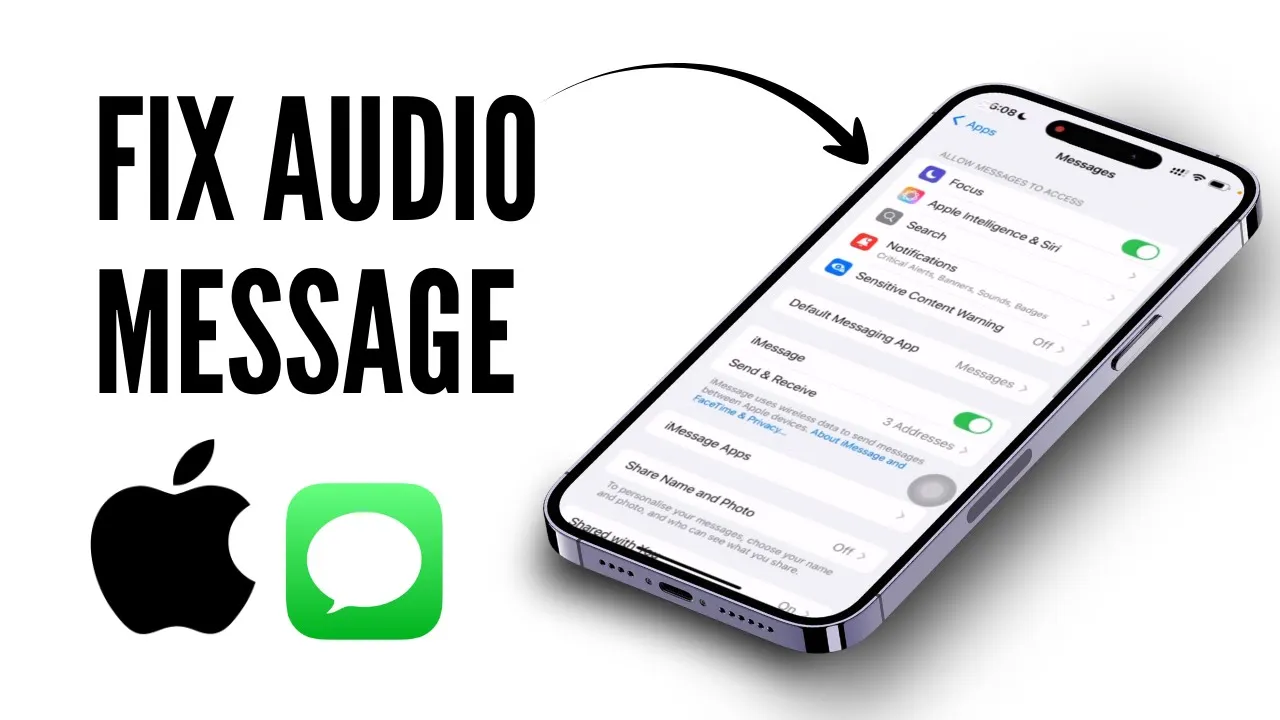
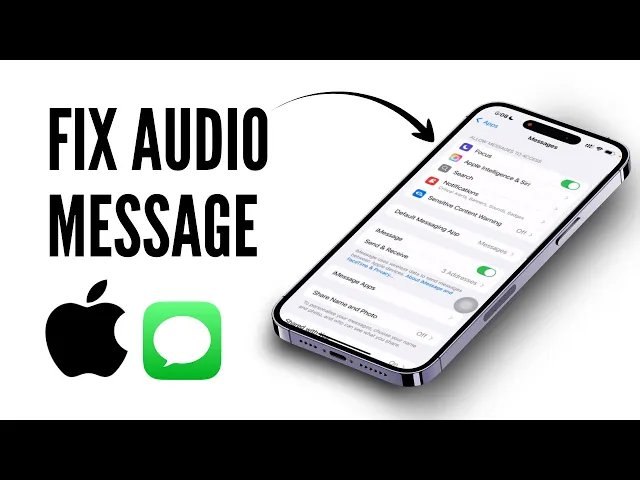
To do that, simply start by opening the Settings app. From there, scroll down and tap on "Apps. " In this section, scroll down and tap on "Messages.
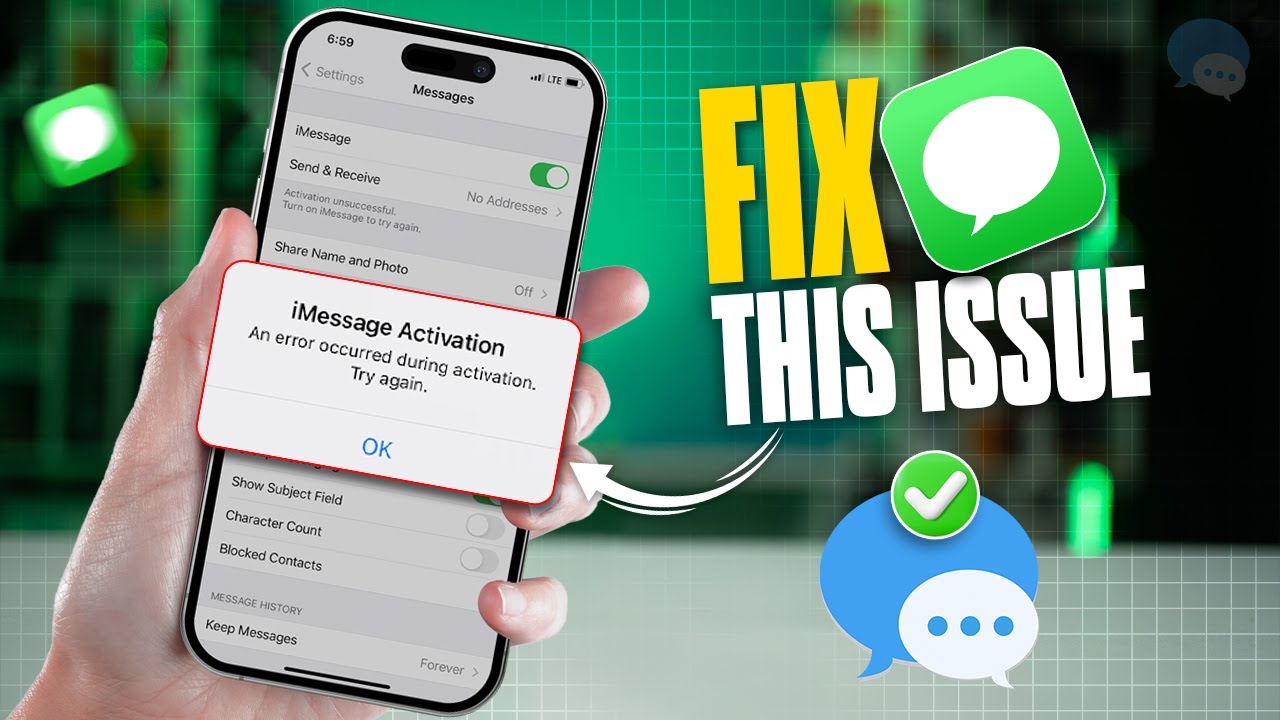
" Here, you will see the iMessage toggle. Simply turn it off, wait for a few seconds, and turn it back on. You will see it say "Waiting for Activation.
" This step reactivates iMessage, which is required for audio messages to work. Keep in mind that audio messages only work with iMessage. If the recipient has an Android, these features won't work.
With this, let's head to step two, which is to disable Sound Recognition. To do that, go back to the Settings app. Tap on "Accessibility.
" From there, scroll down and tap on "Sound Recognition. " If this feature is enabled, it might interfere with your ability to send audio messages. Sound Recognition is actively listening for sounds, so if you don't need it, just toggle it off.
By toggling it off, you will be disabling this feature. Now, moving forward to step three, which is to update your iOS. To do this, go back to the Settings app.
Tap on "General. " Once you are here, tap on the "Software Update" option. Make sure your iPhone is running the latest iOS version.
Sometimes, older versions can have bugs that impact features like audio messages. Updating to the latest version often fixes these glitches. For example, I'm currently running iOS 18.
3. With this, let's head to step four, which is to reset all the settings. If the issue persists, it's time to reset all settings.
To do that, go to "General. " Scroll down and tap on "Transfer or Reset iPhone. " In this section, tap on the "Reset" option.
From the popup menu that appears, tap on "Reset All Settings. " You don't have to worry—this won't delete your photos, messages, or apps. It just resets your settings to the factory defaults.
This can often resolve stubborn glitches. With this, let's head to the final step, which is to restart your phone. Finally, one of the simplest fixes is to restart your phone.
Press and hold the power button, then swipe down to shut down. Alternatively, you can tap on "Shut Down" under the General section. After that, restarting your iPhone will clear all the temporary bugs and can resolve issues you didn’t even know were there.
That's it! These steps should help you fix audio message not working on your iPhone. If you found this video helpful, don't forget to like, share, and subscribe to get updates on more videos.
Thanks for watching, and I'll see you in the next video.



![How To Fix Not Delivered Messages/Texts on iPhone! [2024]](https://img.youtube.com/vi/vNlWeZdll-0/maxresdefault.jpg)