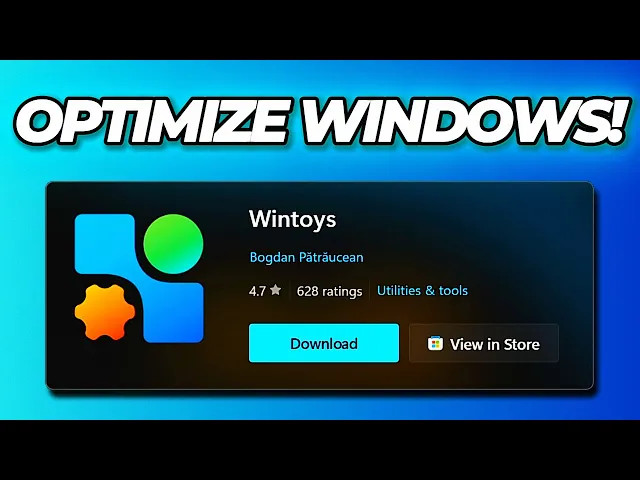
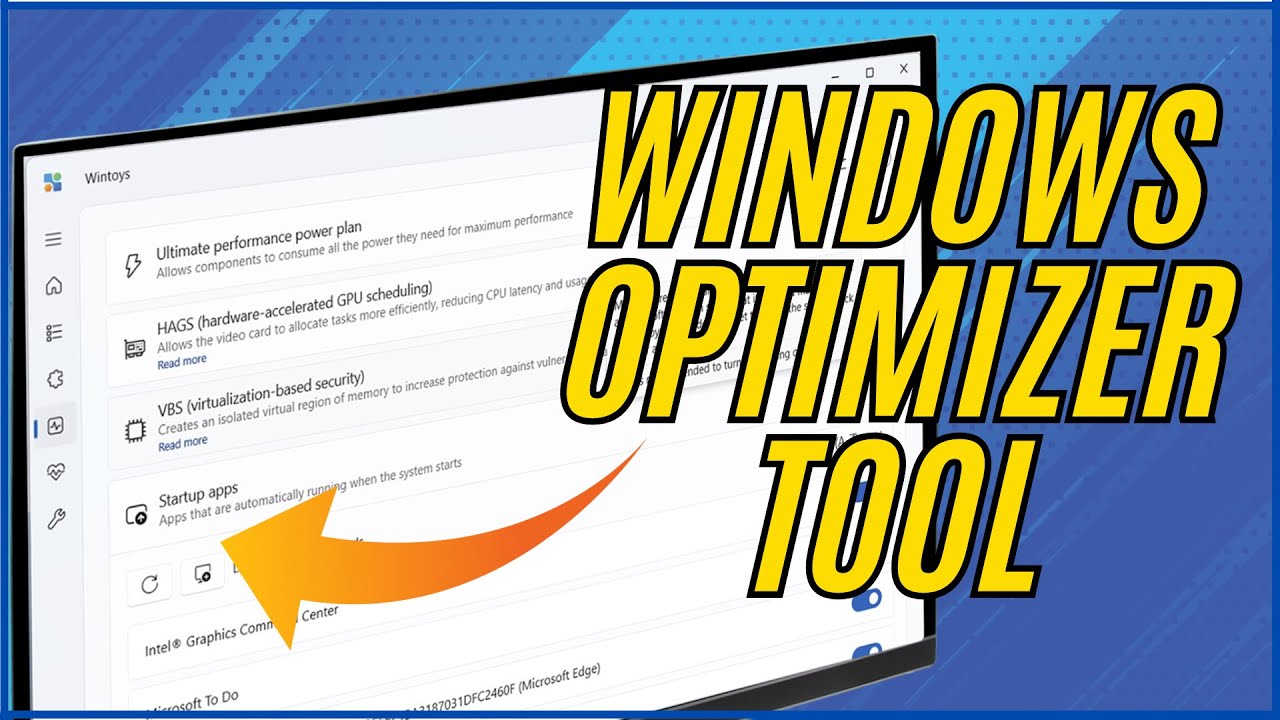
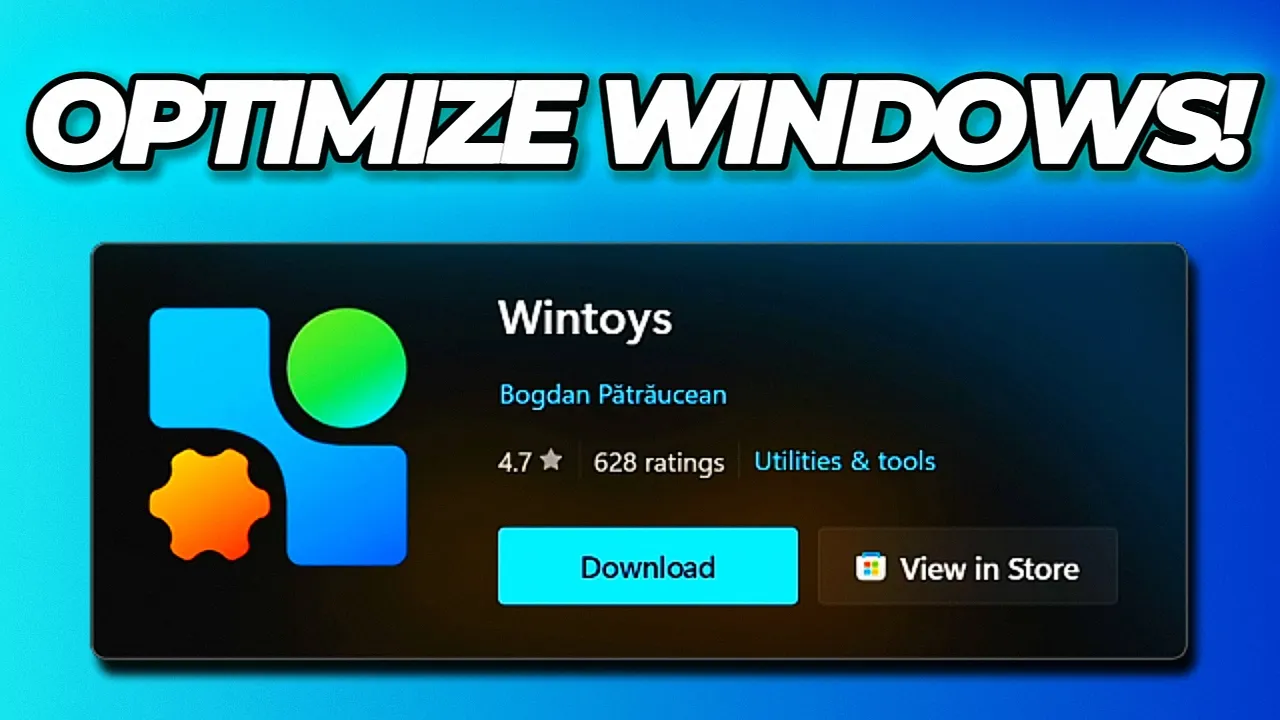
Today we're going to be having a look at a software called Wintoys, which is another program that basically helps you optimize windows and customize windows to some regard. And you can find it on the Microsoft Store. And the official description of this app is to experience windows in a way to keep it fresh every day.
It helps you set up, de-bloat, optimize, repair and tweak your operating system in a simple time saving and yet safe approach. And it helps you to maintain it while having everything you need in one place. And it also has quite good reviews.
So we're going to go ahead and download it from the official Microsoft App Store here, which will download the Wintoys installer. But you can also download it from the Microsoft Store if you want. But I'm going to be using this Wintoys installer here.
And then we're going to go ahead and let it download and install. And then it's also automatically going to launch on the system. So first off, we're going to see an hello message.
It says that we can uninstall any app with this program, even apps that don't have an uninstall option in Windows. We're going to see if we can remove Microsoft Edge. It helps us boost our PC.
It speeds up Windows and increases frame rates in certain games, keeps Windows clean and free up storage space, and it lets us personalize the desktop and learn cool new features. And then it also says that we need to create a system restore point before we make any changes to the device. So first off on this home page here, we can see all of our system specs.
It also gives us a performance score for our system. And then we can see some utilization here, like the processor, video card memory and the network bandwidth and all of that. If we go to the first tab here, which is apps, this is basically a list of apps that we can uninstall.
Let's see if we can uninstall Microsoft Edge. No, we do not have the option to uninstall Microsoft Edge. So it doesn't look like it's true that we can remove the other apps that you aren't able to remove with the built in uninstaller, but you can use this to uninstall apps from your system.
If we go to services, this is basically giving us a list of all of the running services. And this is the same info that you'll be getting in Task Manager. You click on the services tab down here.
You can also see a list of services that's running if you change the status to running. Now I'm guessing you can also stop and start the services. Here, which is quite nice.
And you can also filter the services by these different categories here. Next, let's go to performance and see what we can do here. So we can activate the ultimate performance power plan, which is useful for some people.
I also have it activated. I do recommend that you use it, especially if you're using a desktop. And if you click on this settings here, it's going to open the power options in control panel.
And you can see that I have ultimate performance enabled. And I also have these power settings here. You can also enable hardware accelerated GPU scheduling.
I don't have that enabled. I'm just going to leave it disabled as well, but it allows the video card to allocate tasks more efficiently and reduces CPU latency. Then you have a virtual based security, which basically uses memory to increase protection against vulnerabilities and malware or malicious exploits.
If you do have performance issues, you can go ahead and disable that and see if the performance issues goes away. But generally I do recommend keeping that enabled. Then startup apps.
We can expand this and easily toggle startup apps. I'm just going to uncheck the Microsoft PC manager. Then you have this option to relaunch apps, which automatically relaunches apps every time you sign back into windows.
I didn't like doing that. So I'm going to leave that disabled. You can disable background apps.
In windows 10 you had the slider where you can just disable all of those apps, but you don't have that in windows 11. Having it in this software here, I think is very cool because you can just toggle your background apps right here. Then activity history.
I always keep that off, but you can basically just change this in windows settings as well. You can change some windows UI related settings. You can automatically adjust visual effects for best performance.
Some people don't like doing this because it makes some stuff in windows look bad, but it basically sets these visual effects in windows. Then you can also toggle transparency effects here, which I do have enabled. Then we have some gaming settings.
I do have game mode enabled, but all of these others are turned off and you can set these according to your preferences. We've got search indexing and we've got delivery optimization, which I do recommend having switched off. And then you have the option here to offload some network functions from your CPU to the network adapters onboard processor.
This is disabled for me, so I'm not going to enable that, but that is an option. If you want to use that to basically take some strain off your CPU. Next, if we go to the health tab here, what other options do we have?
You can enable or disable fast startup and enable or disable hibernation. That is enabled for me by default I see. So I'm just going to leave that enabled.
You can enable drive optimization. Now, if you open the settings here, I'm pretty sure this is just the optimized drives window where it basically trims your SSDs. We've got this repair section and this is pretty cool because you have these three commands all here next to each other.
And this can really help repair a lot of issues you might have in windows because it runs this DISM command, the SFC command and check disk. And you need to select at least one tool before you can scan and repair your computer, but if you are having any sort of issues on your PC where stuff just isn't working properly or your taskbar is broken, the start menu doesn't want to open, Windows Explorer isn't working properly or your computer updated recently and things just isn't as it used to be, then I recommend checking all of these options here and then you can click on scan or repair. I'm not going to be doing that in this video because it does take quite a long time and you don't need to use Wintoys to run these commands.
You can do it in a normal PowerShell window by typing out the commands yourself, but this is just a very user friendly way of running those commands and getting your windows repaired. So keep that in mind for the future. Now, next you can do a memory diagnostic and this is going to use the Windows built in memory diagnostic tool that I don't really recommend using.
I've made another video on this channel showing you exactly how you can test your memory for errors and you can check the channel for that guide. It's much better and more comprehensive than using the memory diagnostic tool in Windows. Now, next you have this cleanup option here.
We can unpin all items from the taskbar. We can delete all junk files. We can clear the Microsoft store cache.
We can flush the DNS and then we can also delete all system restore points to free up some space. Now this is going to come down to personal preference. You can decide what you want to do.
I'm just going to delete all junk files, which will open this window here. And then we have some options here. I'm going to select all of them, which will delete temp files, windows updates, prefetch, and we can also delete the browser cache and I'll go ahead and click on delete and then you'll see these junk files were deleted.
Now I also made another video checking out the Microsoft PC manager, which basically does the same thing as this. And that's the only option I'm going to be using in this cleanup section here for the system updates. You can configure how updates work.
Now this installation that I have already just downloads and installs security updates, but this is also really easy just to change your windows update schedule from the default to security. And I see you also have the option of just checking for updates without installing them by setting this to manually, and you can completely disable windows updates. Now, obviously disabling windows updates will leave you vulnerable to some threats because you don't have the latest updates.
So I don't really recommend doing that, but you do have the option of choosing any one of these if you want to have more control over your windows updates. And in my opinion, this is a really cool feature, having control over your windows updates like this. Then you have the option to automatically download and install app updates.
I don't actually want that enabled. So I'm going to disable that. Then you have this sleeping pill option where it can detect and stop scheduled tasks from randomly waking up your device from sleep.
I don't really have any option there. So I'm just going to leave that. You can restart your graphics driver if it has weird issues.
I'm thinking it's best just to restart your entire computer in that case, but if you do constantly have weird issues like freezing or flickering, I recommend just testing your graphics card to see if it might be faulty. I have another video on this channel showing you how you can test your graphics card and get the latest graphics driver installed and all of that. And I recommend checking out the channel for that video.
And I might even link it down in the description of this video because you really shouldn't be having constant issues like freezing or flickering. That just means something is wrong on your computer and especially with your graphics card. And then lastly, you have the option here to rebuild the cache of your icons or thumbnails.
If they're blank, blurry or corrupted. I don't have that issue. So let's just go ahead and check out the tweaks section, which is the last section here.
So we've got this desktop section where we can change desktop related settings. So for example, we can put this PC icon on the desktop and you'll just have to right click and then refresh and then you'll have this PC icon on the desktop. So this is pretty cool.
You can add any one of these icons to your desktop really easily. Then you also have the option of showing the shortcut arrow. I have that enabled by default, which is the default in windows, but you can disable that if you want.
You can enable drop shadows for icon labels. You can enable this show desktop button here, which you normally have at your taskbar. I have start all back installed on my computer, so it already replaces the shell.
We've got this wallpaper quality setting, which is set to 85. I'm going to set that to a hundred and it says we need to reapply the wallpaper after a device restart. So I'm not going to be doing that in this video.
Now you also have the option of enabling the classic context menu, which is the classic right click menu in windows. Now, like I mentioned, I'm using StartAllBack, but for a right click menu replacement, I recommend using SHELL by Nilesoft and I already have a video on that and I'll link the playlist of all of the shell replacement videos I made in the description of this video. So you can go ahead and check those out because there really are a lot of great free programs out there that you can use to customize windows 11 and to make it a lot better.
So I recommend going ahead and checking out that playlist, but let's have a look at some of the other options here for the start menu. We can toggle all of these settings here, which is disabled for me by default anyway. Then for the file explorer settings, we also have some different options that we can choose from here.
Something I always like having enabled is to show file extensions. This is really beneficial to see what file types you have and what you're working with. You can toggle showing hidden files here, and then you also have a whole bunch of other options.
Another one is opening your file explorer to this PC home or downloads. Now I think this PC is the best and I'll leave that selected. Lastly, we have the privacy settings here.
Now I think this is really cool because you have access to all of these privacy settings under one tab here. And that's something in windows that I absolutely despise is all of this telemetry and all of these things that you can see here. And that's why it's disabled by default for me.
In the UnattendedWinstall answer files that I use to install windows. I basically try and switch all of these things off as well. Now, unfortunately, sometimes when you do use Microsoft apps, they don't work as intended because a lot of these things are disabled and Microsoft needs those as dependencies for those programs to function properly.
But for what I use my computer for, these settings work for me. Then we have an ads option here, which basically gives us a whole bunch of sliders that we can turn off so we don't get tailored experiences. It doesn't track our ad ID, doesn't suggest notifications, and this is all disabled by default for me as well.
And I really recommend that if you have these things turned on, if you download Wintoys and you see that you have these things turned on, I really recommend turning off all of these privacy settings here and also disabling all of these ad settings. And if you do find that something is broken, you can always just enable it again in this app here. But this will make a huge difference in the data that gets sent to Microsoft about your usage patterns and also the ads that you see in windows.
So these two drop down menus here, the privacy and the ads, I think is one of the best features that is inside of Wintoys, because it gives you easy access to all of these things on one page without you having to go into the windows settings and then going to privacy and security and going through each one of these tabs to turn off those options. So I think those two are really great features and I might even use this app on other installs of windows to get all of these things turned off easily. And lastly, we have system related settings like mouse acceleration and clipboard history, and you can snip with the print screen key.
You can enable or disable user account control here. And then you also have this mode here that you can enable where you'll get this desktop shortcut. And if you open that, it's basically going to give you a list of every single control panel link that you have in windows.
Now, Microsoft announced that they're going to be retiring the control panel completely from windows and we'll see how that goes. And we'll see if this actually still works. I don't see how they can retire it completely, maybe in the next version of windows, but we'll see.
And then the very last setting here in tweaks is you can extract the spotlight images if you are using windows spotlight and you see those desktop wallpapers that Microsoft basically shows as ads in windows. If you like one of those images, you can extract those images to a folder and you'll just have to choose a folder where you want to save it. And then you can extract those images if you want to download them.
If you go to the settings tab here, we also have a theme. We can choose the backdrop. Then you can choose where this app must open to, to the homepage apps, services, or any one of these tabs.
You can create a shortcut for this app and then error reporting is enabled by default. So it can help the developer to identify issues. So I think Wintoys is a great app.
Like I said before, to me, the most important thing and the thing I like the most is having access to the privacy settings and the ads all on one page. So I can just disable all of these settings here without having to go into windows and manually going to every setting to find it and disable it. There are some other nice things as well.
A lot of that's also going to depend on what you use your PC for, but I hope you saw something in this video that you liked. If you did, please give the video a like and leave a comment down below telling me what it was. And if you want to support this channel, you can check out my YouTube members section.
Shout out to all my YouTube members. I really value your support and I'll talk to all of you guys soon.