hello Nikolai Markovic from Echo Lake technologies Echo Lake techcom in this video I'm going to show you how to use checkboxes to go and add filters to repeating groups and this can be really handy if you have a lot of data in your database and you're showing them in a repeating group and you want to filter on a specific field within the data structure so let me do a quick demo here i've already preceded the the database here and basically what i've got here is i'm just clicking on the checkbox and i'm showing all of
the items in my database that has value of order status one you can see order status one here if i deselect it it goes away and then i want to show all of order status to and there's order status to right there and order status 3 as well and so forth so by using these check boxes i can go in filter and show the records in the repeating group here so let's go and jump into the design and basically here i have the just a simple text field and then i have these three check boxes
here and for the check boxes nothing really fancy for these these are the default values and if i go down here see where check boxes are right there so on input form check box basically select that and the default value is unchecked I didn't make any changes to this no conditional changes or anything just change the the label of it and that was basically it for the for the check boxes and then for the repeating group actually before I get to the repeating group because you'll see that there's this type of content orders and I
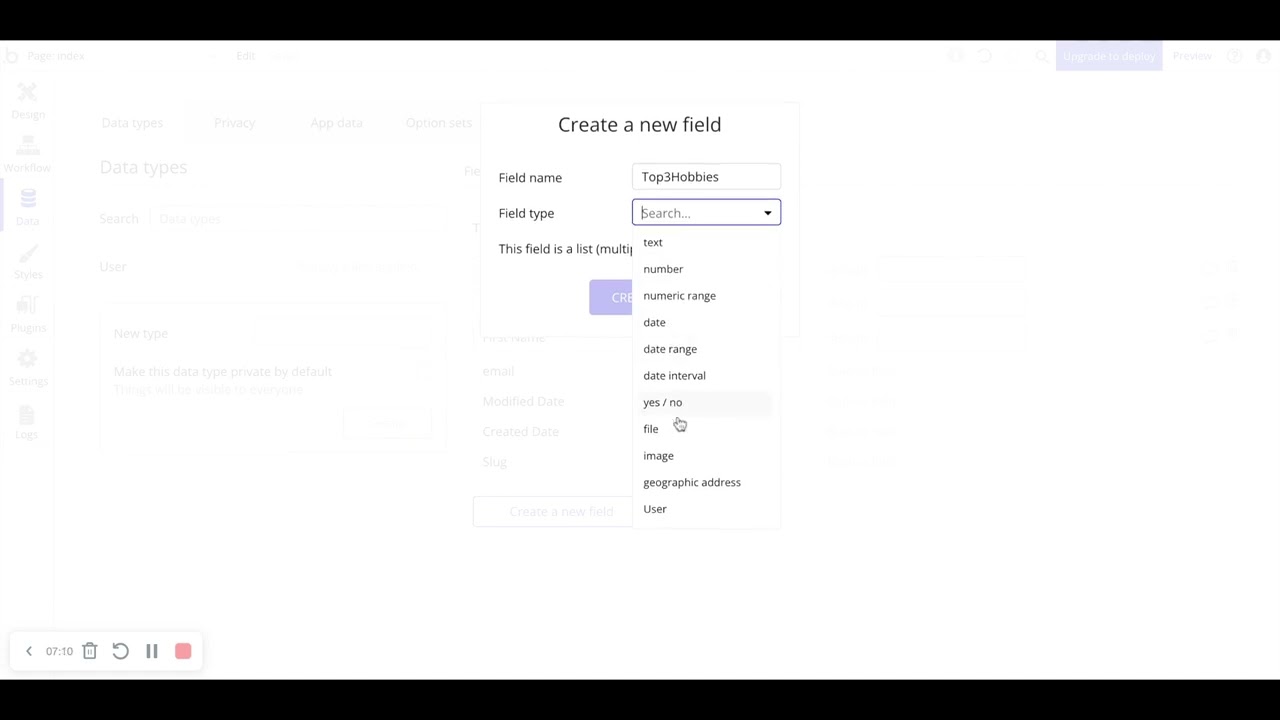
need to go over here to the the data structure and show you what orders looks like so I created a custom data type called orders and within orders I just have these two fields order name of type text and then order status of type text so it simply just create a new field so I'll just say test and then text and it's as simple as that so order name and order status and within the repeating group here so to pick a repeating group it's under containers so I'll just go back up to the top here
you scroll down containers repeating group and just select that drag it on over and I'll go into this one here that I've got set up and the type of content I've got is orders so choose orders and then what I want to do is for the data source you need to tell bubble what data you want and I want orders the data for orders I don't have any constraints on this you might have constraints based on users not sure what other type of constraints you might want to have in there but certainly in your app
you may want to add constraints and then what I have in here is filtered so under search for orders and then filtered and basically you get let's see if you'll get this more button and then when you see the more you get all these different different choices so I picked filtered I've already got filtered on here so again when you see the little more pop up here just click on that and you get all these other choices and you want to pick filtered so I've got filtered set up here and then order status so that's
the the data field that I just went through a moment ago is in filtering RG so filtering rg4 repeating group that's the name of this page order status now this right here is a little bit of the magic I suppose that this here is a custom state that I've created and let me just close this and show you so if you click on the page so right now and now I've I've clicked on the page so filtering repeating group bargee right here for the page and then you come over here you click on the I
for inspector and then you'll get this pop-up and custom states and so I've created this custom state order status and it's of type text you've got all these choices here in this one's of type text and I made it a list and the reason why I made it a list is because I've got multiple different filtering criteria here different values for cry for the filtering and so I need to make this as a list so that when I go back to the filtering in the repeating group that it'll compare the the the value from the
the data record of order status with what's in the repeating group I'm sorry what's in the custom state the lists in the custom state so I need to set it up this way and just to quickly walk through so add a custom state I'm just gonna call this one test type text and then this state is a list like that and that's how you create a custom State now going back over here so for filtered so I've clicked on the repeating group data source filtered so filtering repeating groups order status okay so what this is
going to do is it's going to compare what the order status is the value of that order status in that repeating group cell and see if it's in this custom State which is going to be a list of the different order status and that's going to be based on what I click on the check box now just to complete this through we need to get to the workflow to see what's going to happen and for each one of these checkboxes I need to have two workflows and there's going to be one step in each one
of those workflows and the reason why I need to workflows per each one of these is because I need to the app needs to go and have a workflow for when I check the check box and when I uncheck the check box so over here and I've color-coded these Gray's for the first check box we've got green for the second check box and blue for the third check box so on this one here so when the first checkbox is checked and I have this criteria here at this checkbox is checked what I want to do
is have a a set state okay and again set state you come over here to element actions you need to set state and then you pick the element and the element is going to be filtering RG the repeating group and then the custom state is order status okay and then I have to put in a value and I'm just going to delete this because I've got it already set up over here alright so again set state filtering RG order status then the value is going to be the filtering repeating groups order status so that's the
name of this custom state so I need to pick that because it's think of it as a container it's a list and I need to do plus item order status 1 okay now actually let me just go through this and then copy it and paste so just in case you aren't familiar with this if you are on a Mac you can use two fingers and click on your your cursor pad or right-click on a mouse for PCs when I do that I get this pop-up do a copy and then similarly double double click here and
do the paste okay and then I will have this here and I'm just gonna go through kind of walk this through order status you see this more again so I get more options okay you just scroll up here so you see a little bit better more scroll down to the bottom plus item and then in the plus item I'm gonna do order status one and I'm just gonna kind of double click on that and copy it because this I manually typed in so if you if you get the the the spelling wrong or if you
the space here is incorrect and so forth it's going to mess up your your filtering so just make sure when you're doing this that you type it in correctly and and here now one thing when I when I typed into the text here I actually did a ctrl V to paste it ctrl C to copy the text control V to paste it so if I go and I do my right-click on here it's actually going to give me a different set of if I do this it's gonna paste this other stuff in here so just
one thing to be aware of with with bubble when you do the right click on your mouse or if you do the two fingers on the the mouse pad you're gonna get a different you're gonna get different options than if you do the control C and control V so ctrl C for copying text control V for pasting the text so just something to be aware of as you go through this alright that's a little bit long-winded let me let me get on to when the check box isn't to check so when the check box isn't
check and I go to set state again same repeating group again page repeating group order status and then what I want to do is I want to take that custom state and I want to do a - this time order status once so basically that's going to be removing it from the list so in this step here we're going to be adding order status 1 to the list for that custom state and in this step here we are going to be removing it all right and then similar similarly for the second check box okay filtering
our G's order status plus item order status number - and then this one - item order number - so these are basically pretty much identical it's just I'm changing the text field if I come over to the 3rd check box probably not surprised at this point so it's going to be order status number 3 and so forth so that's how you go and you set this up so that when you click on these check boxes here it's going to be adding a value or removing a value from that custom states list hopefully that's not too
too terribly confusing let me just do a quick refresh here and then I want to just show you another kind of quick way so we're snaps to one I can remove that a quick way to go and add more criteria or more filtering to this so what I'm going to do here is I'm just going to click on order status three checkbox I'm going to do that right click or the two fingers on the the cursor pad for your Macs and I'm going to do a copy with workflows and then I'm just going to select
click on the screen here and I'm going to do the right-click again or two fingers on keyboard and I'm going to do paste with workflows and you'll see I've made a copy of it and I'm going to change this to a fourth criteria here and then what I'm going to do is come over to workflows and right so you see I've got status check back orders checkbox order status number four here what I'm going to do is I'm going to change the color so let's go with orange for that one and I'm going to do
orange for that one so as you can see it's kind of nice to go and change some of these colors so that you can kind of quickly distinguish the checkbox ones twos threes fours and so forth so it's a nice nice visual there now I need to go over here and since I did a copy and paste form three I'm gonna make this four and then over here and change this one to four as well okay so now I'm gonna come over here so there's order status 4 so 3 is there and I click on
4 but there's there's nothing there reason being is because I don't have anything in the database now what I'm going to show you how to do is go into the database and menu create an entry here so you come over here so I clicked on app data and then I clicked on orders and then I do a new entry and then this will be I think order five is what we'll call the order name and then order status I think that's what the so what I call these the values sometimes i okay so one two
three so four actually I need to change this to four order status of four four the fourth checkbox okay so now when I come back over here and you'll see it's there already so status three and status four so that's a quick way to add another criteria into the design and you could keep going if you had more status values so again back to the database structure you could have a lot of orders or whatever fields that you may custom data types that you may have in your in your design and we're just basically using
one of these fields here which could have a lot of different values and we basically just map them to one of these checkboxes and for each of the checkboxes you give that that order status or that criteria if you will unique value and that's what we use whether custom State and we use that for filtering the repeating group here and that is basically how you use check boxes with to filter that repeating group using custom States if you have any questions please leave me a comment or a note below and I'll be sure to get
back to you if you like this video if it was helpful please give me a thumbs up I do appreciate those and I do have upcoming videos if you subscribe to my channel you'll get notified by YouTube of those thank you