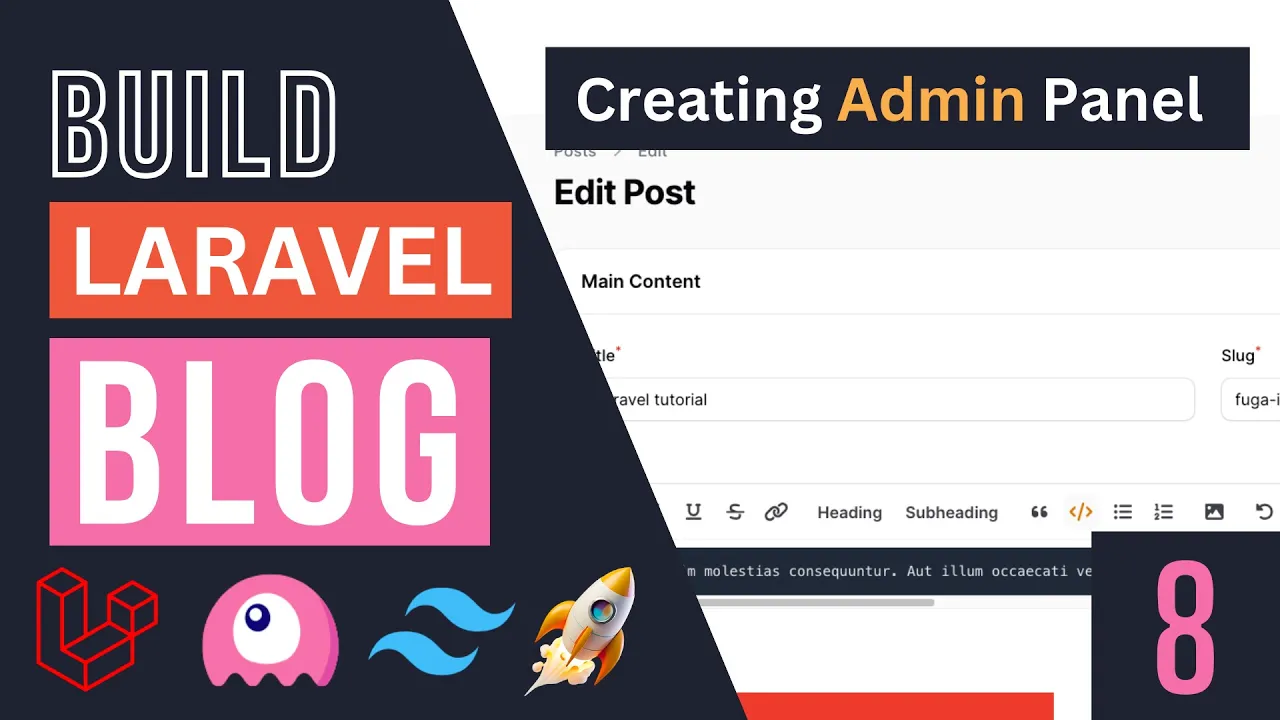
hello everyone welcome back on today's episode we're going to start building our admin panel so we have the ability to actually create tags and actually attach them to our post so we can Implement uh the category filter so let's get started guys for our admin panel we're going to be using uh Filman PHP now I assume you have some basic knowledge of Filman PHP if you're not familiar I will I have a course on my channel on Filman I just cover the very Basics that all that's all you need to know you don't need to
be super uh kind of advanced with filament but the basics is going to help you actually follow the videos a little bit easier I'm still going to try to explain as much as I can but this is after all a kind of a Project based video so I don't want the videos to be too long so with that being said let's get started Guys open up the filament PHP website I will have the link in description as well or you can just Google a filament PHP documentation and it should be the first link that pops
up on Google click on get started and also make sure at the top you are on version three sometimes if you're coming from Google it might be a version two link so once you're on there H click the panel Builder scroll down and under installation there is a command computer command so copy the composer command move over to your application and paste it on your terminal this should go ahead and actually require all the filment PHP files and next up you need to go ahead and copy this artison command and while this is happening guys
we do need to have some sort of rules and permissions on this application now uh what I'm thinking about is having three rules so we will have a member SL like user Ro which is regular visitors and viewers or readers of the blog then we will have an editor role so uh the role of the editor is just to publish posts or create posts and then we also have like an admin role okay so admin can do anything they can admin can view all the users can delete users delete comments things like that editor can
only uh publish post uh create comment sorry categories okay so it's a kind of simpler role so that's the goal at the end of the course by the end of the course now on today's video we're not going to touch on roles yet I make a separate video tackling how to do that in filament so now that the installation is done let's paste the second command as well and that is done let's click now I already have it start on my personal GitHub account so now that that is g done guys we should be able
to actually log in into filament so go on your application do slash admin and if you're already logged in you should automatically log in if you're not go ahead and log into using your Jetstream account by default on local development any user can log in into filament on production uh basically none of your users can so we do need to later on add some code we'll do that on the rules and permissions video for now let's just go ahead and log in and we can actually see the admin dashboard panel okay let's move it to
dark team so now that we are here guys we need to create the resources for our category and post so let's go ahead and do that open up the terminal again uh let's expand a little bit so in order to create resource in type in PHP arts and make filament resource and then the resource are basically a models so the first one is going to be our category resource so just type that in and then we need another one for our post now if you guys remember on our post table I also added this soft
deletes now technically this isn't required the only reason I added it is because I want to teach you guys about soft deletes and also how to actually work with them so if not familiar basically soft leetes ads a deleted ad field on your table and its rule is as the name suest soft delete basically you're kind of deleting things but you're not showing them to the user so technically it's still a record on your database you can always kind of bring it back in or restore it if you want but once you have added this
deleted ad it will stop being shown to users right so it's as if you have deleted it but still have the option to always bring it back in okay so it's a useful feature you can also kind of delete very old deleted that feeli soft deleted ones so uh and it's quite easy actually to work with them in filament so in order to add the soft delete functionality we need to add an additional argument of soft deletes okay so do D- soft deletes if you decided not to go with the soft delete on your migration
then ignore this last step hit enter now one more thing we also need to do for soft deletes is we need to update our model so at the top under uh for your post model go ahead and add a trade of soft deletes the name is actually quite exactly identical to the soft delete argument so now that we have done that we actually will be able to use the soft delete functionality on filament so let's go back let's do a quick reload now we should have a categories as well as a posts what you may
call a resource page so let's start off with categories and Implement its Pages first so on the left if you go under app directory there should be a filment folder and under it now we should have a category resource now for a categories we have four columns if I if you guys remember so I'm going to go ahead and use uh a text input for all of them so it's going to be our title field uh we have I believe a slug we have a text color and we also have a BG color okay and
let me show you guys the migration so you guys can see so this is our migration we have these four I'll just add these now text color and BG color are notable so I'll need to add that and also slug needs to be unique so let's add those uh I'll make these guys be nullable same for uh BG color now for title I'll make it be required uh same for uh slug for slug we also need give it the slug sorry the unique validation Rule and in order to ensure it will work on update Pages
as well we need say ignore record I believe it is called let's see double check again ignore record yeah ignore record we need to set this to true all right now we can also add a few other validation rules such as like the max length so let's do that so the maximum basically characters for the total I'll set it to 150 and then I'll do the same thing for slug as well I'm not going to add a minimum at least not now maybe we can add that later on while we're added why not let's do
it let's do mean length of let's say one and then although it's kind of useless but still let's also add it over here so later on if you want to change this we can easily come over here and change the number so let's go back guys let's do a Reload as you can see it is indeed working I can go ahead and edit these as well now once I try to edit we get this error message and this is because we are fillment by default Mass assigns and we don't have a fillable on our model
so let's go ahead and open up the category model now one thing we can do guys in order to make life a little bit easier we can just disable uh Mass assignment because we are not really passing any unvalid data to our models we could technically just go ahead and say uh protected guarded guarded equals an empty Ray and this will go ahead and disable Mass assignment for us and basically make things work now if you want to be a little bit more safe you can go ahead and actually set the fillable on a simple
project like this or if you you're just doing a portfolio project for yourself we can go ahead and just use guarded but if you want to have that extra layer of security we can go ahead and Define these manually so I'm going to say a title uh Slug and then we have a text color and then BG color although we don't have anything sensitive on the category field that could potentially be changed but still let's add it here good practice and one more thing we have to do guys I would like to show you guys
is how to actually automatically generate the slug once we edit it so right now if I type in this log it would be useful if it was also automatically generated as we typed it in this is very easy to do with filament so let me show you guys how we can actually do this so let's go back we can go ahead on our title and I'll move these to a new line so you guys can see a little bit easier add a new method call and we can say after uh State updated now as the
name suggests this will basically add like a call back you can pass it in a call back function it's like a hook and or an event listener basically it will call the method you pass in you can pass in Anonymous function to it it will call your function whenever the value of this title is changed right and again uh filament uses Li components in the background so basically whenever your title property changes it will call this a function that you passing now this function does take a few arguments so we need to define those as
well so it takes a string argument of operation basically it will be if you're creating or editing and then it will take an State argument as a second argument so this is basically the current value of the title or the property on the liver component underneath that filment is using and then last but not least it has a set variable now I believe this is of type forms set I could be wrong we do have forms imported right we do so we can technically go ahead and use this as well it should be that way
and vs s is having some hard time here it's okay but I believe that is the right import so now what I can do guys let's go ahead and add this dump over here uh called and see when this method is called so we can actually get a better understanding of this after State updated so I'll click on Create and now we get this if you guys quickly side came in quick and went away let me make this DD so it actually stops the page work as you can see we are getting this DD right
so and that's because I change the value of the title now one thing we can do guys is because Filman us as live at the end we can go ahead and call this method on our input which is basically like a property and same way as wi model live it will go ahead and update our title as we type in okay so let's go ahead and try again now if I type we getting this basic as you can see this method is called as we change the value so now that we have this we can
actually go ahead and change the slug based on the value of the title and this is why the sit variable is useful we can use set and pass basically as the first argument we can pass in what AR what property you want to change which is the slug and then the second argument is going to be the value you want to change it to and for this one you can Define your own slug uh code for now just say test just we can see it's working so let's try again guys I'll come back I'll type
something in and as you can see the slug value changed to test so we can use this to automatically generate the slug now lot ofal does have slug function for under the S strr helper or S strr facade so I'll just pass in the state and state is the current value of the title okay now vs code for some reason struggling here let's go ahead and uh import this I believe it's illuminate uh support St Str all right so now that we have this I believe we are good to go so let's go ahead we
don't actually need to reload because it's a libr component I'm going to say hello world and again it is automatically generating this lug for us now this does have one more issue guys usually on the edit page you probably don't want to change the slug if you're changing the title because it will break any like back links you have or if you shared it on Twitter or something like that you don't want to change the slug just randomly so one thing we can do is we can do a simple check and use this operation variable
over here I can just go ahead and actually DD over here operation and we can see what is going on actually I'll type something in and as you can see it's telling us edit right so we can use this variable to make sure we don't enable it on edit page if I go to the create page and I type something in we get create right so I can use this variable to control whether or not we actually loock so I'm just going to add super simple if statement and say if operation is edit just return
okay don't do anything and if you guys don't like these inline if sa I personally don't as well because it can sometimes be confusing I'll just have it be like that all right so now that we have this let's save it let's go back and now if I try to type in as you can see guys automatically generated on the create page and if you go to the edit page it is not updating it I think it makes a bit more sense to not do it on edits so you can manually edit it and I
think that's it enough for the form section so let's go and also set up our a table for the categories so for this one exactly same as above guys it's going to be text uh column make title and then it also needs to be sortable and also I make it be searchable okay so let's copy paste this for all of them so we have slug text color as well as PG color and I believe we are done with the category at least for now later on we might come back and add some additional information to
it so now let's go ahead and actually work on our post which is the biggest one so uh for the starters I'm going to copy the title and the slug because we have the exact same thing on our posts so it should be easy to do so let's open up the post resource and I'll scroll up under the form guys now for the Post resource because we do have a bit more columns guys I think it's better off if I change the layout or Define the layout first so what I'll do is I add a
section here and a section is basically like a card component or like a card element right so I'll make this one be main uh content something like that and the section is basically like a grouping uh input or grouping container right similar to this form so it accepts a schema similar to this form that we have over here you can pass it in Array of inputs or fields and then I'll have another one I'll copy this actually and the second section I'll have it be like meta for like metadata okay maybe we put the image
and some other stuff over here now let's see how it looks before we add anything now we have two t two uh cards now we can put these on the side if you guys would like so it's still upt to you if you do that or uh not okay so let's go ahead and start off with the main content so obviously I have to copy these again I'll copy the title and the slug and I put them under main content did not copy it let's try again okay so that's going to be our uh title
now we don't need to add import text input as well as I believe form set I'm not sure we do have forms the only thing I need to import is actually the Str strr helper so it's going to be uh support St Str so now I believe this should work just fine let's just double check make sure we don't get any errors it is indeed working now I'm also going to make this one be a two column layout because I don't like this way of presentation so we can easily do that on our section and
go ahead and call a method of columns and Define how many columns should be okay and by doing that now it's two columns you can make it three as well if you guys would like and next up we need to also let's open up actually our post table so the remaining columns are our image uh body published at and future that so let's also add the body as well inside the post now for this one we can go ahead and there are a few options actually two options if you go to the form Builder by
default uh filament has a rich editor which is like an HTML editor and then there is a mark down editor so you can use either of these now if you're using the markdown editor you need to then go ahead and convert it back to HTML when you're displaying it for that reason I'm going to go ahead and use the rich editor okay so let's say Rich editor uh make uh blog is that what I named it body sorry I don't know why I said blog body and then I'm going to also make it be required
as well as I think that's all now one more thing we can do guys if you scroll down down you can also Define uh if you want to do inline kind of on form file uploads you can Define the folder the files should be uploaded so we can use this file attachment directory let's also do that because I do intend to upload files and I'll have it under posts uh I guess images now we do need to be careful uh because filment does not delete these if you delete your post so we need to handle
that deletion ourselves or use some other library to handle those file uploads so I'll cover that later on in the course for now just going to go ahead and add that and that should get the job done and if you want to disable or enable different buttons there is a section called toolbar buttons you can go ahead and customize these if you guys would like by default I believe all of them are enabled so we don't need to worry about anything okay let's do reload it is now working now it's not full width so in
order to make it a full WID we can go ahead and add column span full and I'll add this move these to a new line guys so you can see a little bit easier because I am quite zoomed in on my screen for the video all right so now if I reload we have the title we got Slug and we got the body as well and you can add whatever you like over here okay you can add images you can add hings things like that you can again upload images over here by clicking this and
it will go ahead and add them to the form okay super simple stuff we have headings links all the most common things you would need uh is available over here all right so after that guys we have our metadata related stuff which is going to be the IM image the published ad and the futured ad so let's go ahead and Define those as well under meta I'll first add the image so we can go ahead and say a file upload and I'm going to say make image now we can also pass in an method of
image to ensure it is kind of an image file uploaded and then we need to also pass in directory of where we want the images to be uploaded and I'll add it under a post posts uh thumb Nails we can also have it be under images but I like to have these two be under uh separate folders We can again customize these later on for now I'm just adding it so we have something working uh next up we have uh date time picker for our published at as you can see over here so we need
to add that as well I'll say make published at and this one should be nullable again if the post is not published it's going to be null right so that's the easiest way of figuring out so I'll add that over here and then last but not least we need a checkbox for for our futured okay so I'll say make future so let's save this let's go back do a quick reload and now I believe we have all the core components that we need now for the images we can also make this be a two column
layout uh but I'll I'll do that on a separate video guys I'm not going to focus too much on the Cosmetic size of it for the adding panel we can do that on later episodes for now we're going to implement all the functionality and then customize the UI so we have everything guys let's try to save something and similar to our category it is telling us that fillable is not set so we need to go ahead and set that as well so let's open up our post model and I'll copy the fillable from our category
and move it over here so we need to add uh image uh body we have published at and futured so let's do published at as well as futured and I believe we also need to add the user ID which is basically the author of the post and that should get I I think that should be all of it okay so now that we have those things guys uh let's try to save again hopefully F the issue it is indeed now we are missing a few things so we are missing the author and the categories on
the post so we already have the author relationship set up our our uh post model if you guys look over here so we also need to do the same thing for a categories as well so let's do it obviously we have a many to many relationship between a post and category this is the table for it right category post so we need to Define that relationship in our model so here I'm going to go ahead and say categories and for many to many relationship we need to use belongs to many and this one is going
to be a category we don't need to pass in any column names or things like that uh Lal automatically will detect that because we are using the Lal convention so super easy to work over here so now in order to add that we can do it under meta why not later on we can obviously move these things around so let's go ahead over here we can go ahead and use a select failed say make auor and then for this to work for uh one to many relationship we can go ahead and say a relationship and
then we need to pass in the relationship function name right so here we have defined as author or you need to pass author if you defin it as user you need to pass user if you define it as I don't know editor you need to use that okay so this is based on the name of this function I'll pass it over here the second argument on the relationship is going to be what you want to display on the drop down menu I'll say name so I want to show the name of the author and then
also make it be uh searchable and I think that's all we have to do okay let's go ahead also make it required and that's all for the select we'll copy this and we need to do the exact same thing for our many to many relationship for categories as well so I'm going to say uh cator now for the relationship obviously we need to also change this to the categories relationship now for categories we don't have a name so if I open up our category model we have a title it could have also use name here
but I'll have to go ahead and change this to title I'll make it be searchable now for the required we also uh I'll actually get rid of that because we may not have one and then last but not least because categories is a main to- main relationship we need to also add multiple okay so that's I believe all the core things we need guys let's do a Reload let's see if everything is working now we have auor and then we have some categories I already have some of these attached I had manually added these so
uh I already have a few of these attached and I believe we added a bunch of categories already from our factories so uh you can go ahead and create some categories and try to attach them to your post and see what happens okay let me add another one as well let me search I'll say a and I'll add this one let's click save and it is indeed working let's try to change the author I ask for G do we have anything with G Adam Graham Jr let's add that so this is working as well the
only remaining is going to be our table for the post and I'll keep it super simple for now we'll I'll again copy it from the category resource let's scroll down a little bit more uh we need the title and the slug so let's add them both here going to import as well text column so the other things we need is going to be what else do we need actually I think we can also add the auor so here I'm going to say author. name so that's you how you can add relationships here if you have
one to many relationship and then last but not least we need a checkbox field res it check box column make uh futured and last but not least we need another one for the date of published at so I'm going to say a published at in order to make a date you can use a text column and then call a method of date on it and you can also Define the format if you guys would like I'll say ymd something like this so let's do a Reload let's see if it's working uh it indeed seems to
be working and again if you don't have a date here that means it's not uh published we can also go ahead and show the image if you guys would like we can say I believe image column is the name make image and let's do a quick reload and we should be able to see the image as well just like that so super simple stuff guys and I believe you're done with the basics of the admin panel now I would like to go ahead and publish this post that I have added I had added this myself
manually so it's not published so let's go ahead and add it uh I'll click on published at and I'll make it be like published maybe yesterday okay so let's save that and let's go back to our blog and see if we are able to actually find this article I'll also change the title to let's say lot of all tutorial lot of all tutorial let's save it so let's go to our Blog Page and we already have a few from three hours ago so I'll have to search for it I'll search for a lot of all
let's click search and it is indeed now working now our image is no longer working uh so we do need to fix that and we also need to later on ADD our categories over here and also add the ability to filter by categories so I'm going to leave all of those for the next episode guys the video already is very long so I hope you guys enjoy today's video and learn something new regarding filament especially the slug one I think could be quite useful for you guys and can use it for other things as well
so if you have any questions you can ask me in the comment section below and as always I see you guys on the next episode have a great day bye