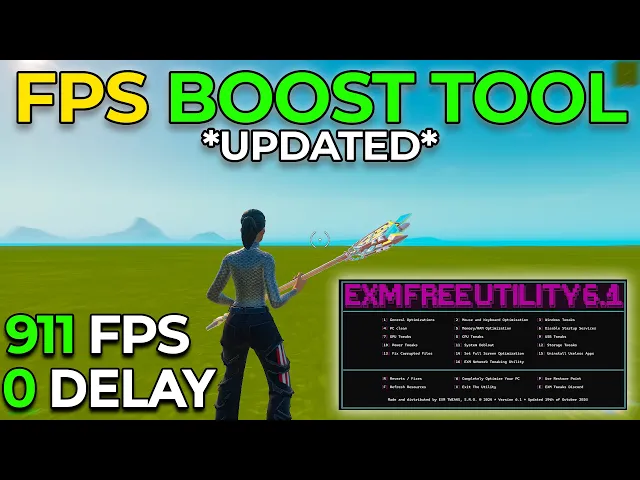
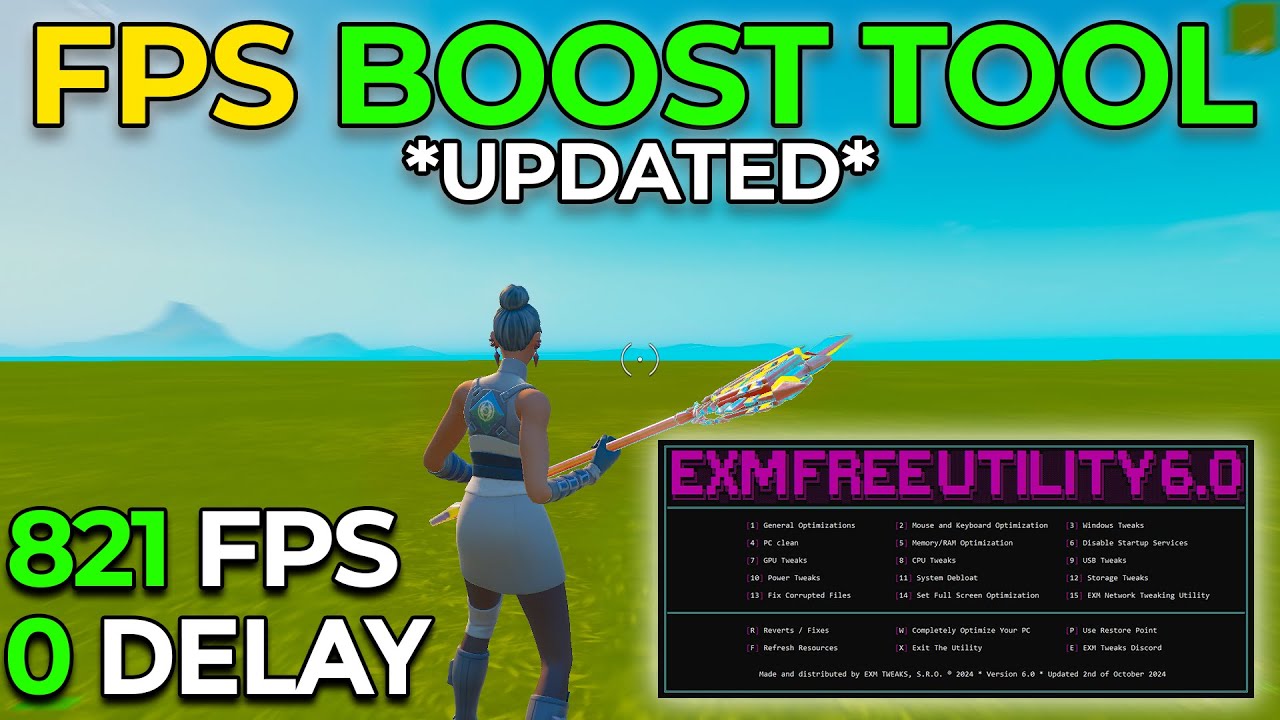
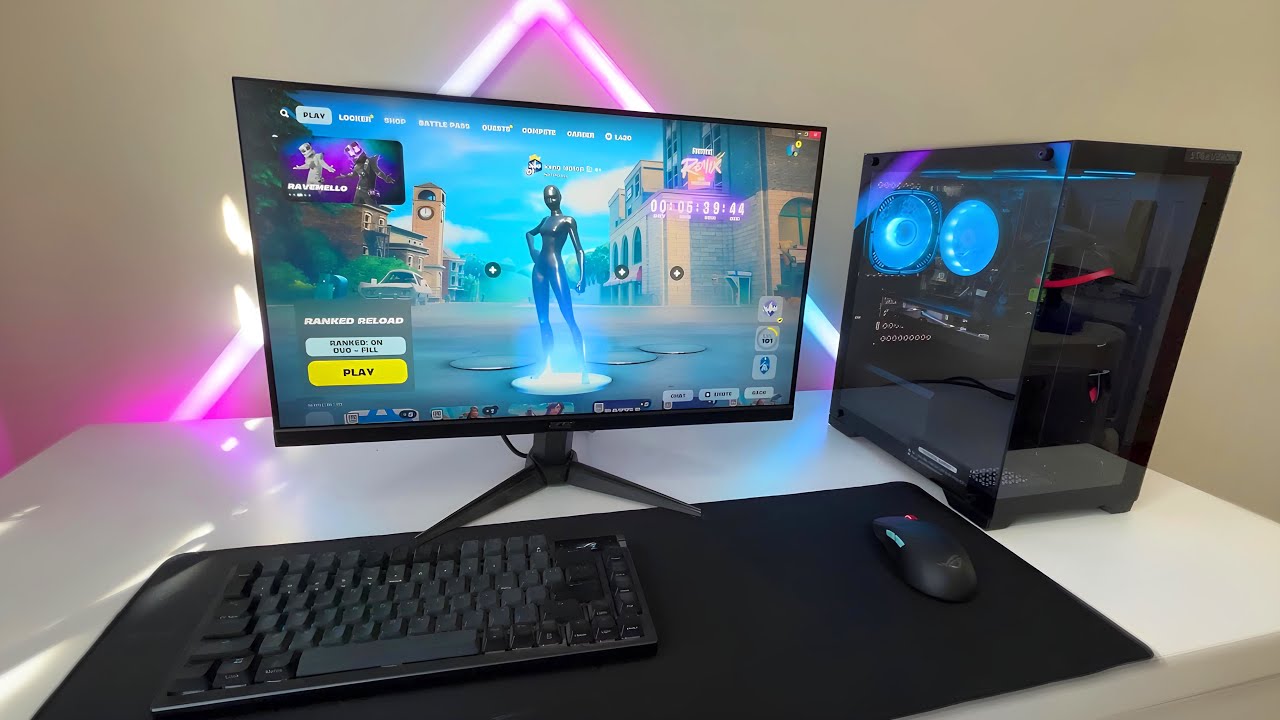
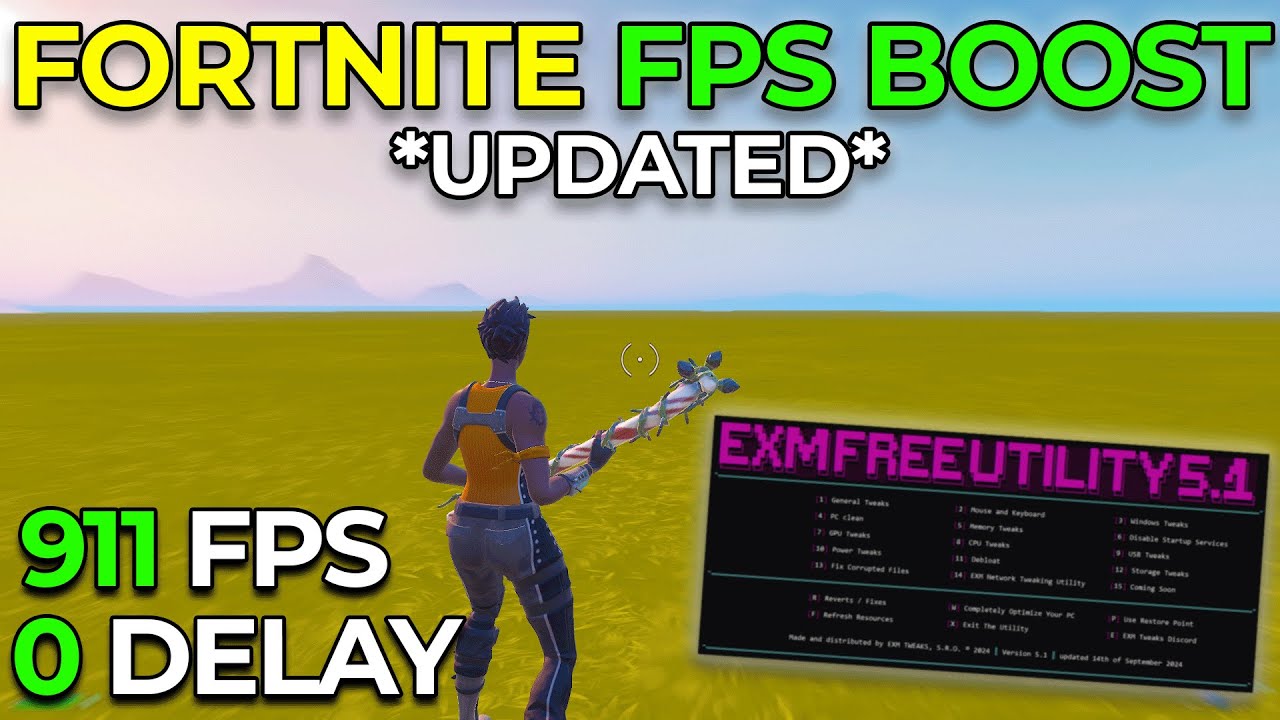
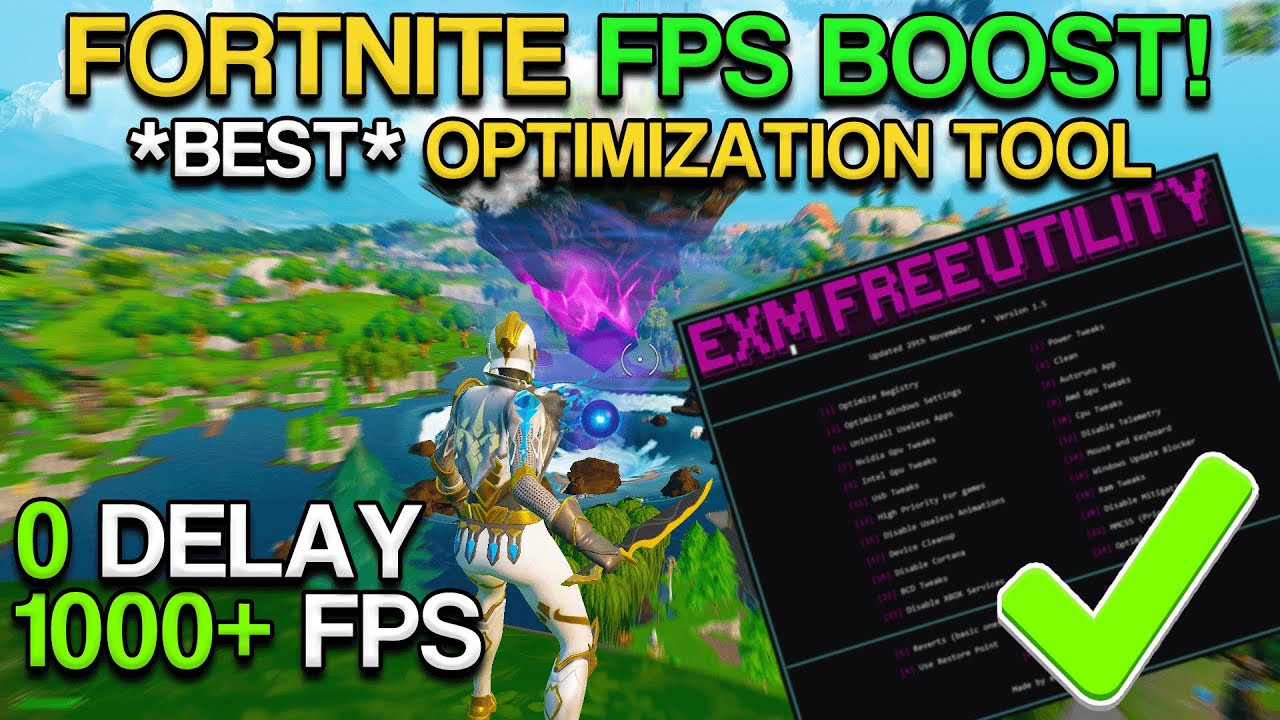
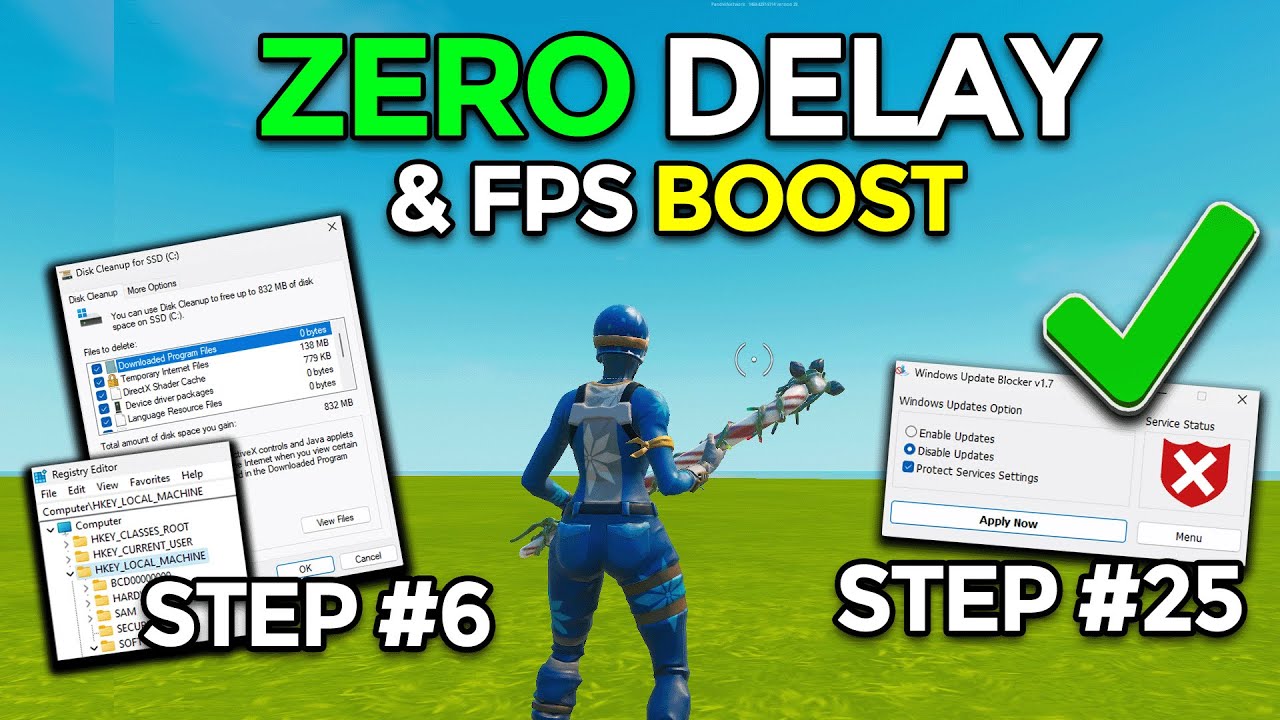
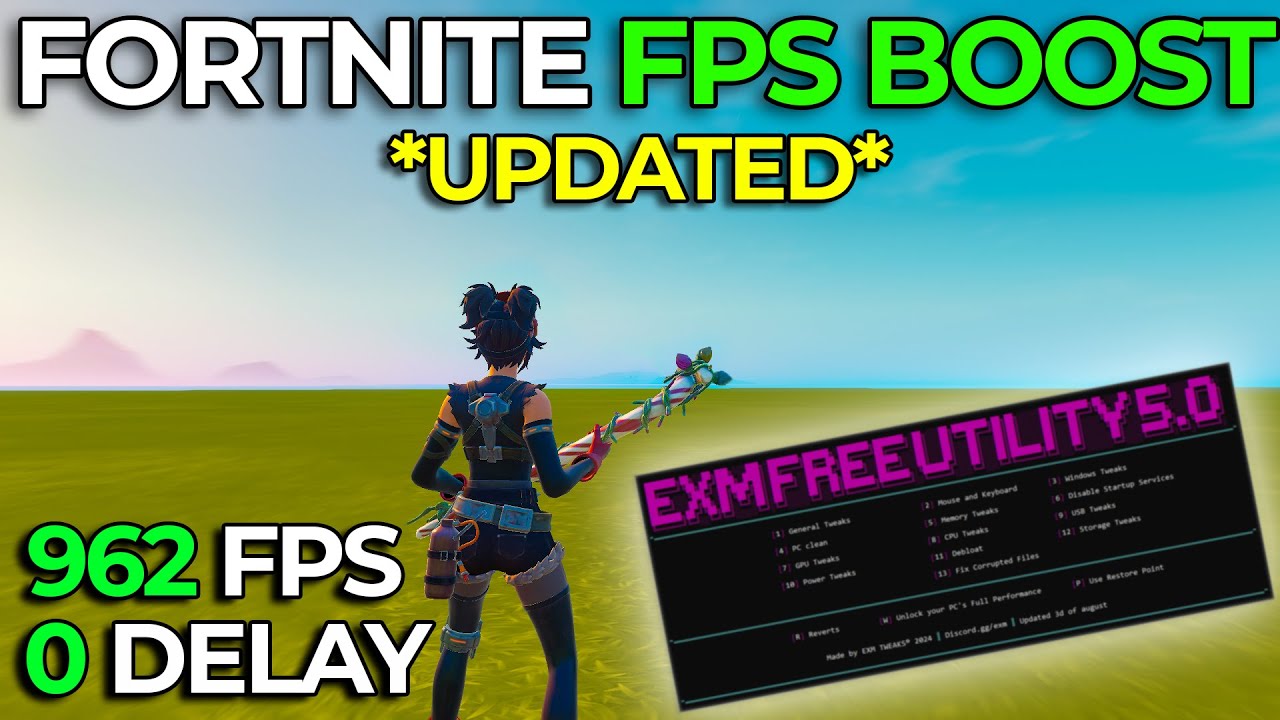
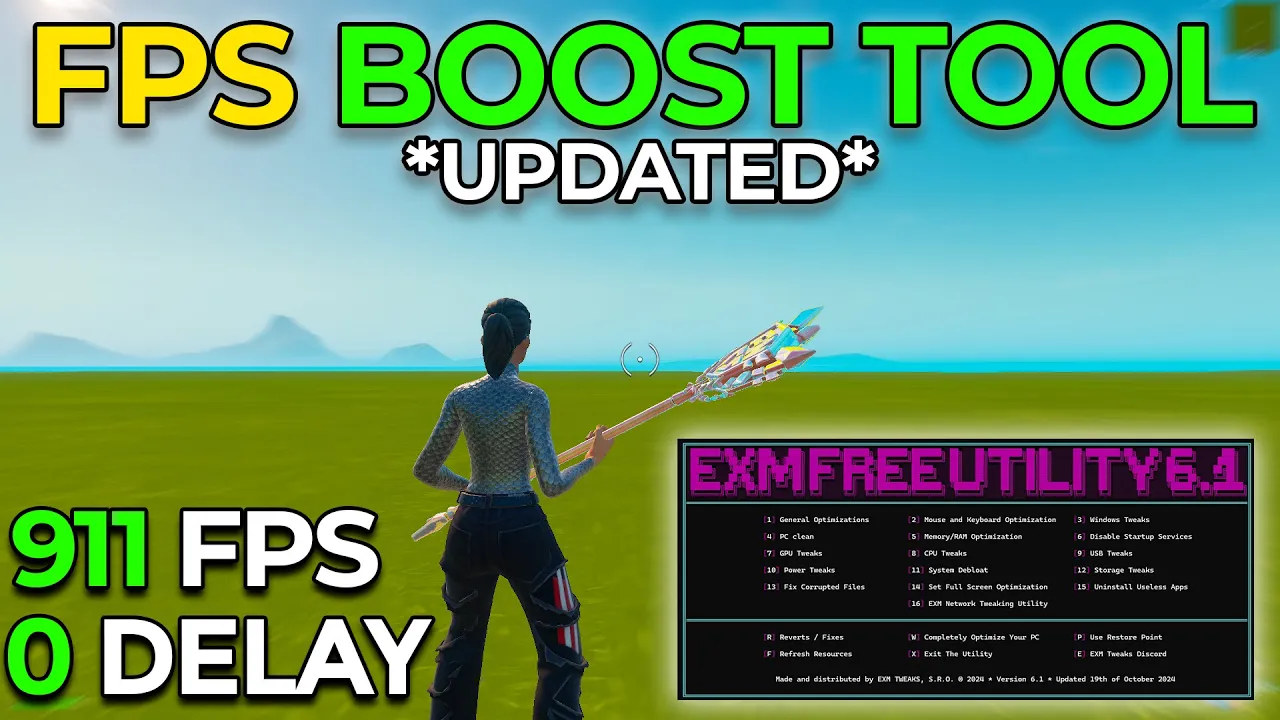
have you ever wanted to increase your FPS decrease your input delay and ping in a few minutes this is the exm free tweaking utility a tool which will help your PC achieve better performance and lower latency in any game but before we start the video I want to tell you guys about our exm premium and standard taking utilities these are the most advanced and effective optimization tools that we have to offer they will completely optimize your PC with an impress of a few buttons so if you notice a difference after using our free tweaking utility
our premium and standard tweaking utilities will help you so much more we have over 2,000 positive reviews from our customers on our Discord server and website so make sure to check out exm tweaks.com to completely optimize your PC and unlock your full potential so the first thing that we're going to be doing is downloading the utility so simply head over to the description of any of my videos in there you can find a link to our Discord server and in our Discord server you will be able to download the utility I'll show you how to
do it simply head over to the free tweaking utility category which should be under free tweak so right here and in here simply press download and this will take you to a Google Drive Link so just press visit website in here just download the zip file and while it's downloading I want to tell you guys something get this video to 2,000 likes and get me to 25,500 subs and I'll release a new version of the utility with new tweaks so yeah it should pop up in the top right corner right here so just press on
it it will open as a folder so you can either extract it manually but what I prefer to do is just minimize all of the windows and drag it onto your desktop so simply right click on it and run it as administrator and boom it's opened so in here simply press any key to continue and now it's time to make a restore point so I'm just going to press one and enter and it will take about 30 seconds to make a little restore point and this will basically allow you to revert all the tweaks back
to default press okay now we'll download the things like power plan and Etc so yep and boom we're finally in the menu as you can see here are 16 different options and I'm going to walk you through how to use each and every one of these so first we have general optimizations which is a really simple one just press one followed by enter and then in here press uh one and enter again and this will do all of the general optimizations as you can see that's it I mean the the rest of the tweaks are
going to work in a similar way but some of these are a lot more complicated so I'll explain to you how to pick the correct option Etc after that we have mouse and keyboard which first we just have some general mouse and keyboard optimizations so this will work in a similar way as the last one and after at set the mouse and keyboard. Q size as you can see you have three options at the top which is 14 17 and 20 and the way you pick the correct option is you basically open task manager and
in here just go to the performance Tab and as you can see I have a 13 gen Intel Core i7 so basically comment your CPU under this video and I'll tell you which one of these options you should use personally my CPU is a high-end one so I'm just going to press one and enter and that's it for mouse and keyboard all right so after that we have windows twak so just press three and enter and in here as you can see there's 20 different options but I'm personally just going to press apply all if
you want to go through these one by one then go ahead if you accidentally disable something which you use like Bluetooth you can revert it into reverts category so yeah keep that in mind but I'm just going to press a to apply all and you just press y to confirm it and firstly we have enabling or disabling game mode so if you're on Windows 11 enable game mode and if you're on Windows 10 disable it I'm on Windows 11 so I'm going to enable game mode so one enter boom and after you press okay will
just apply the rest of the windows tweaks except a few things which I'll show you how to do so yeah now we have Windows update blocker and this app basically allows you to disable Windows updates and the reason why you want want to do that is because they can randomly start up in the background while you're playing they completely kill your performance if that happens if you want to install an update of course then you can go into the app and enable them but I'm going to personally disable them also a little side note Microsoft
store doesn't work if you disable the update so if you want to use a just enable them again but yeah now it will open this little menu and in here just copy my settings that's all you have to do yeah just press okay all right so that's everything for Windows tweaks next we have PC clean which will just clean a bunch of temporary files so first we have cleaning temporary device data and yeah I don't have much of this since I've ran this today but some of you guys may have hundreds if not thousands of
devices there but after that we have windows clean manager which is this little app just select your C drive here which I think that should be selected by default press okay and make sure in here everything is checked press okay and delete files I'll skip to when this is finished all right so that's everything for PC clean it now it's time for memory optimization so just press five in here just select your RAM amount if you don't know how much RAM you have just press T it will open Task Manager go to Performance and memory
as you can see I have 32 GB of RAM so I'm just going to select six and boom it will apply the best settings depending on how much RAM you have that's everything for memory next we have this little app which is startup service press okay in here simply go to log on uncheck everything except your antivirus which this is my antivirus keep these na files checked and yeah basically that's it like you don't want epic games launcher starting up when you turn on your PC when you're doing other stuff it just runs in the
background takes a performance so yeah I'm just going to exit out of this all right so next up we have GPU tweak so just press 7 in here you basically select whichever type of GPU you have I personally have an Nvidia GPU so I'm just going to press want and enter on this little popup press okay all the other optimizations by the way should just be one button and we'll do all the tweaks but in here just press okay on that and that's all yep next we have CPU tweaks which works in a very similar
way uh by the way don't do these if you're on a PC which has overheating issues cuz these may increase temperature slightly as you can see you can pick with AMD and Intel and I personally have an Intel CPU so I'm going to press two yeah that's CPU tweaks after that we have USB which is a one one button optimization boom next we have power uh by the way don't do these if you're on a PC which has overheating issues cuz these may increase temperature slightly and in here we have our power plan which is
the first optimization which by the way we updated in this version right now as I'm recording this video it doesn't show up yet cuz I haven't added it to the servers but trust me when this is out it's going to work but either way I'm going to stick to my premium power plant since it's better exm fre.com I'm going just close this after that we have disabled power throttling timer cesing and other power saving features boom then we have uh disabled power Telemetry delete useless power plants and disabling hibernation for startup Etc and yeah that's
everything for power tweaks after that we have system deblo and in here we have a few options so if you want to go through these one by one feel free to but same as with the windows category I'm just going to press apply all and in here I'm just going to press y to confirm boom next we have storage tweaks which is pretty simple first we have trimming and Def fragmenting your drives so uh we have my SSD and simply just press optimize and this will trim it boom and yeah that's everything so simply just
close it if you want to defragment your hard drive you can do it as well but this will take a while like an hour or maybe even more but I'll just close it and press any key to continue now we have uh enable user right cache then we have disable SSD power savings just skip this if you don't have a SS D and yeah so after that we have fixed and corrupted files so I just press 13 and here just press one and it will take a little while I'm talking like maybe even 5 minutes
I'll skip to when it's finished all right I just finished oh um no didy but it's time for full screen optimization so just press 14 and in here uh you can select whichever type of Windows version you have so I personally am on Windows 11 so I'm going to press two and boom that's about it all right so it's time for the new F category which is uninstall useless apps so press 15 and in here first we have uninstalling Windows pre-installed apps and this will take a little while I made this cool little animation for
it all right so after that's finished uh simply press two and in here uninstall apps which you don't use and I'll and I'll tell you what type of apps you should uninstall in general so for example if you have things like Xbox in here which I personally have and you don't use them then feel free to uninstall them I also don't use let me check quick assist this is useless I don't use paint sorry I think you guys will have more things to uninstall than me generally just uninstall apps which you know you have never
used or you won't use so yeah that's uh basically everything for uninstalling apps uh just press any key to continue and go back to menu and last but not least is the exm network tweaking utility so just press 16 press any key to continue I highly recommend making a restore point in here simp simply press T there's a separate tutorial for this and follow all the steps in this video and yeah that basically sums up the network tweaking you after you've done all of that simply restart your PC for the tweaks to properly apply so
that's everything for today's video comment below if this helped you make sure to check out exm p.com to completely optimize your PC and unlock its full performance I love all of you guys peace out