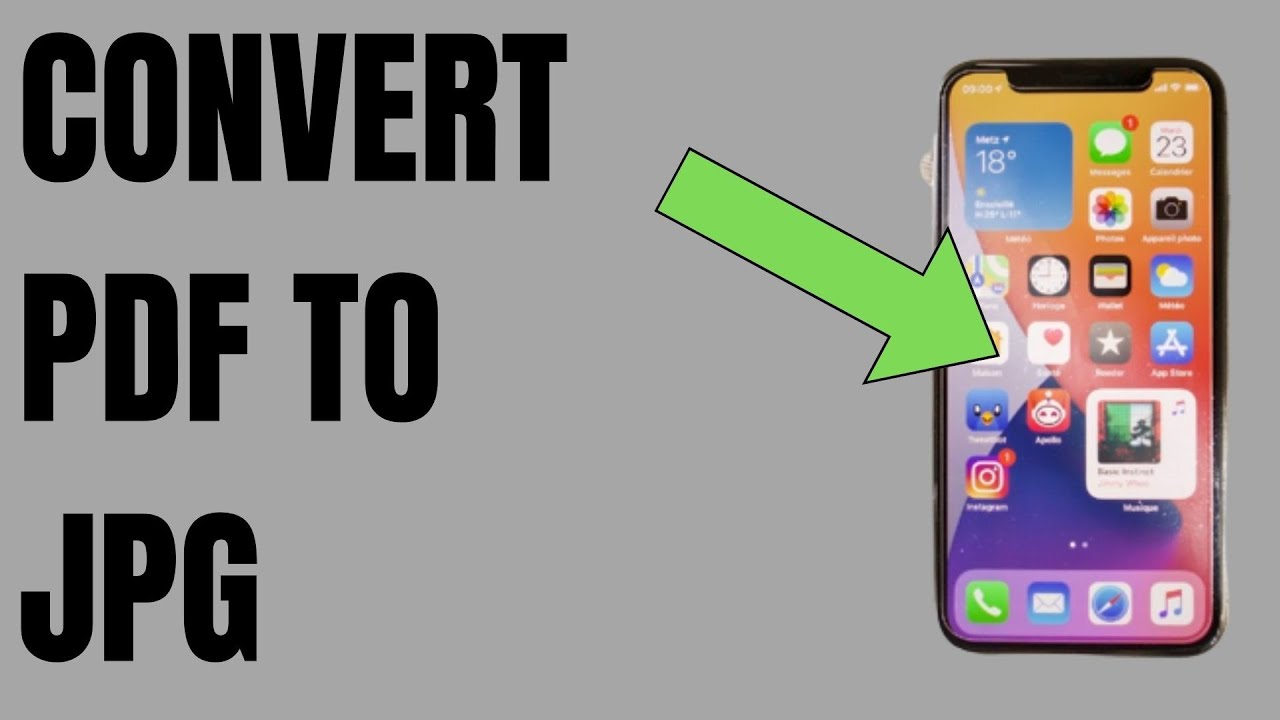
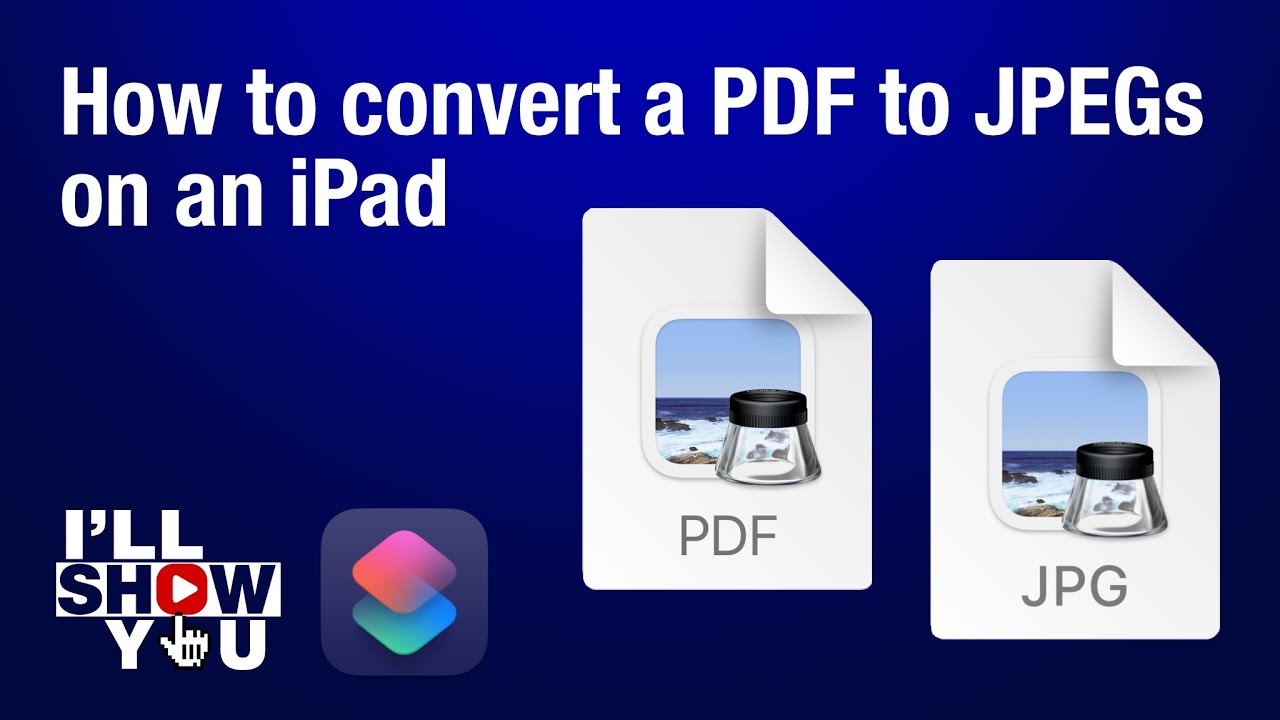
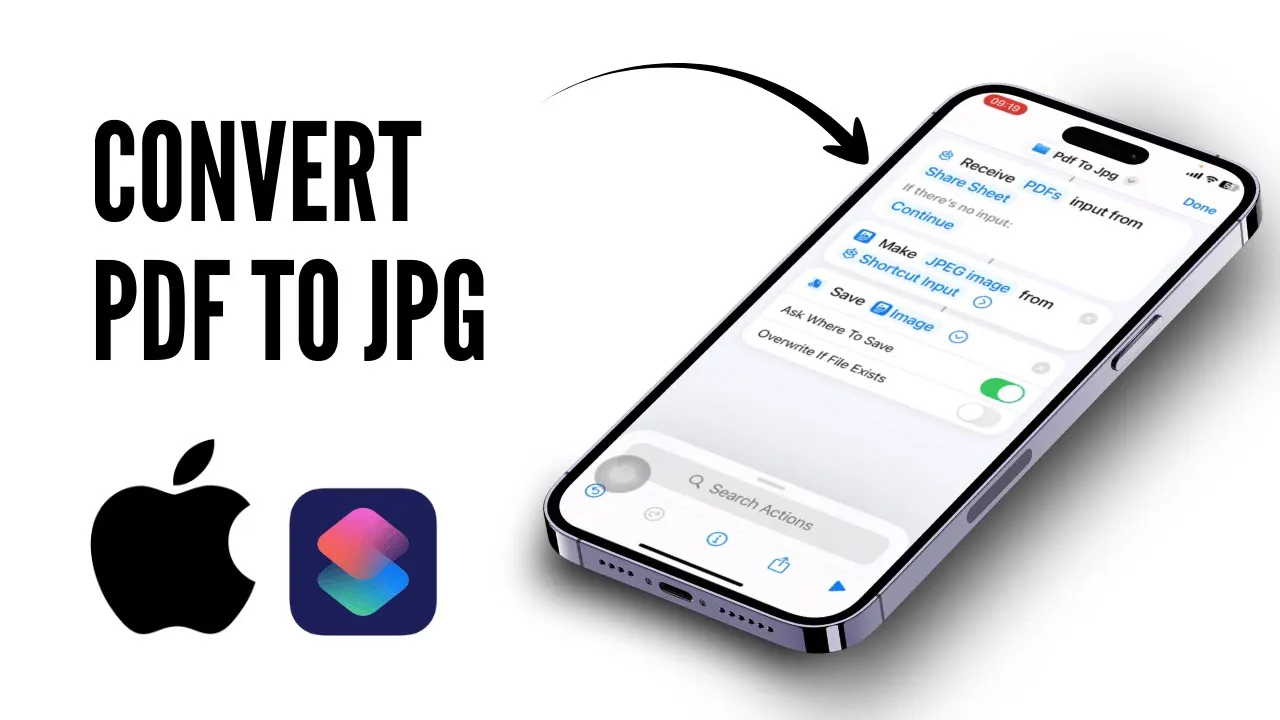
Welcome back to another tutorial video. In today's video, I'll teach you guys how to convert a PDF to JPG on iPhone. So, without any further ado, let's dive right into it.
The first thing you'll need to do is open up the Shortcuts app. This is pre-installed on your iPhone, so open it up. If you do not have it, you can install it from your App Store.
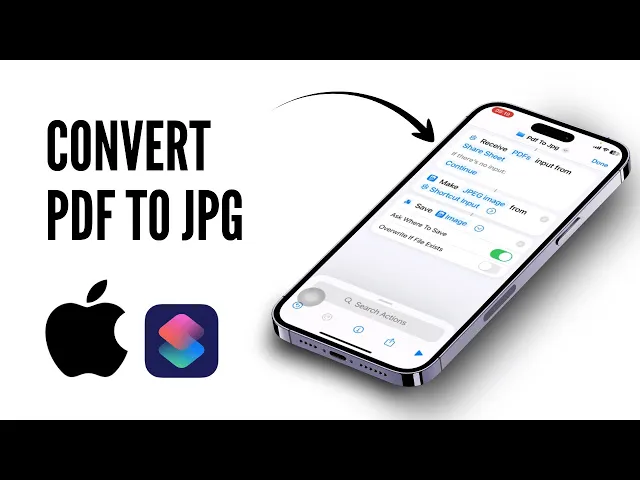
After you open Shortcuts, tap on the plus icon to create a new shortcut. Now, what you'll need to do is search for "JPEG. " You should see "Convert Image.
" Open that up. Now, what you'll need to do is choose an image. Choose the shortcut input and you'll find this.
From here, what you'll need to do is tap on "Receive Image. " Clear all of this. Turn on PDFs and tap "Done.
" After you do that, you will see "Improve from nowhere. " Choose that. Here, you will need to turn on "Show in Share Sheet.
" Tap on "Done. " After doing that, you will need to remove the previous one. After that, you will need to search for "Meek.
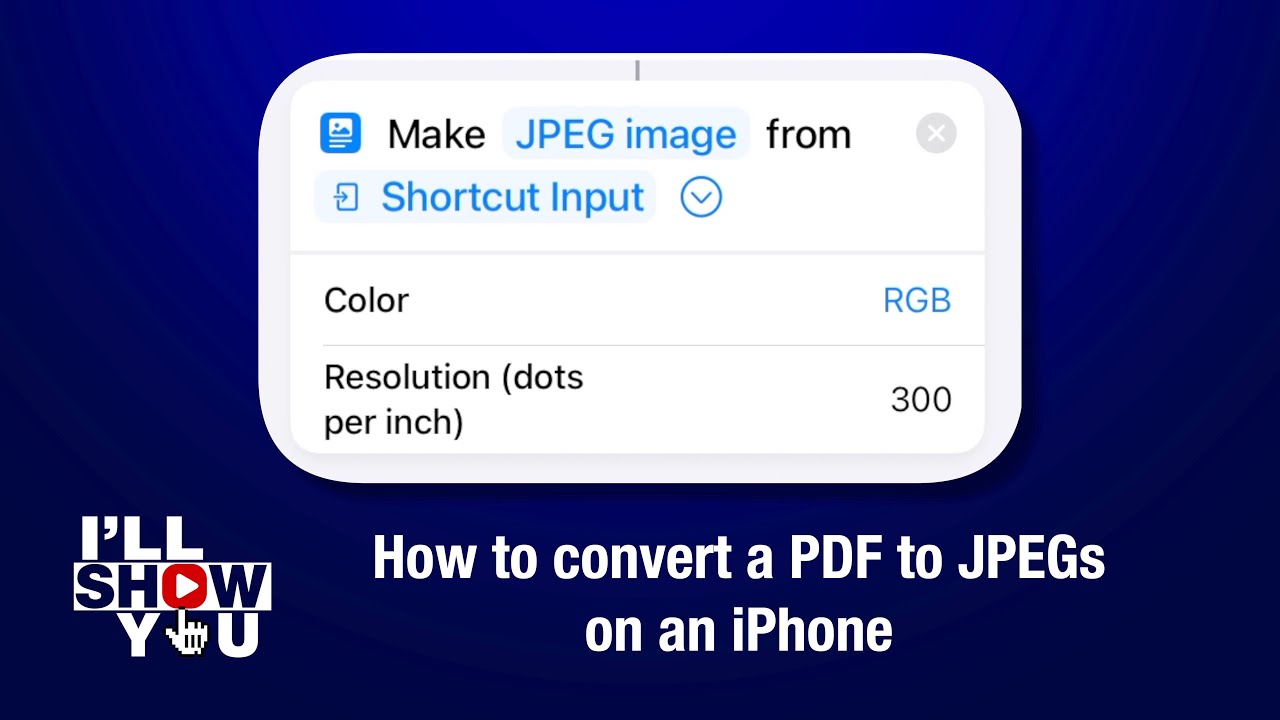
" After you search for "Meek," you'll need to choose this right here. Here, you'll need to choose "JP Image. " From shortcut input, you can expand that and choose whatever you want.
Just choose your settings. After you do that, you are almost done. Just expand your search actions.
Right here, you should find "Documents. " Tap on "Documents. " If you scroll down, you'll find an option called "Save Files.
" Tap on that. Here, what you'll now need to do is expand this. Make sure that you've turned on "Ask Where to Save.
" After you've done that, you can rename your file. I'll just rename this to "PDF to JPG. " Tap on "Done" and we're almost done.
Oh, yeah, you just need to make sure that it's on "Share Sheet" or you won't find this option. After you've done that, you can head over to any of your JPG files or your PDF files. Head over to your Files folder.
Open up any PDF that you want. After you open up any PDF, you will need to select a PDF. I'll do that right now.
After you do that, you will now need to tap on the share icon on the bottom left. After you tap on that, you'll need to scroll down till you find the option that we just created. Now, you'll see right here "PDF to JPG.
" Tap on that. Now, this will start getting converted into your image. You're almost done.
So, yeah, that is basically how you do it. Now, you can find the image right around here somewhere. And yeah, that is all for the video.
Thanks for watching. Stay tuned for more and bye-bye. Take care.
![Upbeat Lofi - Power and Energize Your Workday - [R&B, Neo Soul, Lofi Hiphop]](https://img.youtube.com/vi/ONcY0BM5EAg/maxresdefault.jpg)