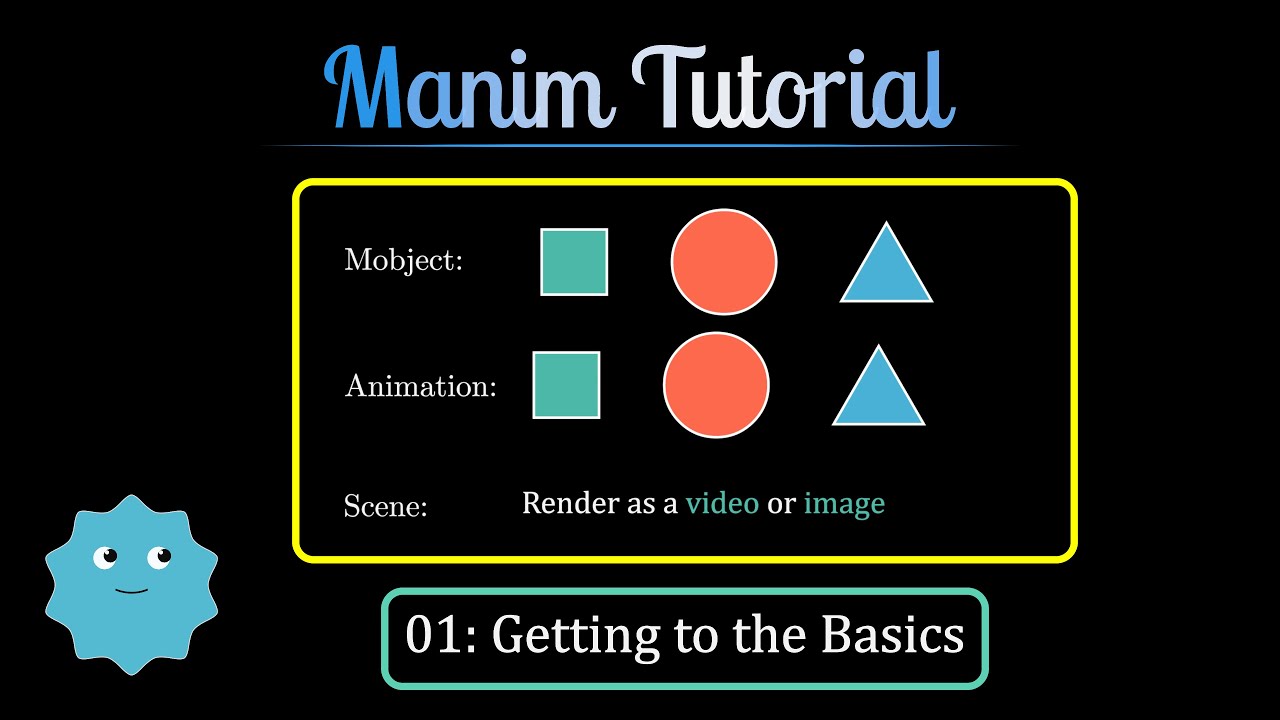
So this is going to be the first of many tutorials small tutorials in a kind of like a full amount of course for beginners so it's pretty much going to gloss over everything you need to know within madam as a pure beginner stuff that if you knew about it it'd just make it doing stuff in madam a thousand times easier so first things first you've got to have it installed so if you're going madam ce There's a link for that if you're going madam three blue one brown there's a link for that and i'll put
those into the description now that's one thing you've got to have a little bit of an understanding of python although that being said you can kind of learn python along the way as you're learning mata so small stuff like whenever you're using python and you open up a new file what you've got to make sure you do is like import the madam library so you go From madam import and then hash so like anything you type coding wise out from there you've already imported the madam library like you can't just open up a python file
and just go for it because python will just kind of be like what do i need to do okay where is this stuff coming from but if you say hey import all of the stuff from madam then it's going to go okay whenever you use circle i know exactly what you mean because I've got the library right there to reference so just more understanding there another thing would be is have a coding editor okay so for example i use visual studio code i like the look of it it doesn't nice shortcuts for me and it's
the only one i've ever used i know there's like sublime and there's some other ones but personally i go for visual code studio i would strongly Recommend getting a coding editor with an interpreter so this is what i mean by interpreter so if i'm just going to create a class here for just really quickly so if i create a class i need to call it from a scene and construct it from the self and you pretty much do that every single time this is what i mean by interpreter so if i'm going to call a
circle i'll call it circ is equal to you can see when i Start typing it's already got this stuff coming up for me this is what a python interpreter is going to do it's going to go oh you want to create something that starts with ci here's a list of all the stuff that has like a ci in it and it'll prioritize the stuff to the top which is the most common so for example circle so i'll create a circle and then i'll put some stuff or some parameters in there and you can see it's
going to interpret that a circle has a radius and it's got A color and there are some keyword arguments and you can read all of that stuff and that's what the coding editor is doing that's what visual studio code is doing now it knows to call a circle because i've imported the manum library so that that's kind of like how python is working so i could call a radius here for example of zero point actually now let's go 2.4 and the color is equal to red okay so what i'll be what i've Essentially done there
is i've just created a circle nothing special there a couple other prerequisite things that uh you've got to do is what i strongly recommend doing uh one of them is joining the discord so here's a link and i'm going to give you a brief rundown on how to use it now this is really really useful because when you're creating your animation and you go to do it actually you know i'm just going to Completely stuff it up on purpose so and you can see if you've got an interpreter to put a squiggly line saying hey
you've stuffed it up but let's say i i don't know that so i'm going to say self play and create the circle and then i'm going to create this animation so madam and then let's just run this code and i'm going to get an error here because there's something wrong with it okay so you're trying to create some Stuff and it's like bang you're faced with an error now this one's kind of obvious because his name circle like that is not defined because it should be circle but if you don't know what the error is
saying you're going to get really like frustrated so i would strongly recommend download discord so when you get these errors you can go and ask people who are going to help you out with those errors so you can have a quick fix rather than Trying to like figure it out for like i don't know half an hour which is not really time effect so you go to discord okay now it's sort of like it's just an app on your computer so i've got mine um on my desktop here so i've got mine on my desktop
there's discord it's just an app that sits there and you would pretty much just join the community so i'm a part of a couple i'm a part of donny's den which is like a Couple of mates i've also got madam and i've got microsoft so you take that invite and then you go into madam now there's a whole bunch of stuff within here pretty much the one you want to go to is well there's projects you can see what other people are making and they're sharing which is kind of cool but there's also like there's
four madame help channels so straight away i can see here um i've got nexa you know Whatever this guy's name is how do i align an object with an x coordinate of another object now if i wasn't doing a video right now i'd probably help answer his question and he's asked that a couple hours ago so nobody's answered i'll probably see it and try and get it um get a nice answer for him okay and there's a couple see pretty much just come in here and if i didn't know how to do something right I
would say hey guys how do i change the color of a circle okay something like that now with discord you can actually um like write code so if you put the number uh the key on your keyboard next to one it's like that little dash thing and you can go circle and then you click the dash again you can see it comes up with some code so it's like kind of nice Writing your questions like that so people can tell what's like your question and what is code and if you're doing multiple lines here you
can do three of these and you can see it like automatically comes up with something you could say self play circle i like this create circle and then you go down and then self weight And then one two three and it'll write out a chunk of code so i'm pretty much just going to write that and so you can see hey guys how do i create you know change that and then bang bang now that's a stupid question because it doesn't make any sense so i'm just going to delete it before anybody tries to answer
it pretty much that's kind of like a quick rundown on how to actually use discord as well right there's a bunch of Moderators these guys are really good they're really helpful i've had a lot of interactions with those guys and they've helped me become a lot more proficient with madam so i strongly recommend getting onto that with those prerequisites aside let's get into actually creating a scene and getting an animation working let's start with creating a scene our very first scene so what you've got to do is you've got to import all of the stuff
from the madame Library otherwise python is not going to know what to do so you go from madame import asterisk it's going to import all the stuff from madam now you've got to create a class so you've got class and then you name it i'm going to name this one pith and we go c all right colon so i've named my class pith and then i'm going to construct it from the self so you get deaf construct Self now look there are many if you go why do we have to do that why do we
have to type exactly that why does it have to be seen and why it has to be self to be honest i don't necessarily know i feel like it's got something to do with how python is working alongside cairo to get the animations to work i don't really have that answer but you've got to put that at the start otherwise the animation isn't going to isn't going to Make itself so you pretty much just put that so i see that as i've created a scene called pith and i'm going to construct some stuff okay and
now if you've got your interpreter it's going to do this indentation for you and you can see when i click enter i've got the indentations and you can see there's a little like red line here because the interpreter is saying there's a mistake somewhere you better fix that up before You save it and try to call on a thing otherwise i'm going to throw you an error so i'm just going to start off by making a square and i'm going to call it sq and that's equal to square now you can see with the interpreter
i can just go there i open it up and i can see okay a square has a side length so go side length equals i'm going to say 5 now some keyword arguments here so i can change The stroke color of this thing i want that to be green and i actually want to give it a fill color so i'm going to say fill color equals blue and i'm going to say the opacity so fill underscore opacity is equal to 0.75 okay and then ctrl s for save and i've got some stuff in here okay
and so what i've done is i haven't Animated anything so far i've just got a square i can call that onto my scene so i can use self.play create s q sq is the square i've created i don't want to say create square i want to create the thing that's what the square is equal to that's how python is reading it now i can give this a run time so i'm going to comma run time which is however Long i want this animation last for i'm going to go three seconds okay and then i'm gonna
go self dot wait so pretty much just want the animation to play then have a little pause and in here there is no time stated now that's going to auto default to one second i'm going to save that so now here what i've got is in my little terminal there i'm going to get manum Creating a so i'm telling it create a mathematical animation and then i call the name of my python file so in this case it's madame course now i look down here where i'm calling it from and there's only one thing with
like starting with madam so i can i can get it to autofill by just clicking tab okay so i've got madam so create a mathematical animation from this file and then i want to select the Scene so the scene is the scene's name is pith and i've got dash pq which means play in the quality i'm going to go m for medium and then click enter you wait for it to create something you can see it's like oh yeah animation create the square 100 done and then it plays the animation and now there's my square
created you can see it took three seconds and then waited so it's a four second animation Pretty cool you can change a couple things here but pretty much that is the logistics of creating a scene that's the very first one now if you want to have a look at other objects this is a nice part of having a python interpreter you can hover over this square you right click it and you go go to definition and then visual code studio will speed it up and you can see this is from the packages madam so where
it's downloaded It's a mobject and it falls into the geometry file and i can have a look at other stuff that could be there so i can just scroll through and i can see well what i also could have had well there's a rectangle um and there's also a triangle and there's also there's also a arc polygon from arcs okay there's a whole bunch of stuff this is A line of code 2253 of the stuff that you can create there's a whole bunch of stuff right you can scroll up and you've got to make sure
that you're looking at class so there's a dot right so you can call the dot you can have a play around with this there's a whole bunch of stuff that you can call in my particular example i called a square so now that we've got the scene down We're going to create some stuff that is a little more complex i'm going to go class testing scene so i've just named it testing def construct self oh i need to make sure i've got my indentation there save that okay now i've got a little problem with my
terminal here i don't Want to have it with python i want to have it with the control terminal now what i'm going to do here is i'm just going to create a whole bunch of stuff and i'm just going to try and get it to move around the screen a little bit so i have a scene that's got a little bit more detail to it so i'm going to create a thing called name which is going to be my name now i do this through text which is sort of like create some text and i
want to use Some 66s and 99s here whatever they're called and i'm just going to go amity very good so i'm going to create some some text i'm going to also create a square again and this time i want the side length to be 0.5 i don't want it to be too big now what i'm also going to do is i'm going to create a triangle so try is equal to try angle that's my object i can have a Look this takes keyword arguments which is okay so it's just going to be a regular polygon
so i'm just going to scale this down so i can go dot scale and make it 0.6 the size of itself so what i've done here is i've just created my name as a thing i can have on the screen i've created a square and i've got a triangle now at the moment they're all like if you can imagine they're just sitting at a dead center of the screen i haven't Moved them left right up or down when i when i've got them created they're just sitting there in the middle of the screen so i'm
going to go with my name i'm going to go dot to edge so this means i'm taking my name from the center of the screen and i'm going to move it somewhere else so i'm going to go up left so i'm going to put it in the up left of the screen there now i can go buff which kind of means like at The moment it's in the very top left but buff will kind of give like okay you want it to go in and down a little bit so i'm going to buff equals 0.5
which is 0.5 or so a half of a unit so i've got my name up in that corner there i'm going to do the similar thing here for the square dot 2 edge and i'm going to say actually i might just shift this one so Instead of saying to edge i'm just going to shift it so the moment it's in the center i'm just going to shift it left times 3 units there so that's just going to take that from the center and shift over to the left and the triangle i'm going to go dot
to edge and then down down right and with no buff there um so at the moment i've created like my Name and a square and a triangle and they're like positioned at the moment i haven't called anything but they're currently like waiting to be called in certain parts of the screen now we can get to calling them so self play and i can write out my name so i can write name and that'll write out amity in the top left corner then i'm going to go self play now another thing i can do is draw
border than fill with my Square see it'll draw the border and then fill it actually to make it a little bit more fun i'm going to add a fill color so you can see how nicely that draw border than fill works and i'm going to make it a blue fill color actually no i won't i'll make it green okay and i want that to last two seconds so runtime equals two save that and then i want to have self play And i just want to create the triangle so create try and then i'm going to
have self.wait okay so that's my whole animation so i'm going to madam and the madame course tab so it auto fills it in testing because that's the name of my scene pqm and i'm going to click enter and because i don't have any errors here it's going to create stuff All right so you can see my name's there on the top left there's that square that's been shifted to the left and then the triangle down there oh it has not got any fill fill color equals green ah maybe because i've got to give it a
fill opacity it's equal to 0.75 maybe maybe i've got to do that okay that's a little weird let's just double check and see if that works Okay there it is there's that square with the fill very cool now i don't just want that to be kind of sitting there static i want these things to move around the screen a little bit so that's no problem what i can do is self play and then let's say i want my name to move from the top left to the top right so i'm going to go name dot
animate and so pretty much what i'm doing is i'm Going hey name which is the amity thing there animate and go to the edge and go to the up right in this case instead of the uplift and take a run time of two okay now while that happens that's going to happen and then after that i would like is i'd like the square to rotate around a circle um And then i and then after my name goes from the top left to the top right pretty much what what i want is i want the square
to increase in size simultaneously i want the triangle to move now from the down right to the down left okay so i can do that i can go self play and if i want these two things to happen simultaneously i go square dot animate dot scale and i'm going to make it two Times its size and i go comma try dot animate dot what do i want to go to edge and i want it to go to down left and i'm going to give this a run time equal to three and then i'm going to
self-weight so the name should move by itself but then the square and the triangle should do their stuff simultaneously now another trick is here rather than having to type it out again i can just click the up arrow And it'll autofill the last thing i did so that's a nice little python shortcut click enter there and hopefully this works the way we want it to okay so my name moves and then the two things they're happening at once very cool so you can get some stuff to move around on the screen now that's kind of
useful because well now you're getting to the like the animation field things are starting to Move around so it's feeling more like a video rather than a photo so i know it feels early on in the piece to be going hey why are we talking about the error bar but the error bar is something that you probably want to become pretty comfortable with um because you're going to make a lot of errors when using madam or at least be anything like me you'll be making a heap of errors and those errors are really nice because
It's like immediate feedback into how you can code better like into how you can code without making a mistake so i just want to show you a couple of the potentials but i really want to show you how to read the error message because if you're comfortable with that you can kind of fix up the mistake that you've made and then you can get on with whatever you're trying to do rather than feeling like you've just hit a brick wall and it's really really frustrating And it's really irritating so let's just go through it so
let's say um i want to create a circle so i'm going to get s equals circle where radius is equal to half let's go two all right that's all i want to create i'm going to self play right uh circle because that's the thing i've created right and then i'm going to go Madame madame course errors pqm so i want to play uh the circle that i've just got there i wanted to write the circle now the problem here it's saying circle is not defined so it's come up with an error like it's not going
to spit me out in animation because python doesn't know exactly how to render this thing so there's a problem it goes circle and it gives you an arrow line nine self play right Circle circle is not defined and there's a name error now it goes through pretty much goes through the whole thing so it was like okay we got a scene and we constructed some stuff and then we got to your code and there was a problem that's where the problem was so here it's like oh it's not circle it's supposed to be c because
c is the name of the circle so i can do that and go okay great run it now and it shouldn't be a problem Should be no errors here okay that's what you'll love to see now i can make an indentation error so if i'm not using the python interpreter and i accidentally have my indentation off and i try to run this again i can click up so it's really quick i don't have to type the stuff out it goes indentation error see it says it right there so it tells you what the error is
Expected in indent expected and indented blocks you go okay where's that now if you've got your type interpreter it'll put a red squiggly line sort of like if you spell a word wrong in microsoft word python will give you a red line saying hey your coding is off so you can fix that up until you don't see a little red line there so that's that's kind of nice as well uh another one that you might have is if you go uh you try and get fancy intersect r equals two because You're like ah no radius
let's go ah does that work no it goes all right type error init which means initializing them object we've got an unexpected keyword argument r r is not defined in in what the manum library considers a circle so you go here and you can go to definition and a circle is an arc but in it so initializing it needs a Radius not an r now i can take some other keyword arguments which i've gone over a couple but r is not one of them r is not one of them you need radius so go out
of that and we can fix that up so we type radius and it'll work exactly how we want it to okay again if you add your path interpreter though and you go circle open up it says radius okay you know not to shorthand that for r Okay now you might go oh well instead of right uh what i wanted to do is i wanted to create then uncreate or something like that or create then go away well if that's not a play like a callable thing it's going to spit you out an error because it's
like that's not something you can do so it says name not defined so you can't go circle so create then uncreate what you can do is you can create it Okay that's something and if you want to have a look at how can you animate stuff you can go to the definition of create you can see it's in site packages madam animation create and pi so it's the python file for creating stuff we'll just create there's show partial i've actually never used that one and also this is a whole bunch of stuff you can unwrite
so it's like the uncreative create you can show increasing subsets you can have a play Around with all sorts of this stuff but you've got to have something that is defined here so this tutorial is intending to kind of help you become proficient with reading the manimal library again if you've got your python interpreter things are going to be really really nice so because it is mana let's create some mathy stuff so we've got ax equals axis not going to go into a whole lot of Detail with what goes in there right now that's for
a future tutorial and i want to play some stuff so create the axis now if i want to call some stuff on this axis i can go to definition and within the coordinate system a python file within madam so within the madam library there's some stuff you can put on the coordinate system now like i can see here access it's like It inherits from vector group so it inherits from a whole bunch of stuff it has inherents from the coordinate system and it goes from a meta class from convert to open gpl so personally i
haven't ridden a thing of this code there are management developers within the community you can chat some on the discord they're doing a fantastic job with developing a whole bunch of stuff this madam library they create all the stuff so they they create the class axis So you can just call it on right what they do is they they initialize what the axis is so it's going to have an x range it's going to have a y range it's going to have a length so you can call a number and then give the the scale
of it for x and y right they they configure the axis x and y you can add tips okay they create all this stuff so we can just write a little bit of simple code and then it's up on the screen so you can see Here like y-axis you just rotate it by 90 degrees okay and you make sure that the numbers are going to the left of that so it says they're doing a fantastic job with what they're doing in creating this stuff and it's a good idea to be able to not to be
able to write it necessarily just to be able to read it and be aware that this stuff is there and people are creating it so whenever you're calling something like let's find some other stuff So there is and again there's like a stuff that you see you can go get access um you can get lines of graphs there's a whole bunch of stuff there uh but a couple main ones so like you could go a 3d axis now that's going to require a 3d scene but we can go down a little further and so we
can see here that there is a class of a number plane right so number plane inherits from axis But whenever we call this it's going to have the illusion of a number plane rather than an axis and you can go to the top of this coordinate system you can see there's it's thousands of lines of code um you can call a whole bunch of stuff so there is okay so there's some stuff here with graphing so we've got a def get graph so you can call a graph onto your axis or your number plane so
you can get A graph if you want to put a graph on um you can get an implicit curve which is which is actually a new thing so if you want to put a relation okay like for example if you want to put a circle on your graph you don't have to write it in function notation which is really cool okay what you can also do is you can get a graph label okay so it it it'll put it next to the graph and you just have to give it a name okay and you can
it'll Auto-translate some stuff to latex for you right there are some calculus stuff so some get rhyming rectangles so if you want to add an area under the curve you can do that right it it it's something that's auto there for you to just go rectangles equals and then get rime and rectangles and you can put them onto your curve so it's all there within the madame library and it's it's super important to be able to read this Because once you come a little bit more proficient with it you can have a look so like
the roman rectangles they need to go to a graph they need to be called within a particular um range right you have a dx value for how thin or thick you want the rectangles you can say do you want them to go to the hit the graph to the left or hit the graph to the right or hit the graph to the center okay um there's there's a there's a width There's a color there's a fill opacity there's a whole bunch of stuff that you have there to play with if you know how to use
the madame library so it's super important to get a little bit comfortable with that stuff okay so this is um this one's really cool it's like a nice little thing that i wish i knew a little earlier and there are these things called getters in madam so for example i'm just going to create some objects i'm going to go rect equals A rectangle and i'm going to go color equals white height equals three sorry three and width is there a width there is is equal to a 2.5 okay and that's that's how i'm going to
leave it so i've got a rectangle there now let's say i also want to create a Circle so let's go circ is equal to circle i'm not going to do anything with this but what i'm going to put it to the edge down so i'm going to to the bottom of the screen that's how i want to put an arrow from the rectangle to the circle this is really cool so i'm going to arrow is equal to and now i'm going to call this with a line and i'm going to add a tip to it
so i go start Is equal to now i can go rect.get bottom you can see there's a whole bunch of getters here you can get center that's a common one i'm get anchors get anchor handles again that's sort of like i've only used those a couple of times when i'm trying to get things to work out position it perfectly to a particular point understanding how the object animates out with bezier curves you can kind of leverage that but if you Want to keep it simple you can pretty much just ignore it you can get get
bottom there's a whole bunch get corner you can get get end and you can get left you can get midpoint you can get a whole bunch of stuff you can get right you can get start okay i'm going to go get bottom Okay and you've got to put these brackets here because that's like callable and then i'm going to end it to the circle dot get top okay and then i'm going to add a tip add tip right so now it's going to give me my arrow and then i can self play and i'm going
to go create and i want to create all this stuff at once so what i can do is i can Create a vector group which is all of those vectorize my objects which is my rectangle my circle my arrow i'm going to go rect comma circ comma arrow and it's going to create all of those things at once and then i'm going to wait now i don't want arrows that was my last tutorial get it pqm okay oh no okay that's not gonna work because my rectangle is too big you know what let's just go
rectangle Two up left let's move that out of the way a little bit so we can see our arrow there we go that's a little better so you can see the arrow has gone directly from the bottom of the rectangle straight to the top of the circle which is really cool now let's say you don't want it to hit like exactly exactly you want a little bit of a space you can go and add a buff parameter so buff equals 0.2 so it's going to be 0.2 units From the bottom and the top and let's
see what that looks like okay now let's say it's like all right now i've got this stuff here it's fairly static i want to move some stuff around it's like we've already had a look at how to animate stuff so you go self play play and now i want the rectangle to move from the top left to the top right i want it to do a little bit of moving select animate dot Uh to edge up right and then and now ideally it's like if you got a nice cool animation going it's like the arrow
will like keep following it okay but at the time being what's going to happen is that that's actually not going to happen we're only going to have the like at the moment everything's going to be created and the rectangle is just going to move along and unfortunately the arrow is not going To follow now if we want the arrow to follow what we've got to do here is we've got to have a play around with some updaters which is what we're going to do in the next tutorial all right so okay we're going to keep
this exact same code here so we've got the rectangle it's going to move around but i want my arrow to like constantly follow the top and the bottom of the rectangle so if i want that to happen What i've got to do well i can do this in a couple of ways this is the way that i personally like to do it i just go always red raw and this is an updated function so i can go always redraw and then open up with a lambda function and make sure c here i'm going to have
an error because i've got a red squiggly line there now generally most of the time it's because you are missing a Parentheses or a bracket at the end so don't forget to do that now what's going to happen here is i've added an updater so now when i play this what's going to happen is the arrow will follow the rectangle or at least it should woohoo all right so now it's it's moving around now and now let's say i want to um let's say i want the circle to move as well so sir circ not
circle circ dot animate Let's say scale and i want it to shrink down to half its size and then i'm going to slow the runtime down so runtime equals four and now let's see what this is going to look like like isn't going to update if i've got a whole bunch of stuff um happening and it should because i'm telling it always i'm not read raw redraw always redraw always redraw Oh look at that so it's stayed and it's kept that nice buff the whole time which is really nice okay so even when the circle
got smaller it stayed at the top of that circle with that small buff so that's pretty nice you can do that with updaters now there's you can you can change this up a little bit so let's go i'm going to change this from getters i'm going to go update as a scene and then i'm going to construct this Now pretty much let's say i want to create a i want to create my favorite number which by the way is a natural log of 2 and i want to draw a box around it and i want
my name to be underneath it and i want it to move around and everything to stay exactly where it is like i want to have the natural log of two and then a box around it and then my name underneath it and i want to move let's say i want to move the text and Everything is going to stay in sync uh so let's do that so let's go number is equal to math text so this is some latex here okay natural log of 2 and we can say what it's equal to but you can
put in your calculator and what i'm going to do is i'm then going to have a box which is equal to surrounding rectangle surrounding rectangle in path interpreter i don't have to type the whole thing out Which is really good because i'll probably misspell something so so the object i wanted to go around the number i want the color to be equal to let's say blue i want the fill opacity to be 0.4 because i'm going to have a fill color of red and i'm going to have a buff of 0 Actually not let's have
a buffer 2 so you can see like it can have quite a big buff there now i'm also going to add my name so name is tex and i've got amity oop and i need to add my text outliners and i can put this dot next to now i can save the getters here what i can do is i can put it next to the box down which is the direction so from object and then direction and then some Buff so buff equals let's say 0.25 like i want it to be pretty close now if
i go ahead and move stuff around it's like yeah it's going to be created there and then it's like at the moment actually no i might just do it self play i create the vector group of number box and name so what's going to happen is everything's going to be on the screen as is and i don't want to have the getters i want the update as far As seen here so everything should just pop up perfectly which is you know which is great that's what i want to happen but if i'm going to move
stuff around i'm going to have a problem here okay so there we go there's my natural log of 2 as a nice it looks nice and mathy i've got my box which has got a big buff you can see it's 2 units that way two units that way Two units that way and two units that way i don't really like that so i'm probably going to reduce the buff and then my name is directly underneath it so i'm going to reduce this buff to let's say 0.5 and now let's say after this i want to
go self play and i want my number to move so i'm going to numb animate shift and let's go right times 2 and i'm going to give this a slower run Time so run time equals two and then we're going to self weight so it's going to be a four second animation like one second to create all that stuff and then two seconds to do that and another second two wait so i'm gonna call that everything's gonna animate out but like what i want to happen is i want the box and the name to follow
along at the moment All that's going to happen is everything is going to be created nicely but then that's going off by itself and that is absolutely not what i want to happen so i need to add some updated now again the easiest way to do this always redraw land a function add an extra parenthesis at the end and then i'm going to do the same thing for my text always Redraw lambda and then add an extra parenthesis at the end and now when i do this when i move my number everything should follow it
because i'm saying update like stay next to the box and i'm telling the box stay surrounding of the number so the number will the number will move the box will stay surrounded by the number And then the name will stay always below the box like beneath it and that's exactly what happens which is really nice so if you want things to move in sync you've got to add some updaters all right so just before we get into any graphing there's one thing i want to go over which is a value tracker and i'm just going
to go over this with an object And that'll pretty much just be objects done and dusted for like purely for a beginner's purpose and then we're going to get on to creating some graphing stuff so there's a there's an object which you can call a decimal number or an integer so i'm i'm going to go well i'm actually firstly i'm going to create my value tracker so i'm going to say ok it's equal to value tracker and we're going to start with the number zero okay So whenever i'm animating k that's going to be animating
the number at the moment it's sitting at zero so i'm going to have a number i'm going to call it num it's you've got a decimal number so that's a thing and what i'm going to do is i'm going to set it to i have so what that's going to do is that's going to display a number and i'm going to go dot set value And i'm going to say ok dot get value so it's setting it's going to be set to the value of k okay now what i can do is i can go
self play uh create actually i might just go fade in and let's get numb there and then self weight and what should happen is the number zero should be up there so let's let's Get this value trackers pqm okay so not the number zero should just pop up for me here okay yeah 0.00 because it is a decimal number all right if i change this if i change this to like um 3.5 for example then it should just come up with 3.50 which is exactly what happens there and let's say i want this number to
change cycle to and from saying okay uh self dot play I'm gonna self play i'm to k dot animate so i'm animating the value of k dot set value and let's go i want to go all the way back to 0. i'm going to give that a run time of 3 3 seconds i want that to go for now if you can guess what's going to happen here is nothing's going to happen because at the moment my number is fixed to 3.5 without any update is added to it so it's going to go through but
it's just going to stay at 3.5 i need to add An updater to my decimal so if i go always redraw by a lambda function the decimal close that off now again this is like the perfect way of adding updaters if you are purely beginning if you're doing like complex animations that require like a couple hundred lines of code or if you're wanting like many many many things to move in sync it's way better to create your own like Thing like create your own object or like create your own thing if you will um but
like for beginners this is a perfectly good way to add to add updaters okay it's not the best practice but who cares you're just making a simple animation so you can do this and now things are going to play out the way you want them to okay and you can see it's it's actually taking a little longer because what's Happening is it's actually having to encode like for each frame that it's playing it's going to change whatever the number is in that particular piece okay so that took a little while and you're going to notice
that if you add value trackers it is going to add um some rendering time but we're at 3.5 and that shuffles right down to zero now we can change the rate function here in fact i only want this to last for Um actually i want this to go for i want to go for five seconds just so we can see here and i want it to start at five now i can i can add a couple of things like a rate funk is equal to linear so what this is going to do is it's going
to go from five to zero in a linear fashion it's like it's going to take the same amount of time to go from five to four four to three three to two Two to one and one to zero so that is like a part of the the rate at which you want this animation to play out like it's gonna progress linearly okay and so you can see it's um it's going to be moving at a fixed rate now i can change this rate func to be smooth where it's going to start off slower so it's
going to like start off slower than zoom through the middle and then it's gonna end off slow and i'm pretty much Probably just gonna and so let's see what that one looks like okay and we can see with this one is that it like starts slow and then it's like really really quickly and then it eases off okay so there's different rate functions that you can take advantage of there let's get into some graphing with madam because it is madam for mathematical animation so let's make some math animations for some graphs now I can add
a plane or i can add an axis let's say for example i want to add a number plane so i'm going to go number plane and there's a whole bunch of parameters you can take so x range so let's say um i'm going to create a number plane where i can call on a parabola so i know i only want positive y values but i'm going to need let's say go from x being a negative 4 to x being 4 and so that means i'm going to have to go from 0 to 16. right with
that x squared so i'm going to go from opening up some brackets to negative 4 comma 4 so it's like start point end point of the axis and then in what increments do you want to go along in this case i'm going to go along in increments of 2 just to show you that you can do something like that and then you've got an x length now i've got a lot more detail on this in my like original madam tutorial series so if you Want to see like how long does that like is the actual
video length like the madame conversion in in the animation um like go have a look at it because i go into a lot more detail there so uh the x length i'm just going to set to be seven and so y range i'm going to go from 0 to 16 and i'm going to go n jumps of let's say 4 for example Okay and i want a y length is equal to let's say it's got a length of eight okay now i'm going to position this to the edge and i'm going to put it down
okay so i'm going to put this under plane to the bottom of my screen okay now what i'm going to do is i'm going to add my parabola so i'm going to go parab for parabola is equal to and now i want To call like a function or graph onto my plane so a plane for this plane here this plane here okay so plane if i pulled this if i pulled this pith instead of plane then i would have to go pith pith dot get graph okay just to make it clear it's whatever the name
of your number plane is so i am going to go plane dot get graph and i'm just going to quickly change this to plane because i don't want pith i want a Plane so my number plane like that and now i'm going to k i've got a function and i'm going to go through a lambda function so lambda x such that we've got x squared double asterisks 4 to the power and i'm going to put an x range i'm going from negative 4 to four that's what i want the x range to go on the
the domain of my function i don't want the color that to be equal to green and what we're going to do is we're Going to self play create actually i might draw border than fill of my plane and then i might self play and i will create my parabola parabola and i'll self weight now nicely with my text editor it's told me that i've misspelled create so i'll quickly go and fix that up before i run anything off here and this is graphing Okay very good so there is my number plane now there's a couple
of things i want you to notice here there's no numbers on this number plane and it looks like like i'm going 2 sorry 4 8 12 and then 16 is off the screen so i'm going to change this y length to be 5 and i'm going to add some numbers to my number plane by going add coordinates there so i want to add the coordinates Here now that should fix up that small problem there okay there we go so i can see my whole thing there and i've got my parabola on my number plane and
let's say i wanted to add some like you know i want to add i wanted to have f of x for y and then x for my x-axis so i can go labels is equal to well i can i can actually do this in two Ways okay one of your labels is okay okay so i can actually do some two ways i'm going to call them labels and go plain dot get axis labels there i am going to x label is equal to just x and the y label is equal to f of x now
this is by the way this is all created by the developers who have come up with the number plane and they've fine-tuned it and they've made It easier um so i can just call my labels and i can just say yep x and f of x and bang there it's going to come up so it's like that's really really nice so that's kind of cool but i've got to also make sure that i create and now i might create the vector group of stuff and i want to add my labels and my parabola for example
okay so i can do that and i need to add another parenthesis at the end now what i could also do here is let's say i Want to i want to create oh like i want to show like what's the name or like what is this function exactly so i go uh func label is equal to and i'm going to go math text here now like this is another way you could label stuff and i'm going to go f of x is equal to x to the power of 2. oh x to the power of
2. so just draw again if you know a little bit of python A little bit of latex you can i'll put that in there right now i'm going to put this next to i'm going to put it next to the parabola to the right of my parabola with a small buff zero point let's say 0.5 and before i do that i i want to scale it down a little bit so i'm going to scale 0.6 let's say for example and then move it so i want to scale it and then move it And i'm going
to then add this to the stuff so funk label so i'm just adding some more details here to my to my animation so i can totally do that so now i've got a plane i've got some labels i've got a graph and i've got some graph labels positioned exactly where i want them on the screen so i'm going to have an x and an f of x and i'm going to have my function notation right next to my Parabola here okay so there is my there is my label i could go for example i could
go up right so it goes up there and i can change the color of it to green maybe i can make it a little bit bigger so i can i can totally do that so i can go set color here and i want it to be green because that's the color of my of my function there and instead of right i'm going to go up right So let's say we've got something like that and so now let's say what i also want to do is i want to add some area underneath this curve some let's
say area is equal to and now i can go plane dot get rhyming rectangles and now they input a graph and a graph is equal to parabol because i want them to be underneath the parabola the x range i wanted to go from negative 2 up to 3 For example on the dx to be equal to 0.2 and i'm let's say i want to have the stroke width equal to 0.1 and i want the stroke color to be equal to let's say white okay so i've got my rhyme and rectangles there with all of those
parameters so now i'm going to do that and i'm going to self play i'm going to create the area and then i'm going to wait after that Okay so like for example plain dog get ramen rectangles is something that i could add under um into my coordinate system and there's a whole bunch of other stuff that you can add into your coordinate system if you know how to like read the madam library and get that working the way that you want it to so there it is there's our parabola and then there's our area there
going from negative 2 all the way up to 3 which is Which is really nice and so if you go well what if i want a tangent line so you go to definition you go to the coordinate system you read the manum library and you go and maybe you can control f and maybe you go secant line and there it is there's a def get the secant slope group which i'm going to use in the next tutorial where we are going to be looking at adding updaters okay so i'm going to do some updated Graphing
here where now i'm going to call some stuff on an axis when you get axis is equal to or x it's equal to axis and i'm just going to um i'm going to do the same parabola with the same x range stuff so i'm probably going to fast forward this here [Music] okay and so now i'm at the point where i want to add a slope so i'm going to axis dot get secant slope group so this is Going to pretty much this is the tangent line here so the x value um let's say i'm
going to go x i want this to happen at x equals let's say x equals 3 okay for example i want this to be on the graph of in this case i've called my graph func function that's going to be my parabola i want the dx or the distance between the two dots of the secant to be 0.01 so i wanted to give the illusion of a Tangent line um i'm going to change the color so i've got secant line color is equal to let's go green and second line length let's change that to be
a length of three for example so what i've got here is i've got i've got an axis i've got a function i've got a slope now i'm going to add all this up here actually and i Can just go self i don't have to animate it out i can just go self.add axis funk and then slope and i can go self weight and let's see what this looks like here okay so there we go so there's my parabola you can see i don't have any i don't know any coordinates on my axis at the moment
i can change that let's say i don't like that gray color i want it to be white i can totally change that and we can see there is a slope at x equals at x equals 3 if we follow it up there At x equals 3. so that's very nice let's change a couple of things here so i am going to want to add coordinates to my axis there and i also want to set the color to be white which is cool i can i can definitely do that i've got my function i don't really
want to bother with a name for the function at the moment but let's say now i want my secant line to like Right along the curve okay so like have a think about what you're asking madam and python to do you're saying make a secant or like make the slope go from like for example x equals negative 4 and write it all the way along to x equals 4 or 3 for example at the moment i've just got the secant line at x equals 3. i don't want that i want that x to be variable
i want that x to move so i can say x equals k dot get value And you can guess what this k is going to be it's going to be a value tracker and at the moment i want it to start at negative 4. so i've got my value tracker here and i've got my access i've got my function at the moment it's at negative four and that's going to play the way it is now if i want now if i go ahead and go okay well self play K dot animate dot set value which
is changing the value of the value tracker from negative four let's go up to four let's take a run time equal to three for example what's going to happen here is absolutely nothing because i don't have any updaters associated this slope i want it constantly updated so i'm going to have to add an always redraw function here and then add an extra parenthesis at the End now what's going to happen is i'm telling the i'm telling the madam and python saying look here's a value tracker keep track of that value and so add an axis
add a function here is a slope and for the x value get that value tracker okay and while you're at it always update while you're doing that and so python now and madame now know okay that's exactly what we're going to do and we're going to keep all These other parameters set so now when i do this it'll take a little while to render because now you've added a value tracker so you know it's going to have to re-interpret that every single time but then you should get a slope moving along the curve very nice
now one more thing let's say all right it's like i'd love it if there was like a dot that stayed at the coordinate on the slope for that so i want a little I want a little point so point and i want this to be a dot now if i want this dot to like at the moment or i've got a dot in it it goes in the middle of the screen nothing else so what i want to do is i want this dot i'm going to say move to now i want it to stay
at the coordinates on my graph so i want the x coordinate to be given by the the value of the value tracker so i'm going to say move To i'm going to x dot c to p which is coordinates to point and so the coordinate is going to be the x value which can be k dot get value and then the and then i need open close brackets there and then the y value is going to be function dot underlying function that's the one underlying function which is get the y value of func which is
get the y Value of this for whatever the value of k is so you can see now i've got a lot of things dependent on this value tracker here i've got the value of the slope and i've also got the coordinates of this dot now if i want this to update i have to add always redraw statement with an updater for a lambda updater and i want to make sure i add this point here so now This might give the illusion of something that is just a little bit better it gives the slope and now
there's going to be a coordinate along the slope at that particular x point on my parabola very cool now look i've got again i've done a whole series on this so if you want to go into like if you want to go into more detail if you want to have a look at or what about polar plane or you know what About doing what about creating my own definition absolutely go for it i've gone into a lot more detail this is just kind of like a beginner's a gloss over on this topic so in this
tutorial i'm pretty much going to go over adding like the svgs or the this what are they called scaled scalable vector graphics i think that's what the acronym is for it's pretty much adding um images into madame and madame will like do some animation and stuff With them rather than with images themselves like a png you can fade in and fade out but you can't like get it to like draw each piece and scale it out and certain things like that as nice as it would if it was a svg now if you're like me
you have a windows and this is how i do it on a window so i've got like home and home too i might call this home one and home two now i'm pretty much this is just the Directory in my pc for where i want these images to be accessed from i personally had no idea how to do this i went to the discord and i i asked and um the dude theorem of beethoven who does his own tutorials he answered my question in like five seconds i was like so amazed i was so impressed
um and i was really chuffed because i could like get on with what i was trying to do at that point and so i've got home on and Home too where i can access images and svg images okay those are under my directory which i can find in here and so if you just click in there that is the exact same thing for my svg images now let's say i want to create the youtube icon for example okay which is this thing this thing here it's huge let's that thing there okay i can do that
no problem at all i can't Okay and so what i do here is i would add my youtube icon so that icon is equal to svgmobject and i go f and i'm going to state this is coming from home 2 close that off double backslash and then i'm going to name the particular file so mine's youtube underscore icon.svg so i've got and is there any capitals there i don't think there is there is Definitely not so i've got youtube icon underscore icon icon dot svg okay and so it knows that it's going to search that
directory and go to this particular file and grab that and i can go self dot play draw border then fill and here i can put in my icon and should play svg's pqm Okay and you can see there it draws the border and then fills the youtube logo so um a couple of things good could go wrong here you could put in the wrong thing and you try to do it and it's going to come up with an error message again it's going to say home is not defined and it's going to go that's where
the problem was and we tried doing all this stuff for setting up your scene but i you stuffed it up so you've got to Make sure you put the correct one there and now you could for example get the name wrong uh which is not going to come up with the squiggly line in your interpreter so you've got to be careful of that like you've got to have it as the exact name there and again you'll see an error here it'll come up and it'll say it okay there's an os error and say could not
find um that thing in either of these locations so if that's going to happen To you you've just got the name wrong so you've got to put that underscore there if you've got an underscoring yours now let's say i want to have an image so i've got image is equal to image object and again i'm going to get f in this case i'm calling that home one and then backslash backslash in here backslash backslash uh and then i'm going to call an image Here so one of my images that i could get is the oh
let's go ducky ducky.jpg ducky dot j peg okay now if i want to draw the border and fill of my image so that is my m i'm going to get an error here because i can't apply these nice animations to fixed images yeah it only works on vectorized mob jacks an image is not a vectorized object what i could do though Is i could fade it in image okay and it'll fade in that little ducky no problem at all take a little bit of time that's fine okay and so there he is mr duck right
now you can try and remove the background you can do all sorts of things there but that's how at least on windows you're going to add some images and some svg's now sd like you treat this stuff the same way if you Want to scale this down you go scale 0.5 and then you um to edge uh down left okay if you want to do that like madam the way it positions the way it scales is going to be the exact same right it's going to it's going to shrink the size of that image and
put it to the bottom left so you can position these like images and stuff the exact same way okay there's nothing different there so i've got this tutorial here it's like It's sort of like a bonus one i'm throwing in at the end it's using config um which is sort of like accessing the config library with some stuff in madam you can do this for like for example an access is one thing um that you you want to like change some specific parameters with um now like for example here you can see i've just got
an access and i've got some stuff here but like within the config you can change the font size You can include some tips okay you can exclude numbers you can put elongated tips on particular numbers now if you want to know exactly what you can change you go to the definition of an axis now an act or at least this uh whereas our axis here is reliant like if you think about it the x and y axis are reliant on number lines so i would need to go and find a number line Um which is
in which is in number line up high it actually actually has its own um thing in the library so like again this is just like becoming a little bit more proficient with navigating it and so there are like certain things that i can change in here so i could change like for example i could change the unit size um you can see numbers with elongated tips if i wanted longer tick multiples like like if i Wanted 2 4 6 8 for example i could change the tip width the tip height again you can like include
numbers there's the font size there's the direction whether you want to include decimals in there for example like if you want to like for example with the trigonometric if you want radians there i i've specifically got One of the tutorials i covered how to do that you know because that can be kind of a pain in the neck you can include numbers you can exclude numbers and you can see here they've got depreciation which means probably don't include that stuff because in the next version of madam um you can see at the moment we're currently
on uh it says madame community version 0.11 In version 0.12 this might be gone so like if it's got depreciation probably don't include it okay but like that's again if you're if you're using um this sort of stuff within madam it's a case of get a little bit more comfortable with reading the madam library and if you've got stuff like um you want to change the configuration of particular things just know how to navigate it and know exactly what you can do With changing that so like a perfect example here is an axis and if
i wanted like decimal rather than integer values here i could go ahead and change some stuff with the decimals in there okay that's something i could do all right so that pretty much is probably going to bring a wrap to this madam course it's just purely for the for the beginners hopefully it like gave people enough of an understanding to get Started with madam and make some basic stuff that you've kind of wanted to be making especially with some updaters and if you want look if you want some more help discord is huge the documentation
is huge both that stuff's going to be in the description um there's heaps and heaps of other youtube tutorials like i've got plenty um theorem of beethoven's got some um there's there's there's a bunch of stuff out there right so just know where to look And look at a whole bunch of stuff um again like if you want to look at 3d scene that's a little bit more complicated i've got a bit of stuff on there i can solve other people like matrix transformations multiple updaters creating your own like definitions okay i've done some stuff
on that that's a little bit more advanced not really for a beginner's course so if you're pretty much Tackling and on top of everything like that then kudos to you you're probably ready to like make some more advanced stuff and you can look at other resources that are going to help you how to do that