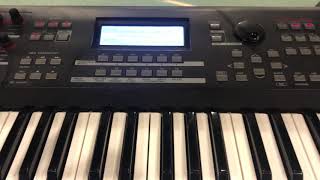
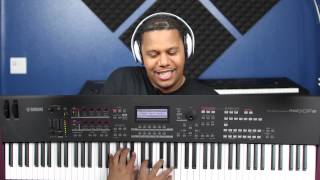
hi my name is Cathy and in this video I'm going to show you how to assign up to four different voices to different regions on the keyboard giving each region or each voice the desired octave or even key so that you can not only move from voice to voice by merely moving your hand to a different position on the keyboard but so that you can play two different voices simultaneously this works kind of like multiple splits on the keyboard but if you try to do it by using the split button the keyboard really only splits
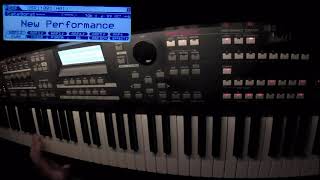
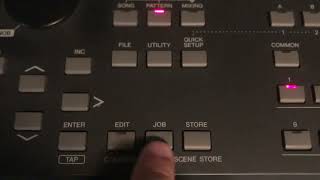
once to upper and a lower if you're using the split function but in this video I'm going to show you how to do it a different way using parts and we're creating an initialized performance so here we go okay the first thing you want to do is you want to hit performance then you want to hit job and then you want to hit initialize which is already pressed and then you want to hit Enter you hit that twice then while you're in this screen you're going to hit edit and then when you're here you're going
to go over to these four buttons it says part select and you notice that that is the parts like so I'm going to hit the first one and when I hit it it opens up this box which shows part 1 2 3 4 the first thing you need to do is make sure that both voice buttons are hit so you got f1 and sf1 both of those have to be hit now I'm going to select the voice I want for part 1 so I simply go up to category search and choose what I want my
low voice to be whatever it is I'm just gonna pick a Bay a bass and I'm gonna hit enter and so you can see user 3 number 104 that's a bass so everything on the whole keyboard right now is bass but I want to set it to its you know give it limits so I'm set it to its region so I'm gonna hit limit right now every note the lowest note is the lowest note on the keyboard and I'm fine with that so that's what note limit low so I'm gonna go down to low no
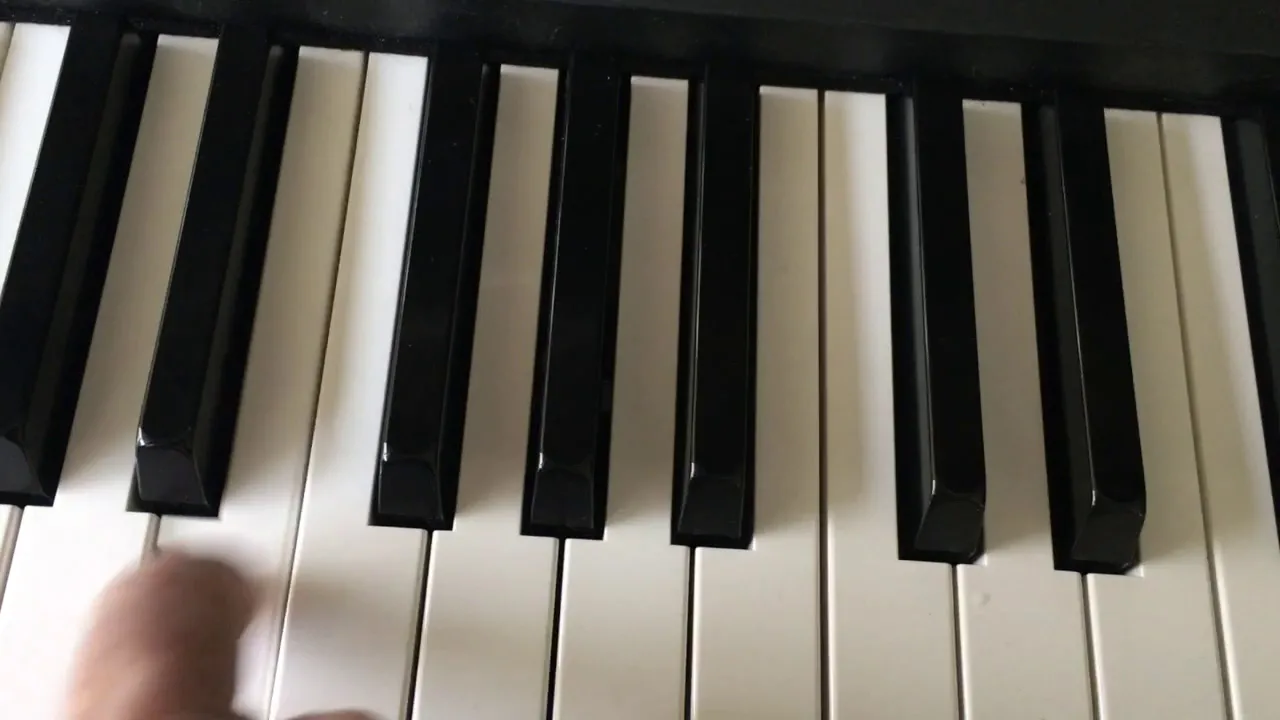
limit high and I'm gonna take that down to I don't know maybe f2 let's see if that is where I want to be I think it is so I'm see nothing above it [Music] so anything above F is going to be my next part now let's say I want my bass to be an octave lower than what I'm hearing so I go to tone and it says note shift if you want to go down an octave you go down 12 so - let's see so I'm gonna play that same F then I was playing before
but now it's an octave lower now that octave shift will only apply to part one it's not going to apply to your other parts other regions of the keyboard so now go back over here to f1 and sf1 you have to get them both don't forget that make sure your part switch is on or you're gonna not hear anything I'm going to use my arrow go over to part two I got to turn my part switch to on hit category search let's say I want a piano so I'm just gonna hit enter now I got
a piano right now now I'm gonna go to limit right now I got piano everywhere so it's actually doubling with the bass but I don't want that so you you know you can't actually just layer things this way so I'm gonna change my lowest note of the piano to a half step higher than my highest note of the bass so I'm gonna go to F sharp too so let's see there it is so here's bass and right now it goes all the way up so I'm gonna set a high limit so I'm gonna I just
want to octaves of piano let's say so I'm gonna go to f-sharp for using my wheel over here there we go so watch piano so and if I wanted to change the octave I could push tone whoops I pushed on one tone and I can change it or if I even wanted to change the key I don't I don't know why I would for piano I can move that whole segment up a half step you know something like that might work if you're working with the b-flat instrument and you're reading music that's a whole nother
story okay so I'm now I'm going to part three turning the switch on hitting category search and I'm going to choose a new instrument so let's say I want to do a a flute okay hit enter open that go down and find the flute hit enter alright so now it says user 3 that's my flute voice alright so now I have to go to limit again right now my flute is everywhere on the keyboard but I don't want it to be layered so I'm gonna start my flute one half step higher than f-sharp for so
I'm gonna go f-sharp I'm gonna go to G for piano keyboard and I'm just gonna do three voices so I'm gonna stop there so now if I wanted to play piano with a flute accompany accompaniment I can do both at the same time obviously I only have two hands so I can't be playing the bass and the keyboard on the flute so I don't know if this is a really good example of what instruments to choose but I'm going to be doing a show and I'm in the pit orchestra for musical and I'm gonna be
doing some strings and trumpet and bells and special effects so I I'm gonna have to be switching a lot and doubling instruments I mean playing two instruments at the same time so I'm gonna have to customize it and set it up for each song and the musical two to save this let's say this is a setting you want to save it you're gonna hit store and then it's a assign it a user number whatever you want to do wherever you want it to be let's say I'm gonna assign it to number four and then I'll
hit enter and then enter again and now it's called an initialized performance and if you want to look at the voices there they are and you can see the ranges that they're at see that there's the bass he's kind of the load the middle and then the high as the flute kind of shows you that all right now you might want to name it though so I'm gonna go back to f1 there it is initialized performance this is how you name it you hit edit and you'll just get this screen again but you hit this
little key over here called common so you have edit in common and now it's in a you can use in your wheel you can change the letters and you can ream and then of course hit store and you've got a new performance which is basically your four voices on different regions at the keyboard