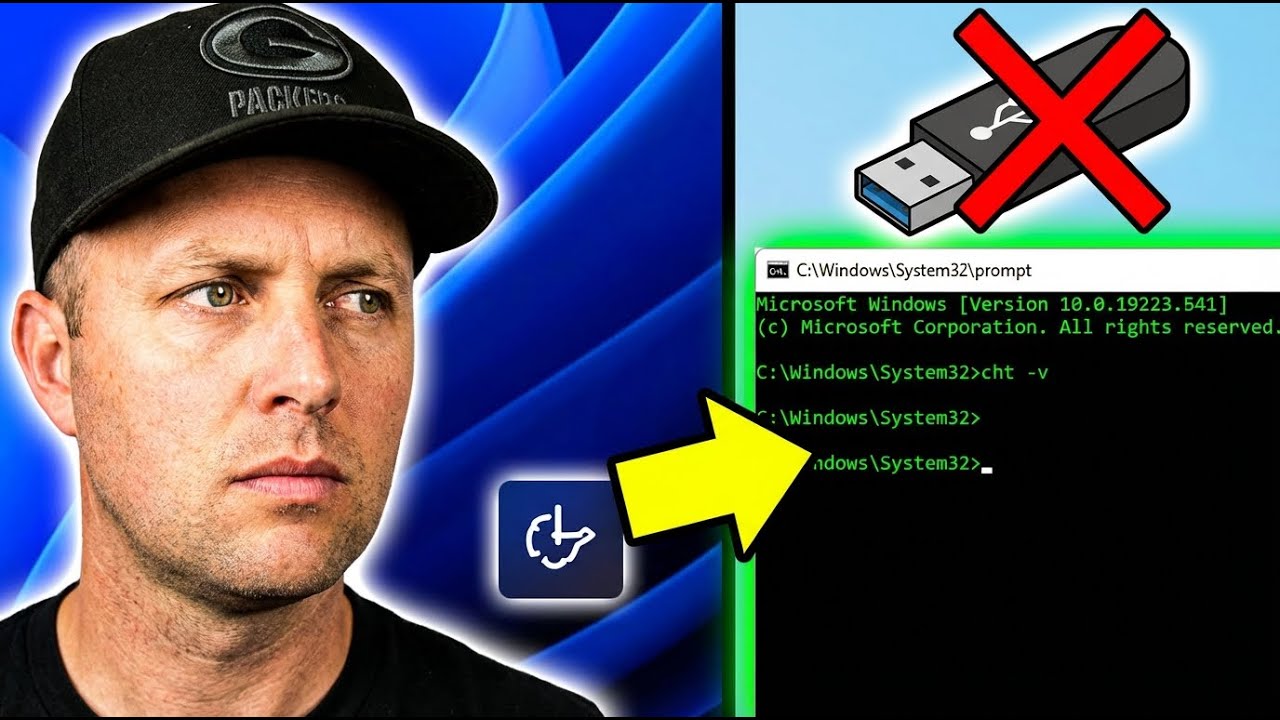
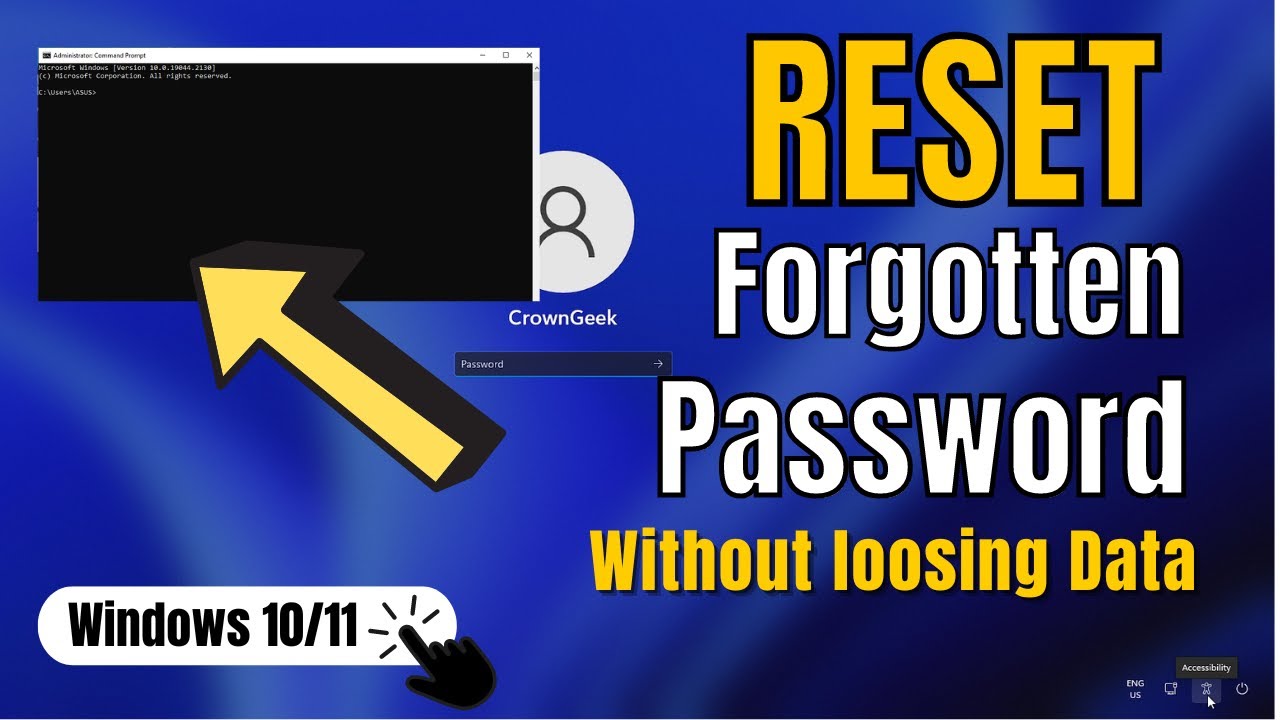
what you guys got another requested video on how to reset your windows 11 password without any software now someone said they've got a pc and it's the only pc they've got and they've got a password on it and they need to remove it so to reset your forgotten uh password on your local account that's important it can't be a microsoft account that you're logged into it has to be a local account and you can reset it without any software and i'll show you how we're going to be using the accessibility feature built into windows you can see here easier right here and we're going to be using this to change over to a command prompt so we can then change our password and then we can put it back once we're done so first off you need to hold the left shift key down and restart your pc so hold the left shift key down and click on the power button and click on reset here on the bottom right hand of the screen you'll see that restarting during the restart process continue to hold the left shift key and you should then see the advanced menu options coming up on the screen and you can see here choose an option so what we want to do here is now go into the troubleshoot area so click on troubleshoot and then come down to where it says advanced options click on this one and then you should now see command prompt so click on command prompt and you will then see the command prompt box here now first off what we need to do is determine where our windows directory is so first off let's locate it first so i'm going to try and put c colon in here and push enter to see whether this is our windows directory now normally is in c but yours could be indeed or it could be in any other letter it sometimes changes but in this case i'm going to try c here and then we're going to type dir and then push enter and you can see there is no windows directory here so we know it's not in c so let's try d d colon and then push dir and you can now see we do have that windows directory here which means we're in the right drive letter so d is my drive letter so from here we need to type in out cd space windows and this is going to change our directory to our windows directory and now we need to change to our system 32 directory so let's go cd space system and this will change us to our system32 directory so now we're in the right location we can put in our first command and we're going to be backing up our utilman. exe file so you can see here i'm going to rename the utilman. exe to utilman1.
exe this is going to back it up so we can revert back later on push enter on your keyboard to commit and then what we're going to do is do our next command which is rename ren space cmd. exe space utilman. exe so we're basically renaming the cmd.
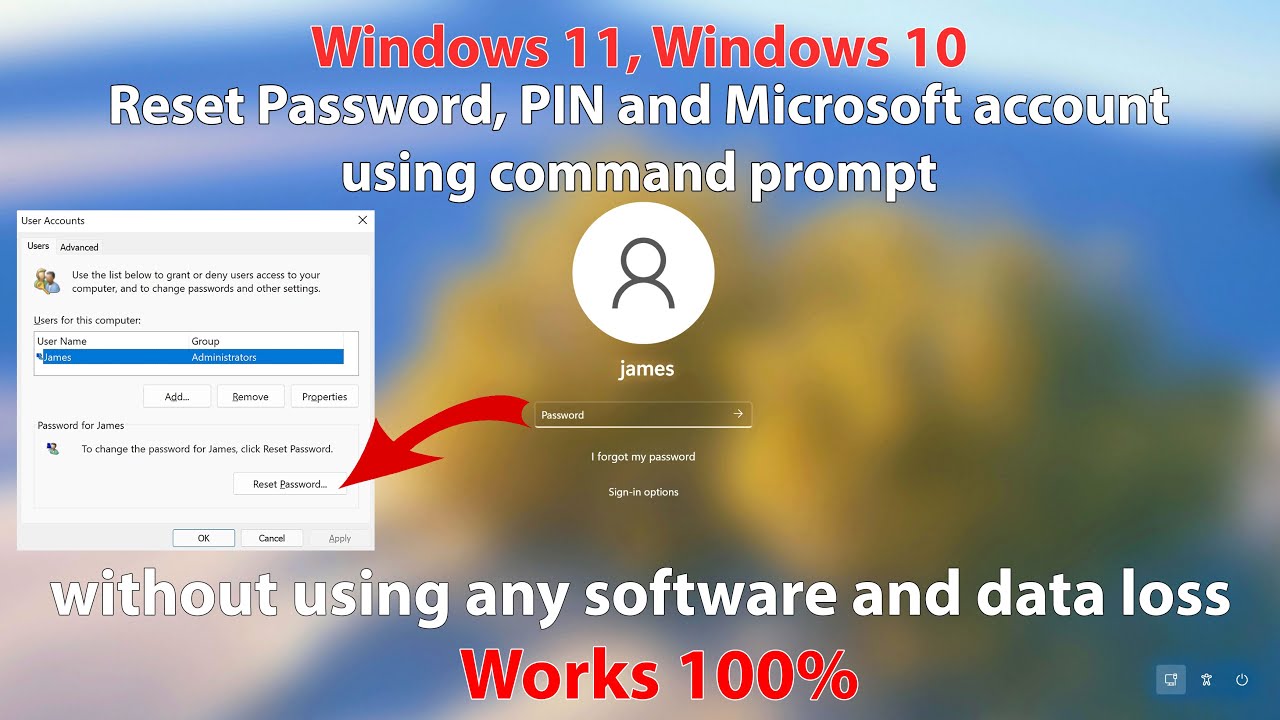
exe to utilman. exe that's all we're doing so when we go to that uh accessibility feature it's basically gonna allow us to enable the command prompt at that screen so we can close this off now and continue to windows so let's close it off and click on continue to windows if this feature doesn't work here you need to restart windows completely but it did work for me so it's okay but if it doesn't restart your windows completely until you get back to this screen so if we look down on the bottom right hand side here where accessibility was when we click on accessibility it's going to open up our command prompt instead because we've renamed it and changed it so what we're going to do here is open up this here and we're going to type in this command here to change our password so we need to type in here control and then space user passwords to and then push enter so let's go ahead and type this out here i'll put it up on the screen so you can see it and then once we type this out and push enter it's going to open up our account options here so we can reset the password so once we got this typed out push enter and you'll see a little box popping up with the user accounts on it and this is our user account you need to choose the account that you want to reset the password on in my case there's just one and you should see reset password now if this is grayed out it means that you have a microsoft account and not a local account you can only reset the local account this way so push reset password and you should see there is an area here for putting our new password now you can either put a password in here or i'm going to leave it blank and this will remove the password we can now click ok and that means the password has been removed we can close off the command prompt window and then we can continue to windows if this doesn't work they can restart and it will do the same thing so let's now push this little arrow key here if your pin key pops up here just push enter and it will allow you to go to your desktop mine didn't have that feature so we're now at the desktop and our password has been removed so once you've got your password removed you can then go into your settings here and you can reset your passwords and your details inside here if you wish by going into the signing options here so let's go into our accounts here and what we're going to do is let me expand this a little bit here and we're going to sign in options and you can see here we are running a local account that's important you cannot reset a microsoft account password this way you have to go to the microsoft website and change your details there to change the password on a microsoft account this is a local account you can then change your password or your pin or whatever it is on here once you get to that option there in your sign in options so now we need to put this back to default so what we're going to do here is just reverse the process so let's go ahead and i'll show you how to do this and put this back now you've removed your password so if you sign off here you're probably thinking that you'll be able to sign off and use the same feature and be able to reset the default settings here and you can't do it so the command prompt box is still here as you can see we can't reset this because it's not set to administrator so we need to go back into our advanced menu options here so close all this off and then go back and hold your shift key down and what we're going to do is go back into the advanced options so hold the left shift key down and restart your pc and just continue to hold the left shift key down until we get back into the advanced menu here so it takes a bit of time to boot back up and there we go we're back in to choose an option we're going to go back into troubleshoot here and we're going to go to advanced options here and then go back down to your command prompt click on command prompt and then from here we're going to reverse the process so we need to go to our windows directory in this case we know it's d so go into d we're going to check dir to make sure that it is windows yes it is so now we can put in our first command to reverse the process so let's navigate back to system 32 by doing cd space windows and push enter and then cd space system 32 and there we are we're back into system 32 here so let's do our first command here which is going to be ren space utilman. exe and then space cmd.
exe and then we need to type the next one which is ren space utilman1. exe spaceutilman.