Now imagine if there would be thousands of document then how much of time I would have saved and that too we are doing without any shortcut no plug-in no third party nonsense this is co-work anthropic official desktop app for Mac and most Mac users have absolutely no idea this exists now before you install anything let me quickly explain what we are actually dealing with here so most people know cloud today as a chatbot. You go to cloud. ai, type something and get answer and move on.
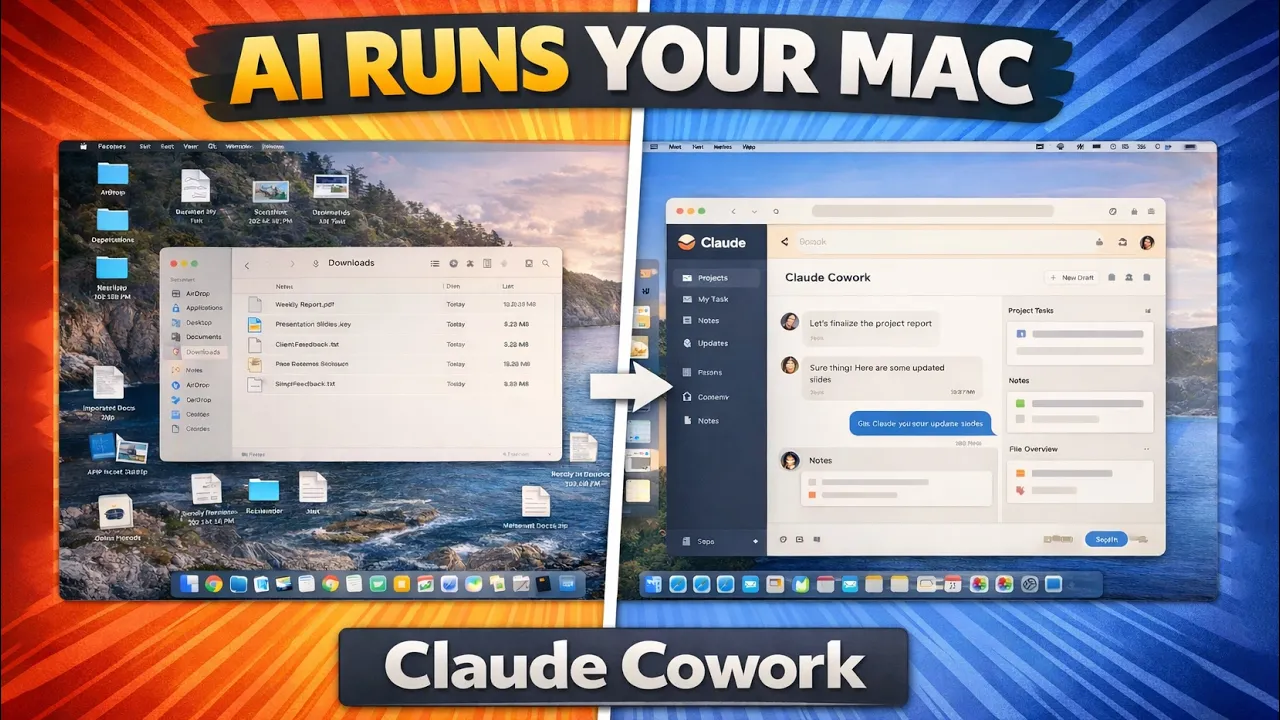
But co-work here is different. Co-work is a native desktop app that sits on your Macintosh and can actually interact with your system. You can think it off as an incredibly capable assistant who actually know where everything is on your Mac and can execute task for you.
For that open your browser and in browser we need to type cloud and you need to visit this page which says cloud. com. Also do not worry guys I'm going to provide this direct link in the description of this video.
Now you need to click on this option which says get apps and extension. And by the way if you have not signed up yet I would request you to sign up and to access cloud a co-work. need either pro, enterprise, max and team plan which is not free.
So that's a negative I would say. Now look for cloud. com and there you go.
Now if you are new to cloud you may require to sign up else you can simply sign in. Sign up is also pretty easy and in order to show that I am going to copy this URL and let me open this in a private window. So here you can use Google or you can use your email address to register yourself through email.
If you have got Google ID then it will make everything super fast. Now before we proceed further let me also tell you one thing cloud co-work with max team enterprise as well as pro plan. So one need to have either of these plan so that you can work with cloud echowork.
Now let me close this tab and let's go back here where we are already logged in. So once we sign in now what we need to do is we need to click here on get apps and extension. Now here in co-work we need to click on download for MacOSS.
So this will download a DMZ file. That's a standard Mac installer file. Now simply open it up and all now here we need to do is we need to drag the cloud to application folder.
Now you can close this and this installer setup as well. Now let's go here in apps and look for cloud. Now when you run it for the first time it may be possible that the application will ask for some kind of access.
Now all we need to do here is we need to click on open. Now here we need to accept the cookies. Now click on get started and then again use the same account that you either have created in few steps before or you know you can use your existing account.
Now again we need to accept terms and condition. And now here you have option to quickly call cloud a by pressing the following option button. You can also find cloud a here on the top by clicking on it.
So this is co-work home screen on Mac. Now let me quickly walk through what you are looking at. So you have got clean task input area.
You can think of it as a messaging app but instead of chatting you are giving your Mac instruction. Now if you click here you will open the sidebar where you may able to see all your previous charts. Now the tool here which we just saw in starting is co-work which exist in pro plan.
So we at least required pro plan to get started with cloud a co-work. So what I'm going to do here is probably I will be changing my ID because I already do have. So let me upgrade it to pro by using my another ID.
And there you go. Now here instead of just a single tab you're going to see these three tab which is chat co-work and code. So let's click here on co-work.
Now from here I'm going to select the folder which I would like to automate. So click here on work in a folder. Now here I'm going to select my desktop.
Let's click on open. Now here you need to give cloud a permission. So I'm going to say always allow.
So this is totally up to you. If you click on always allow then cloud in next time won't ask for any permission before making any changes. So the biggest nightmare for me is managing my folders.
So here let me quickly show you a quick demonstration by managing desktop. So desktop have got following files and folder that are simply lying here and there. Now I will try to manage this by asking cloud a co-work to help me out in managing it.
Now click here on work in a folder that lets you automate of perform certain task. Now here I'm going to select my downloads folder where there are so many files lying just like that. So let's click here on open.
And now here you need to provide cloud a to make the changes. So you need to be very careful if there is something sensitive that you think that shouldn't be deleted. So I would recommend you to back up that file and then start working with cloud.
Now I'm going to click here on always allow so that I do not need to approve the multiple request. Now watch this. I am going to ask co-work to arrange or organize all my files in my download folder by type and date.
Now let me also keep them both side by side so that we can see what is going on in real time. Now here before it start it is asking us how you would like the files to be organized by type and then date by type only by date only and then you can also if you have got your own preference you can also let it know then we have got further more choices by clicking on these arrow which is they downloaded. So, let's do that with the downloaded.
And there you go. You see what just happened? I gave my Mac a single instruction and Cloud AI just automate something that would have taken me too much of time in thinking and making strategy that Cloud A did under 30 seconds.
And yes more the number of document you have you will see more the amount of time you're going to save. So just by simple instruction here that I gave it to co-work which is organizing all file in my download folder with some follow-up question from cloud air help me organize my Mac OS in a better way. So this is one example of what co-work can do and as I explained in starting it can do a lot.
It can batch rename hundreds of file with custom naming convention in just single instruction. It can also read a PDF. For example, if I click here and I want to read and let's say if there is a document, all right, which I would like to query about what this document is all about and please summarize the content inside.
Okay. So it can actually go through your document and can read and can give us what this document is all about. So this is also you know one such thing that now you can do because of co-work.
So that's code work on Mac OS Enthropic official desktop AI app and honestly one of the most underrated tool available for Mac users right now with only con here I see is in order to use co-work you need to have pro teams enterprise or max subscription and all these subscription cost you some amount every month and that's all guys from my side in this video hope that you find this video helpful informational and if you have got any questions related to this whole process, please do let me know in comment down below. I will definitely try to help you with that. And there is a lot more coming tools, workflow, tutorials that the mainstream channels are not covering yet.
So, make sure you subscribe to the Mac essential and I will catch you soon with one such another video. Till then you take care and bye-bye.