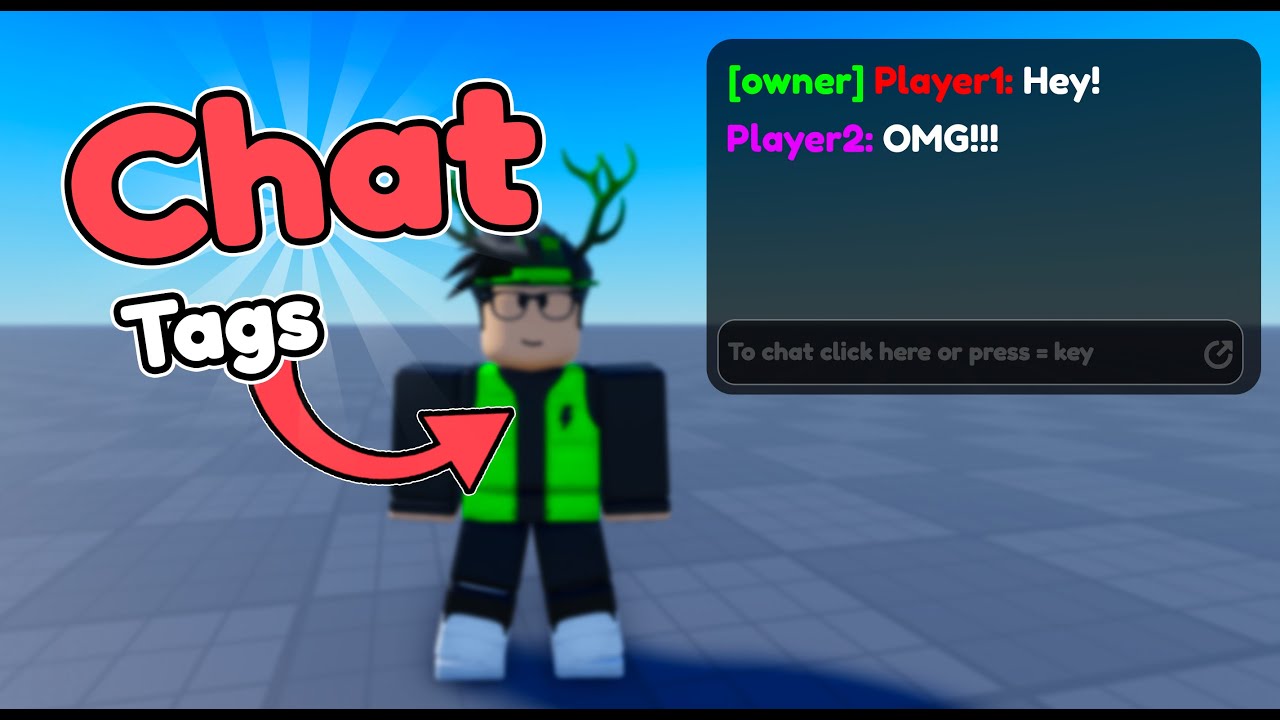
welcome back to my Roblox beginner scripting tutorial series my name is balev and in this episode we'll be discussing about player stats okay so for most Roblox games that you've played you've probably seen something on on the top right of the screen that shows a leader stat full of all the players that are playing within the game and if you don't know what I'm talking about let's go to test and then we're going to hit play so on the top right of the screen we should see a list of all the players that are currently within this game right now but also there are some games on Roblox that actually shows stats next to the player's name that um that can be seen by every other player that's in the game right now so things like how long the players's been playing um so things like how long the players been playing the game for or other things like the currency that they have like whether it's coins or Gems or whatever it is you can see it next to each player that's within the game and this is what's called player stats which is something we're going to be implementing inside of Roblox studio and I think this is something all beginners should know how to implement because it's also a very useful feature to know how to implement as well so that's what we're about to be doing now before we get into implementing there's a few things we need to know about first before we do that so I'm just going to hit stop and the first thing we need to understand is creating instances within a script now just to recap an instance is basically any object that's contained within the game so it doesn't matter if it's in workspace or inside service script service or service storage it doesn't really matter an instance is literally just any object that's inside of the game so it can be this script or it could even be the script or even the script it can be the spawn location it could be this model it could basically just be anything so we're creating instances and we're putting them inside of the game and the way we've been doing them is by hitting the plus sign next to wherever we wanted to create an instance and then we just search up whatever instance type we want to insert into the game but what if I told you we can actually create instances within a script so that we can create stuff while the game is running because if we were to do it like this then we can only create instances before the game actually runs but if we do it inside of a script we can create instances while the game's running so I'm going to be showing you how this works inside of Studio really quickly so I'm just going to create a script inside of workspace by hitting the plus sign inserting a script just like this I'm going to rename this to um player stats like that and I'm also going to disable the random scripts that we created in the last episode just going to delete this and so the way we create an instance let's say we wanted to create a part we're going to first create a variable by saying local new part equals and the way we do this is we use what's called instance so we have an uppercase i and then we say instance do new so this is the Constructor we're going to be using to create a new part instance so we're going to put open and close parenthesis and then inside of here it takes in a string which is basically the class name that we want to add to the game which is going to be a part like this so as you can see we can create a lot of instances but what we want to create is a part in this case so we've now created a new part inside of the script but right now it's not located anywhere because we didn't specify a location for this new part so what we have to do is drop a line and we have to say new part. parent so parent is basically where do we want this part to be a children of or which folder do we want to put this new part in and this case we can put it inside the workspace folder by saying um new part. parent equals game.
workpace just like this now there are some other things we can do with this uh before we set the parent of this thing so we can add some more configurations like changing the name of the new part by saying new part. name equals in quotations we're probably just going to say new instance part like this and so now what we should see is if we go into the game hit test and hit play then we should see the new instance being created and be put inside of the workspace folder so if we scroll down then we can see the new instance part is here but it's kind of located down here so I'm just I'm just going to like move this up a little bit um but here we go this is how we create new instances within our game using a script it doesn't resort to just using a a part but we can create anything we want inside of a script now the second piece of information we need to know is using instanced data types now basically what I'm referring to is if we go to our SC script and recap what a data type is it's basically different types of data as the name suggests that we can use inside of our scripts but also in the game in general so we have things like strings that basically just make up a bunch of characters then we have numbers and then we also have booleans like true and false and all these sorts of things we can basically take these data types and use them as if they were instances within the game itself so here's what I'm referring to if we go into the game and we click on the plus sign in workspace we can search up whatever data type we want so we can say let's say uh string and it's going to say a string value we can insert inside the workpace so if I click that then it can show down here if we select it that there's a value property inside of this string value so we can change this to whatever string we want by saying I don't know hello world or something and this is the value of the string now we can do other things like insert a number value like this so this is a number value that takes in a number number for the value instead of a string so this one can be I don't know 100 and then we can do the same thing with a Boolean so if we say bull value like this then this takes in a check mark for the value so it's either true or false just like that and you basically get the idea so these are in an instance format so it's not restricted to just having them be used inside of a script and this is going to be important to know when we're going to be adding leader stats inside of the game so now that we understand that there's one more more thing we need to understand and that is the Players folder so if we hit play then we've mostly just been working with the workspace folder inside of this tutorial guide but now I want to introduce to you the players folder which basically shows all the player objects that are currently within the game so as you know there's me that's in the game right now and if we open up our player there's four things here that's actually very important to know about the first one being backpack which is basically any item we have here in the hot bar then we have starter gear which I'm not going to worry too much about right now player GUI and then player scripts so we have all of these things and in order for us to add leader stats to our player we need to add them inside of our player in the player's folder the difference here is that this is our player object but if we go into the workspace this is our player character so this is our player character which is inside the workspace and this is our player object inside of the players folder so now let's hit stop so we now know everything we need to make player stats so what we're going to do now is go back to our script I'm going to select everything and then delete it so what we want to do is basically create a leader stats folder for every single player that joins into the game and the way we're going to do that is by first writing a player added events by saying game. players.
player added colon connect function open and close parenthesis and we're going to pass in a player argument and then we're going to hit enter just like this and what we we need to do first is create a leader stats folder inside of each player so that whatever value we put inside of here is going to show up on the right side of the screen so what we're going to do is add a folder called leader stats so we're going so what we're going to do is say local leader stats equals instance. new open close parentheses and what we're going to put inside of here is a folder so this is the new instance we're going to create and then what we're going to do is rename this folder that we just created so we're going to say leader stats. name equals now this is going to be very important we have to make sure that the name of this leader stats is exactly leader stats in all lowercase just like this otherwise Roblox won't know that this is the leader stats folder that's going to be added to the player next thing we're going to do is change the parent of the leader stats folder to be inside of the player so we're going to say leader stats.
parent equals player just like this so if we go into the game and hit play what should happen is we look at our player and once we open this up we can see that there's now a new leader stats folder instance that was put inside of our player so now what we can do is put any data type instance inside of this folder and it'll show up right here on the top right of the screen so I'm going to hit stop and then we're going to go back to our script and for the first example let's create a coins value so what we're going to do is say local coins equals instant. new open close parentheses now you have to look for the right value that we're trying to add here which is going to be an intv value in this case so int value is basically just whole numbers that we're going to be using so this is how we create it and now what we're going to do is set the name of the coins so we're going to say coins. name equals coins just like this and then we're also going to set a default value of it as well so we're going to say coins.
value equals z now we're saying coins. Val because if if we were to look at our number value that we created here we're trying to set the value property we're not trying to set the instance itself so once we do that let's Now set the parent of coins so we're going to say coins. parent we're going to put this inside of the leader stats folder just like so so we're going to say leader stats like that and now if we go into the game and hit play then what we should see is our coins leader stat inside of the leaderboard so if we go into players go to our player go to the leader stats folder we can see that we now have our coins in value and if we were to change this value right here so if we were to select this and then change it to let's say 10 then we can see that it's changing right here on the top right of the screen now I don't encourage you to change it directly like this just for like server and client reasons but we're going to be learning about that in my Advanced scripting tutorial guide so you don't really have to worry about that right now but this is essentially how you add leader stats inside of your Roblox game so I'm going to hit stop and what we can do here is let's say we wanted to have a loop that basically increments the value every single second so our coins go up by one every single second what we can do is drop a line or drop two lines down here and have a while true do statement by saying while true do and then we're going to hit enter make sure that we have a task.
weight for any amount of time it can be like 1 second just so that this doesn't infinitely run and then crash our script and now what we're going to do is increment the coins value so what we're going to do is say coins. Val equals coins. Val + 1 just like this now you have to make sure that it's coins.
value and it's not the coins instance itself the reason we do coins. Val is because we're trying to set the value property to whatever it is that it's going to be not the coins instance itself because if we were to do the coins instance itself like let's say if we got rid of the value right over here and we started hitting play then it's going to say that it's trying to perform arithmetic add on instance a number because we need to add the value which is a number not the coin's instance so I'm going to hit contrl z twice so that we can have the coins.