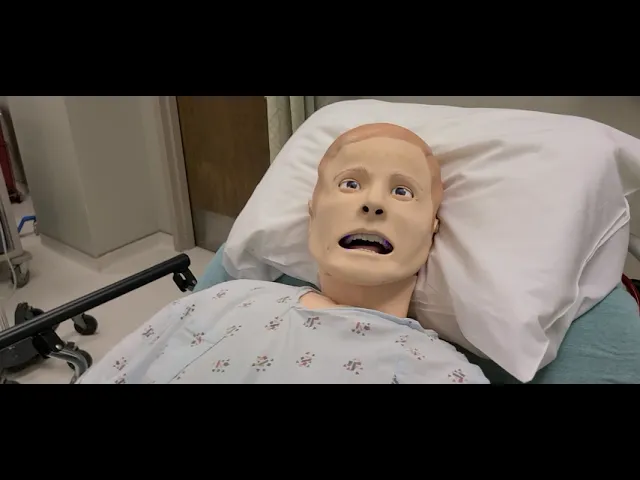
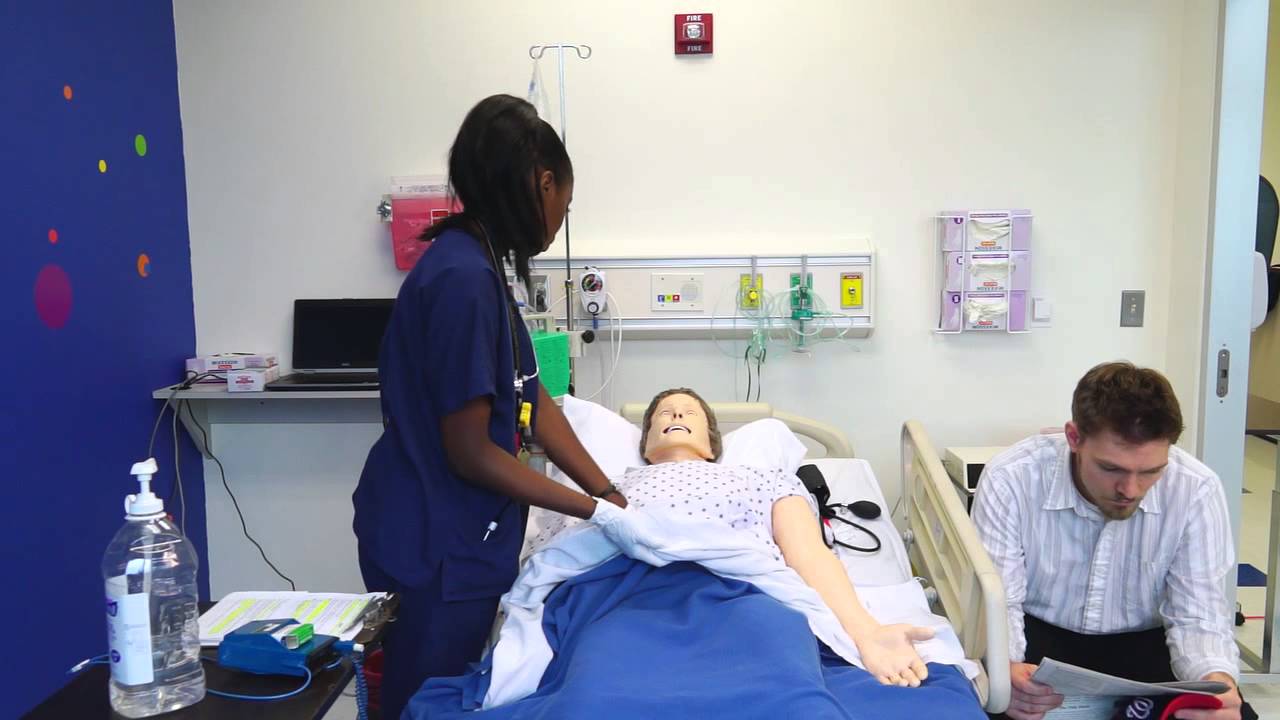
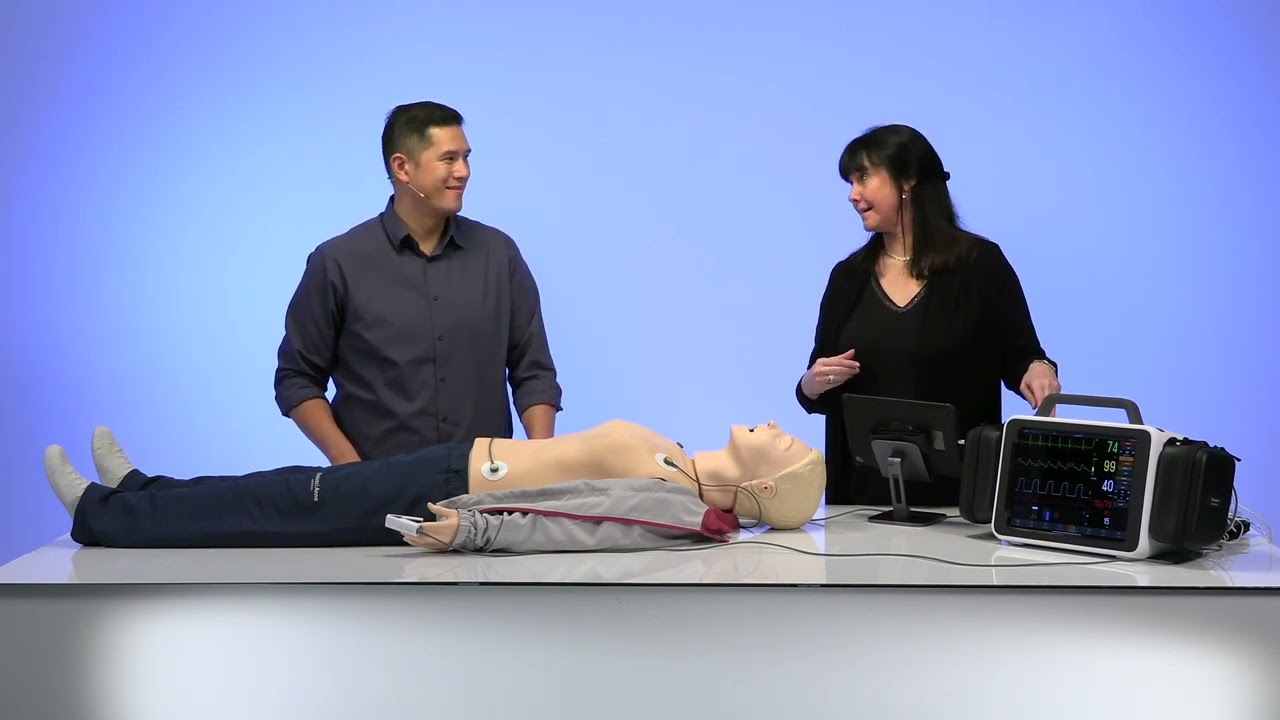
the purpose of this video is to orient you to the simulation mannequin at southwest medical center and how to turn on the mannequin and the associated patient monitor and laptop that runs the mannequin how to run a scenario and how to shut everything down so our simulator at southwest medical center is our lairdoll 3g sim man simulator we're going to start this process by turning on the simulator first the power button for the simulator is located on the left hand side of the mannequin here beneath this flap you're going to open up the flap and
the power button is right here you'll should see a green light that indicates that it's charging the cable is plugged in you can leave that plugged in during your simulation press the power button one time you'll see the battery button excuse me the battery light illuminated orange and then you'll see the power button illuminated as well okay the mannequin is now going through the process of turning on and while we're waiting for that we're going to go into our control room in our control room we have our laptop that controls the mannequin itself the power
button for this is on the left hand side above the keyboard you're just going to hit the power button while we're waiting for that to boot up we're going to go back into the lab and turn on our patient monitor which is located on the wall the power button for the patient monitor is on the left hand side of the monitor okay so while we're waiting for that to power on we'll go back into our control room and our laptop is booting up when the laptop boots up for the first time you'll see an image
on the screen what you need to do is place your finger it is a touch screen place your finger on the screen scroll up it might take you a time or two to get it nope there we go and you'll get this screen which is the screen where you enter your password the password is simuser with a capital s and a capital u so capital s i m capital u s e r and you'll click over here and that'll log us in this is what our desktop screen looks like now you may get an error
message here saying onedrive isn't signed in just go ahead and cancel out of that or hit close what's happening in the background now is that our leap software application is loading so while we wait for that we'll go back into the lab and we'll log into our patient monitor so our patient monitor has booted up we have the same lock screen here so we're going to press scroll up with our finger on the screen it is a touch screen same password simuser capital uh when we click into the password box we'll get this um on-screen
keyboard that we'll be using to type in our password so capital capital s i m capital u s e r sim user click the box and that will begin uh loading the software for the patient monitor then we'll go back into our control room again and since we've been away our leap application which runs our simulator has launched if for any reason you don't see this when you come back in here the shortcut to launch this is here on the bottom of the toolbar okay but you should see this after you've entered your password it
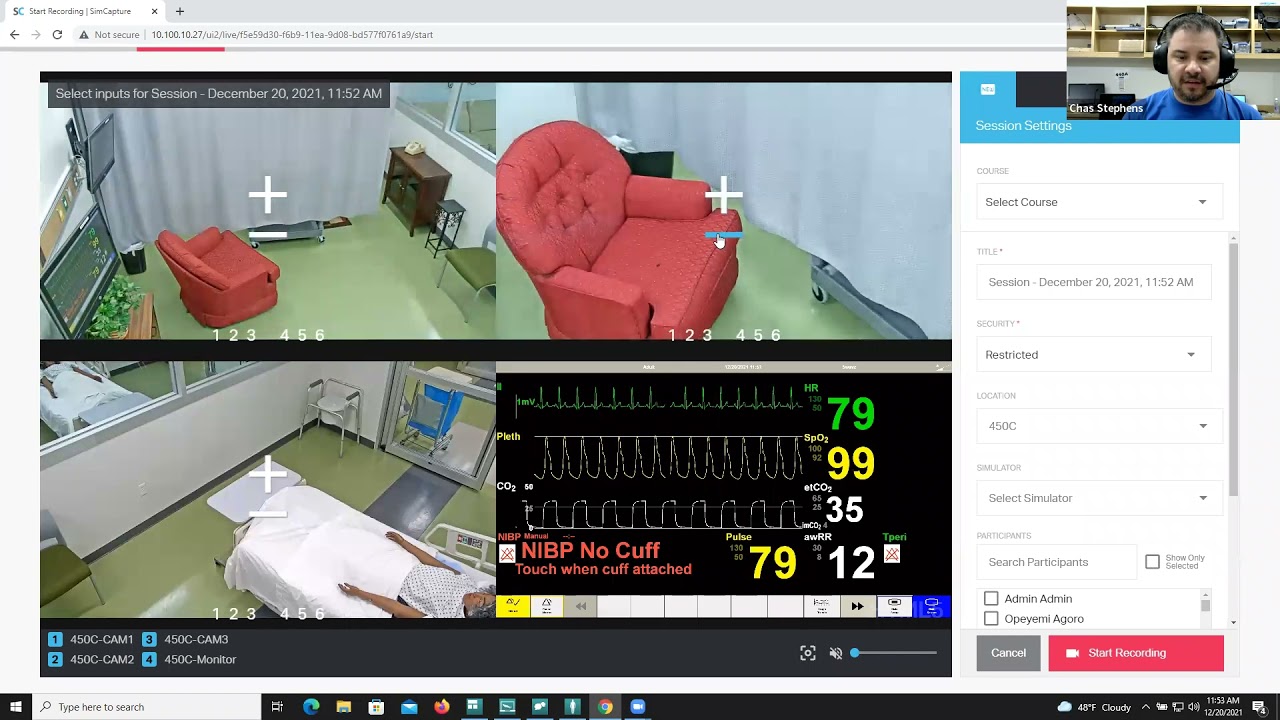
will automatically launch the leap software so to open up leap we're going to go into this area here the left hand side of the screen and click on leap all right that is going to begin the process of the leap software connecting to our mannequin and to our patient monitor so it's going to load you're going to see this screen which is going to ask you to select a simulator because we turned on the simman simulator it should automatically connect to the simulator and to the debriefing system and it's going to go ahead and do
that now it might take just a few seconds for that to happen okay once it's successfully connected to your mannequin and to your debriefing system you will see this screen run a session um you want to click on automatic mode which is this area here on the right okay click in the automatic mode and you're going to see this screen you're then going to click on browse in the upper left hand corner and you're going to browse to the scenarios that you're going to be using the quickest way to find those scenario files is to
go directly into the simman3g folder and you'll see here ed nurse residency simulations double click there and these are all the simulations i believe you're going to be doing the copd simulation and i think also the mtp simulation so that mtp would be here copd would be here so in this example we're just going to use copd so you're going to double click that is going to load the scenario you're going to go ahead and click ok and while that's loading one last time we're going to go back into the lab and we're going to
launch the patient monitor software so patient monitor is located right here on this screen just click the button for patient monitor and that will launch our patient monitor we're going to go back into our control room while the patient monitor software is loading we should now that we've selected a scenario we'll see this screen says this session has not started yet start session or edit before starting click on edit before starting all right you're going to do a couple of things at this point down here in the lower right hand corner you're going to click
on this icon it looks like a couple of thought bubbles that is going to turn on your microphone you may hear that echo if you do what you want to do is come right over to your microphone click the button that has the little microphone with a slash through it and click that that's going to turn off the microphone itself on the headset click it again to turn it on click it again to turn it off the red light means that the students cannot hear you if they if you're running a simulation and they can't
hear you through the mannequin make sure that you turn the light off before you speak so we see that we've got our green light illuminated over here which means that our microphone is on we see our controls for our scenario and we're going to go ahead and click play so the mannequin will have pulses be breathing so that when we orient our students to the mannequin um all of that is actually happening we're going to go back into here again and we have clicked on patient monitor and this is where we're going to tell it
which simulator to connect to so we're going to click on sim man 3d 3g should be the only simulator that's listed here so it says layered all patient monitor select simulator to connect patient monitor 2. go ahead and click on simman now it's connecting to the monitor to the simulator rather okay the last thing you need to do with the patient monitor before you start a scenario is you need to come over here click on blood pressure cuff click it one more time it's going to bring up your menu you want to set this from
repetition time you want to set to one minute and auto or manual want to click on manual to select auto that means it will automatically cycle your blood pressure every minute click out of that screen last but not least come over here to t perry which is our temperature you want to turn that on okay everything else will turn on automatically when the students touch the ecg or the spo2 those values will populate automatically um just a reminder as you're orienting the students to the patient monitor you want to show them right here where they
can click to get into their labs they can see their their lab values or their radiology files there okay just remind them to that that's where they go to see all that information alright at this point the patient monitor is ready to go um the simulator itself is on it's um it's the lungs are expanding so they can see the chest rising and falling they'll be able to find pulses so at this point you can orient them to the mannequin now when you're ready to begin the scenario you're obviously going to close the door and
turn on the light in your control room you're going to come over here and one thing that i've done is mute the microphone here on the laptop okay this button here if you click it now i'll hear an echo what i'm hearing is the microphone on the mannequin picking up my voice and that coming out through this speaker here you want to make sure that you unmute this during the simulation so you can hear the students in the lab while you're orienting them to the mannequin and setting everything up i would mute this and if
you click it one time it'll change to an amber color that mutes that speaker so you're not going to have that feedback that echo while you're trying to orient them to the mannequin all right so we're in our control room we're getting ready to run our scenario we're going to turn our light out we're going to turn our microphone on okay click the button we're going to turn our speaker on so we can hear those students in there and for the purpose of this of this video i'm going to go ahead and mute that now
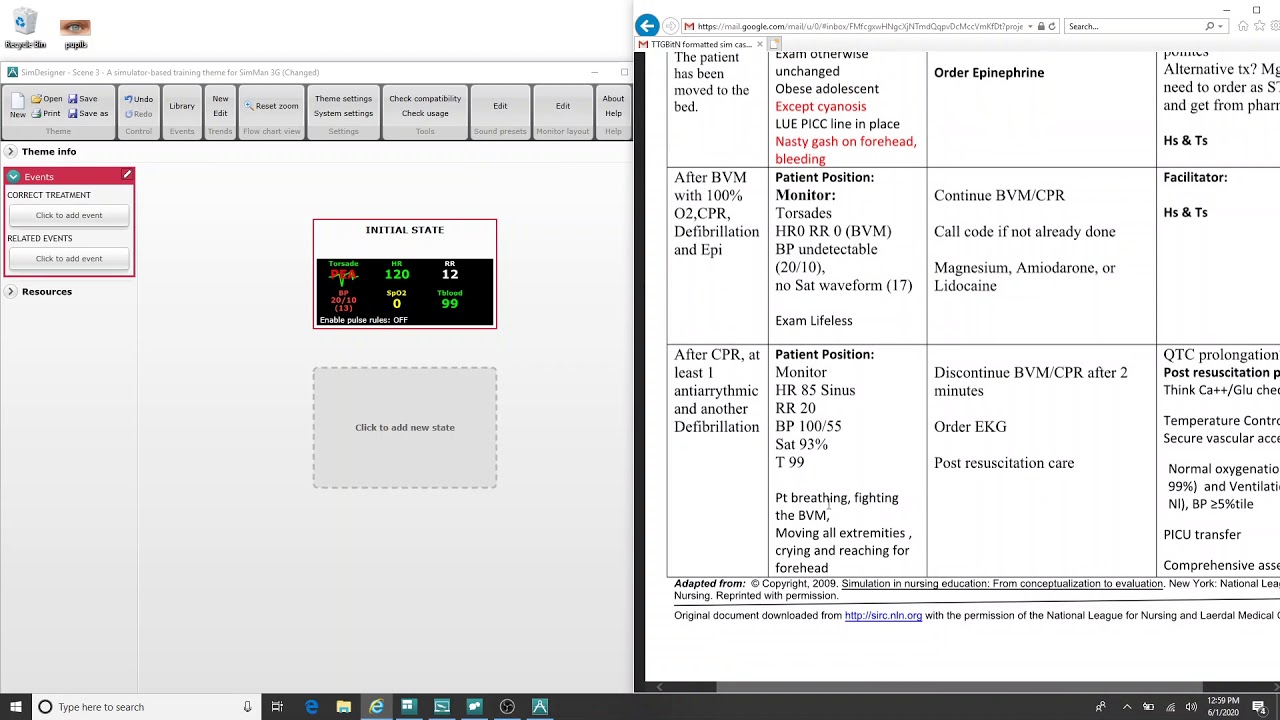
so we don't have that echo but you would leave both of those things on all right so to run our scenario we're going to be doing all the all of the running of through the different steps of the scenario for on the left hand side of the screen here so you're going to see your different step states in your scenario the state that's running if you if you need to see which one is running click on events and right here at the top it's going to show you which state is currently running but you really
want to stay in theme control the one that's highlighted is going to be running to move to us to the next state you click the state itself and click activate okay you can click these in any order you want you can go backwards you can go forwards but that's how you're going to get between those different states if you need to you can refer to your paper copy with the scenario flow chart on it to see which vitals are in which state or you can just click into the state itself and see here that it'll
show you what the vital sign what vital values are included in that state the state that's running is going to be the state that has the white arrow on the left hand side of the gray rectangle okay when you're ready to advance to a different state just remember click activate it'll take you to that state there are the your patient monitor and those values will be the same values that are going to be on your patient monitor in the lab and that is really it as far as running through the scenario when you're done with
this scenario you're going to click this little button here which says restart session okay it's this button here so you're going to click that it's going to bring this up it's going to say you're about to restart a session this will discard the current log in any video files if you cancel and choose debrief the login video files can be saved do you wish to continue yes so go ahead and click ok if we can get there we go click ok what that is going to do is that's going to restart the leap software and
take you back to where we were at the beginning of this first scenario and give the opportunity to choose another scenario file so we're going to go to oh my apologies this actually um is just going to restart the same scenario so that is what you would do if you wanted to restart the same scenario if you want to choose a different scenario what you're actually going to do instead of clicking the restart session scenario you're going to click end session so you're going to click that alright that's going to bring up this box this
now is what you're going to click on is discard result and start new that then is going to allow you to choose a different scenario okay so run a session so we just did copd i believe or now we're going to do mtp so we're going to click on automatic mode and come up here to browse and we're going to browse to our scenario file so remember simman3g ed nurse residency simulations and then we'll choose our file so mtp we'll do mtp this time it's going to bring up this screen go ahead and click ok
that's going to load that scenario in the leap software might take a couple of seconds remember click edit before starting and what you're going to want to do here is you're going to want to turn on your microphone in the lower left hand corner so that the students can hear you okay you're going to turn that on you're going to make sure that your speaker in the control room is muted until you're ready to start the scenario and you're going to go ahead and click play over here so that you have vitals and the mannequin
running and you can orient the students to the mannequin now when you start a second scenario you will have to come back into the lab and go through the same steps that we did earlier for setting the repetition time on the blood pressure cuff so change it from two minutes to one minute change it from auto from manual to auto come up here click out of that and come over to our temperature and turn our temperature on there we go um again remember to remind them the lab files they can access by clicking these right
hand arrows to see their images and their labs the rest of this will populate once they touch the screen during the scenario okay so you are ready to start your scenario you're going to come back in here to the control room you're going to close the door you're going to unmute your speaker so you can hear what's going on in there and you're going to unmute your microphone so you can speak as the patient all right so that is how to run the scenarios at this point what you're going to want to do is shut
everything down so you finished with your scenarios you're ready to go into your final debrief and what you're going to do is click the stop button again and this time instead of saying discard result and start new you're going to click discard result and exit you do that it's going to bring this screen up and it's asking you what you want to shut down so it will select for you automatically or it should at least this radio button exit leap and shut down both the simulator and any connected patient monitor pcs if either of these
boxes are not checked go ahead and make sure they are checked what this is going to do for you is this is going to shut down our simulator and our patient monitor on the wall so the patient monitor is shutting down the simulator is going to be shutting down as well it will not shut down this laptop so you're going to need to come in and shut this down so just come down to the start menu click start click on the power button there and click shutdown okay that's going to shut that down if you
have any questions um about this um if any of these steps oh you might get this error screen it says a couple of apps are running just say go ahead and shut down anyway it won't hurt anything all right that's it if you have any questions at all about how to run this please call me on my cell phone and i will be happy to help you troubleshoot good luck